
Start with the narrowest share surface
The safest choice is usually the smallest surface that still lets the audience follow the task.
| What the audience needs | Best starting point | What stays outside the share |
|---|---|---|
| One website or browser-based deck | A tab in Google Meet | Other tabs, the tab strip, and other apps |
| One browser window or desktop app | A specific window in Zoom or Teams | Other app windows and the desktop |
| A short switch between two Zoom windows | Zoom's multi-window selection on supported desktop versions | Unselected windows and the desktop |
| A workflow across several apps or Chrome profiles | ScreenK9 — Audience View | Apps and browser identities excluded from the ScreenK9 profile |
Google Meet currently offers A tab, A window, or Your entire screen. Microsoft Teams lets a presenter share a screen, a window, PowerPoint Live, Whiteboard, or supported camera content. Zoom supports an application window, the full desktop, multiple applications, and advanced sources.
Do not select the entire screen just because it is the first large preview. A full-display share can reveal the browser chrome, another window dragged into view, a menu-bar item, or a notification that never appeared in your rehearsal.
Share one Chrome tab in Google Meet
For a website, Slides deck, or web demo that stays in one tab:
- Open the material in its own tab before the meeting.
- In Meet, click Present now.
- Choose A tab.
- Select the intended tab by its title and preview.
- Click Share and confirm the receiver sees the page, not your tab strip.
- If you must move to another tab, select it and use Share this tab instead in the presentation banner.
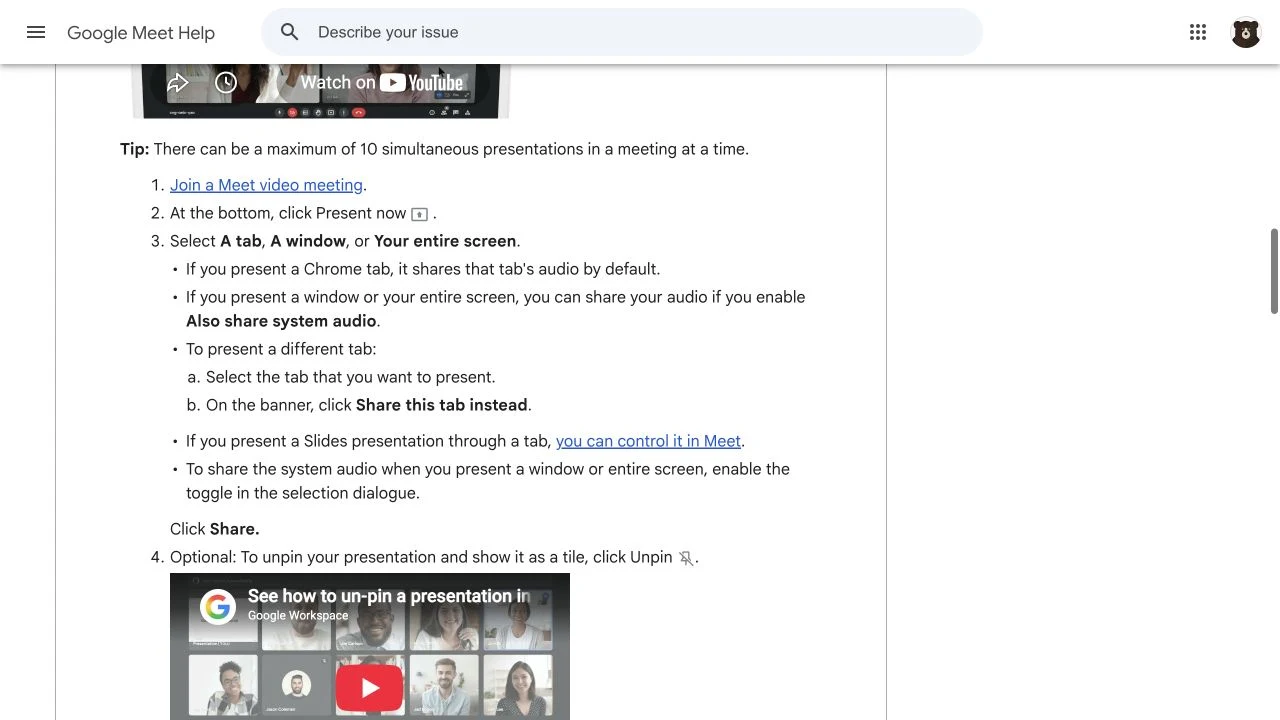
Google Meet Help, captured September 8, 2026 at double the article display width. The official page and embedded Google Workspace video keep the source recognizable.
A tab share removes the row of neighboring tabs from the transmitted surface. It does not sanitize the selected page. The page itself can still contain a signed-in avatar, account switcher, autofill suggestion, customer name, private bookmark bar, or in-page notification.
If the same tab will show several accounts, prepare a dedicated browser profile or signed-out demo account. Our guide to keeping personal Chrome profiles out of a screen share covers the extra identity boundary.
Share one window in Zoom or Teams
Choose a specific window when the material is not confined to one browser tab. A window share normally excludes other windows, but it can still expose everything inside the selected window—including its tabs, title bar, sidebars, dialogs, and account state.
Use this setup:
- Put only presentation tabs in one dedicated browser window.
- Move downloads, personal bookmarks, and account-management pages to another window or profile.
- In Zoom or Teams, select the named browser or app window rather than the desktop.
- Start a private test call or recording.
- Open a menu, trigger autofill, switch tabs, and resize the window while watching the receiver's view.
Zoom can select multiple application windows on supported desktop versions. That works for a planned two-window demo, but every selected window becomes part of the share. Recheck the selection if a window is closed, reopened, or replaced.
Separate tab privacy from account privacy
“Other tabs are hidden” answers only one question. Check these three boundaries independently:
| Boundary | A one-tab share helps? | Extra check |
|---|---|---|
| Neighboring tab titles and favicons | Yes | Confirm the meeting tool says tab, not window or screen |
| Personal account inside the shared tab | No | Use a demo account or dedicated profile |
| Another app appearing during a transition | Yes, while the tab share remains active | Test links, dialogs, file pickers, and app handoffs |
A file picker may appear locally without being shared—or it may become visible after you switch share targets. An external link can also open a new tab that is not yet being presented. Rehearse those transitions; do not infer the remote result from what is visible on your Mac.
Use Audience View for a workflow that crosses apps
If the presentation must move from a browser to a design tool, terminal, or another approved app, a single-tab share becomes awkward. ScreenK9 creates one separate macOS window for the audience:
- Create an Allow only privacy profile.
- Approve only the apps required for the walkthrough.
- If you use the Chrome companion, classify the intended Chrome profiles as Work and leave personal or uncertain profiles out.
- Set wallpaper and icons, notifications, and the menu bar and Dock according to the demo.
- Start ScreenK9 and watch ScreenK9 — Audience View.
- In Meet, Zoom, Teams, Loom, or OBS, share that named window.
The Chrome companion sends local classification metadata. It does not send URLs, history, cookies, or page content. Stale or ambiguous profile matches fail closed and stay out of Audience View. ScreenK9 uses Apple's public capture APIs and processes the filtered composition locally; see the privacy model for the exact boundary.
ScreenK9 does not alter the original apps or intercept the meeting service. If you share the physical display instead of ScreenK9 — Audience View, you bypass ScreenK9's filtered output. For a simpler native alternative, use the guide to sharing multiple apps without sharing the entire screen.
Run a six-transition privacy test
Before the real call, ask a second device or a private recording to verify all six transitions:
- Start on the intended page.
- Hover over and switch among presentation tabs.
- Click a link that opens a new tab.
- Open a file picker or system dialog.
- Switch briefly to an app that must remain private.
- Trigger a harmless notification, then return to the presentation.
The receiver's view is the source of truth. A clean opening frame does not prove that later transitions are clean.
The practical rule is: share one tab for one web task, one window for one app, and a tested filtered audience window for a cross-app workflow. ScreenK9 is available for Apple silicon Macs running macOS 14+.
Sources checked
- Google Meet Help: Present during a video meeting
- Google Workspace: Present a Tab with Google Meet (video)
- Microsoft Support: Share content in Microsoft Teams meetings
- Zoom Support: Sharing your screen or desktop
- Apple Developer Documentation: Capturing screen content in macOS
Platform documentation, the two official branded media sources, and ScreenK9 v0.3.4 behavior were rechecked on September 8, 2026.