
Hide columns with the built-in visibility settings
Open the table or query result you plan to demonstrate. DBeaver’s Data Editor guide identifies Custom Filters in the editor’s top toolbar as the entry to Result Set Order/filter Settings.
In that window, use the column visibility controls:
- Keep the columns the audience needs selected.
- Clear the checkboxes for the columns you want to hide.
- Click OK and inspect the resulting grid.
The current Data filters documentation, checked October 23, 2026, describes those checkboxes and the toolbar actions for showing all columns, hiding all columns, or resetting the configuration. To restore one column, reopen the settings and select its checkbox. Do this before the call if restoring it would expose material that is not meant for viewers.
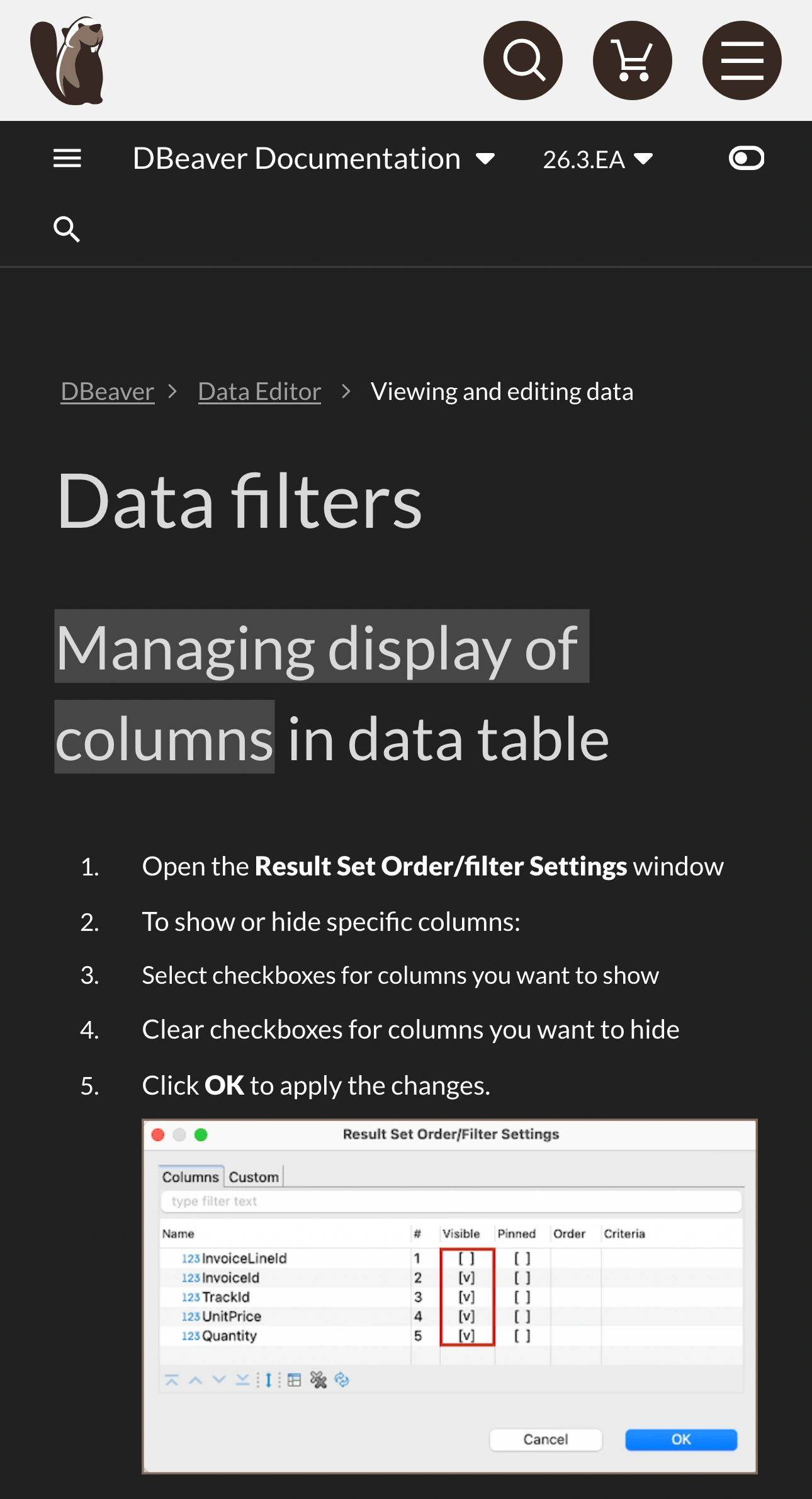
DBeaver documentation, captured October 23, 2026 at 3× resolution. The branded header and column-visibility section are unaltered excerpts; intervening sections are omitted.
This route avoids relying on a keyboard shortcut from another operating system or key scheme. If a tutorial shows a different context menu, use the current documented settings window and verify the result in your installed version.
Choose whether you need fewer columns or less data
Hiding a column organizes a view. It should not be your only preparation when the underlying result contains information that must never appear during the demonstration.
| Goal | Better starting point | Separate check |
|---|---|---|
| Make a wide grid easier to explain | Hide unnecessary columns | Horizontal scrolling and restored columns |
| Show only approved fields | Query those fields from demo data | Rows and values returned |
| Send a CSV after the meeting | Configure export columns explicitly | Open and review the resulting file |
| Move between database and editor | Prepare both apps and sharing source | Every window and transition |
For a walkthrough of order status, a small demonstration query is often clearer than a full customer table. For example, using a fictional demo table:
SELECT order_number, status, total
FROM demo_orders
ORDER BY order_number;
This deliberately requests three fields. It avoids bringing unrelated fields into that result just to hide them later. Adapt the example to your own demonstration dataset; the field names above are illustrative, not a command to run against a real production database.
Column selection alone does not make rows safe. A status field can contain internal comments, and an order number can identify a real customer. Prepare approved sample rows and inspect the results before sharing. If the audience only needs a total, consider a prepared aggregate that answers the question directly.
Inspect other views and panels before switching to them
The grid is one view of your work. DBeaver’s Data view and format guide describes Grid and Text presentations, plus Table and Record layouts. Do not assume a visibility choice in one working view is a guarantee about every other presentation.
Rehearse any planned switch to a record, value panel, another result tab, or the SQL editor. Review the actual content at each stop. A connection name, query comment, selected cell, or SQL literal may contain private context even when the grid looks tidy.
Start with a clean demonstration workspace. Close unrelated result tabs and scripts, and avoid clicking around the database navigator to find a table during the call. Open the intended query in advance and give it a name you can recognize quickly.
If the query must run live, test the exact sequence first. Check the initial result, a scroll to later rows, the sort you intend to apply, and the final view. Unexpected errors deserve a pause in sharing before you inspect connection details or open private troubleshooting material.
The same distinction applies when moving data into another tool. A notebook needs its own output review; the JupyterLab presentation guide explains how collapsed code and visible results differ.
Configure exports independently
A tidy on-screen result does not replace a review of the file you send afterward. DBeaver’s current Data export guide provides explicit column selection during export. Use Columns in the export workflow to choose the fields intended for the recipient.
The available extraction options depend on where the export starts. For exports from query results or the Data Editor, the documentation lists options including Use fetched rows, Selected rows only, and Selected columns only. Exports started from Connections or an SQL script use a different path and read data from the database.
Check those options deliberately instead of assuming the last visible grid defines the delivered file. Open the generated CSV or other artifact separately, inspect its headers and rows, and confirm it contains only the intended material before sending it.
If you open the export in a spreadsheet during the same presentation, prepare that application too. The Excel sharing guide covers the difference between hiding workbook content and preparing a file for someone else.
Pick the smallest sharing source for the route
For a demonstration confined to one DBeaver window, use native window sharing and verify the meeting preview. Keep other DBeaver windows and dialogs out of the planned route. A shared window still shows the content you open inside it.
ScreenK9 becomes useful when you repeatedly move between DBeaver, a code editor, and another approved work app. Choose Show only selected, configure those applications, and inspect ScreenK9 — Audience View while switching between them. Share that named window in the meeting. The multi-app sharing guide covers this workflow.
Ordinary app rules are app-wide. Allowing DBeaver can include its other windows; ScreenK9 cannot select one database result, understand column names, or redact query values automatically. Manual regions remain fixed rather than following a column when you scroll or resize the grid.
Finish the rehearsal with a receiver check on another device: the right fields are visible, every planned panel is suitable for the audience, and the meeting receives the prepared source. If you use ScreenK9, sharing the physical display directly bypasses its filtered Audience View. Any exported file still needs its own final review.