
Decide what “multiple windows” means
Google results often mix together four different jobs. Pick yours before changing any settings.
| What you actually need | Best starting point | Important limit |
|---|---|---|
| One website or browser-based deck | Share A tab | A link or dialog may open outside the shared tab |
| One fixed desktop app | Share A window | Only that selected window is presented |
| Several participants presenting | Let each person present | This is not one presenter selecting several local windows |
| One presenter moving across several apps | Share one tested audience window | You must select Audience View, not the physical display |
Google Meet's current desktop instructions list A tab, A window, and Your entire screen. Meet can also show more than one presentation when multiple people present, but that does not turn its local picker into a multi-window composer.
If one tab or one window completes the job, use it. It is the simplest boundary to understand and test.
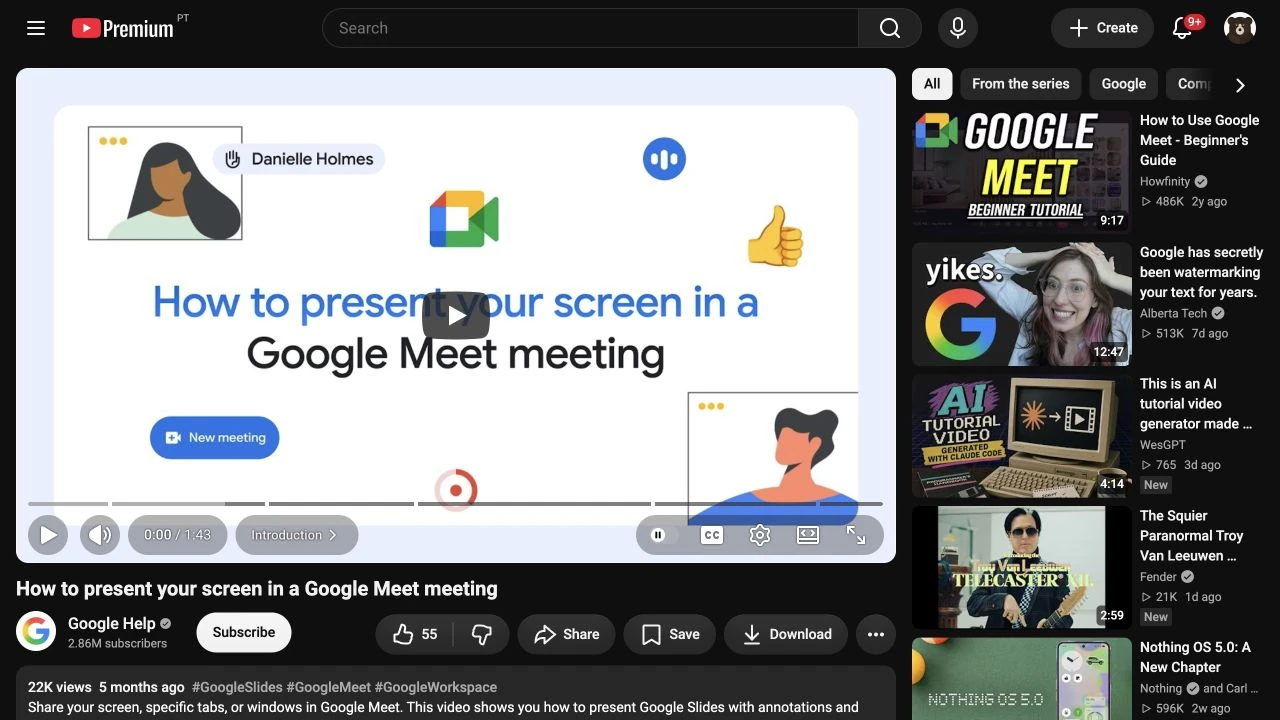
Google Help's official Meet walkthrough, captured September 9, 2026 at 1280×720. The video was published March 18, 2026.
Share one tab or window when it covers the job
For a web app, Slides deck, or dashboard that stays in one tab:
- Open the exact tab before the meeting.
- In Meet, click Present now, then A tab.
- Match both the title and preview before clicking Share.
- Confirm from a second device that the audience sees the page rather than your browser window.
A tab share keeps neighboring tab titles and the tab strip outside the transmitted surface. It does not remove private content inside the chosen page, such as an account avatar, autofill suggestion, customer name, or in-page notification.
For a single desktop app, choose A window and select its named preview. Everything inside that window remains visible, including its title bar, sidebars, menus, and account state. Rehearse any file picker or dialog the workflow uses because it may not be part of the selected window.
Google says a shared browser tab sends that tab's audio by default. For a window or full screen, system audio depends on the available audio option and your Mac permissions. Treat audio as a separate test rather than assuming the picture and sound follow the same boundary.
Put several changing apps inside one audience window
Meet does not need a special ScreenK9 integration. ScreenK9 creates an ordinary macOS window containing the approved capture, and Meet presents that one window.
Use this workflow when the demo must move among a browser, editor, terminal, deck, or other approved apps:
- List only the apps the audience needs.
- In ScreenK9, create an Allow only profile and approve that short list.
- If Chrome is involved, classify the intended profiles as Work. Leave personal or uncertain profiles out.
- Start ScreenK9 and inspect ScreenK9 — Audience View before joining the call.
- In Meet, choose Present now → A window → ScreenK9 — Audience View.
- Verify the result from a second device or test participant while switching through the real sequence.
This is useful when the approved source changes during a presentation. It is not necessary for a single fixed tab or window. For the broader native-versus-filtered decision, see how to share multiple Mac apps without sharing the entire screen.
Know what stays outside—and what can still appear
An allow-only ScreenK9 profile keeps unapproved apps out of Audience View. With the Chrome companion, personal, unclassified, stale, and ambiguous profile matches stay hidden instead of being guessed safe.
The approved content itself is still visible. A customer record inside an allowed browser window, a secret printed in an allowed terminal, or a private popover inside an allowed app can reach the audience. ScreenK9 does not use OCR or automatically discover secrets.
Redaction regions can cover a stable private area, but they are manual and fixed to the layout you tested. They are not a substitute for a demo account or clean test data. Browser-heavy presenters should also prepare separate Work and Personal Chrome trust decisions.
ScreenK9 protects only the audience window it creates. Selecting Your entire screen in Meet bypasses that filtered output.
Run six transitions before the meeting
Do not stop after checking the first clean frame. Exercise the places where presentation boundaries usually change:
- Switch from one approved app to another.
- Open an app that must remain private.
- Move from a Work Chrome window to a Personal one.
- Open a new browser window, file picker, or system dialog.
- Trigger a harmless test notification.
- Close or minimize a source, then confirm Audience View fails safely.
Watch the receiver's view throughout the test. Your local desktop is not evidence of what Meet is transmitting.
The practical rule is simple: one tab for one web task, one window for one fixed app, and one tested audience window for a cross-app workflow. ScreenK9 is a screen sharing privacy app for Apple silicon Macs running macOS 14+, with a 7-day free trial.
Sources checked
- Google Meet Help: Present during a video meeting
- Google Help: How to present your screen in a Google Meet meeting
- Apple Support: Control access to screen and system audio recording on Mac
- Apple Developer Documentation: Capturing screen content in macOS
Platform documentation, the official branded video, and ScreenK9 v0.3.4 behavior were rechecked on September 9, 2026.