
Prepare a grid view for the meeting
Open the intended base, table, and grid view. Click Hide fields, or the button showing how many fields are already hidden. Turn off the fields that the audience does not need, then close the panel. Airtable saves these choices as you make them.
The current grid view guide describes visible fields as green toggles switched right and hidden fields as gray toggles switched left. It also documents Hide field in a field header's menu. Check the resulting table rather than relying only on a toggle count.
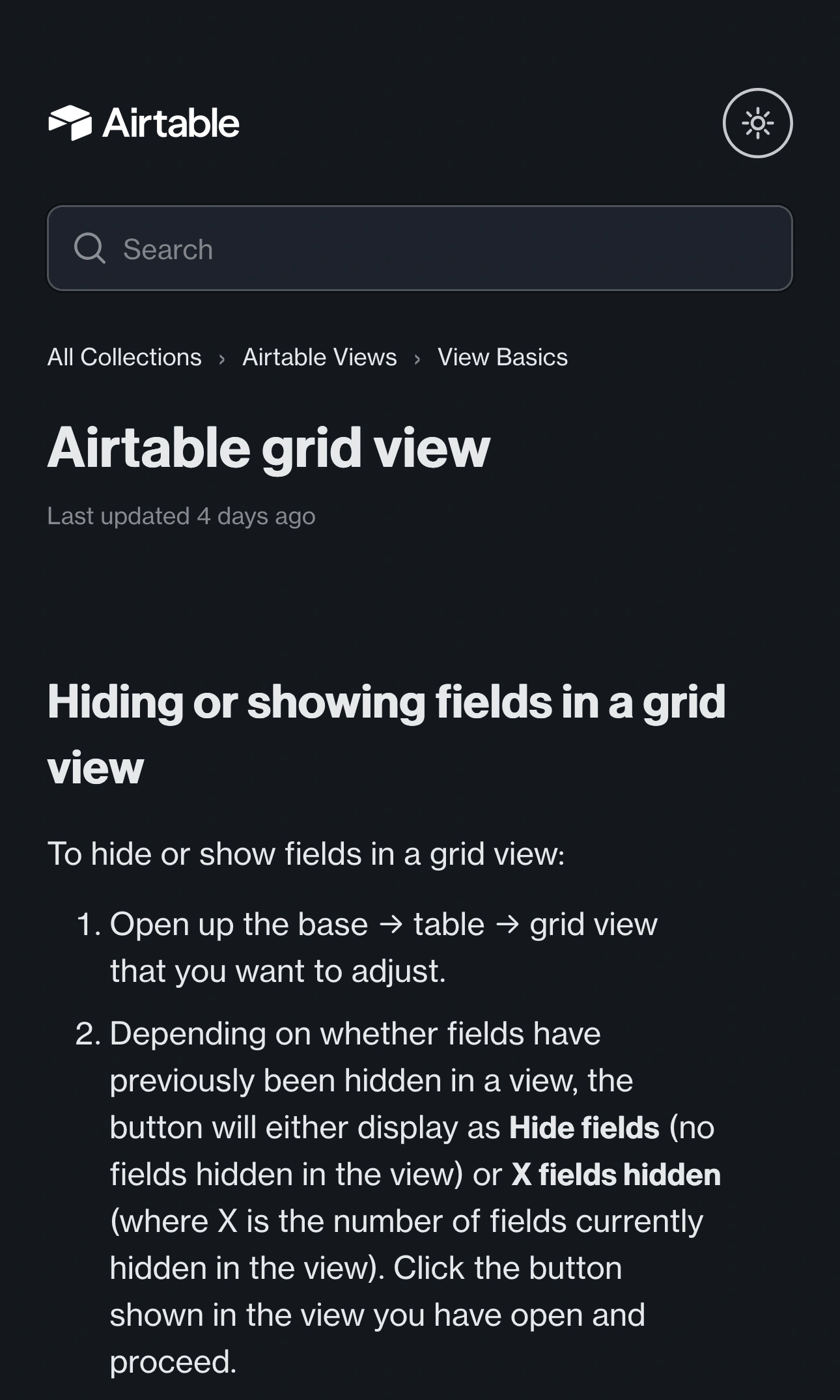
Airtable Help Center, captured October 28, 2026 at 3× resolution. The branded header, article title, and opening instructions for hiding fields are unaltered excerpts; intervening content is omitted.
Start from the question the meeting must answer. A project review may need the task name, status, owner, and next milestone. Internal cost estimates, contact details, or working notes may be unnecessary. Review the remaining values as well as the column names: a harmless label does not make every cell beneath it suitable for the audience.
If colleagues depend on the current view, prepare a separate meeting view instead of casually changing their working layout. Airtable's views guide explains that collaborative views share configuration. Personal and locked view options have plan and permission requirements; use the options available in your workspace.
Treat hiding as presentation setup
Airtable's field actions documentation makes the scope clear: hiding a field affects the particular view, leaves its values intact, and does not delete the field.
That is useful for making a table readable. It is not a substitute for deciding who may access the underlying data. Someone with access to other views or the base may have ways to see information that your meeting view leaves out.
There are also two different audiences to consider. People watching a video call receive the pixels you share. People opening an Airtable link use the access and visibility behavior of that link. A clean screen share does not establish what a link recipient can open later.
| Output | What to review |
|---|---|
| Grid shown during the call | Visible columns, row values and surrounding workspace |
| Expanded record in the editor | Details and controls that can reveal hidden fields |
| Shared view link | Link settings, view-specific exceptions and expanded records |
| Another approved app | Its own windows and content before switching |
Use a sanitized demonstration base when the real records are unsuitable for the audience. Changing the layout of sensitive production data is a weaker preparation step than using deliberately safe example content.
Test expanded records before opening them live
Decide whether your presentation stays in the grid or includes a record detail. A compact row can conceal information simply because you have not opened it yet.
In the base editor, Airtable documents a Show XX hidden fields control in expanded records. Rehearse the exact record you intend to open, including any detail panel you plan to use. Do not click through hidden-field controls while the audience is watching merely to discover what is there.
Review related information that becomes visible along your planned route. This is a content review, not a claim that every layout exposes the same controls. If a question requires an unprepared record, stop sharing before looking it up and return only after checking the next surface.
Check shared view links separately
If you plan to send a link, consult Airtable's view sharing guide. By default, hidden fields stay hidden in a view share link, including when its records are expanded. There are exceptions.
For a grouped grid, the grouping field remains visible. Other view types have their own exceptions, such as calendar date fields and cover or stack fields. The option Show all fields in expanded records can also expose fields that the grid hides. Review the actual link settings and test the resulting view before distributing it.
Refresh the shared-view page after changing which fields are visible. Otherwise, you may be checking an older presentation of the view. Keep the link test separate from the screen-share rehearsal so neither substitutes for the other.
Share the narrowest prepared surface
For a call that stays in Airtable, use your meeting app's native tab or window sharing. Choose the prepared surface, inspect the preview, and confirm the received picture with a colleague or another device. The browser sharing guide explains that source choice.
Rehearse the actions you will actually perform: horizontal scrolling, opening a record, returning to the grid, and ending the share. Check the base and view names visible around the table too. Stop sharing before changing to an internal view or searching through unrelated records.
Use ScreenK9 for a demo across work apps
ScreenK9 becomes useful when the review repeatedly moves from Airtable into slides, a document, or another approved application while unrelated apps stay open locally.
Prepare the Airtable content first. In ScreenK9, choose Show only selected, approve the work apps you need, and inspect ScreenK9 — Audience View. Share that named window in the meeting. The multi-app guide covers the complete capture setup.
For Airtable in Chrome, configure the local Companion's profile classification. ScreenK9 works at the Chrome profile/window boundary, not at individual tabs, records, or fields; the Chrome profile guide explains the limits. For the Airtable desktop app, ordinary application rules apply to the whole app, not one selected base window.
ScreenK9 does not change Airtable permissions, find confidential values, or automatically hide columns. Manual regions remain fixed while the page can scroll underneath them. Sharing the physical display bypasses Audience View.
Finish the rehearsal with the receiver's picture: prepared grid, intended record detail, next work app, return to Airtable, and end of sharing. Keep that route for the meeting, and prepare any new material before bringing it into the audience's view.