
Put the audience slideshow in a window
Open the presentation you intend to show. On the Slide Show tab, choose Set Up Slide Show. Under Show type, select Browsed by an individual (window) and confirm the dialog. Start playback from the slide you want the audience to see first.
Microsoft's self-running presentation guide, under its macOS tab, documents this windowed option. The article also describes kiosk playback, but you do not need a looping kiosk for a normal live talk.
For the Mac playback commands, Microsoft's presentation guide lists Play from Start and Play from Current Slide. It also documents Esc to end the show. Ribbon labels can differ across releases, so use the command for your intended starting point rather than a Windows-only shortcut from a tutorial.
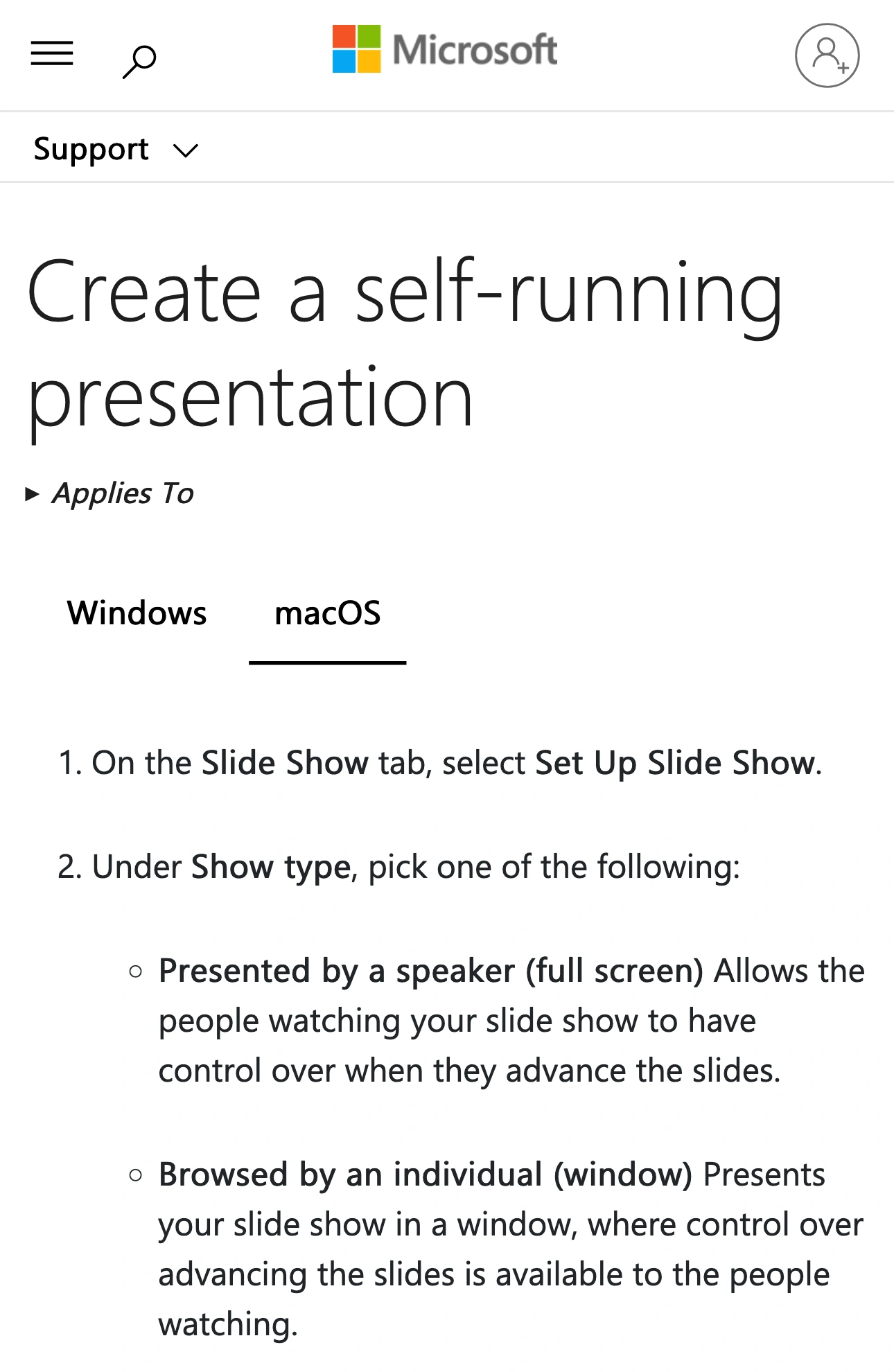
Microsoft Support, captured October 28, 2026 at 3× resolution. The branded header, title, and macOS instructions are unaltered excerpts; intervening content is omitted.
Resize the slide window to a comfortable viewing size before sharing. Keep enough room locally for the controls you need, but check the received picture: a slide that looks readable on your large display may become difficult to read in a small meeting tile.
Decide which PowerPoint surface the audience needs
“PowerPoint in a window” can describe different things. Name the surface before changing settings or choosing a meeting source.
| Surface | What it contains | What to do before sharing |
|---|---|---|
| Slide show | The current audience slide | Select this window for a slide-only talk |
| Editor | Slides, thumbnails, editing controls and possibly notes | Review everything visible if editing live |
| Presenter View | Presenter controls and notes | Keep it outside the audience source |
The windowed-show option is not a promise that Presenter View becomes a small, independently resizable control panel. If your real problem is keeping speaking prompts private, use the speaker-notes guide. It covers that separate setup rather than assuming a slideshow setting also protects notes.
Avoid diagnosing the result from your local screen alone. You may see the correct slide while the meeting is still capturing the editor. Conversely, a windowed slideshow can be working correctly even though your preferred notes arrangement needs a different solution.
Share the window after starting playback
For a presentation that stays in the deck, the simplest approach is your meeting tool's native window sharing. Start the slideshow first, open the sharing picker, and identify the window that contains the audience slide. Check the preview before confirming the source.
Use a harmless rehearsal deck if you are learning the workflow. Put a large, distinctive word on the first slide so you can recognize the correct preview immediately. Give the file a recognizable name and close duplicate copies. This reduces ambiguity when the picker lists several similar PowerPoint surfaces.
Ask a colleague or a second device to inspect the received image. Confirm the first slide, advance once, and return to the previous slide. Then leave playback and observe what happens to the share. A meeting app may handle a closing source differently from a continuing editor window; rehearse your actual combination of versions and source choices.
Stop sharing before opening an internal deck or searching through presentation files. A successful slide test does not approve whatever you open next.
Rehearse the transition to a live demo
A windowed slideshow is convenient when the talk includes a product demonstration: slides can stay open while you work elsewhere. The audience still needs a deliberate capture path for that second application.
For one planned transition, you can stop the slide share, choose the prepared demonstration window, and resume. For a fixed set of windows, check your meeting tool's native multi-window options. The multi-app sharing guide compares those choices.
Write down the sequence in concrete terms: opening slide, demonstration app, return slide, end of share. Prepare the return slide before the meeting. Do not make the audience wait while you search for the right point in a long deck.
Include any external link in the rehearsal. If clicking a slide opens a browser, decide which browser window is suitable for the audience and how it will enter the share. A link opening successfully on your Mac does not tell you whether participants can see it.
Use Audience View when the presentation keeps moving
ScreenK9 is useful when you repeatedly switch among approved work apps while unrelated apps remain available locally. It creates a separate ScreenK9 — Audience View window that you select in the meeting tool.
Choose Show only selected, approve the applications needed for the demonstration, and inspect the audience output through the whole route. If Chrome is part of the demo, configure its profile classification with the local Companion and keep the approved windows prepared for the audience. The Chrome profile guide explains that boundary.
PowerPoint is an ordinary application in ScreenK9's rules. Approving it does not independently hide its editor, another deck, or Presenter View. Keep private material out of approved applications; use native slideshow-window sharing when you need that exact window boundary.
ScreenK9 does not convert a slide deck, manage notes, or detect confidential text. Manual redaction regions stay fixed and do not follow a moving slide window. Sharing the physical display directly bypasses Audience View.
Before the live talk, test five moments from the receiving side: opening slide, a slide change, the demo app, the return to slides, and the end of playback. Keep the tested files and sources in place. If the route changes unexpectedly, stop sharing and prepare the next surface before resuming.