
Choose the Audience view by its contents
Open your prepared presentation and choose Present. If that control is unavailable, open Share and look for Present. Use the presentation-type dropdown to select Presenter View, then start presenting. Canva’s presenting guide documents the current entry points.
Two windows serve different purposes. One shows the slides for the audience; the other contains your notes and upcoming slides. The presentation-modes reference also explains a placement change: the Audience view now opens in the main browser, with the Presenter view separate.
Do not identify the safe source solely by which window appeared last or which one is larger. Look inside it. If it contains your speaking script, next-slide preview, or private reminders, it is the wrong source for a slides-only share.
Use a short rehearsal:
- Put an obvious, harmless practice sentence in the notes.
- Start Presenter View and identify the window containing only the slides.
- In your meeting’s sharing picker, select that specific window or its audience tab, where supported.
- Advance a slide while reading the separate notes window.
- Check the participant view on another device or with a colleague. The practice sentence must stay out of the received picture.
This tests the boundary you actually selected. A label such as “screen,” “window,” or “application” can describe a different capture scope, so inspect the preview as well as the picker’s text.
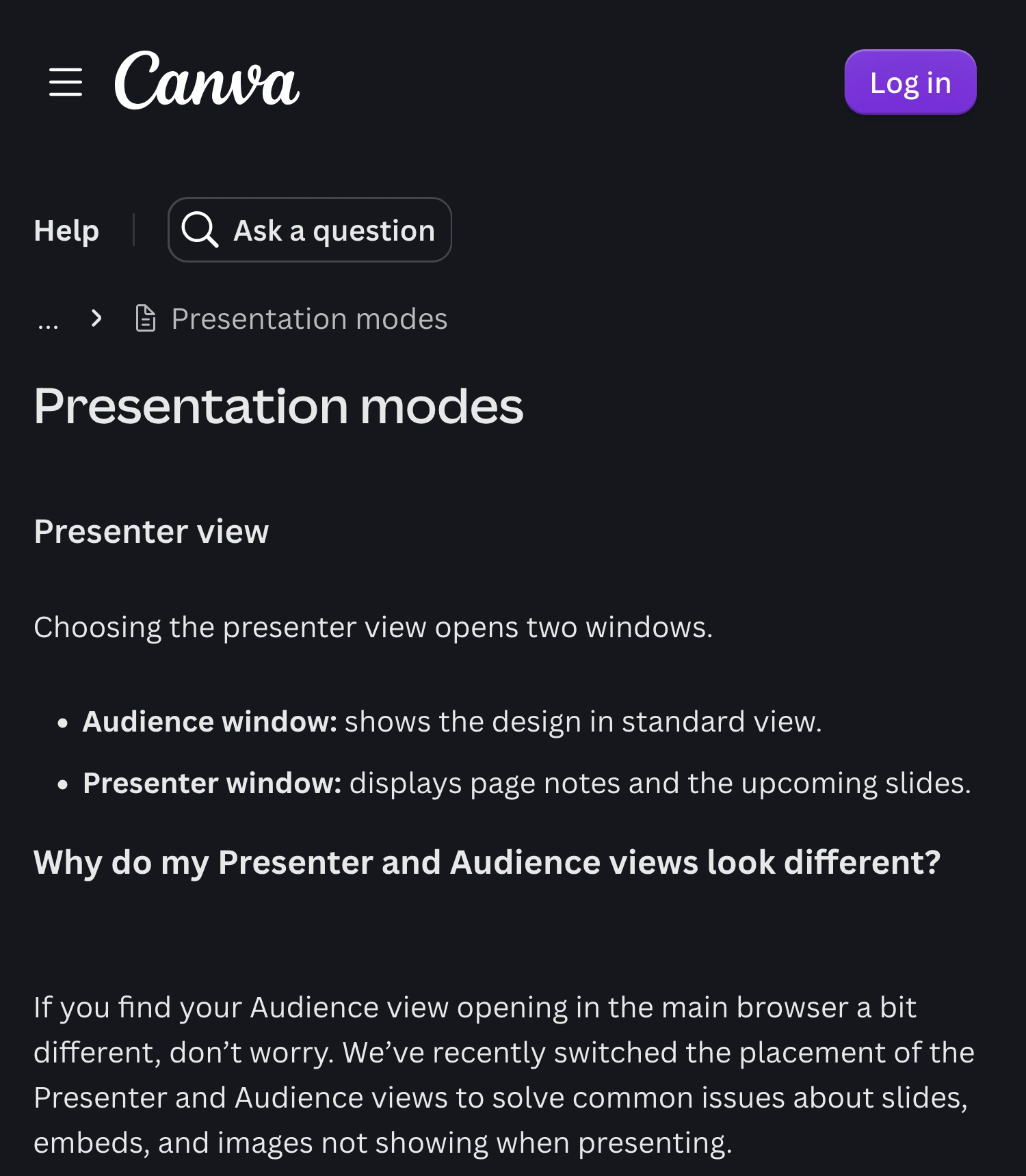
Canva Help, captured October 13, 2026 at Retina resolution. Three unaltered excerpts retain the branded heading, window definitions, and placement explanation; intervening content is omitted. Canva does not give the placement change a publication date on this page.
One laptop screen can still have two different sources
You do not need to treat the whole Mac display as the presentation just because both Canva windows are on it. A meeting that supports a specific window or tab lets you select the audience content while keeping your local notes elsewhere.
Arrange the windows so you can read the notes and operate the slides comfortably. Then test bringing the notes forward. The receiver should continue seeing the intended slides. If the picture instead shows everything on the display, stop sharing and narrow the source before continuing.
An external display gives you more room, but it does not choose the meeting’s source for you. Likewise, moving notes to another display is insufficient if you later change the share to that display. Keep the source choice explicit.
| Your task | Starting source | Check before speaking |
|---|---|---|
| Slides with private presenter notes | Canva Audience window or tab | Notes never enter the received picture |
| Explain how you edit a design | Prepared editor window | Notes, neighboring pages, and editor panels are suitable |
| Slides followed by several other apps | Rehearsed source changes or Audience View | Every app and transition is prepared |
For other slide applications, the speaker-notes guide covers their separate native workflows. A Canva window arrangement should not be assumed to match PowerPoint or Keynote.
Decide whether live edits belong in the presentation
Selecting the audience window addresses which window is captured. It does not freeze the presentation’s content. Canva says edits made in the editor can update the running presentation in real time. In the presentation’s More menu, Hide live edits disables that behavior; Show live edits enables it again.
For a finished client deck, decide this before the call. A collaborator changing a number or rewriting a sentence can distract from your explanation even when the correct window is shared. For a collaborative workshop, live changes may be exactly what you want.
Rehearse with a harmless edit and inspect the audience result. Treat the setting as control over presentation updates, not as removal of confidential material from the design or a change to who can access it. Your original file and its sharing permissions remain separate concerns.
A phone can hold your cues
Canva’s current Remote Control notes lesson, updated October 8, 2026, describes reading notes and advancing slides from a phone. This can help when the laptop screen is crowded.
The presenting guide says viewing those notes requires signing into an account with permission to view the design. Test that access before the session; do not discover a login prompt while the audience is waiting. Keep control links within the group that should operate the presentation.
Moving your cues to a phone still leaves a simple final check: verify that the Mac source contains the intended slides. The phone is a convenient reading surface, not evidence that the meeting selected the correct window.
Use ScreenK9 when the presentation continues across apps
For a deck and Canva’s built-in notes window, native sharing of the Audience window is the simplest setup. ScreenK9 is useful when the presentation also needs several prepared applications and you want one continuous filtered Mac window for the audience.
First arrange private reference material outside the allowed applications or browser profile. For example, keep a private script in an excluded notes app while allowing the prepared work apps. ScreenK9’s ordinary application rules apply to the entire app: allowing the Canva desktop application does not isolate one Canva window from another.
Chrome profile classification also does not distinguish two Canva windows within the same allowed profile by whether one contains notes. Do not approve a profile containing both windows and assume the Presenter window disappears. Keep native audience-window sharing for that arrangement, or move your cues out of the approved source before switching workflows.
Inspect the filtered result and share ScreenK9 — Audience View in the meeting. Sharing the physical display directly bypasses that output. The multi-app walkthrough explains the source choice, and the Chrome-profile guide covers the separate supported profile workflow.
ScreenK9 does not detect presenter notes, read text with OCR, or discover secrets automatically. A manual redaction region covers a fixed area; it does not track a notes panel as windows move. It also cannot decide which live Canva edits are appropriate for your audience.
Finish the share before preparing a handout
End the meeting share before returning to your design library or editing private notes. If you later export a PDF, review the separate Include notes option described in Canva’s notes-download guide. A clean screen share does not establish what an exported file contains.
Your final rehearsal should cover the first slide, a slide change, reading your cues, and any planned app switch. These are preparation instructions checked against current documentation, not a claim that we tested your particular meeting configuration.
Sources checked
- Canva: Presentation modes
- Canva: Present your design
- Canva Design School: Presenter notes that move with you
- Canva: Download designs with notes
Platform instructions and ScreenK9 capture boundaries were checked October 13, 2026.