
Share the slides before changing your notes setup
Start with the sharing picker in your meeting app. Select the window that shows the finished slides. Avoid selecting the editor with its notes pane, the presenter display, or your entire desktop when the audience needs only a slide show.
Presenter View gives you controls and notes; it does not independently decide what Zoom, Meet, or another app captures. A second display helps only when the audience receives the slide display and the notes stay on the other one. Mirroring the same content onto both screens does not create that separation.
Prepare a disposable slide with a harmless note such as “private rehearsal cue.” Start a test share and look from another device or a saved test recording. Advance a slide, open a link, and end the presentation. This reveals transitions that a static preview may miss.
| Your presentation | Native starting point |
|---|---|
| PowerPoint on one monitor | A windowed slideshow; notes outside the shared window |
| PowerPoint with two displays | Presenter View locally; share the slide output |
| Keynote on one monitor | Play in a window; select the slideshow window |
| Google Slides | Presenter view; share the slide surface only |
| Slides plus a live app demo | Separate notes app and a tested sharing boundary |
Keep PowerPoint notes outside the shared window
Zoom documents a single-monitor PowerPoint workflow: open Slide Show → Set Up Slide Show, choose Browsed by an individual (window), and start the slideshow. In Zoom, select that slideshow window as the share source.
This gives you a windowed presentation. It does not by itself create a complete private Presenter View on the same screen. Keep your prompts in a separate notes document, on a second device, or on paper if that is sufficient. Select the slideshow rather than a general application-wide source that could include its editor.
With two displays, Microsoft’s macOS Presenter View instructions explain the separation between the presenter’s notes and the audience’s slide output. If they appear on the wrong displays, use Swap Displays, then recheck the source selected in the meeting app.
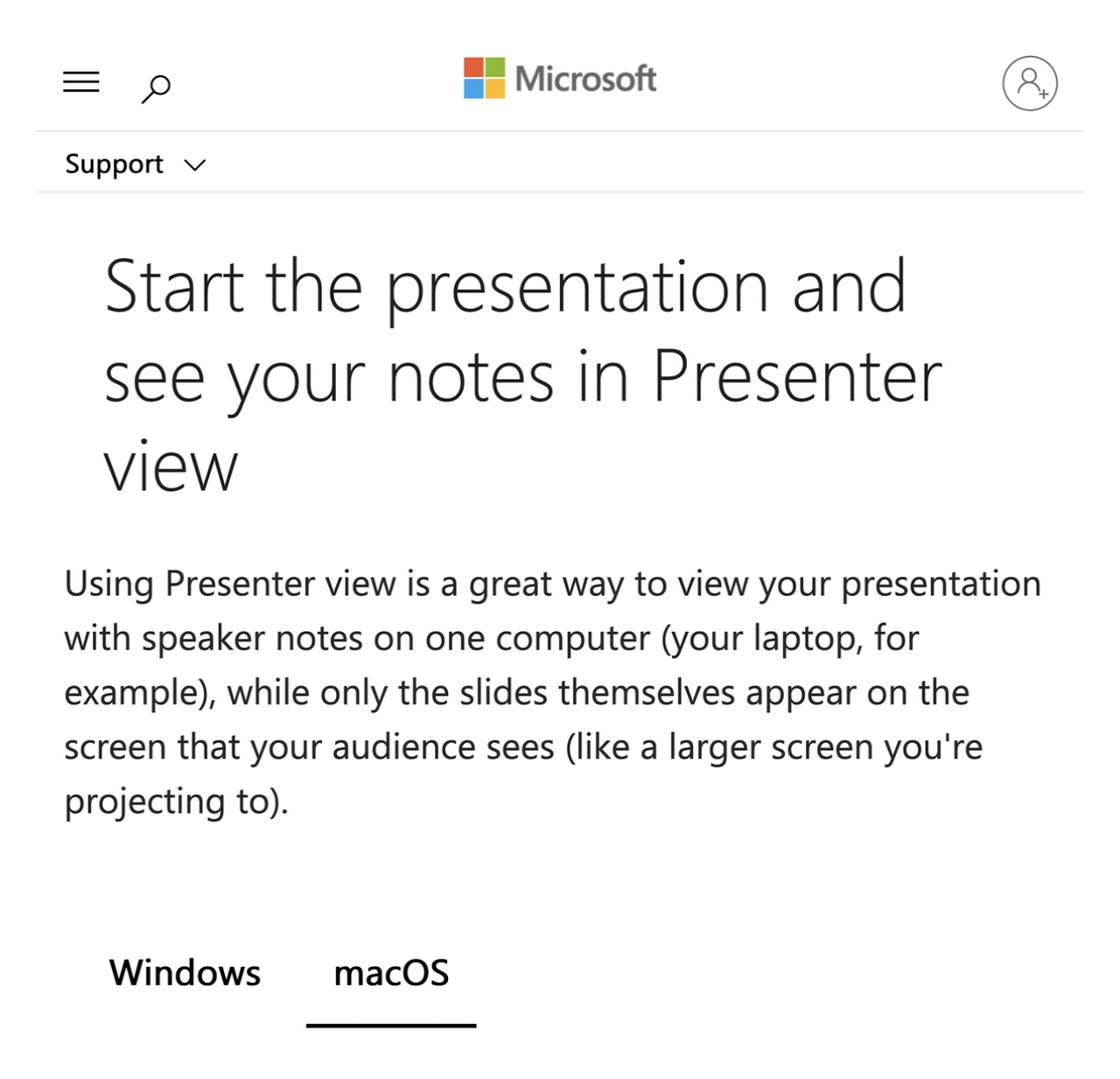
Microsoft Support, captured September 13, 2026, with macOS selected. Cropped excerpts retain the Microsoft identity and the presenter-versus-audience explanation; intervening content is omitted.
The Microsoft page includes older system-settings illustrations. Use its presentation concepts without assuming every historic macOS label matches your current Mac. What matters during the call is the received slide output, not which screen the presenter controls happen to occupy.
Use Keynote’s separate slideshow window
Apple’s Keynote presentation guide describes playing a presentation In Window. The slideshow and presenter display are separate windows, allowing you to keep the notes available while selecting the slideshow in your conferencing app.
Start the presentation in that mode, identify the two windows, and share the slide window. If the presenter display is missing, use Play → Show Presenter Display in Window. Rehearse what happens when you return to editing or open a document during the talk.
This is an ordinary window-sharing solution. For a deck-only presentation, it may be all you need. Expanding to a full-screen capture solely to make room for notes usually introduces more visible surfaces than the audience needs.
Select the slide surface in Google Slides
In Google Slides, open the arrow beside Slideshow, choose Presenter view, then Speaker notes, as described in Google’s presenting instructions. Choose the slide tab or window in your meeting app rather than the notes view.
Google documents a restriction on combining Presenter view and full-screen presentation through its display options on a single monitor. Keep the slideshow windowed when necessary and check the selected source instead of assuming a fullscreen shortcut is the answer.
For the browser-specific setup, use the guide to sharing without other tabs. Moving notes into another tab in the same Work Chrome profile does not automatically hide them from ScreenK9; a profile label is not a label for individual speaker-note content.
Use a cropped region only for a stable slide area
The WCM ITS video shows a useful fallback: Zoom can share a portion of the screen containing the slide while the surrounding presenter controls stay outside the rectangle. The guide to covering part of a share explains this kind of boundary.
Recheck that rectangle after resizing the presentation or changing displays. If notes move into it, the rectangle can show them. Avoid switching apps through the cropped area during a live share unless you have rehearsed that exact sequence.
Keep an existing notes app private during a live demo
A product demonstration may move from slides to a browser dashboard, an editor, and a terminal. You still want the next talking point visible locally. In this situation, ScreenK9 can keep a separate notes application outside a filtered audience window while the approved work apps remain available to show.
For example, put the demo checklist in Apple Notes and leave Notes outside an Allow only profile. Approve the work apps used on the selected capture display. Configure the intended Chrome profiles as Work, start capture, and inspect ScreenK9 — Audience View through the entire sequence.
Then select that exact audience window in the meeting app. Bring the harmless notes forward during the rehearsal and inspect the receiver’s picture. ScreenK9 creates an ordinary macOS window; it does not modify the meeting app or intercept its traffic. Sharing the physical display directly bypasses the filter.
For meeting-specific selection steps, see the Teams multi-app workflow. The benefit here is keeping your existing notes app outside one changing work view. ScreenK9 does not import slide notes, advance them with the deck, or provide teleprompter controls.
Do not approve an app that contains private presenter windows
ScreenK9’s ordinary-app rules apply to whole applications. It cannot approve a PowerPoint slideshow while independently excluding PowerPoint’s Presenter View. The same limitation applies to separate Keynote windows. Keep the built-in window-sharing setup for that job, or move the prompts into a different excluded application and close private presenter/editor windows.
Similarly, approving a notes app to show one document can include another private document from that app. Chrome profile classification has its own local rules: personal, unclassified, stale, and ambiguous matches are hidden, but title matching is not cryptographic identity.
ScreenK9 does not read notes with OCR or discover secrets automatically. Manual audience-only masks cover fixed areas you choose; they do not track a moving notes panel. It also does not capture or route audio, so check microphone pickup and notification sounds separately.
Use the current download page for Mac availability. Before the real presentation, verify three moments from the audience side: the first slide, the transition into the live demo, and the return from the final slide to your working desktop.
Sources checked
- Microsoft: Presenter View on Windows and macOS
- Zoom: Screen sharing a PowerPoint presentation
- Apple: Play a Keynote presentation on Mac
- Google: Present slides
- Weill Cornell Medicine ITS: presenter-notes TipUp
Sources and ScreenK9’s implementation were checked September 13, 2026. The instructions distinguish native presentation features from a proposed ScreenK9 workflow; they do not claim that every app and receiver combination was tested in a live meeting.