
Enter and exit Presentation Mode
Start in the sample project and open the first file you want to explain. Use View → Appearance → Enter Presentation Mode. To leave it, return to the same menu and choose Exit Presentation Mode. Hover at the top of the screen when you need the macOS menu bar.
JetBrains’ current viewing-modes documentation, updated August 17, 2026, describes an enlarged editor that occupies the screen and hides surrounding interface elements. Hidden controls remain available through menus or shortcuts.
For a keyboard route, open Find Actions with Command–Shift–A, search for Presentation Mode, and choose the enter or exit action. JetBrains documents this Mac shortcut in its viewing-modes tip. Custom keymaps can differ, so the menu remains a useful fallback.
There is also Control–backtick for Quick Switch Scheme, followed by View Mode and the presentation action. The official Quick Switch Scheme example shows both entering and leaving the mode. Practice the exit once before sharing; a demonstration is easier to follow when you can recover the normal layout without hunting through menus.
Use Zoom in current IntelliJ versions
Older tutorials describe changing a Presentation Mode font-size field. That advice needs a version check. The current IntelliJ IDEA 2026.2 Appearance reference lists Zoom under Presentation Mode, describing scaling of the entire IDE in that mode.
Open IntelliJ IDEA → Settings → Appearance & Behavior → Appearance and find Presentation Mode. Adjust its Zoom control, then return to the presentation to assess the result. If your older release instead shows a font-size field, follow the controls for that release; the 2024 presentation tutorial documents that older wording.
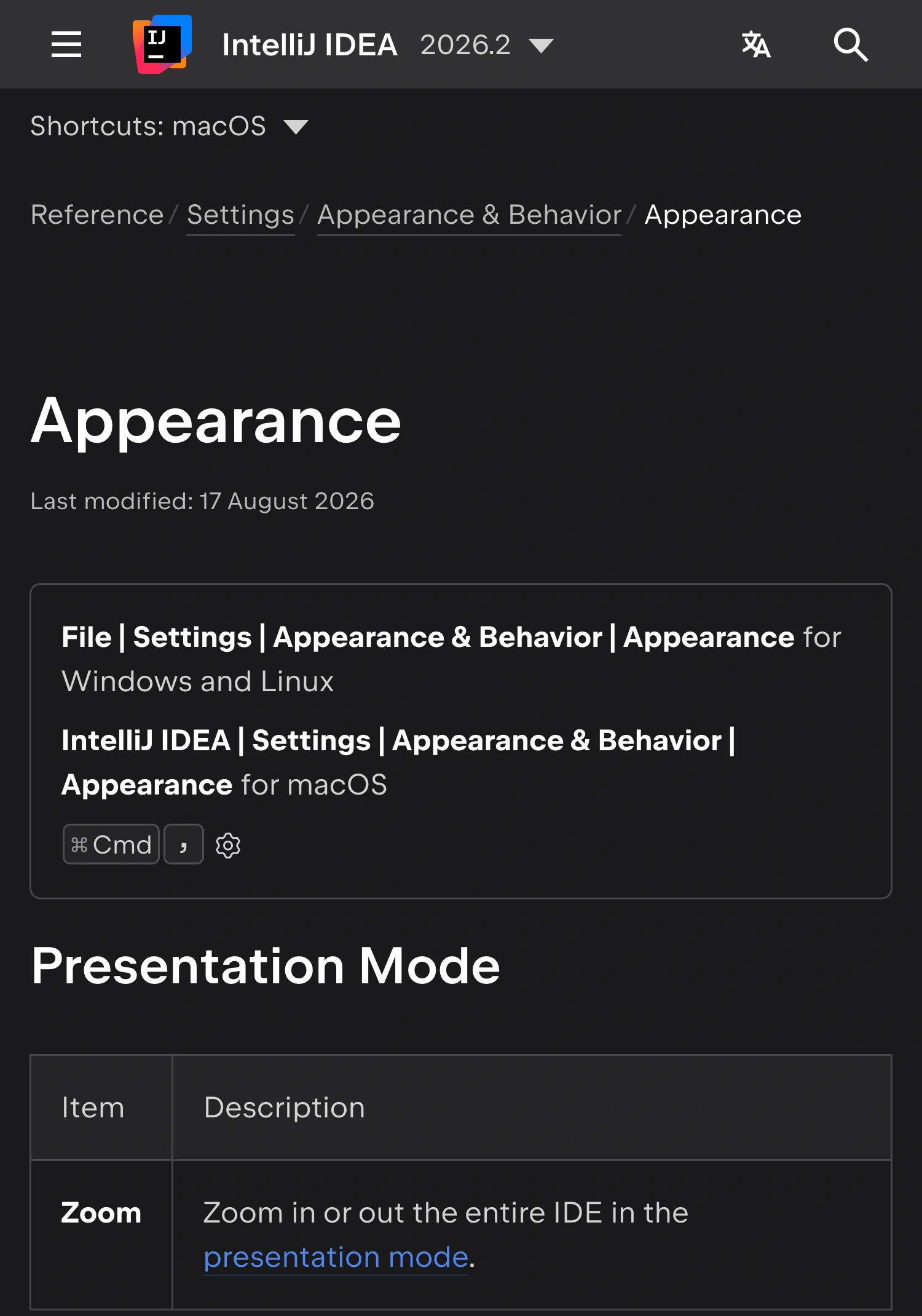
JetBrains documentation, captured October 13, 2026 at Retina resolution. Two unaltered excerpts show the branded 2026.2 header and current Presentation Mode setting; intervening sections are omitted. The page was last modified August 17, 2026.
Check the transmitted picture at a realistic size. A function that looks large on your own monitor can still be small after the meeting scales it into a participant’s window. Ask the receiver to read a variable name and the smallest relevant output line before choosing a final size.
Avoid filling the editor with more code merely because the larger display has room. Prepare one short example per explanation, and move deliberately between them. This improves readability without requiring viewers to zoom their entire meeting interface.
Pick the view that matches the demonstration
The similarly named modes solve different layout problems. JetBrains distinguishes them in the viewing-modes reference:
| Mode | Main effect | Useful starting point |
|---|---|---|
| Presentation | Enlarged, screen-filling editor | Explain code to an audience |
| Distraction-free | Editor-focused layout with code centered | Reduce surrounding panels |
| Full Screen | Expand the main IDE window | Gain screen space |
| Zen | Full Screen plus Distraction-free | Focus on the editor |
None of these choices establishes which application or display your meeting captures. Select the prepared IntelliJ window in the meeting picker when the demonstration stays in one project. Confirm the preview contains what you intend, and check it again after changing modes.
For people presenting a different editor, the VS Code presentation guide covers its own Zen Mode and demo-profile controls. Those commands should not be applied to IntelliJ by analogy.
Rehearse the parts that can reopen
A clean editor view is only the first frame of a code demonstration. Write down the small set of actions you plan to perform: navigate to another file, search a symbol, run a test, show output, and perhaps open documentation in a browser.
Rehearse that path using a sample project and fictional data. Inspect the results of each action, especially:
- Search and recent-file lists containing names from earlier work.
- Terminal scrollback, environment output, and stack traces.
- Debugger values, database results, or request examples.
- Tool windows that a shortcut brings back into view.
- Other project windows that might become active during a switch.
Presentation Mode does not sanitize any of those contents. Closing a panel changes the current layout, while reopening it can bring its existing information back into the picture. Prepare the underlying demo material before relying on a tidy interface.
The Appearance settings also include Always show full path in window header. Disabling it reduces the header to project and file names, according to JetBrains. It does not remove names or paths from terminal output, searches, or the source itself. Use harmless project names when those labels are part of the demonstration.
If an unexpected error requires private investigation, stop sharing before debugging it. A deliberate pause is easier to manage than changing the capture source while opening unprepared files.
Add ScreenK9 for an editor-to-browser walkthrough
Native window sharing is enough for a prepared IntelliJ-only explanation. ScreenK9 becomes useful when the route crosses several approved apps and personal applications must remain available locally.
Create a ScreenK9 allowlist for the work applications used in the demonstration, choose the source display, and inspect the filtered output. Share ScreenK9 — Audience View in the meeting. The multi-app sharing guide explains how that single output fits an editor, browser, and separate terminal workflow.
Ordinary application rules are app-wide. Allowing IntelliJ does not distinguish a public sample-project window from a private client-project window in the same application. Close unrelated project windows or keep the meeting on native sharing of the specific prepared window. The same limitation applies to multiple windows of an allowed terminal app.
Chrome profile rules are a separate supported workflow; see keeping personal Chrome profiles private. They do not extend to IntelliJ project identities.
ScreenK9 filters the captured picture into a separate macOS window. It does not intercept the meeting connection, modify your repository, perform OCR, or automatically detect secrets. Manual redaction regions cover fixed areas and do not follow credentials as you scroll. Sharing the physical display directly bypasses the filtered Audience View.
Check the complete route before the call
Run through entering the mode, reading a short function, opening the intended output, switching to the work browser if needed, and returning to the editor. Inspect the received picture at each transition. Test exiting Presentation Mode too: restoring tool windows may reveal more than the opening editor view.
Keep the code example small and the source choice explicit. These instructions are based on current documentation and ScreenK9’s implementation; they are not a claim that we ran your meeting, keymap, or project configuration.
Sources checked
- JetBrains: IDE viewing modes
- JetBrains: Appearance settings
- JetBrains: Using Presentation Mode
- JetBrains: Quick Switch Scheme for Presentation Mode
- JetBrains: Viewing Modes and Find Actions
Platform instructions and ScreenK9 capture boundaries were checked October 13, 2026.