
Start with CleanShot's own window recording
CleanShot's current feature list distinguishes a specific window, a screen region, and the full screen as recording choices. For a demonstration that stays in one browser or application window, the window choice is the simplest starting point.
Open the material you intend to demonstrate and close unrelated tabs or documents inside that window. Start Record Screen from CleanShot's menu, choose the window you want to capture, and review the recording options before starting. The official video above has a dedicated Recording Single Window chapter at 5:49.
Keep three decisions separate: what supplies the picture, whether you want a standard video or Studio Mode, and which audio sources are enabled. Choosing a window answers the first question. It does not decide whether the document inside it is suitable for your audience.
A useful first test is deliberately uneventful: record ten seconds, move the pointer across the intended content, open one menu, and stop. Watch the saved result. This establishes the source before you spend time narrating or editing.
What Studio Mode changes
CleanShot 5.0 introduced Studio Mode on September 1, 2026. Its official changelog describes a new video editor with zooms, trimming, cursor adjustments, backgrounds, and export controls. Version 5.0.2, released October 26, also fixes a bug that could stop recording unexpectedly.
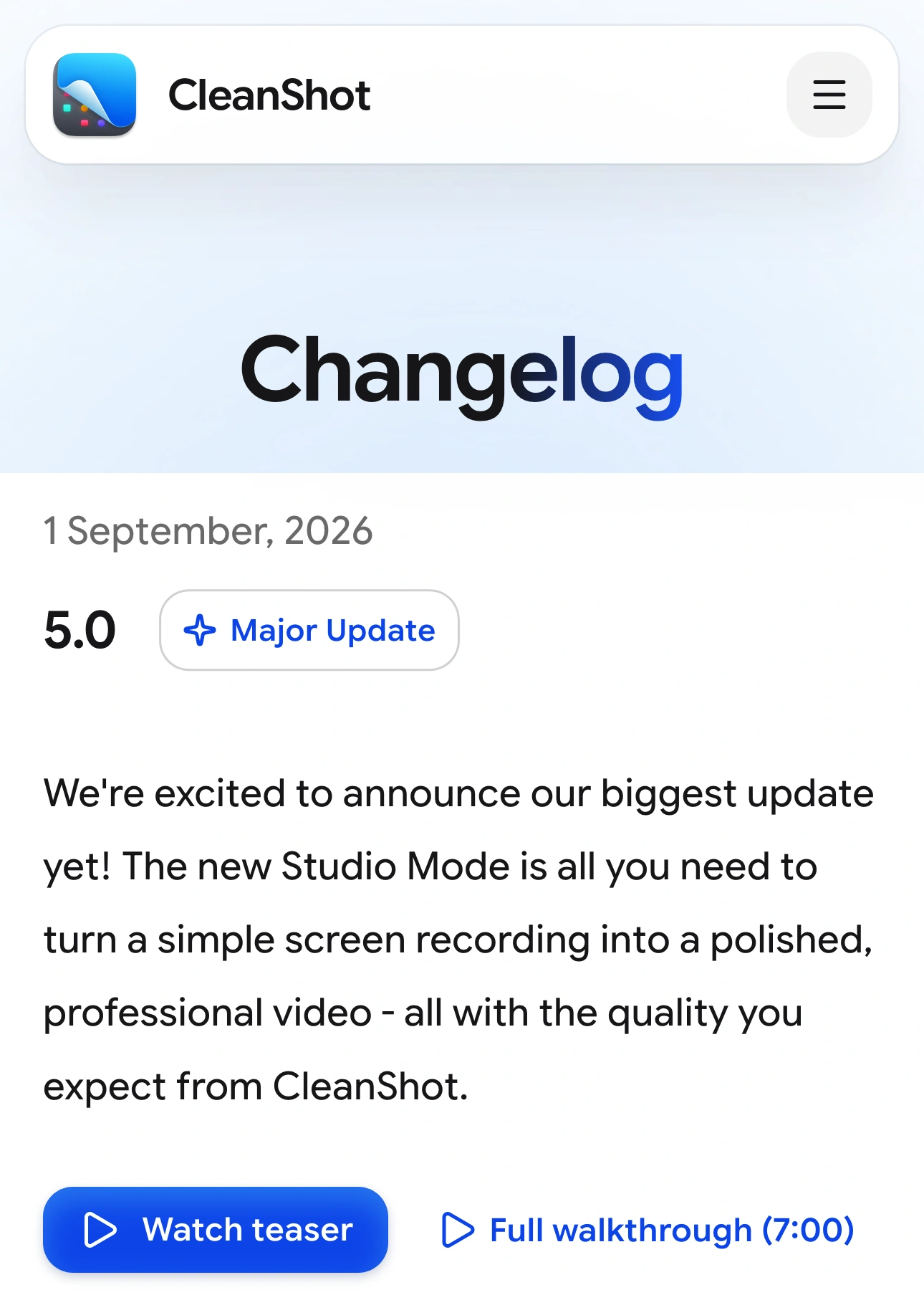
Source: CleanShot changelog, captured October 30, 2026. Native screenshot excerpts retain the site header and September 2026 announcement; intervening release entries are omitted.
Studio Mode is useful when you want to turn a captured explanation into a more polished video. The official walkthrough demonstrates recording first and adjusting the result afterward. Choose the editing workflow because it suits the output, rather than assuming it changes which material is safe to capture.
For example, a zoom can make a control easier to understand, but it can also make a customer name easier to read. A background can improve the framing without changing the text inside the recorded window. Review those details before adding effects, then review the exported result again.
Choose a source by the job
| Your demonstration | Start with | Rehearse this transition |
|---|---|---|
| One document or browser window | Window | Opening a menu or dialog |
| A fixed part of a larger workspace | Region | Moving or resizing the source |
| Several applications on one monitor | Full screen, after preparation | Switching between apps |
| Approved apps while unrelated apps remain open | A tested Audience View recording | Every app switch and popup |
A recording region is a rectangle on the screen. Treat anything that enters that rectangle as something to check. A window selection follows a different boundary, but still requires a sample: do not assume that every separate popup, permission dialog, or newly opened window belongs in the result.
Avoid confusing the screenshot command with the recording command. CleanShot's URL scheme documentation lists capture-window under screenshots and record-screen under screen recording. A shortcut or automation with “window” in its name is not, by itself, evidence that it records a video.
If your real question is how window capture differs from macOS's built-in recording options, use our single-window recording guide for that comparison.
Prepare the window before pressing Record
Use a demonstration account or harmless sample document wherever possible. In a browser, check the selected tab, visible tab titles, account menu, recent searches, and any address you will type. In another app, check recent-file lists, sidebars, and the name of the current document.
Then rehearse the part most likely to change the picture. Open the export dialog. Follow the link that launches another application. Return to the first window. A clean starting frame does not prove that the rest of the sequence stays clean.
CleanShot offers controls for desktop icons and notifications, as well as microphone and computer audio. These are helpful preparation tools, but hiding an icon does not remove private content from an open document. Our notification checklist covers the separate interruption problem.
Before recording real material, check where the result will go. Save the sample locally, review it, and decide deliberately whether to upload or share it. If your workflow uses automatic actions after capture, verify those settings before the rehearsal.
When ScreenK9 is useful
ScreenK9 becomes relevant when a demonstration moves between approved applications while unrelated applications need to remain open. It creates ScreenK9 — Audience View, an ordinary macOS window showing filtered capture from a selected display.
For that workflow, prepare the approved apps on one display, configure an Allow only profile, and inspect Audience View while moving through the demonstration. Then select the Audience View window as the recording source in CleanShot and make a short export.
This is a workflow to test with your installed versions, not a claim of a dedicated CleanShot integration or a completed compatibility test. Check framing, menus, movement, and readable text in the exported sample. If the result is blank or incomplete, resolve the source selection before proceeding.
Ordinary applications are filtered at app level. ScreenK9 cannot allow one ordinary app window while excluding another window of the same app. Chrome Companion classifies Chrome profiles and windows; it does not filter individual tabs or page elements. ScreenK9 does not detect secrets or perform OCR.
Most importantly, recording the physical display directly bypasses Audience View. The multi-app sharing guide explains that boundary.
Check audio and the final file separately
ScreenK9 does not capture or route audio. Choose microphone and computer-audio settings in CleanShot, and listen to the sample. An application excluded from the picture can still be audible if your recording setup includes its sound.
Watch the final export from beginning to end, including the opening countdown aftermath, every app transition, and the last frame. Inspect any zoomed sections closely. Keep the original recording and project files in mind when deciding what to distribute.
For a one-window explanation, stay with the native window source when it covers the job. Add filtering only when the rehearsal exposes a specific need that the simpler setup cannot address.