
Build the presentation in Mural first
Start with the native presentation tools. Mural's Outline lesson explains how to select content, right-click, and add it to the outline. Arrange the sections in the order you intend to discuss them, using clear names that make sense to attendees.
Treat the outline as your route through the board. Add the introduction, each discussion area, the decision, and the next steps. This makes the walkthrough easier to rehearse than a sequence of improvised pans and zooms across a large canvas.
Mural's June 2025 release notes updated the entry points: Presentation mode is available from the top-right toolbar and the Outline, and it can open even when the outline is empty. It also starts full screen by default and provides a hover menu for presentation controls.
That update matters when following older tutorials that describe an outline as a requirement for entering the mode. An outline remains useful for a planned sequence, but an empty outline no longer prevents entry. The official video above teaches the underlying facilitation workflow; its interface predates that update.
Check whether your instructions are audience material
Outline instructions can look like a convenient place for talking points. Before putting private notes there, read Mural's instructions documentation: instructions appear beneath step titles, and expand fully when the outline's list view is open during presentation.
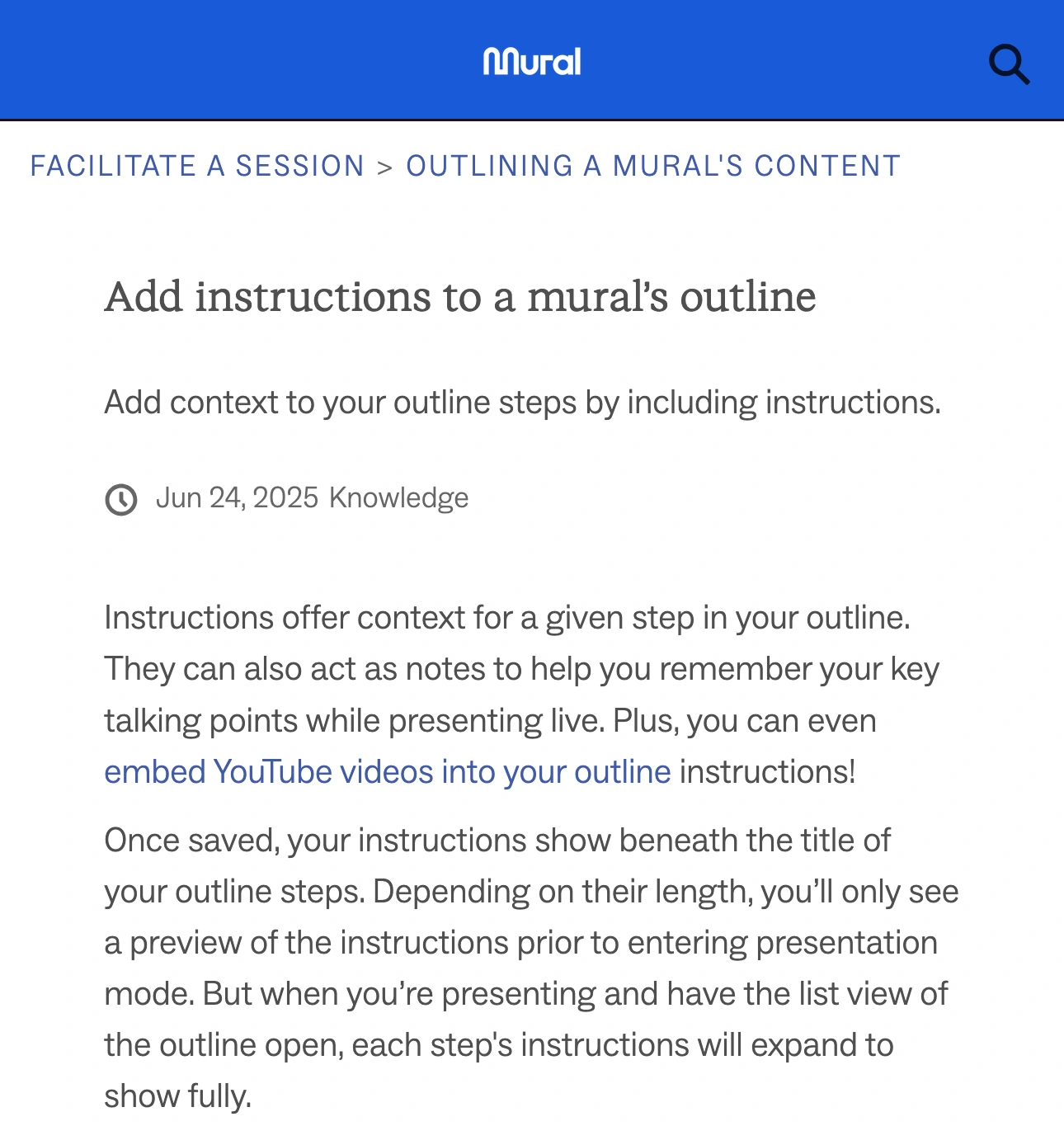
Source: Mural Support, captured October 30, 2026. Native screenshot excerpts retain the introduction and visibility explanation; the intervening editing steps and example images are omitted.
The practical consequence is simple: do not assume that text in Outline is a private speaker-notes panel. Anything visible in the tab or window you share becomes part of the meeting picture.
For a client workshop, write the board's instructions as if participants will read them. Keep internal negotiating points, personal reminders, and account details in a separate private document. If attendees also have access to the board itself, review its sharing permissions separately.
During rehearsal, open the list view and expand each step. Check headings as well as paragraphs. A harmless-looking step title can reveal a project name before you reach its content.
Use hide-and-reveal for pacing
Mural's Facilitation Superpowers include hiding and revealing sections in the Outline. Use this to introduce activities when the group needs them, rather than exposing every exercise at once.
For example, a workshop can start with the problem statement, then reveal the brainstorming area, and finally reveal the decision criteria. That sequence gives participants a clear next action. Test it with ordinary sample content before the meeting.
Keep the distinction between pacing and access in mind. Hiding a section for the session is not a reason to put confidential material into a board that is shared too broadly. Likewise, closing the Outline panel changes the presenter's view; it does not establish a new permission boundary for the underlying board.
If your workshop uses Miro instead, its frame workflow is covered separately in our Miro presentation guide. The two applications have different controls, so avoid transferring button names or visibility assumptions between them.
Choose what the meeting should capture
| Meeting activity | Useful starting point | What to inspect |
|---|---|---|
| Walk through one board | Share its browser tab, when supported | Board content and expanded instructions |
| Use the board and browser controls | Share a dedicated browser window | Tabs, address bar, and menus |
| Switch between a board and other apps | Prepare a multi-app sharing workflow | Every transition between sources |
| Let attendees edit the board | Review Mural access as well as screen sharing | What they can open independently |
Enter Presentation mode before selecting the share source. Full-screen transitions can change what a meeting application's picker offers, so inspect the audience preview after entering the mode rather than relying on the earlier thumbnail.
For a board-only session, a tab share usually gives you the narrowest useful source when your meeting app offers it. A window share may include browser controls and other tabs in that window. Our browser tab versus window guide explains the broader distinction.
Use a separate, prepared browser window for the session. Remove unrelated tabs, check account menus, and decide whether links opened during the presentation should be shown. Pause sharing before opening a private reference or changing the setup.
When a filtered Audience View helps
A workshop may require Mural, a slide deck, and a separate demonstration app. If you need those sources while unrelated applications remain open, ScreenK9 can provide a single ScreenK9 — Audience View window containing filtered capture from one selected display.
Prepare an Allow only profile for the ordinary apps you intend to show. For Chrome, classify the intended profile through Chrome Companion, then inspect the actual Audience View output. Choose that output window in the meeting application's share picker.
ScreenK9 filters ordinary applications as whole apps. It cannot keep one ordinary app window private while allowing another window of the same app. Chrome classification works at profile/window level, not at the level of individual tabs, sticky notes, or outline text. Private board content must still be removed or kept outside the shared source.
Sharing the physical display directly bypasses Audience View. Use the multi-app sharing workflow and rehearse the exact transition into and out of Mural's full-screen presentation. ScreenK9 does not change Mural permissions, detect secrets, or route meeting audio.
Rehearse the first and last minute
Run a short test before inviting the audience:
- Enter Presentation mode and select the intended share source.
- Open the Outline list and inspect every instruction that becomes visible.
- Advance through the planned sections and test any hide-and-reveal steps.
- Open one link or secondary app you expect to use.
- Return to the board, exit Presentation mode, and inspect what appears.
- Stop sharing before opening private preparation material.
A workshop often starts clean and becomes risky at the transition back to normal editing. Check that ending explicitly. Keep the board audience-ready, use the smallest share source that covers the session, and treat participant access as a separate decision.