
Choose a stable source before starting
For a one-window demonstration, begin with Ecamm's native Specific Application Window option. It gives the audience a defined source while you keep the rest of the production controls available locally.
Ecamm's Screen Share Mode guide distinguishes four choices:
| Mode | What the source follows | Useful preparation question |
|---|---|---|
| Current Application | Foreground app and its visible windows | Will you switch to another app? |
| Entire Screen | Selected display | Is every visible item suitable? |
| Specific Application | Chosen app's visible windows | Are its other windows safe? |
| Specific Application Window | One selected window | Does the whole demo stay there? |
Current Application is the documented default. It can be convenient for an intentional tour across apps, but it deserves a different rehearsal from a fixed window. Specific Application also differs from choosing one document inside that application.
Choose the narrowest source that completes the task. If only the spreadsheet matters, select that window and keep the lesson there. Avoid starting with the entire display just because it is the easiest thumbnail to recognize.
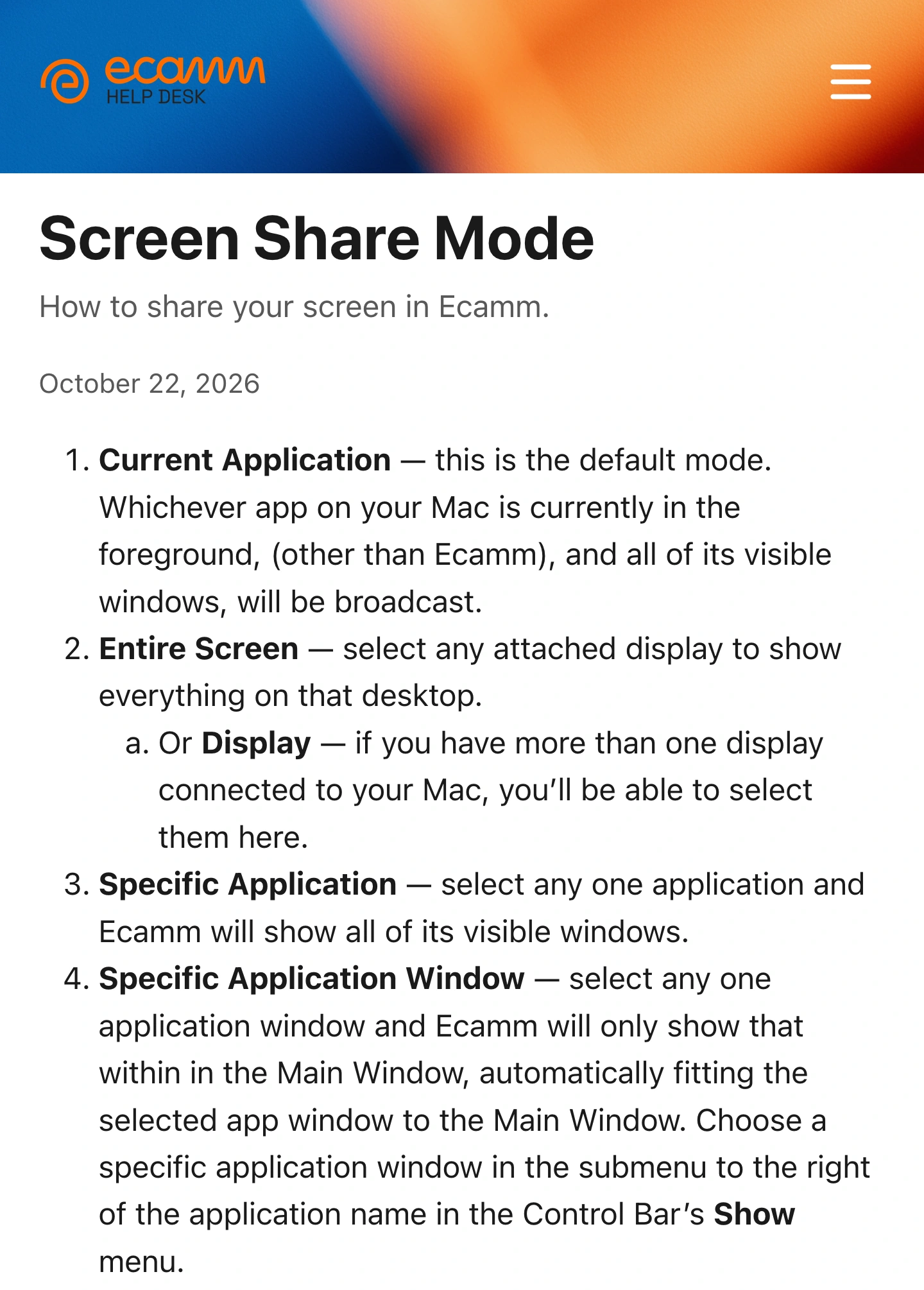
Ecamm Help Center, captured November 21, 2026. Original branding, title and source-mode definitions are joined; intervening content is omitted. The native 3× source is retained with the research.
Find the window selector
Select Screen Share in Ecamm's Source bar. In the Control Bar at the bottom of the Main Window, open Show, find the relevant application, and use the submenu beside its name to choose the individual window.
If the Control Bar disappears, bring Ecamm forward and move the pointer into the Main Window. The guide explains that the bar hides when it is not being used.
Prepare a harmless document with a recognizable title before selecting it. That small naming step makes it easier to distinguish a demonstration document from another window belonging to the same app. Confirm the result in Ecamm before opening the real presentation.
Keep the document large enough to read at the audience's playback size. Enlarging the text inside the app can be more useful than filling the entire frame with a dense desktop. A tightly selected source still needs a readable presentation.
Rehearse a focus change with harmless content
A short focus-switch test answers a practical question: does this setup keep showing the intended source when you operate another app?
- Start with a sample document that says “Demo.”
- Inspect the selected source in Ecamm.
- Switch to a second harmless app with a visibly different sample.
- Look at the output while you move between the two.
- Return to Ecamm and confirm the source selection again.
This is a suggested rehearsal, not a reported test result. Use sample content throughout it. The point is to learn the behavior without first opening private material.
Also test the actions your demonstration actually needs: scrolling, opening a second document, displaying a dialog, or closing and reopening the chosen window. If an essential step disappears from the audience feed, change the presentation plan before going live. If an unnecessary step enters the feed, narrow the source or remove that material.
Keep Preview and Program distinct
Ecamm's Preview Mode documentation describes preparing changes while watching the current output in a separate Program window. During a stream or recording, click Preview, inspect your changes, and use Publish when you intend to show them.
Current documentation uses a green Preview indicator and a red outline around the Program scene when it differs. Follow the labels in your installed version rather than relying on the colors in an older tutorial.
Preview is useful for checking a composition. It should not be treated as a guarantee that content already feeding the live scene stops changing. If you are about to edit the same document being shown to viewers, first switch the audience to a harmless holding scene and verify the output.
Use a simple holding scene with an unambiguous title such as “Back shortly.” Practice moving to it and returning to the demonstration. The useful result is a predictable recovery action when a source is wrong, not an elaborate transition effect.
Check the output monitor and audio preferences
In Ecamm's Preferences, Show Program Window While In Other Apps provides a floating output/control window while live or recording. Keep that visible when your demonstration requires you to leave Ecamm.
The same preferences document system-audio choices and what happens when returning to Live Mode with unpublished Preview changes. Check those settings before a rehearsal; do not assume leaving Preview always discards your preparation.
Picture and sound are separate decisions. A selected window does not establish which sounds enter the production. Make a test recording with narration, the intended demo sound, and a brief quiet pause. Listen for unwanted audio as well as watching the image.
If capture permission is missing, check the capturing application in Apple's screen and system-audio settings. The Mac permission guide explains the setup. Permission enables capture; it does not choose a source.
Add an audience window for a multi-app lesson
A fixed Ecamm window or prepared native scenes may be all you need. ScreenK9 is useful when you want to move through several approved work apps while unrelated apps remain open on the Mac.
Configure an Allow only profile, approve the demonstration apps, and start ScreenK9 — Audience View. Inspect that separate filtered window. In Ecamm, choose it using the specific-window selector, then rehearse the entire switching sequence. The multi-app sharing guide explains the audience-window boundary.
This uses ScreenK9's ordinary macOS window output. It is not a claim of a specially integrated or independently tested Ecamm connection. Verify your particular setup through a saved recording or the actual receiving service before a real session.
ScreenK9 filters ordinary applications at app level, so approving an app includes its other ordinary windows. It cannot pick one private window to hide within an approved ordinary app. Chrome profiles have a separate classification mechanism; configure and test that distinction when needed.
ScreenK9 does not detect secrets automatically, intercept Ecamm, or capture audio. Selecting the physical display directly bypasses its filtered output. Keep Ecamm's source and audio choices explicit.
Before the presentation, record one complete rehearsal: holding scene, chosen demonstration source, app changes, and return to holding. Watch and listen to that clip at normal playback size. Leave the known-safe scene on the output while you prepare the real content.
Sources checked
- Ecamm: Screen Share Mode
- Ecamm: Preview Mode
- Ecamm: Preferences
- Apple: Screen and system-audio recording permissions
Documentation and ScreenK9 implementation checked November 21, 2026.