
Start with Tella's own window picker
For a walkthrough contained in one app window, Tella already provides the source selection you need. Its current Mac-app instructions, updated November 19, 2026, distinguish displays, windows and a selected area. Install the Mac app from Tella and sign in with your Tella account. The documented minimum is macOS 13.1.
Launch it from the Dock or menu bar. Enable screen capture, then hover over the screen button and open the adjacent chevron. Choose the intended item under Windows. Use the full display only when the desktop itself belongs in the explanation.
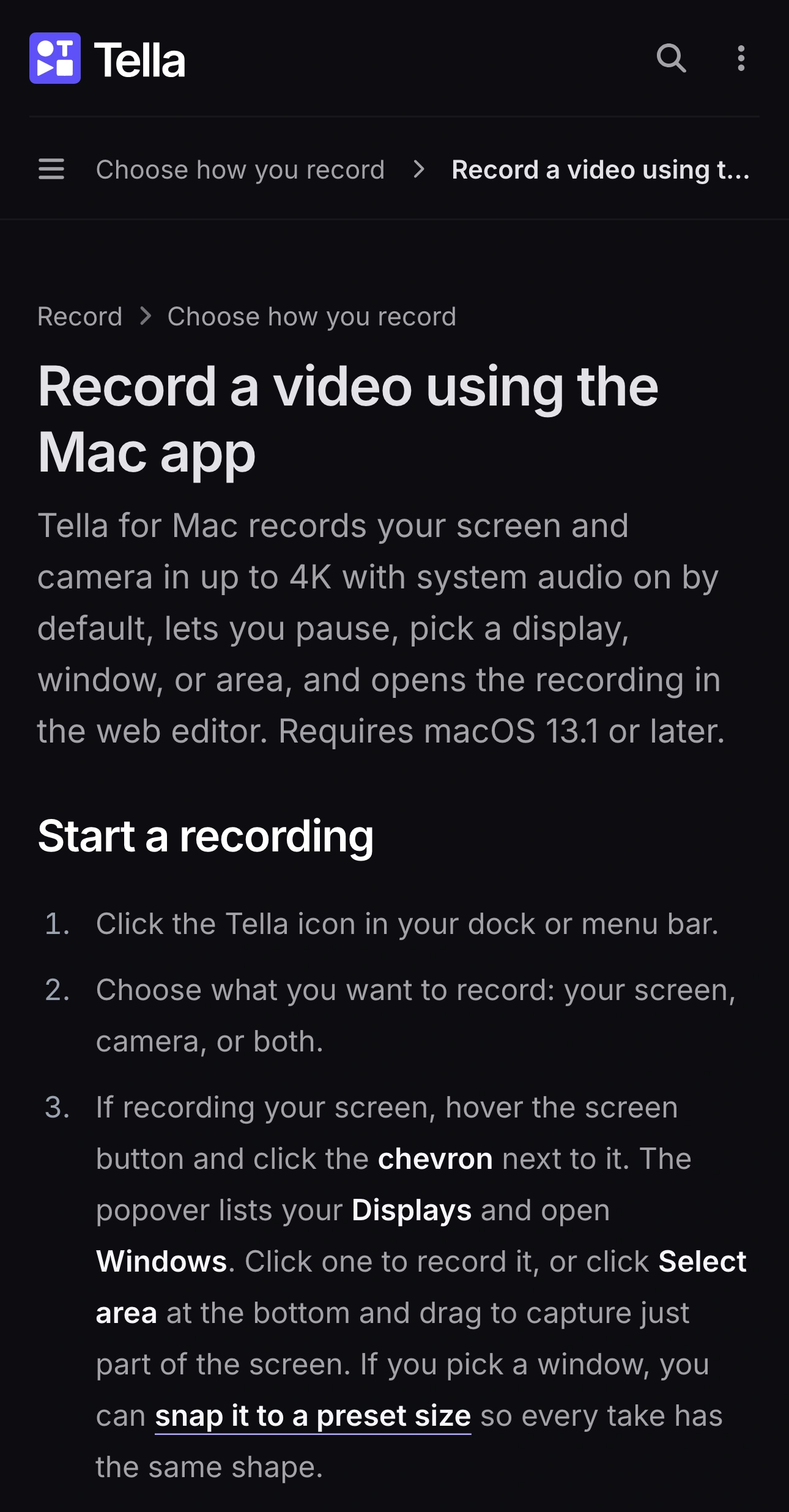
Tella Help, captured November 27, 2026. Native source excerpts retain the branding, title and window-selection instructions; intervening content is omitted.
Before starting, put recognizable sample content in the chosen window. Two documents with similar titles are easy to confuse in a picker. A large heading such as “Sample project” gives you a visible check that the correct source was selected.
This guide concerns the native Mac app. Tella also has browser-based recording, so do not assume a tutorial showing a browser permission dialog describes the same controls or sound behavior.
Decide what the next frame should contain
Selecting a window reduces the visual area you need to prepare, but the content inside that window still matters. A browser window can expose another tab when you bring it forward. A document can reveal a recent-file menu, a comment or an account name during an otherwise harmless demonstration.
Write down the three actions the viewer needs to see. For example: open a sample report, change its date range, then explain the result. Rehearse those actions inside the chosen source. If a required dialog opens elsewhere, check the replay before deciding whether to broaden the capture.
The guide to sharing without showing other tabs explains the browser boundary in more detail. For this take, keep navigation predictable: open the demonstration's destination beforehand and remove unrelated material from the source itself.
| What the lesson needs | Start with | Check in the replay |
|---|---|---|
| One document or app view | Its window | Menus and necessary dialogs |
| A fixed part of a display | Selected area | Content moving across its edges |
| The desktop and several visible windows | Display | Every app and notification that enters it |
A crop is a framing choice. It does not understand which account, sentence or value you consider private.
Check system sound independently of the picture
Tella's audio documentation says the Mac app captures system sound with screen recording and enables it by default. The music-note control shows its state. You can also find the setting under Settings → Recording → Record computer audio.
That makes sound a separate preparation step. A carefully selected document window does not establish that unrelated desktop audio is absent. If the tutorial needs only your narration, turn off system audio before the take. If it needs an app's sound, stop unrelated playback and test the intended sound together with your voice.
Use a short, harmless sound in the rehearsal. Play it once, say a sentence, stop, then listen to the result. Confirm that both are understandable and that no other audio appears. Avoid discovering a missing soundtrack after a long explanation that would be difficult to repeat.
The browser recorder has a different rule: Tella documents tab-audio sharing through the browser's tab picker. That is another reason to identify the recorder route before following audio advice from a search result.
Keep replacement takes the same shape
A recording often needs a correction later. If the replacement window is a different shape, the transition can jump even when the words and content are right.
Tella's window-resizing instructions describe a Resize control on the selected window's tab. Pick a supported preset before recording and reuse it for subsequent takes. Some applications enforce a minimum size, and presets that do not fit the display are unavailable.
Check the content after resizing. A narrower window may move a sidebar, wrap a label or hide an action behind a menu. Choose a shape that preserves the controls the viewer must follow, then keep the same arrangement when you replace a clip.
Tella requests Accessibility permission for moving and resizing other applications' windows. That is separate from screen-capture permission. If the capture itself is unavailable, use the Mac screen-recording permission checklist; changing window size will not repair a missing capture permission.
Review the completed take before its link travels
Finish the recording and inspect the preview. Tella's Mac workflow can open its web editor; its sharing overview also describes hosted links and downloads. Native capture therefore does not mean the finished video stays only on your Mac.
Review the beginning, every navigation change and the final frame. Pay particular attention to moments when you search, open a menu or switch accounts. If the source contains a real customer detail, replacing the affected take with sample data is often clearer than trying to explain it away afterward.
Then inspect the viewing access available for that video. Match it to the intended audience before distributing a link. A copied URL tells you where the video is; it does not tell you that the access setting is suitable for a private handoff.
Finally, play the version you will actually send. If you download a file, check that file. If you share a hosted video, check the hosted result. Editing a project and reviewing an earlier copy are different actions.
When the walkthrough needs several approved apps
For one window, use Tella's native picker. ScreenK9 becomes useful when the lesson deliberately moves between several approved applications while unrelated apps should remain outside the visual feed.
On macOS 14 or later, ScreenK9 creates a separate ScreenK9 — Audience View window. Configure its application rules, then select that window in Tella if it appears in the window list. Record and replay a harmless transition before relying on the combination. This is a conditional window-capture workflow, not a certified Tella integration.
Ordinary application rules apply to the app, not individual documents within it. Redaction regions require manual setup; ScreenK9 has no OCR or automatic secret detection. It does not record the video, filter Tella's audio or manage hosted-link access. Recording the physical display directly bypasses the audience-window workflow.
Before the final take, name the captured window, confirm the sound setting and choose the recipient. Those three decisions make the rehearsal specific enough to catch a mistake.