
Allow the app that captures the picture
The permission belongs to the capturing app. A meeting in a browser and the same meeting in a desktop client can therefore need different entries. Start by identifying where you clicked Share or Record.
| Your workflow | Permission entry to inspect | Next check |
|---|---|---|
| Meeting in Chrome or Firefox | That browser | The meeting's share picker |
| Zoom desktop screen share | Zoom | Selected window or display |
| OBS desktop/window capture | OBS Studio | The source's capture selection |
| ScreenK9 Audience View | ScreenK9 | Approved apps in Audience View |
| Another app captures Audience View | That app's capture permission too | Audience View selected as its source |
This is a way to trace the picture through your setup, not a reason to enable every app in the list. The document you are presenting generally does not need capture access merely because another app is showing its window.
Use the native macOS setting first
Apple's screen and system audio recording guide gives the current settings path and lets you turn access on or off for individual apps. Where the settings distinguish screen-and-audio access from audio-only access, choose the capability your capture workflow actually requires.
If the app is absent, Apple's guide provides an Add button below the list. Locate the application you intend to use. Check the app name before confirming, especially if you have several meeting clients or browsers installed.
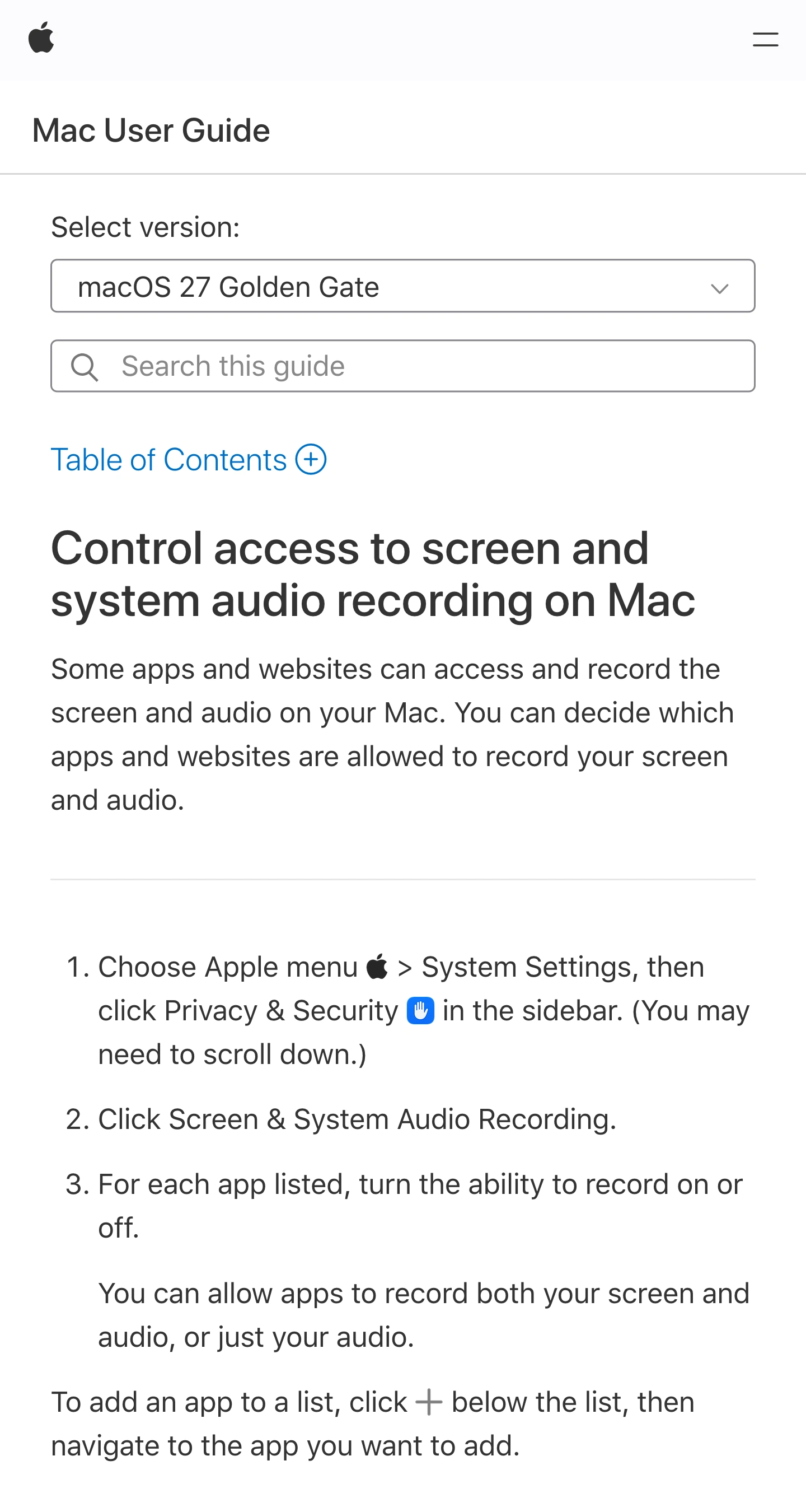
Apple's Mac User Guide, captured November 18, 2026 at native 3× density. The image is a crop of the official page, retaining Apple branding, the title and permission steps. No interface has been recreated.
Older macOS releases may label or arrange privacy controls differently. Follow the guide for your installed version rather than searching for an identical screenshot. Stop the current share before changing permissions, then return to the app and follow any restart prompt.
A browser meeting has another selection step
macOS permission and the browser's sharing picker answer different questions. The first lets the browser perform capture. The second chooses what this particular meeting receives. After granting access, start a fresh share and deliberately select the tab, window or display you intend to present.
Zoom documents both operating-system permissions and browser permissions for its Web App. If Zoom works in the desktop client but fails in Chrome, inspect Chrome's permissions instead of repeatedly changing the Zoom entry. If the camera works but screen sharing does not, that also does not prove capture access is ready.
Use a harmless test page for the first attempt. Confirm the chosen content from another participant device before opening sensitive material. For the practical choice between sharing surfaces, see sharing a single window in FaceTime.
Check the app's own permission guidance
Some capture apps provide a direct route to their required permissions. In OBS, OBS Studio → Review App Permissions lists capabilities by purpose. The OBS permissions guide distinguishes screen capture, camera, microphone and Accessibility for background keyboard shortcuts.
Zoom's macOS permission instructions likewise separate screen sharing from other features. Use the instructions relevant to the feature that failed. A silent microphone and a blank shared window are different symptoms, even when they appear in the same call.
For a missing or blank picture, record these details before changing anything else: which app is capturing, which source was selected, whether macOS prompted for a restart, and whether the source window is still open. Then retry one change at a time. This makes it possible to tell whether the fix was permission, source selection or reopening the app.
ScreenK9 needs permission before it can filter
ScreenK9 cannot bypass macOS permission. Its current implementation checks Screen Recording access before capture and displays a permission-required message when access is missing. Allowing a meeting app alone does not authorize ScreenK9 to create Audience View.
Once ScreenK9 has access, build an Allow only profile for the apps you intend to present and start ScreenK9 — Audience View. Inspect that window locally. Only then ask the meeting or recording app to capture it. The multi-app sharing guide walks through that handoff.
This creates two useful checkpoints. If Audience View itself is missing the expected picture, check ScreenK9's permission, selected display and app rules. If Audience View looks right but the meeting does not, check the receiving app's permission and selected source. Granting broader access cannot correct a share picker aimed at the wrong window.
ScreenK9 filters ordinary apps at app level. Approving an app can include its other visible windows; it does not redact confidential text within them. Chrome Work/Personal classification provides a separate supported boundary, explained in keeping Chrome profiles private. No OCR or automatic secret detection is involved.
Permission is not the audience boundary
An enabled permission is a capability, not proof that a safe frame is being transmitted. If you share your physical display, content outside ScreenK9's Audience View can still be visible. Always verify the destination's selected source after a restart or a change of capture workflow.
Keep audio separate as well. ScreenK9 does not capture, mix or route it. Inspect the microphone or system-audio choice in the meeting or recorder, and listen to a test. The presence of “audio” in a macOS settings label does not show which sources your audience will hear.
Run a short final test
Before the next call, close private material in any approved app and test with a neutral document. Start capture, inspect the receiving view, move through the planned app changes, then stop. If you no longer need an app to capture the screen, return to the same macOS settings list and turn its access off.
The useful stopping condition is concrete: the intended app can capture, the intended window is selected, and a receiver sees the expected picture. Keep those three checks together whenever you troubleshoot a new capture app.
Sources checked
- Apple: Control access to screen and system audio recording
- OBS Project: macOS Permissions Guide
- Zoom: Granting macOS permissions
- Zoom: Web App browser and system permissions
- YuJa: Screen recording permission walkthrough
Documentation and ScreenK9 implementation checked November 18, 2026.