
Look for Reading mode or Immersive Reader
Microsoft’s current Reading mode feature page lists macOS support with Edge version 149 or later. Its Mac accessibility instructions still use the name Immersive Reader and document F9 for entering or leaving that view. The different names explain why a recent guide and an older tutorial may not match your toolbar.
Start with the visible address-bar control on a supported text article. If you use F9 on a Mac keyboard configured for media keys, you may need the function-key modifier. Do not change unrelated system settings during a live presentation just to make a shortcut work; clicking the browser control is a simpler fallback.
For the current interface, Microsoft’s Reading mode setup guide gives this path:
- Open Settings and more, the three-dot menu.
- Choose Settings → Appearance → Toolbar.
- Turn on Reading mode.
- Return to a supported article and select its address-bar icon.
If the full page is unsuitable, select the relevant text, right-click, and choose Open selection in Reading mode when offered. Prepare that selection before the meeting so you can check where it begins and ends.
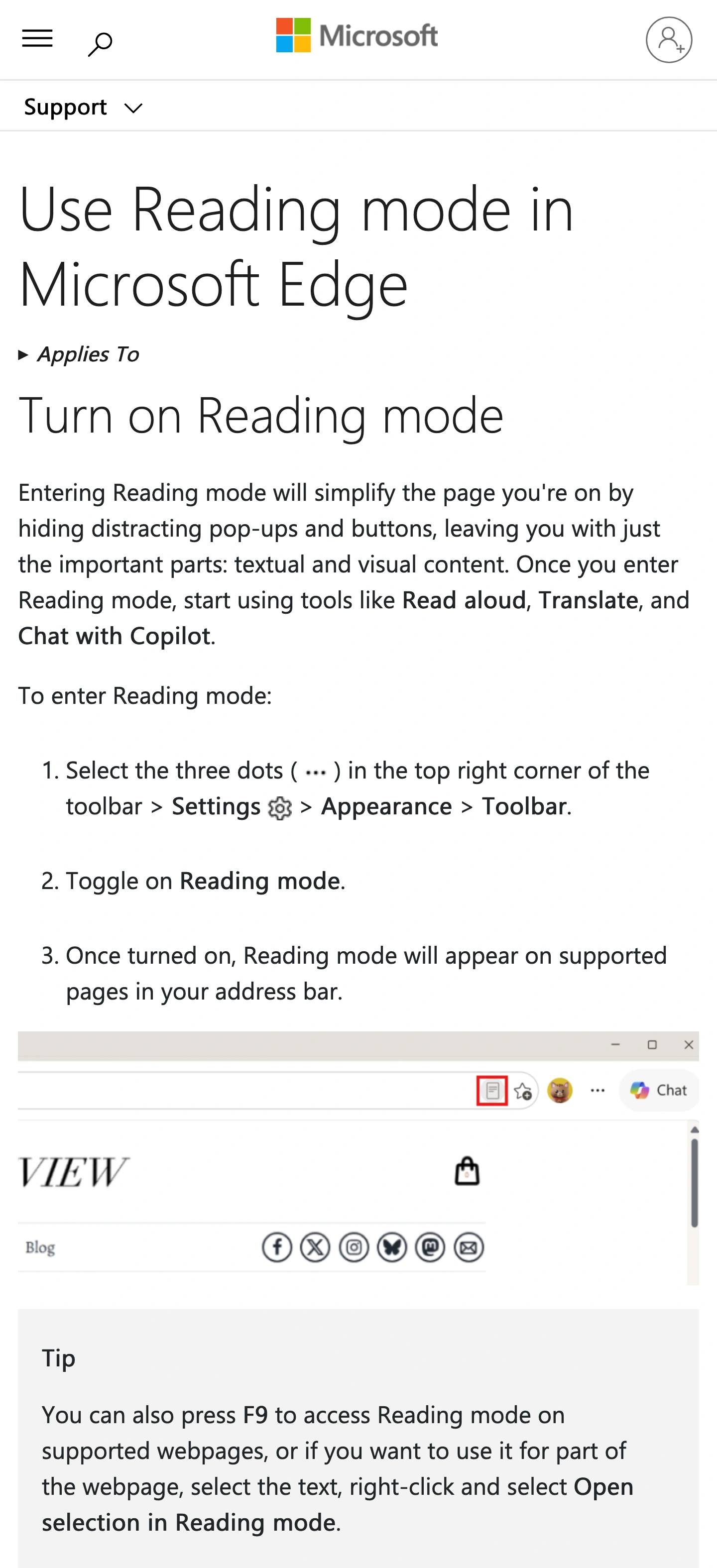
Microsoft Support, captured November 13, 2026 with a native Retina screenshot. The branded header and setup section are unaltered excerpts in source order; introductory material between them is omitted. Microsoft’s illustration is a general toolbar example, not a captured Mac session.
A cleaner article still needs an editorial check
Reading mode simplifies a page for reading. For a screen share, its practical value is that an audience can follow one passage without competing navigation and surrounding clutter. It is not a guarantee that every element from the original article survives the transformation.
Compare the simplified view with the original before choosing it as evidence. Check the headline, byline, publication date, image captions, and any qualifications near the passage you intend to discuss. If a chart or footnote carries the meaning of the article, make sure the audience can see it too. A clean excerpt that loses an essential qualification can be less useful than the original page.
Try your planned scrolling sequence. Enlarge text until it is comfortable from the receiver’s view, then check that a heading and its explanation can still be understood together. Avoid changing text size repeatedly during the call; the resulting reflow can move your place and force the audience to find it again.
For a two-page comparison, Edge Split screen solves a different problem. It places pages beside each other. Reading mode is the better starting point when one article is the focus and its surrounding layout is the distraction.
If the button is missing, check page support first
Microsoft limits the address-bar entry to supported pages. A missing icon therefore does not by itself mean that Edge lacks the feature or that you need an extension. Test a straightforward text article, then try the documented selection route if your intended page does not qualify.
Use this small decision table before spending time changing settings:
| What you observe | Useful next check |
|---|---|
| No Reading mode icon anywhere | Review the toolbar setting and your Edge version |
| The icon appears on one article but not another | Check whether the target page is supported |
| Only a short passage is needed | Try the selection command and inspect the result |
| An important figure disappears | Use the original page or a prepared, attributed document |
| Text looks good locally but tiny remotely | Inspect the receiver view and adjust reading size |
Do not rely on an undocumented URL prefix or an experimental browser flag as a presentation fallback. The original article in a prepared tab is often sufficient. If your daily browser is different, the Chrome Reading mode guide explains its separate controls; shortcuts and layout behavior should not be assumed to transfer between browsers.
Keep reading tools separate from your presentation needs
Current Reading mode includes more than visual simplification. Microsoft describes Read aloud, translation, and Copilot-related tools, with availability varying by device, market, and feature. You do not need to activate those tools merely to show a readable passage.
For a discussion of the author’s original wording, retain that wording in the shared view. If you intentionally show a translation or generated summary, identify it as such. Do not let the audience mistake a rewritten passage for the source text.
Audio is a separate decision. If you use Read aloud, rehearse how the meeting receives it instead of assuming that sharing the browser window also shares the sound. Stop playback before returning to your own spoken explanation. Check the meeting’s audio controls without changing the prepared article unexpectedly.
Reading mode does not prepare the rest of Edge
The page may look calm while other browser surfaces still contain private information. Inspect the visible tab titles, address bar, favorites, and any open side panel. Close unrelated tabs in the window you intend to share, and avoid typing an unprepared search or address while that window is live.
If the meeting can share only the prepared article tab, use that native option. Otherwise, choose its dedicated browser window and check the outgoing picture. The guide to sharing without other tabs covers that source-selection decision. Reading mode does not replace it.
Treat leaving the article as part of the rehearsal. Returning to the original page, opening a link, or switching tabs can change the visible content. Stop sharing before exploring an unfamiliar link or account page.
Use ScreenK9 when the explanation spans several apps
ScreenK9 is useful when the article is one step in a demonstration that also needs an editor, document, or other approved work app. Prepare an Allow only profile, leave personal apps out, start capture, and inspect ScreenK9 — Audience View while walking through that sequence. Select that exact window as the meeting’s share source.
The multi-app sharing workflow explains why this can be useful when repeatedly changing native share sources becomes cumbersome. ScreenK9 produces a separate filtered macOS window; it does not modify Edge or intercept the meeting’s traffic. Sharing the physical display directly bypasses the filter.
Edge is an ordinary application in ScreenK9. Allowing it does not independently filter its profiles, tabs, or individual windows. Close private Edge content before approving the app. ScreenK9’s Chrome profile classification does not extend to Edge, even though both browsers use Chromium.
Manual redaction regions cover fixed areas chosen by you. They do not read the article, discover secrets, or follow text that moves when Reading mode reflows the page. Recheck the actual audience picture after any layout change.
Before the call, confirm the passage is complete, its text is readable, and the intended share source survives the transition to the next work app. Keep the original source URL available for attribution after you stop sharing.
Sources checked
- Microsoft: Reading mode availability and capabilities
- Microsoft Support: enable and use Reading mode
- Microsoft Support: Edge accessibility features, including Mac instructions
Documentation and ScreenK9’s current implementation were checked November 13, 2026. The accompanying official video is an older conceptual demonstration; it does not establish the current Mac toolbar layout.