
Hide the bar with Chrome’s own control
Click the Chrome window you plan to present, open the intended webpage, and press Command–Shift–B. The shortcut toggles the bookmarks bar, so pressing it again restores the bar. Confirm the result visually before starting the share.
You can also use Chrome’s menu: open the three-dot menu, choose Bookmarks and lists, then toggle Show bookmarks bar. Google documents the menu option and the Mac keyboard shortcut in Chrome Help.
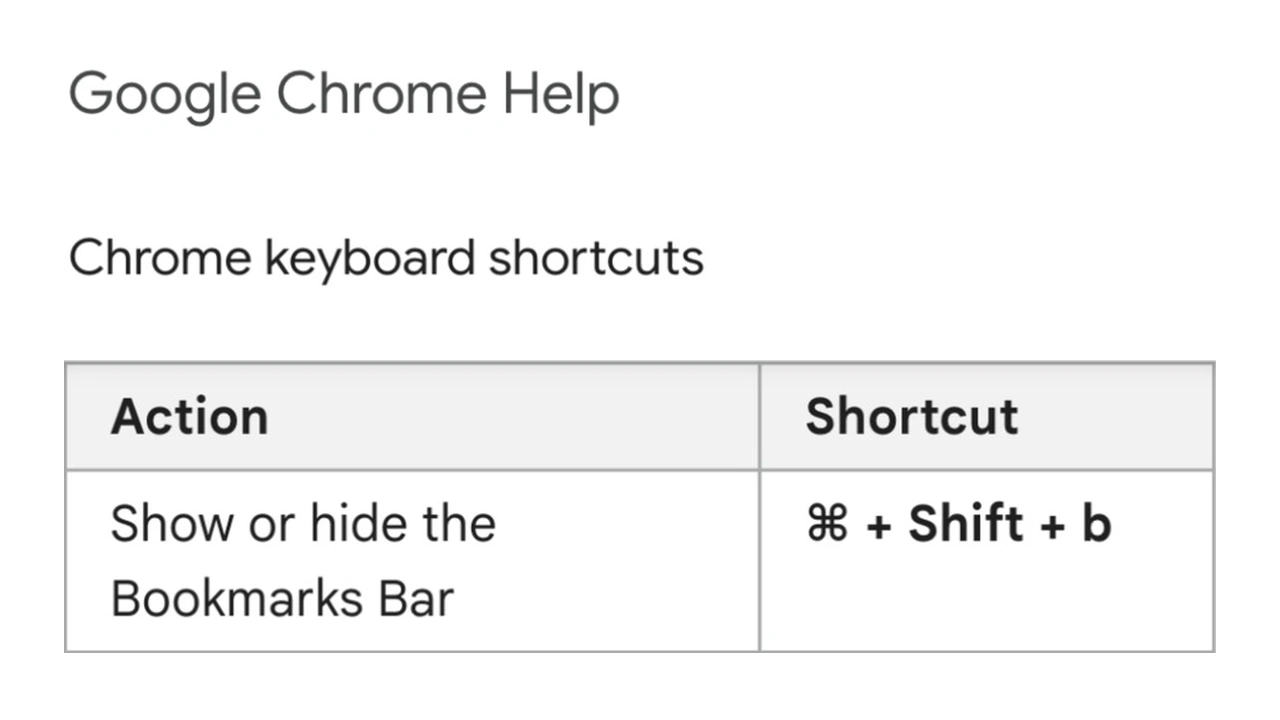
Google Chrome Help, captured September 16, 2026. The source identity, heading and relevant Mac shortcut row are combined as excerpts; intervening content is omitted.
This is a reversible presentation setting. You do not need to delete your bookmarks to tidy the frame. Deletion changes your saved information and is a different task from hiding a toolbar.
If the control is unavailable in a managed browser, use an approved presentation setup or ask your administrator about the enforced setting. Avoid making policy changes immediately before a call merely to alter the appearance of one window.
Check a normal page and a new tab separately
A clean webpage is only the first frame of a browser demonstration. Opening a new tab can expose a different surface, and typing into the address bar can reveal suggestions or saved items.
Before the meeting, walk through the actual sequence:
- Open the page you intend to show and hide the bar.
- Open a new tab in the same presentation window.
- Inspect any bookmarks, shortcut tiles, recently used content, or account information visible there.
- Type a harmless sample into the address bar and look at the resulting suggestions.
- Return to the intended page before starting the real share.
Chrome’s New Tab behavior has generated ongoing community questions. A historical report is not a guarantee that every current Chrome version, extension, or organization policy behaves identically. The practical check is whether your own next navigation exposes anything you did not intend to present.
Google also documents ways to find bookmarks through the address bar, menu, and navigation panel. That is why a hidden toolbar should not be treated as removal of the underlying information. Close any bookmark panel or manager that is open in the presentation window as well.
Match the share surface to the audience’s task
The browser setting and the meeting’s capture choice do different jobs.
| Presentation surface | What to prepare |
|---|---|
| One webpage shared as a tab | The page, account state, and any in-page dialogs |
| A Chrome window | The page plus tabs, toolbar, bookmarks, side panels, and navigation |
| The physical display | Every visible app and system surface on that display |
| A filtered audience window | Approved apps and the contents of every included work window |
For a page that stays in one tab, use the meeting tool’s tab-sharing option when available. In Google Meet, choose Present now → A tab, select the intended tab, and verify the receiver’s view. Google’s current presenting guide explains these choices; its official video appears above.
A tab share keeps the normal surrounding browser toolbar outside the selected page surface. It still presents the page’s own content. An account menu, a customer name in the application, or a page rendered by a new-tab extension can remain relevant to privacy.
If the task requires moving among tabs in a browser window, prepare that whole window. Our guide to sharing without showing other tabs explains the differences between tab, window, and display capture.
Prepare a browser profile when navigation must stay live
For a demonstration that needs searching, opening tabs, or switching websites, a dedicated presentation profile can reduce the amount of personal information available to those controls.
Create a Chrome profile for the work context, give it a recognizable name, and open only the accounts and material required for the call. Verify its bookmarks and history before presenting. Signing in or enabling synchronization may bring saved information into that profile; an empty starting window does not establish that the profile contains no personal data.
Google’s profile documentation describes the separation of bookmarks, history, passwords, and settings. For client-by-client setup and ScreenK9’s browser classification, use the detailed guide to keeping Chrome profiles private during sharing.
Keep the distinction simple: a clean presentation profile limits the material you may accidentally expose inside Chrome. The share target determines which visible surface is transmitted. You need to verify both when the demonstration involves live navigation.
Use ScreenK9 when the presentation moves beyond Chrome
If one prepared tab or browser window covers the whole task, the native share is enough. ScreenK9 becomes useful when the walkthrough also moves through approved work apps while personal apps or browser identities need to stay outside the audience picture.
Prepare the Work Chrome profile first, then configure ScreenK9 to allow the applications required for the demonstration. With the Chrome companion, classify the intended profile as Work and keep personal or uncertain profiles out. Inspect ScreenK9 — Audience View, then choose that named window in the meeting tool.
The current Chrome matching is local and conservative: personal, unclassified, stale, and ambiguous matches stay out. Matching by title is not cryptographic identity. Ordinary application rules also operate at the app level; they do not let you approve one ordinary app window while silently filtering all its other windows.
Most importantly for this task, a Work window is not a sanitized window. Its visible bookmarks, suggestions, account menus, and page content can still appear. ScreenK9 does not use OCR, detect secrets automatically, or remove individual bookmarks from Chrome. The privacy model describes that boundary.
Share Audience View rather than the physical display. Direct display sharing bypasses ScreenK9’s filtered picture, regardless of how carefully the profile was configured.
Rehearse the navigation that could reveal a bookmark
Use harmless demo data for a short private rehearsal. Check the opening page, one new tab, the address bar, an open side panel, and a switch between work apps. Watch from a receiving device when available; otherwise review a short private recording and recognize that the actual meeting’s receiving view still needs verification.
If any step exposes personal material, stop and simplify the workflow: pre-open the required pages, use the tab share, or prepare the profile’s contents. A hidden bookmarks bar is a useful first step. The finished setup should remain appropriate after the first click.
Sources checked
- Google Chrome Help: keyboard shortcuts
- Google Chrome Help: creating and finding bookmarks
- Google Chrome Help: separate browser profiles
- Google Meet Help: presenting a tab or window
- Chrome Community: bookmarks bar and New Tab questions
Sources, the official video, and ScreenK9’s current implementation were checked on September 17, 2026.