
Start with Pitch's native player and speaker view
Prepare the presentation before starting the screen share. Pitch's player displays the slides; its separate Speaker view provides the prompts and navigation you need while speaking. For a slide-only call, selecting the player window is the simplest useful boundary.
Pitch's current help pages use both Play and Present for the entry control at the editor's top right. Open the player, then choose Speaker view at its bottom right. The official video above shows an older position for this control; use the current documentation when the interface differs.
On one display, arrange the two windows so you can identify them before opening the meeting application's share picker. Select the window containing the audience slides, inspect the preview, and keep the notes window local. With two displays, you can place the player on one and the speaker controls on the other, then share the intended output.
Do not choose a whole-display source simply because it is the largest thumbnail. The source determines which pixels the meeting receives. A second screen is useful only when the notes and the shared output remain separate in the actual setup.
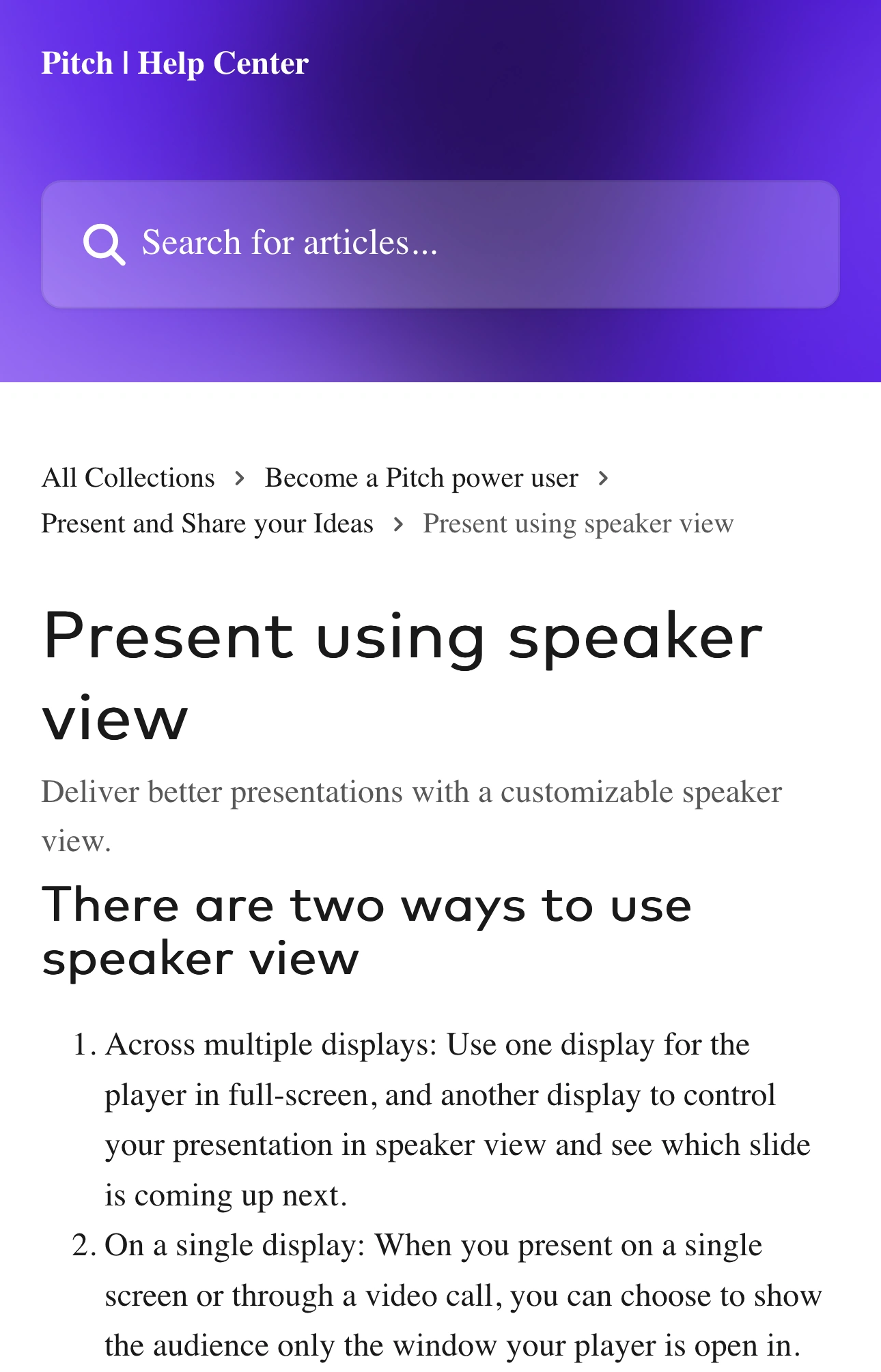
Source: Pitch Help Center, captured November 1, 2026. Two unaltered crops from the same page show its heading and single-display guidance in their original order; intervening content is omitted.
Prepare notes before the presentation
Pitch lets you add slide-specific notes through Notes in the editor or edit them directly in Speaker view. Use short prompts that help you continue speaking without reading paragraphs from the screen.
For example, a product introduction might need three reminders: explain the problem, show the workflow, and ask for the next step. Keep sensitive account details or internal negotiation points in a separate private reference when they do not belong in the shared presentation document.
There is an important distinction between keeping notes off a live screen share and keeping them out of a document. Pitch's notes documentation says that notes remain when a presentation moves between workspaces or from a private folder into a workspace folder. Moving the deck is therefore not a way to remove its notes.
If you will share the presentation itself afterward, inspect the exact deck and its access settings separately. Review what you wrote in the notes before distributing that version. A clean player window during the meeting does not establish what another person can access through the document.
Keep only useful speaker controls visible
Speaker view can show the current slide, the next slide, a navigator, notes, progress, a clock, and a timer. Choose a layout that supports your talk without making the important prompt difficult to find.
Rehearse a small sequence: advance one slide, jump back to answer a question, and return to the planned next slide. Watch the audience output during that sequence. The useful test is whether the receiver sees the intended slide while your navigation and notes remain outside the selected source.
If you are presenting from a small laptop screen, avoid constantly resizing both windows during the call. Set them up first. If the layout becomes cramped, a shorter set of prompts or a second device for your personal reference may be easier to manage.
For the general source-selection principles across other slide tools, use our speaker-notes privacy guide. Pitch's controls are specific to Pitch; do not transfer menu names from PowerPoint or Keynote.
Check the player for more than slides
The player can also expose presentation controls and feedback. Pitch documents comments and reactions in that view, including previews of existing feedback. Before sharing, inspect what your audience window actually contains and hide its controls when appropriate.
Do not treat a tidy layout as a substitute for reviewing the deck. Remove audience-inappropriate feedback from the version you intend to present, or choose a sharing setup that keeps it outside the received picture. Avoid opening the editor's collaboration panels during a live share without checking the source.
| Moment | Check in the audience output |
|---|---|
| Start presenting | The player is selected, rather than the editor or speaker window |
| Jump between slides | The intended slide appears without private navigation content |
| Open feedback controls | No internal comments become visible |
| Play a slide video | Playback starts in the audience player and sound is intentional |
| Finish the talk | Returning to editing does not expose preparation material |
Pitch's documentation notes that videos without autoplay need to be started in the player, rather than Speaker view. Rehearse that action before the call. The meeting application's audio settings are another separate check: a moving picture alone does not prove the audience hears the right sound.
Use a focused browser window when presenting on the web
If you use Pitch in a browser, prepare a window containing only the material needed for the session. A browser window share can show its tabs, address bar, menus, or the page you open next. A tab-only source can be narrower when your meeting app offers it and it covers the task.
Check any links in the presentation before the call. Decide whether they belong in the shared player, a new public demo window, or a private reference. Pause sharing before opening material that you have not prepared for the audience.
Our tab versus window sharing guide covers that choice. Keep the player-window method if it already gives you the right separation; a more complex setup needs a clear reason.
Use ScreenK9 for a prepared multi-app segment
A sales demonstration may move from Pitch into an approved browser profile and a separate application. ScreenK9 can provide a single filtered ScreenK9 — Audience View window for that part of the session, using one selected display and an Allow only app profile.
Keep personal prompts in a different, excluded application if you use that workflow. Close private Pitch windows on the capture display before allowing the ordinary Pitch app. ScreenK9 filters ordinary apps as whole applications; it cannot independently exclude Pitch's speaker window while allowing another ordinary Pitch window.
Chrome Companion adds profile/window classification for Chrome, but it does not classify individual tabs or understand speaker-note content. A player and speaker window in the same allowed Chrome profile are not automatically separated. The Chrome profile guide explains that boundary.
Rehearse the complete transition using the multi-app sharing workflow, then select ScreenK9 — Audience View in the meeting picker. Sharing the physical display directly bypasses it. ScreenK9 does not detect secrets, remove notes from the deck, or route audio.
Rehearse with an unmistakable sample note
Add a harmless prompt such as “private rehearsal cue” to a test slide. Start a private call or recording, select the player, and check the result from the receiver's side. Advance, jump back, play a video, and finish the presentation.
If the sample note appears, stop and correct the source before using real material. For a deck-only talk, keep the native player-window share. For a multi-app demo, prepare every allowed source and check each transition before inviting the audience.
Sources checked
- Pitch Help: Present using speaker view
- Pitch Help: Add speaker notes
- Pitch Help: Present your slides
- Pitch: Intro to presenting
Documentation and ScreenK9's implementation were reviewed November 1, 2026. The rehearsal steps are intended for your own meeting setup; they are not a claim of live testing across every supported application.