
Start with Gmail’s built-in layout controls
Prepare the email you intend to discuss before starting the screen share. Use a sample account or an approved message when possible. A tidy layout is easier to follow, but it does not decide which information belongs in the meeting.
Gmail has several areas that people call the sidebar. They have different controls:
| Area you want to remove | Native action | Check afterward |
|---|---|---|
| Expanded menu on the left | Click the main-menu button at the upper left | Move the pointer away and inspect the remaining icons |
| Particular label names | Settings → See all settings → Labels → Hide | Check labels still visible beside messages |
| Chat or Meet app buttons | Quick settings → Apps in Gmail → Customize | Confirm the intended apps are unchecked |
| Calendar, Keep, or Tasks on the right | Close the open app, then Hide side panel | Check that the panel’s content has disappeared |
Google’s Gmail navigation guide documents the main-menu toggle and the Chat/Meet selection. After choosing apps under Customize, click Done. These are layout preferences you can revisit after the presentation.
For the right edge, Google distinguishes closing the open app from hiding the whole rail. Its side-panel instructions say to close the expanded app first, then use Hide side panel at the bottom right. Removing the content panel is particularly useful when a calendar appointment or Keep note has nothing to do with the email being discussed.
Hide label names without deleting your organization
If a client name or internal project appears in the left navigation, use Settings → See all settings → Labels, then Hide beside that label. Google documents this in its label-management guide.
Choose a visibility control, not Remove label, when the aim is presentation cleanup. More importantly, inspect the open message and list of messages separately. A label setting for the left side of the inbox does not establish that every occurrence of the same name has vanished from the page.
For example, collapsing a navigation list may remove a folder-like project name while the subject still reads “Project Falcon budget.” Decide whether that subject is appropriate for the audience. If it is not, prepare a sanitized example instead of trying to make an unsuitable live message safe by rearranging the interface.
Check hover previews and incoming chat bubbles
Move the pointer through the controls you will actually use during the demonstration. Google’s navigation documentation describes app previews on hover and Chat notification bubbles that can reveal a message preview. A collapsed starting view is therefore only one state of the page.
If Chat bubbles are unnecessary, open the Gmail status indicator, choose Chat notification settings, and clear Open chat bubbles for new messages. Confirm with Done. Also prepare desktop alerts using the Mac notification checklist.
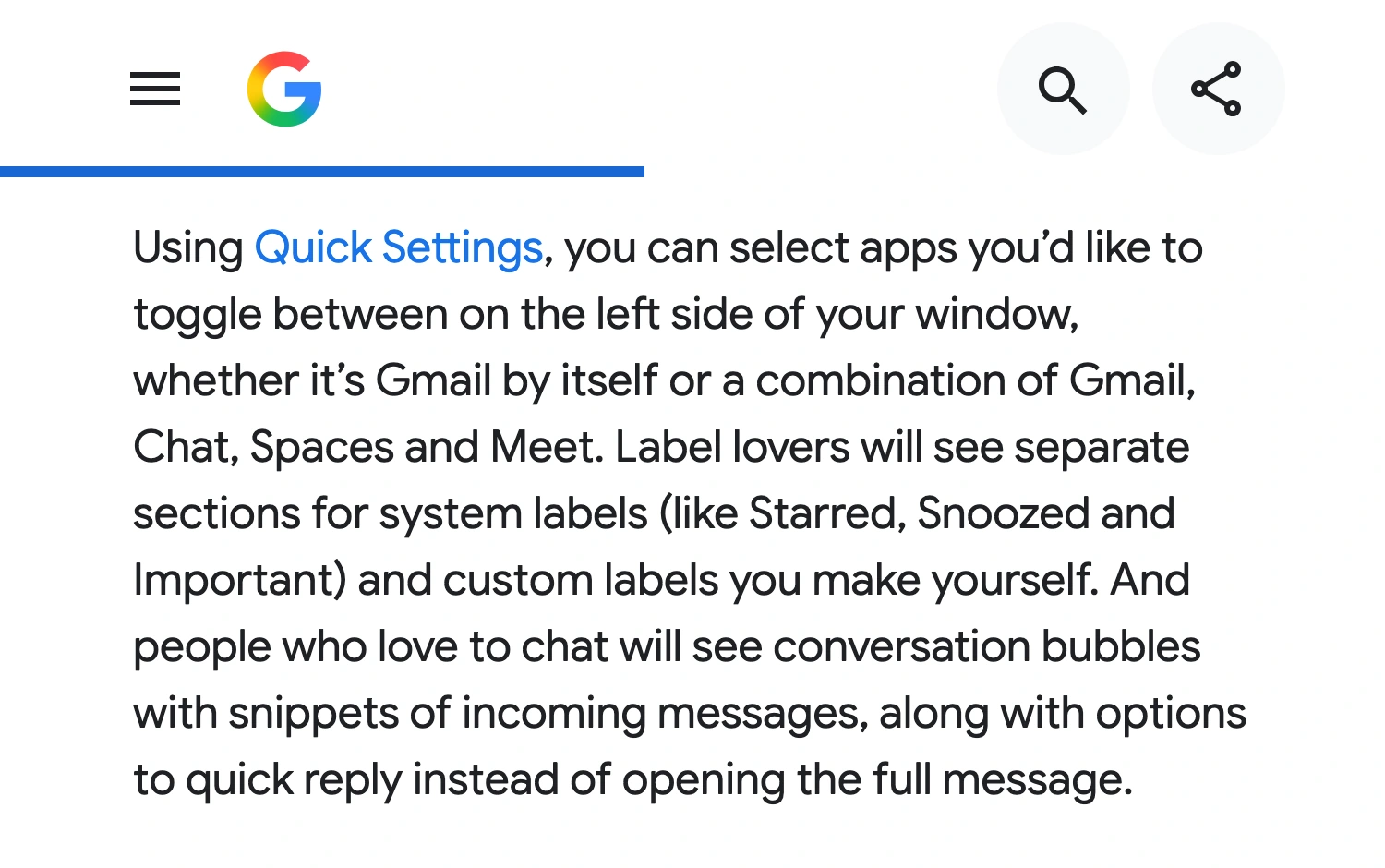
Google’s official Gmail announcement, captured October 10, 2026. The 2022 article explains the separate app, label, and chat surfaces; the current Help pages linked above provide the controls checked for this guide.
The useful rehearsal is a short sequence, not a glance at the inbox: open the approved message, scroll its body, expand the part you plan to discuss, and return to the starting view. Watch what becomes visible at each transition. Stop before opening an account menu or searching for another message on a live share.
Share the smallest useful source
When you need to discuss one prepared Gmail page, use the meeting app’s native tab-sharing option if available. Google Meet offers separate tab, window, and screen presentation choices. Select the one that matches the material, then verify the participant picture.
The single-tab sharing guide covers browser tabs and surrounding browser controls. That boundary does not redact Gmail’s contents: the message body, visible recipients, attachments, search results, and quoted history inside the shared page remain part of the presentation.
For a writing demonstration, Gmail can put a compose window in its own window: hold Shift while clicking the full-screen control at the top of the draft. Google documents this in Start sending email. Share that prepared window if your meeting tool supports it. This instruction concerns composing a draft; it is not a promise that a received conversation uses the same control.
Check the recipient chips and signature before presenting a draft. Use a demonstration address rather than typing a real recipient during a rehearsal, and do not send the message merely to prove that the layout works.
Keep a fixed panel private in ScreenK9’s audience window
Sometimes you need a panel locally while explaining the central message to viewers. On a Mac, ScreenK9 can cover a manually chosen area in its separate audience feed. That is a narrower use case than cleaning up Gmail for everyone looking at your own screen.
Prepare the browser window in its final position on the selected display. Configure the approved Chrome context through the Companion, then create a redaction region over the area you intend to withhold. Inspect ScreenK9 — Audience View and share that named window in the meeting app. The Chrome profile workflow explains the browser classification setup.
The region is fixed to display coordinates. It does not attach itself to a Gmail label, sidebar, sender, or email. Resizing the browser, moving it, changing zoom, or opening another panel can move content outside the mask. Recheck the audience view after any layout change; stop sharing before correcting a misaligned region.
ScreenK9 does not perform OCR or automatically discover private messages. An uncovered subject or recipient remains visible. Ordinary application rules apply to the application, not an individually selected window; Chrome classification has its own browser-context rules. If a demonstration also involves other approved Mac apps, configure that set explicitly and inspect each transition.
Sharing the physical display directly bypasses this separate audience-window workflow. Verify the selected source by name, not by assuming that an active privacy profile changes every possible capture.
Finish with an audience check
Before the call, confirm four things: the intended panels are closed, the approved message contains no unintended details, hover or chat behavior will not surprise you, and the participant picture shows the correct source. If any of those checks fails, stop and prepare the page again. A clean sidebar is useful only when the rest of the visible email is ready too.
Sources checked
- Google: navigate Gmail
- Google: manage labels
- Google: close or hide the side panel
- Google: Gmail’s integrated layout
Documentation and ScreenK9’s implementation were checked October 10, 2026.