
Prepare the text before opening the meeting
The simplest workflow needs no extra capture tool: choose the sample text you will use, place it in a prepared document, and avoid searching your everyday clipboard history during the demonstration.
For a single-application walkthrough, use the meeting tool’s native window picker. Google Meet documents sharing a tab or window, for example. Check the result from a participant view, including any transition that opens another surface.
A clipboard manager is convenient precisely because it remembers earlier work. That also makes opening it an unsuitable improvisation during a full-display share. A harmless search term can bring an unrelated copied message, image, or URL into view.
Build a small presentation sequence instead:
- Choose the two or three values you actually need to paste.
- Replace customer details, account identifiers, and private links with sample data.
- Put the approved values in the order you will use them.
- Rehearse the destination fields before sharing.
Do not paste an unknown clipboard value into a visible field just to discover what it contains. Inspect uncertain content privately first, then return to the prepared sequence.
Separate collection, visible history, and pasted text
These are three different privacy boundaries. Changing one does not automatically change the other two.
| Boundary | Relevant action | What it does not establish |
|---|---|---|
| New clipboard items entering Raycast history | Configure Disabled Applications or the history enable toggle | That earlier entries are absent or hidden from a capture |
| Opening the history window during a call | Keep it closed, use a narrow share, or exclude the app from Audience View | That content later pasted elsewhere stays private |
| Text appearing in an allowed document or form | Use approved sample values and inspect the destination | That a hidden clipboard window makes the pasted value invisible |
Consider a product demo that copies a sample order number into a browser form. Keeping Raycast off the audience picture protects the selection step. Once you paste the number into the shared browser, it becomes ordinary visible page content. That is expected, and it is why the sample itself must be suitable for the audience.
The same distinction applies to a copied image. The history preview and the image inserted into your presentation are separate visible surfaces. Prepare both deliberately.
Configure Raycast’s current recording controls privately
The current Clipboard History manual places its controls in Settings → Clipboard History. The top-right toggle enables or disables the feature. Under Disabled Applications, use + to add applications whose clipboard changes should not be recorded.
The manual lists Passwords and Keychain Access as common included examples. Inspect your own list instead of assuming every application that can handle sensitive information is already there. Configure it before the call, when opening settings will not expose your working environment.
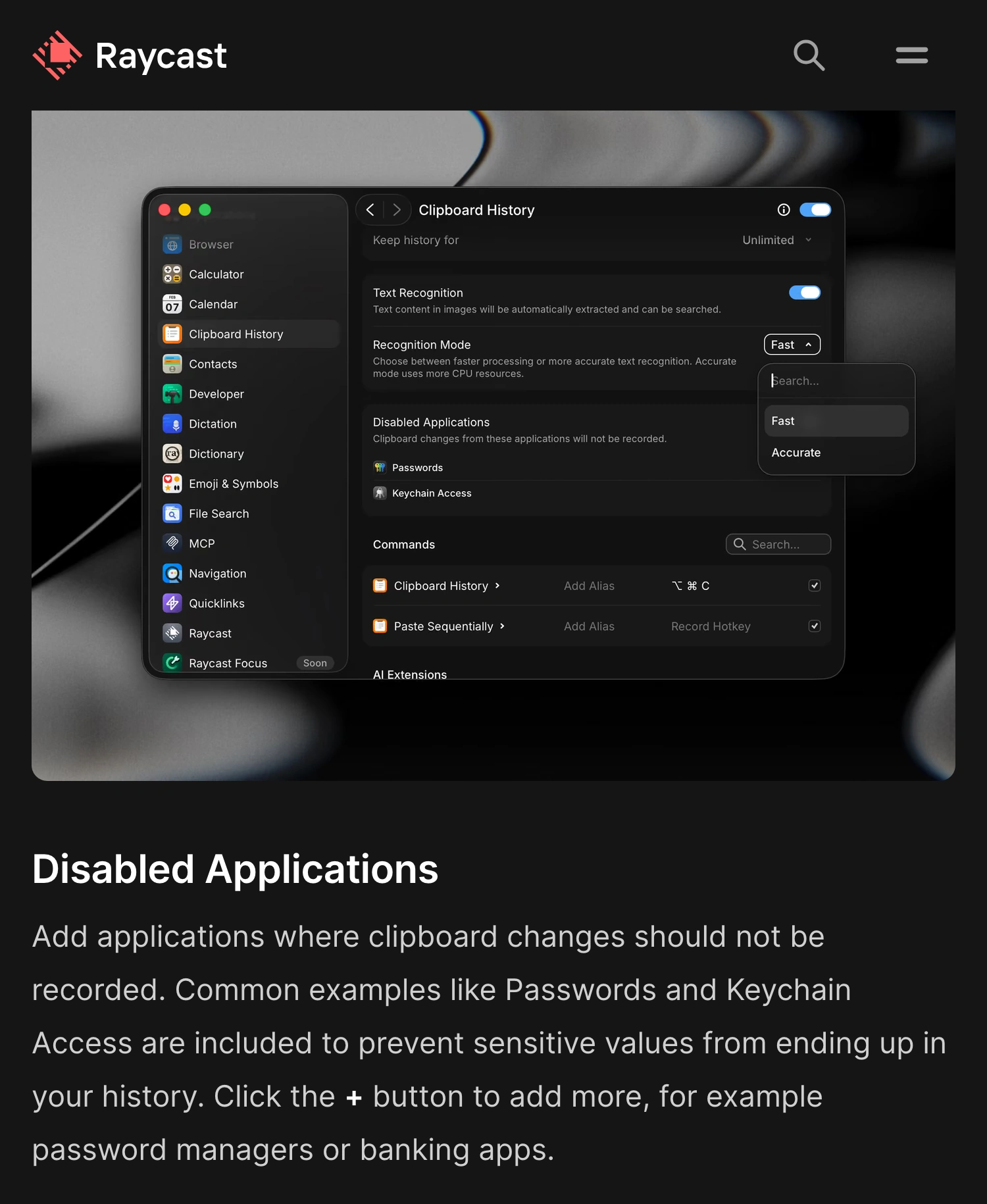
Raycast Manual, captured October 7, 2026. The official branded page describes which application clipboard changes are recorded. The screenshot is cropped from the live website; it contains no personal clipboard history.
Recording exclusions concern the source application. A value copied from a browser dashboard should not be assumed protected merely because your password-manager app is excluded. Check the application from which you actually copy.
Retention is another separate choice. A shorter history can reduce how much old material accumulates, but it is not a presentation mode. Review what remains before opening the history window in front of an audience.
Do not assume every secret is automatically recognized
Raycast’s developer clipboard API documents a concealed flag that tells Clipboard History not to record copied content. That is an explicit mechanism for content marked that way. It is not evidence that every token, password, or private sentence copied from any application is recognized automatically.
For a demonstration, this distinction is more useful than a blanket claim that clipboard history is “safe.” Work with harmless fixtures and verify the source and destination applications you will use. Do not experiment with live credentials on a shared screen.
If the window you are opening is Apple’s built-in Spotlight rather than Raycast, use the separate Spotlight privacy guide. Its settings and history belong to a different application. Changing Raycast does not configure Spotlight for you.
Keep Raycast outside a multi-app audience picture
ScreenK9 can help when a demonstration needs several work applications while you still want to use a private helper app. It produces a separate filtered macOS window that you select in the meeting’s share picker.
Choose Show only selected, include the demonstration applications, and leave Raycast outside the approved set. Choose the source display and preview ScreenK9 — Audience View. Share that named window, then verify the result from the participant side before using private material.
The work-app sharing guide explains the general setup. This is an application-level rule: ordinary apps are included or excluded as a whole. It is not a way to keep one Raycast command window visible while automatically hiding only its sensitive results.
ScreenK9 does not manage clipboard storage, inspect copied strings, or automatically detect secrets. It does not promise OCR-based filtering. Text pasted into an allowed app remains visible there, and sharing the physical display directly bypasses Audience View.
Raycast settings also allow the history command’s primary action to be configured. Before the rehearsal, confirm whether your chosen action copies an item or pastes it into the previously focused app. An accidental paste into the wrong shared field is a separate problem from opening the history list.
Test the hotkey and the destination with harmless fixtures
Create a distinctive fictional value such as DEMO-ORDER-482, then use your normal history hotkey during a private rehearsal. Confirm both the window behavior and the audience picture. Close and reopen the history panel to exercise the action you are likely to repeat during the real call.
Next, select only the approved sample and paste it into the intended demonstration field. Check which application received it and whether the audience can see it. That visible result should match your plan; hiding a helper window should never be your only check.
If a panel or unexpected value appears in the audience picture, stop sharing and correct the setup before continuing. Keep the prepared sample document available as a simple fallback. A short, repeatable sequence is easier to verify than a search through weeks of everyday clipboard entries.
Sources checked
- Raycast: current Clipboard History manual
- Raycast: clipboard API and concealed content
- Google Meet: native presentation choices
Documentation and ScreenK9’s current implementation were checked on October 7, 2026.