
Keep live search out of a prepared presentation
The smallest useful change is often to open your materials before starting the share. A presentation about one document does not need the audience to watch you search the whole Mac. Choose that document’s window in your meeting app, then verify the participant picture.
Prepare the next file as well as the first one. The risky moment may be an unscripted request for another example, when you instinctively press Command–Space and type a client name. If you need to find something unexpected, stop sharing, locate it, inspect its contents, and select the intended window again.
For a demonstration that moves between several applications, the multi-app sharing guide explains the difference between sharing your physical display and presenting a separate work view. Search settings and capture settings solve different parts of this preparation.
Exclude a specific private folder from Spotlight
Apple documents folder exclusions in its Search Privacy instructions. On current versions, open System Settings → Spotlight → Search Privacy, click the add button, and select the folder. You can also drag a folder into the exclusion list.
Choose the smallest location that covers the material you do not want suggested. Avoid excluding the entire internal disk as a quick meeting fix: Apple warns that this can prevent update notifications. Older releases may call the settings section Siri & Spotlight or the button Spotlight Privacy.
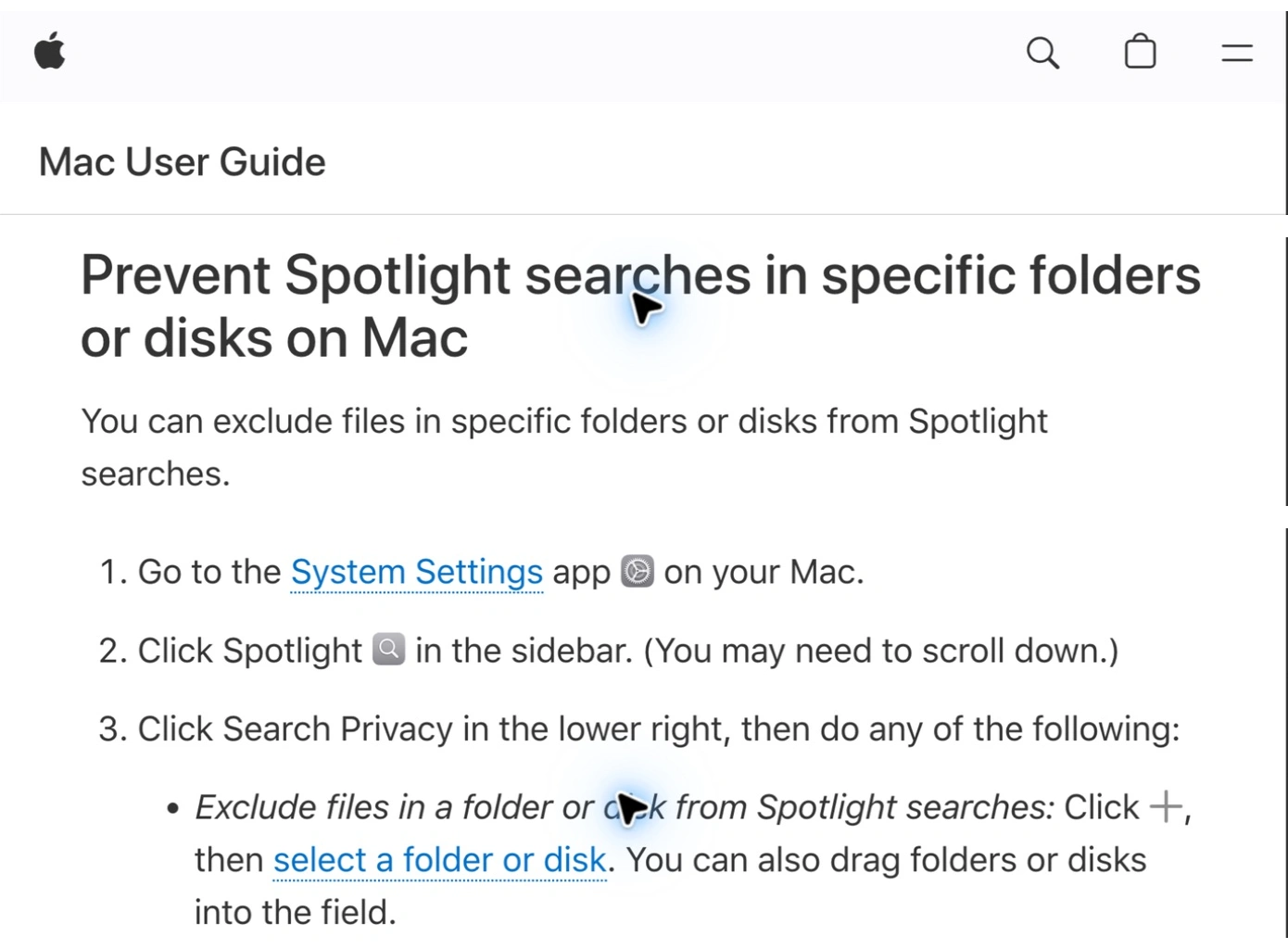
Apple Support, captured September 28, 2026. Cropped excerpts retain the source identity, article title, and folder-exclusion instructions; intervening content is omitted. This is documentation, not a recording of a ScreenK9 test.
A folder exclusion is a search preference. It does not encrypt that folder, change who can open it, or remove its contents from every application. Treat a Finder window already displaying that folder as a separate surface that still needs attention.
After changing the preference, search for a harmless example from the excluded location before the meeting. Check the actual result list instead of assuming that closing Settings proves the outcome. If the result remains visible, use the prepared-window workflow for the call and investigate afterward.
Review app results and clipboard results separately
Apple’s Spotlight settings reference distinguishes Results from Apps, Results from System, and clipboard results. Review the categories available on your installed macOS version. The clipboard control may be labelled Clipboard Search or Results from Clipboard.
This distinction matters when you copy a snippet from a private document. Excluding the document’s folder is not evidence that the copied snippet cannot appear elsewhere. Likewise, hiding a file category is not a complete review of app-provided content.
If you do not need clipboard history during the presentation, switch off its Spotlight result option before sharing and check the result. Review any separate clipboard manager you use independently; Apple’s preference is not a universal control for other apps.
There is usually no need to delete a collection of useful history merely to give a presentation. Start by changing the capture boundary and preparing the needed materials. If you intentionally clear history, regard that as a separate data-management choice, then rehearse the share again.
Match the privacy problem to the right control
| What could appear | Preparation to check |
|---|---|
| A private file in a particular folder | Search Privacy exclusion and a harmless test query |
| Content supplied by an application | The relevant app-result setting |
| A previously copied snippet | Spotlight’s clipboard option and any separate clipboard app |
| A document already open on the desktop | The selected meeting share source |
| A private result inside a work app’s own search | The demo account and the content inside that app |
This is a preparation map, not a claim that one switch suppresses all five surfaces. For example, Chrome’s address bar has its own sources of suggestions. Use the Chrome suggestions guide when the search field at issue is inside the browser.
Finder’s Recents view is another distinct entry point. The Finder preparation guide covers its sidebar and opening-window behaviour. Removing a shortcut to a list is different from reviewing the information the list can show.
Use an audience window when the demo spans apps
ScreenK9 can create a filtered work view for a presentation that moves between approved applications. Configure an Allow only profile, select the work apps and source display, start capture, and inspect ScreenK9 — Audience View. Share that named window in your meeting tool.
Keep private applications outside the allowed set. When Chrome is part of the demo, use Chrome Companion’s Work and Personal classification and verify the intended Work context in the preview. ScreenK9 uses local classification and hides personal, unclassified, stale, or ambiguous Chrome matches; its title matching is not cryptographic identity.
Do not treat this as a Spotlight cleanup feature. ScreenK9 does not rewrite the search index, classify individual search results, or automatically detect sensitive words. We have not established a universal Spotlight-overlay guarantee across macOS releases and meeting tools. If your workflow includes opening Spotlight, test that exact transition with harmless data from the recipient side. Stop sharing before an untested search.
Ordinary app rules apply to the whole application, not arbitrary individual windows. An approved app can still display private data inside its own window. A manual redaction region covers an area you choose; it is not OCR and does not follow a changing result list. Sharing the physical display directly bypasses Audience View.
Rehearse the search you might actually make
Use a disposable folder and a neutral filename such as “rehearsal sample.” Open the intended document, start the chosen share, and watch from another device or a test recording. Then perform the transition you expect during the presentation.
Check three moments: the initial document, the search or app switch, and the newly opened result. Repeat with the short partial query you would type naturally, since a complete filename can produce a much narrower list. If your demonstration never requires Spotlight, keep it out of the sequence.
The useful pass condition is concrete: the recipient sees the intended work, and no unreviewed result list enters the picture. A tidy local desktop or a checked privacy setting alone does not demonstrate that condition.
Sources checked
- Apple: Prevent Spotlight searches in specific folders or disks
- Apple: Spotlight settings
- Apple: Spotlight indexing and unexpected results
Documentation and ScreenK9’s current capture implementation were reviewed September 28, 2026. The rehearsal above is a recommended procedure, not a report of a completed live meeting experiment.