
Build the diagram walkthrough first
Start with Lucid's native presentation tools. A diagram-only meeting usually needs a prepared presentation and your meeting app's tab or window sharing. An additional capture app is useful only when the demonstration must move beyond that source.
Lucid's current presentation guide describes Presentation Builder → Create a Presentation → Add Slide. Position each slide container around the intended content. Existing Frames can also become slides through Select existing Frames and Add Frames.
Choose a small sequence: an overview, one decision, and the resulting process. Give each slide enough context to orient someone who has never opened the document. A tight crop around an isolated arrow may hide the label that explains it; a whole-canvas overview may make every label too small to read.
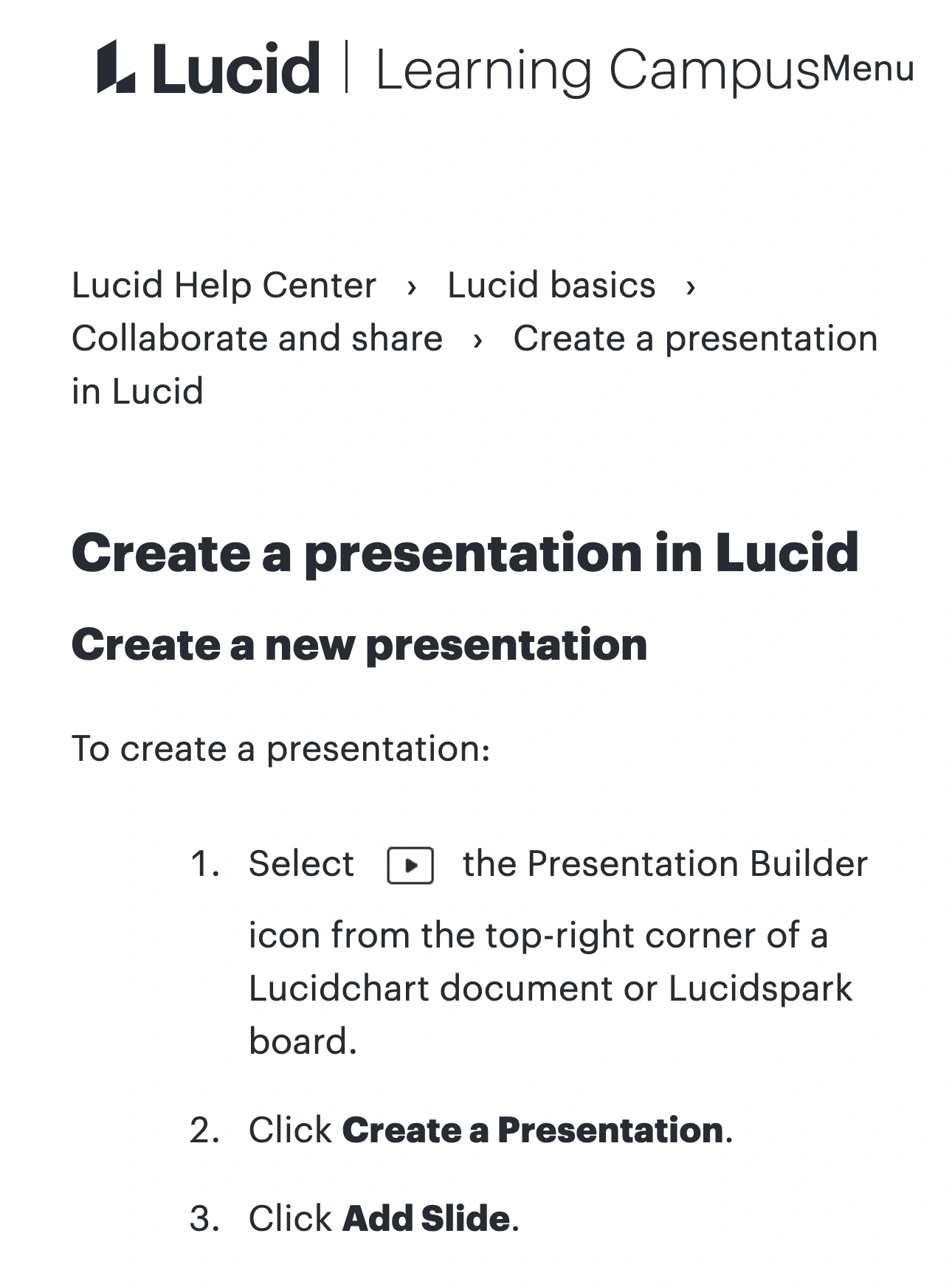
Source: Lucid Help Center, captured October 29, 2026. The native screenshot preserves the source branding and relevant instructions; unrelated page sections are omitted.
Preview from the presentation's three-dot menu with View, advance with the arrow keys, and leave through Exit presentation. Review every stop at the size your audience will actually see. Replace confidential labels with demonstration data before rehearsing, rather than trying to steer around them live.
Choose Present or Paths deliberately
Lucid distinguishes two delivery jobs. Present is the guided screen-sharing option. Paths lets collaborators follow within the shared Lucid document and participate there. In the presentation panel's delivery dropdown, choose Present for the slideshow or Start path for the collaborative workflow.
These choices should follow the meeting's purpose:
| Meeting task | Starting point | What to verify |
|---|---|---|
| Explain a prepared diagram | Present and one shared tab or window | Slide framing and readable labels |
| Collaborate inside Lucid | Paths and appropriate document access | Who can open the document and contribute |
| Demonstrate a diagram and another app | Prepared presentation, then a tested capture workflow | Every app transition and the return to Lucid |
| Send a reference after the meeting | An intentionally shared document or reviewed export | What recipients can access after the call |
Do not treat the slide frame as a permission boundary. Someone watching a meeting receives the selected video output; someone receiving a document link gets a separate access path. Decide whether attendees need the document itself before distributing a link. Avoid changing sharing permissions merely to make a screen-share walkthrough work.
Similarly, hiding editor controls is different from excluding other Mac applications. Lucid's workspace guide describes a Fullscreen control that expands the canvas. That changes the workspace layout; it does not choose what your meeting app broadcasts.
Check the opening and closing moments
The most revealing moment may be before the first slide or after the last one. A presenter can prepare a clean diagram and still share the editor, an account menu, or a different browser window while starting the call.
Use this short rehearsal with a second participant or receiving device:
- Open the intended Lucid document and verify its title.
- Prepare the presentation before selecting the meeting source.
- Choose the specific tab when your meeting supports it, or the intended browser window.
- Ask the receiver to read a small diagram label aloud. Increase the content size if necessary.
- Advance through the slides and test any planned interaction.
- Stop sharing before returning to private preparation work.
For Present mode, Lucid documents arrow-key navigation and Esc to exit. Include that exit in the rehearsal: returning to the editor can change what is visible inside the same shared source. Do not assume the meeting stops sharing because the slideshow ended.
Browser-window sharing can also include browser controls and other tabs when you switch to them. Our guide to sharing without showing other tabs explains how to choose a narrower source when the whole meeting stays in one web page.
Moving from the diagram into a live app
Consider an architecture review that starts in Lucidchart, opens an editor, and finishes in a terminal. Repeatedly changing the meeting source can interrupt the explanation. ScreenK9 can supply a separate filtered picture of approved applications on the selected Mac display, presented in ScreenK9 — Audience View.
Prepare Lucid's slides first, then configure the multi-app sequence:
- Open only demonstration-safe documents in the applications you intend to include.
- Create an Allow only profile in ScreenK9 with the required ordinary apps.
- If using Chrome, classify the intended presentation profile through Chrome Companion and inspect the resulting audience output.
- Start Audience View and walk through Lucid, the editor, and the terminal.
- Share ScreenK9 — Audience View as a window in the meeting app.
The multi-app sharing guide covers that setup in more detail. Choosing your physical display instead selects a different source and bypasses the filtered audience window.
ScreenK9 does not understand a Lucid diagram or remove confidential nodes. Ordinary applications are filtered as whole applications, not as individually chosen windows. Chrome handling classifies profiles and their windows; it does not inspect or filter individual tabs, diagram objects, or account content. Check the Chrome profile boundaries before relying on that workflow.
Keep one clear rule for the audience
Use a single prepared tab or window when that covers the meeting. Use Audience View when the explanation genuinely crosses approved apps. In either case, inspect the exact output the receiver gets, including the transition out of presentation mode.
Manual ScreenK9 regions can conceal a fixed part of the audience picture, but they do not discover secrets, read text with OCR, or follow moving diagram objects. Panning, zooming, and changing slide layouts require another check. A clean demonstration document is easier to maintain than a collection of masks around changing content.
Finish by stopping the meeting share, then decide separately what reference material to send. A successful live walkthrough does not establish that the underlying Lucid document is ready for wider access.