
Start with Screen Studio's own capture choices
Arrange the browser, editor, or terminal before opening the recording picker. Screen Studio's Display instructions say to select Display, move the pointer to the intended display, and click to confirm. This is the straightforward native choice for a workflow that moves around one monitor.
For two windows that will remain side by side, Area recording lets you draw a rectangle or enter dimensions. Keep every required control inside it. A rectangle describes a location, not an approved list of apps: another window moved into that location can change the picture.
For one stable source, choose Window. Select the target window, or right-click the Window button to choose from a list. Screen Studio's guide directs full-screen-app recording to Display mode instead. Do not assume full-screen and ordinary window capture behave identically.
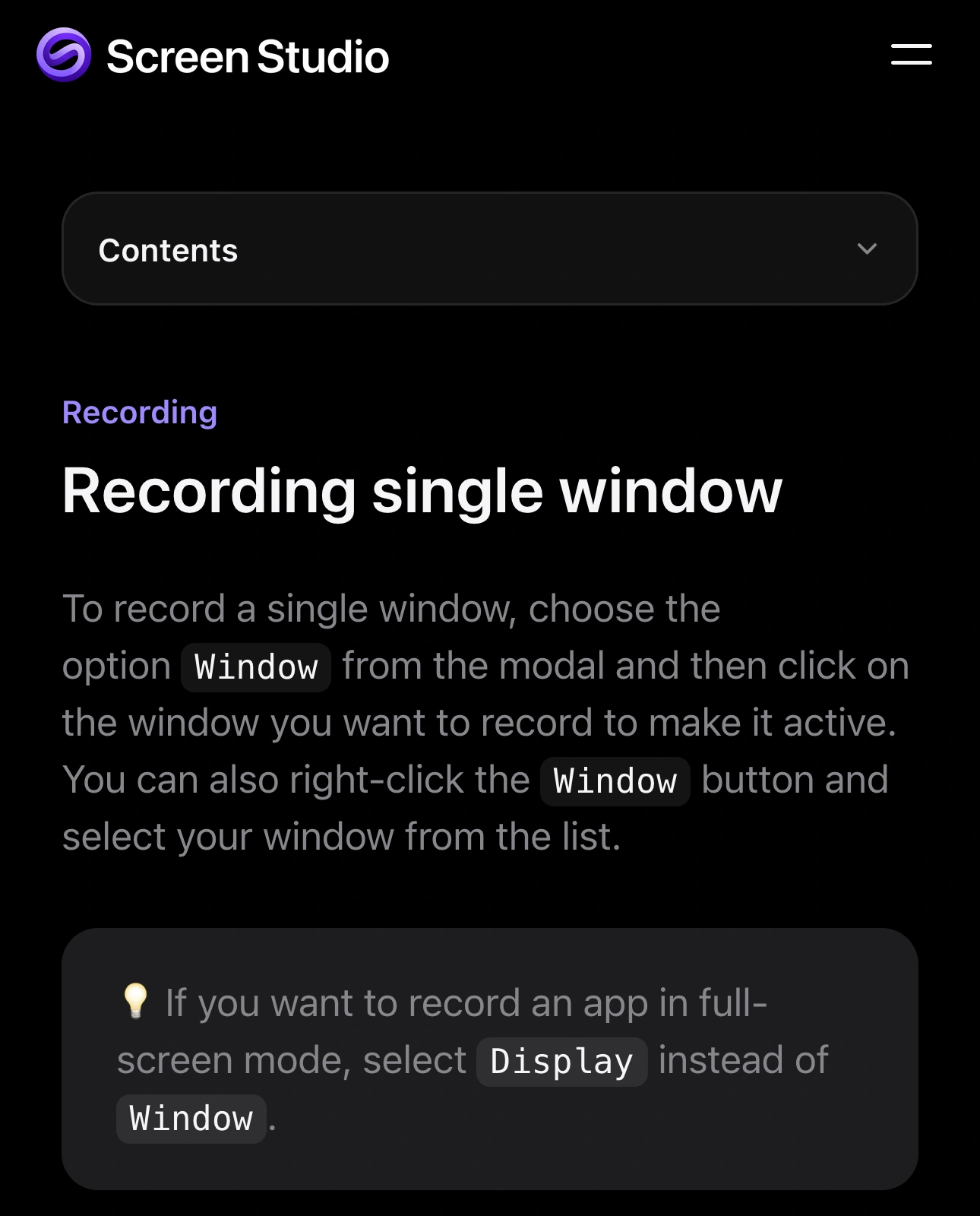
Source: Screen Studio Guide, captured October 29, 2026. The native source screenshot shows the Window selection instructions and the separate full-screen note.
Define what “multiple windows” means
Two adjacent windows, switching between apps, and combining several monitors are different recording jobs. Choose the intended output before looking for a workaround.
| Desired result | Practical starting point | Main check |
|---|---|---|
| Several apps on one monitor | Display | Everything visible on that display |
| Two stationary windows | Area around both | Movement across the rectangle's edges |
| One app window | Window | Dialogs and newly opened windows |
| A changing set of approved apps | A tested Audience View window workflow | App inclusion and every transition |
| Independently arranged video sources | A scene-based recorder | Source layout and scaling |
Screen Studio's public multi-window feature request describes a browser and terminal side by side. It was posted in December 2023 and is marked Rejected when checked. That is useful context for the question, not a substitute for testing your installed version or reading its current controls.
The documented native choices remain Display, Window, and Area. Avoid confusing Screen Studio at screen.studio with similarly named recorders. If you need independent source positioning or a composed scene, our OBS multi-window guide covers that separate workflow. ScreenK9 does not add a multi-monitor compositor or separate video tracks to Screen Studio.
Prepare the native recording before adding filtering
Make a disposable rehearsal with safe sample data. Close personal chats, account menus, unrelated browser tabs, and documents that are not part of the explanation. Then perform the whole sequence, including opening menus and returning to the first app.
For Area, check the rectangle after any window move or resize. For Display, check the corners, menu bar, and any content revealed when you minimize a window. For Window, test the actual dialog you expect to open; do not assume a separate popup appears in the captured source.
Review playback rather than only the picker thumbnail. Pause at transitions and inspect the frame after an app switch. A clear opening frame says little about what appears five minutes later when you open a recent-file menu.
Use native masks for the recorded video
Screen Studio includes masks and highlights. In the editor, open the mask timeline, add a mask where needed, and adjust its size and duration. The guide specifically warns that a mask does not follow content when the screen scrolls.
For a small fixed detail in an otherwise suitable recording, this may be all you need. Inspect the entire period during which that detail appears, including transitions into and out of the masked segment. Export a short sample and inspect the result before committing to a longer edit.
Editing the final video and controlling what enters the recording are separate decisions. Keep the original project and any unmasked source files in mind when deciding what to share. A mask visible in an export is not evidence that every underlying file has been changed.
When a filtered audience window helps
ScreenK9 is relevant when the demo repeatedly crosses approved apps while unrelated apps must remain open. It supplies ScreenK9 — Audience View, a separate ordinary macOS window containing filtered capture from a selected display.
The workflow to rehearse is:
- Put the required demo apps on the selected display and use safe example documents.
- Configure an Allow only profile in ScreenK9 for those ordinary applications.
- For Chrome, classify the intended profile through Chrome Companion and inspect the audience output.
- Start Audience View and perform every planned app transition.
- In Screen Studio, choose Window and select ScreenK9 — Audience View.
- Record a short test, export it, and review picture, cursor behavior, framing, and sound.
This uses Screen Studio's documented window source and ScreenK9's ordinary output window. It is not a claim of a dedicated integration or an end-to-end compatibility test on your installed versions. If the rehearsal is blank or incomplete, stop and resolve the source selection before recording the real material. Selecting the physical Display instead bypasses the filtered output.
The Audience View guide explains the capture boundary. Ordinary apps are filtered at app level; ScreenK9 cannot approve one window while excluding another window of the same ordinary app. Chrome classification works at profile/window level, not individual tabs or page content. There is no OCR or automatic secret detection.
Select audio separately and check the export
ScreenK9 does not capture or route sound. Screen Studio's system-audio controls can select all apps, one app, or a group of apps. Choose the intended sources there and configure the microphone separately. An application hidden from the picture can still make sound if the recorder includes its audio.
Finally, watch the exported file from start to finish. Check narration, app transitions, mask timing, readable text, and the ending frame. If the job ultimately needs only one source, return to the simpler single-window recording workflow. The smallest source that covers the explanation is usually the easiest one to verify.