
Collapse navigation after choosing the page
A useful note can sit next to notebook names and page titles that have nothing to do with the meeting. Start by selecting the exact page you intend to show. Then use OneNote's Navigation button to collapse the surrounding navigation panes.
Microsoft's navigation guide has separate Windows, Mac, and Web instructions. Select Mac. It describes the Navigation button as a toggle: one state exposes the notebook hierarchy, and the other hides those panes so you can work on the current page.
This is a layout control. It does not create an audience copy of the notebook, remove its other pages, or prevent you from reopening navigation. Prepare the current note as carefully as the opening view around it.
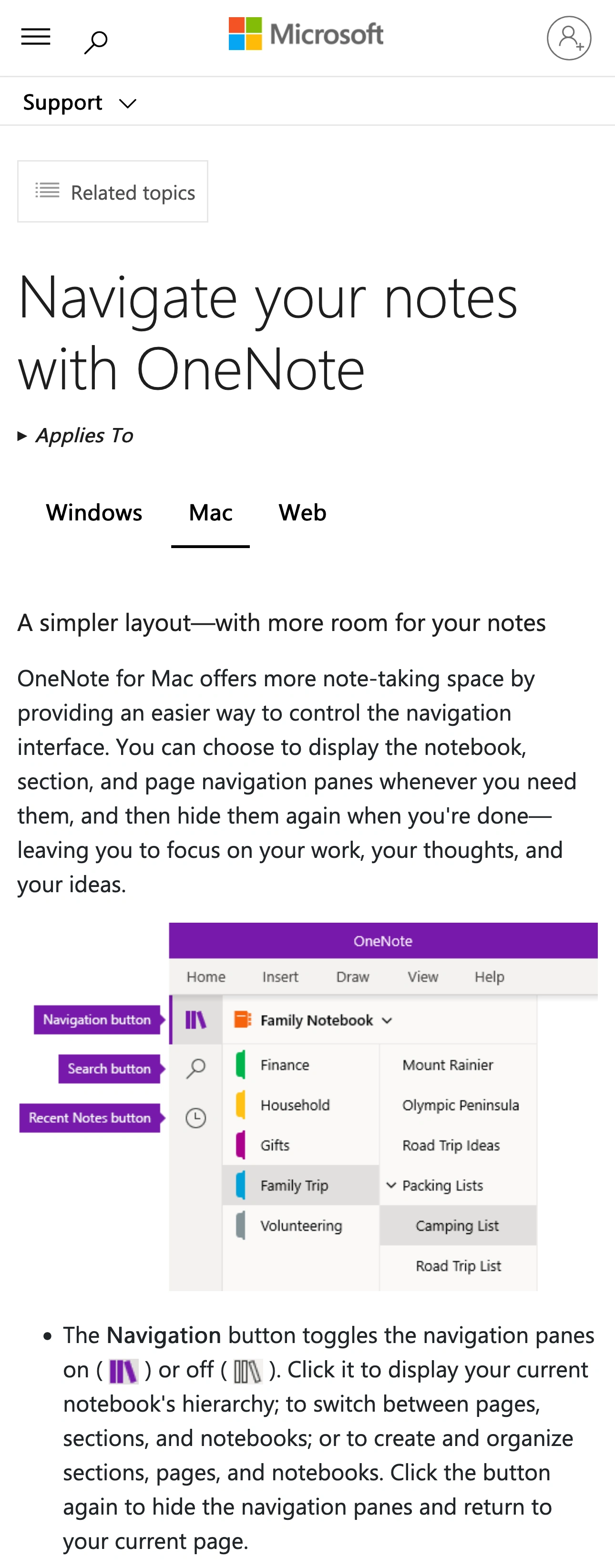
Source: Microsoft Support, captured November 4, 2026 with Mac selected. Two unaltered crops retain the branding and relevant instructions in source order; intervening content is omitted.
Prepare the note, not only the sidebar
Before sharing, scroll through the page and remove material the audience does not need from the presentation version. Pay attention to text lower down, pasted screenshots, attachments, and links that could take you somewhere unexpected.
For a training session, a dedicated sample page is often easier to control than a working notebook. Write a short agenda, include only the example under discussion, and use harmless sample names. Keep private speaking prompts in a separate place that is outside the selected sharing source.
This checklist helps you distinguish the opening appearance from the actions that might change it:
| Surface | Prepare before the call | Rehearse at the receiver |
|---|---|---|
| Current page | Audience-ready text and examples | Scroll to the bottom and back |
| Navigation panes | Select the page, then collapse the panes | Reopen only if all visible titles are suitable |
| Search | Finish searching before sharing | Check the results if live search is necessary |
| Attachments and links | Open only prepared material | Confirm which window or app receives it |
| End of the demo | Know how to stop sharing | Stop before returning to private notes |
For example, a public onboarding checklist may be safe while the neighboring page title names an unannounced project. Collapsing navigation removes that title from the opening view. Reopening navigation during a question can bring it back. Decide beforehand whether the audience needs to see any navigation at all.
Keep Mac instructions separate from Windows shortcuts
Searching for “OneNote full page view” often mixes platforms and versions. Microsoft's keyboard-shortcuts documentation lists F11 under Windows for full-page view. Do not treat that as the Mac instruction for hiding the sidebar.
The Mac section lists Control–Command–F for entering full-screen mode. Full-screen changes the application window's presentation; it is not a promise that every notebook title, search result, or private note disappears. Use the Navigation button for the specific navigation panes, then inspect the result.
Microsoft's screen-reader navigation guide also separates Mac from Windows. That is useful when locating the navigation controls with assistive technology. Follow the Mac section instead of translating a Windows ribbon instruction by guesswork.
If a tutorial shows a different arrangement of buttons, use it to understand the workflow while checking current Microsoft guidance for the control names. The embedded Mac walkthrough was uploaded in 2024 despite its updated title; it is not evidence of a new 2026 OneNote release.
Finish searching before you start the share
The Search button is separate from the navigation toggle. Microsoft documents it as a route into results across parts of your notes. A narrow page view does not mean a later search will stay limited to material appropriate for this audience.
Find the page before the call, then close the search experience and return to the prepared note. If you expect to answer questions by searching, rehearse with harmless terms and check both the search scope and the result titles visible in the received picture.
Treat recent-file menus the same way. Microsoft's basic Mac tasks guide includes File → Open Recent for returning to notebooks. Avoid opening that menu live simply because you cannot immediately find the prepared material.
Share the prepared OneNote window
For a note-only discussion, use your meeting application's window-sharing option and select the prepared OneNote window. Inspect its preview, then check the picture from another device or a private test recording.
A window source follows the content of that window. It does not freeze the opening page. If you navigate to another note or expand a pane, check what the recipient can now see. Stop sharing before opening material that was not prepared for the meeting.
If you need speaking prompts, our private speaker-notes guide explains how to keep a reference outside the audience source. Also review notification settings for screen sharing when planning a clean presentation workspace.
Use ScreenK9 when the session moves between apps
ScreenK9 becomes useful when your walkthrough moves from OneNote into slides and a browser while a private reference application stays open. Configure an Allow only profile for one selected display, inspect ScreenK9 — Audience View, and share that window in the meeting app. Follow the multi-app sharing workflow for the source-selection steps.
ScreenK9 filters ordinary applications as whole apps. It cannot allow one OneNote notebook or window while excluding another window of the same application. Prepare all OneNote material you may expose, or keep the private reference in an excluded app.
It does not recognize notebook names, read your notes with OCR, or automatically detect secrets. Chrome Companion can classify Chrome profiles/windows for a browser segment, but individual tabs in an allowed profile remain your responsibility. See the Chrome profile boundary. Sharing the physical display directly bypasses ScreenK9's Audience View.
Check one transition before the meeting
Use a harmless test page and join the meeting from a second device. Confirm the opening note, scroll once, and perform the one transition you expect during the real session. If you need navigation or search, include it in this rehearsal rather than testing only the collapsed opening view.
Stop the share before returning to your private notebook. A simple route through prepared pages is easier to repeat reliably than a live search through a busy personal workspace.
Sources checked
- Microsoft: Navigate your notes with OneNote — Mac
- Microsoft: Keyboard shortcuts in OneNote
- Microsoft: Use a screen reader to explore and navigate OneNote
- Microsoft: Basic tasks in OneNote for Mac
- Aldo James: OneNote for Mac walkthrough
Documentation and ScreenK9's implementation were reviewed November 4, 2026. The rehearsal is a suggested check, not a claim of a live test across every OneNote version or meeting application.