
Hide columns in the view you will present
Start with the smallest useful change: remove unnecessary fields from the database view. A project review may need the task, owner, and status, while internal estimates add clutter and create an avoidable exposure during the call.
Notion's database-properties guide describes the settings menu at the top of the database, Property visibility, and the eye control beside a field. Hide the fields you do not need, then inspect the resulting view before sharing it.
Check the exact view selected for the meeting. Notion's views guide explains that views have their own settings. Tidying a table does not establish what a board, calendar, or another table view will show. Give your presentation view a clear name so you can return to it without opening an unrelated working view.
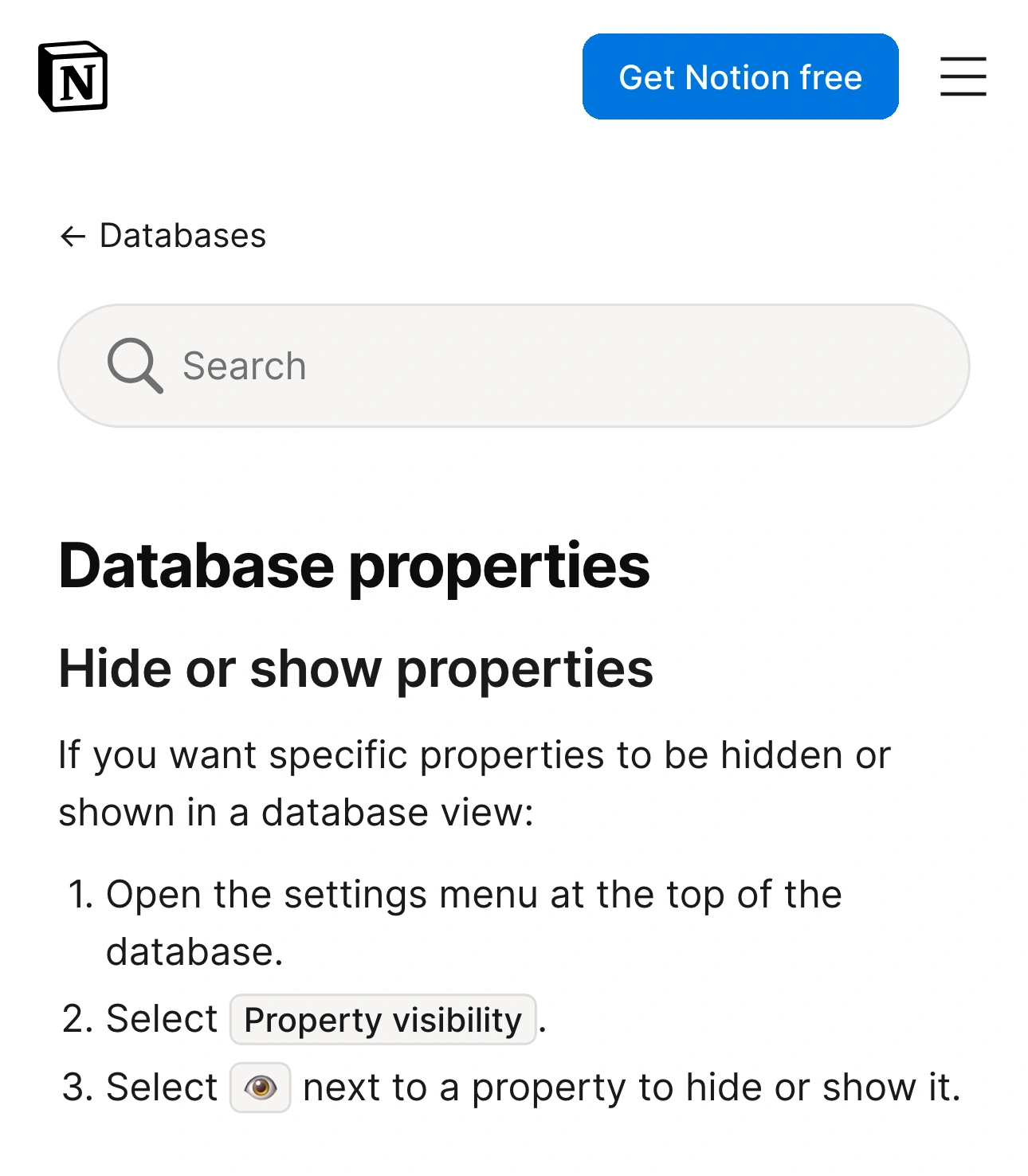
Source: Notion Help, captured November 4, 2026. Two unaltered crops retain the page identity and instructions in source order; intervening content is omitted.
Choose the control that matches the problem
Several settings can make a database look less busy, but they solve different problems. Use this table before deciding that a field is safe to keep in the working database.
| What you need | Native control or preparation | What to verify |
|---|---|---|
| Fewer columns in a database view | Property visibility | Every view you will switch to |
| A tidier opened database page | Page property settings or a database layout | The opened page and hidden-property menus |
| Limits on a collaborator's access to properties | Property access on an eligible plan | The person's effective permissions |
| A safe picture during a meeting | A prepared tab or window, checked at the receiver | Every page and menu you open live |
For example, hiding an estimate column helps a status review stay focused. It does not establish that a collaborator lacks permission to read that estimate elsewhere. Likewise, a collaborator's restricted account does not change the image broadcast from your more privileged account.
Inspect an opened database page separately
Open one representative record before the call. The database table and the record's page are different surfaces. A field omitted from the table can still matter when you open the record to discuss its details.
Notion's database introduction describes page properties and a menu for hidden properties. Treat those presentation controls as ways to arrange the page. If a property must never appear in a live demonstration, use a prepared example without the sensitive value instead of relying on never opening that menu.
For a consistent page design, Notion's layouts documentation describes customizing a database layout. The layout applies across the database's pages rather than just one record. Consider other people's workflows before changing a shared database solely for your presentation.
The practical rehearsal is simple: open a record, expand the controls you expect to use, follow one relation, and return to the table. Use harmless sample values while rehearsing. This catches a transition that a screenshot of the opening table would miss.
If the surrounding workspace is the problem, our separate Notion sidebar guide covers that navigation area. Hiding the workspace sidebar does not change database property visibility.
Use Property access when the requirement is permission
Notion now documents Property access for Business and Enterprise plans. In the original database's table view, an eligible user with Full access can open a property menu, set its access rules, and preview the result for a person before saving. The setup is available on web and desktop. See the current Property access guide for supported property types and role limits.
Do not rely on older advice that says hiding columns is the only available option. Equally, do not assume the feature restricts the presenter: Notion says Full access users retain access, and the most permissive applicable access takes precedence. Review the actual person's permissions when distributing the database.
During a meeting, viewers receive the pixels you share. They can see a field that is visible to you even if their own Notion accounts could not open it. Prepare the presenter's view as well as the recipients' permissions when the workflow involves both a live demo and a database link.
Select a narrow meeting source
For a Notion-only walkthrough, prepare one browser tab or window and select that source in your meeting application. Check its preview and the receiver's picture. Avoid assuming that a tidy page makes the entire display ready to share.
A tab source can be useful when supported by your meeting workflow. A window source may include browser controls or change as you navigate. Our tab and window sharing guide explains that boundary.
Prepare the route through the demo: opening view, one record, one related page, and the return to the starting point. If a question requires opening an unprepared record, stop sharing first. This is often quicker and more reliable than trying to tidy unfamiliar material while everyone watches.
Add ScreenK9 for a demo across approved apps
ScreenK9 is useful when the Notion walkthrough continues into slides, a browser, or another approved application while a private reference app stays open locally. Configure an Allow only profile for one selected display, inspect ScreenK9 — Audience View, and share that window in the meeting application. The multi-app sharing guide covers the setup.
ScreenK9 does not hide individual Notion properties, rows, or records. Ordinary applications are filtered as whole apps, so allowing the Notion desktop app does not isolate one of its windows. All material you may expose inside an allowed app still needs preparation.
With Chrome Companion, ScreenK9 can classify Chrome profiles/windows, not individual tabs or database contents. Keep the entire allowed profile suitable for the audience; the Chrome profile guide explains that limitation. Sharing the physical display directly bypasses Audience View.
Rehearse one harmless field before the call
Create a sample value such as “internal rehearsal note” in a test record. Inspect the received picture while switching views, opening the record, and returning to the database. If that value appears unexpectedly, correct the view, page preparation, or selected sharing source before using real material.
Keep permission checks and presentation checks separate in your rehearsal. A clean database view is the starting point; the receiver's picture is the final check for the live meeting.
Sources checked
- Notion: Database properties
- Notion: Views, filters, and sorts
- Notion: Database page layouts
- Notion: Database property access
- Notion: Using database views and official video lesson
Documentation and ScreenK9's implementation were reviewed November 4, 2026. The sample-field exercise is a suggested rehearsal, not a claim of a live test across every Notion plan or meeting application.