
Pause and resume an active Zoom share
Start with Zoom's own control. You do not need another app for a brief pause during a presentation.
- Share the window or screen you intend to present.
- Find Pause in the sharing toolbar and select it.
- Check the paused state before switching to material the audience should not see.
- Prepare the next public view, then select Resume.
Zoom documents Pause and Resume among its screen-sharing controls. Their purpose is to suspend and restart the active share. Avoid clicking through a remembered toolbar position: read the control that is actually on your screen.
For a short lookup, say “One moment while I check that.” If the information is sensitive or you are unsure whether pausing took effect, stop sharing before opening it. You can start a fresh share after returning to a prepared public window.
The Mac shortcut is Command–Shift–T
Zoom's current keyboard-shortcut reference, updated July 1, 2026, assigns Command–Shift–T to pausing or resuming a screen share on macOS. Command–Shift–P controls recording instead.
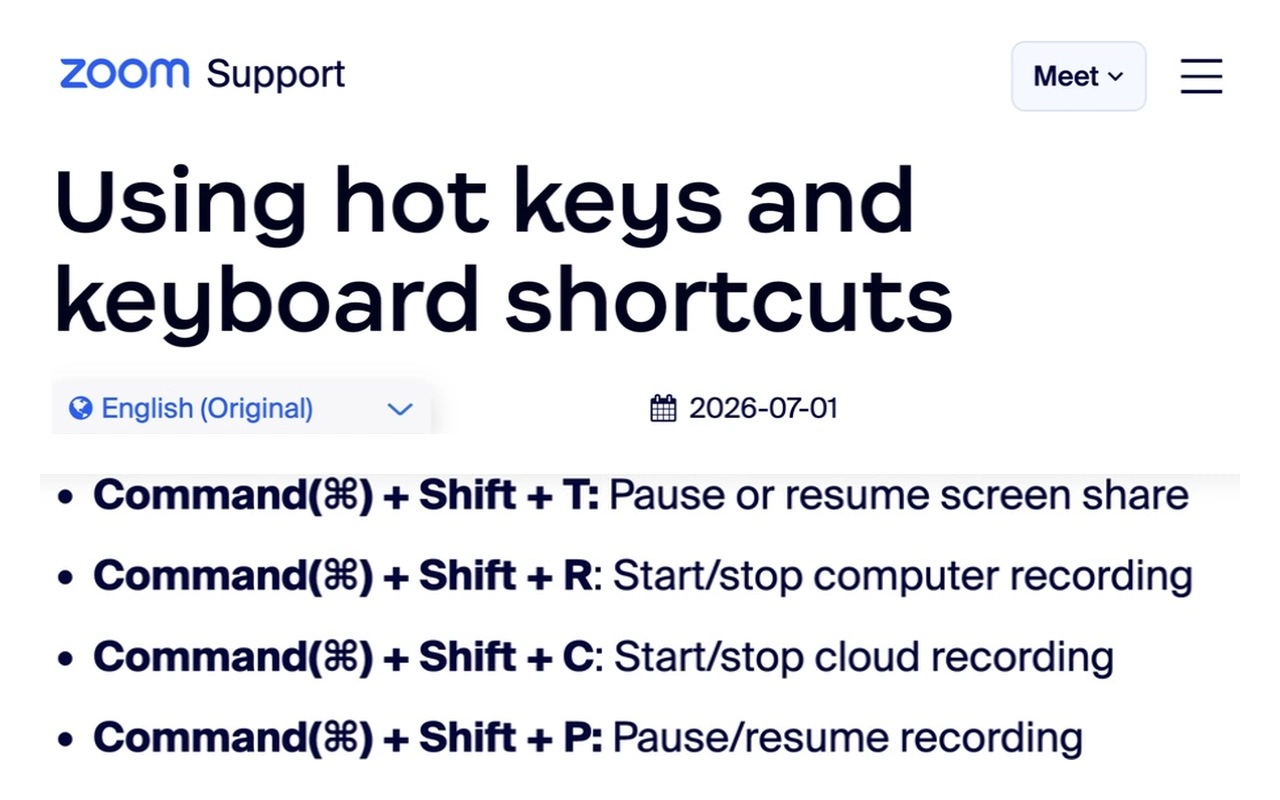
Zoom Support, captured September 15, 2026. Cropped excerpts retain the source heading and the relevant commands; intervening page content is omitted. The image is an unaltered screenshot excerpt, not a generated interface.
Shortcuts can be edited under Zoom's Settings → Keyboard shortcuts. Some can be enabled globally, which lets them work while another app has focus. Check your own assignment rather than assuming a keyboard combination will always reach Zoom.
A practical rehearsal: share a harmless document, pause using the shortcut, change that document, and have a second device check the audience view. Resume and check again. This tests your actual configuration without involving private information.
What do participants see while sharing is paused?
Treat the paused image as something to verify, not a guaranteed holding slide.
A Zoom Community discussion includes an older Zoom employee explanation that participants retain the last frame. A separate 2025 discussion reports a paused message instead of that frame, including reports involving Mac and iPad clients. These are accounts of particular configurations, not a promise about every current version.
The useful distinction is between stopping live visual updates and controlling exactly what an attendee sees during that interruption. Do not build a presentation around everyone continuing to read a specific slide unless you have tested the receiving clients.
For a reliable break slide, put a harmless “Back shortly” page in the shared window and leave that page visible. If your next action requires private content in that same window, stop sharing first. A static visual and an interrupted share are different choices.
Pause, stop, mute, and recording are separate decisions
| Your intention | Control to use |
|---|---|
| Temporarily suspend the shared picture | Pause, then Resume |
| End the current screen share | Stop share |
| Stop sending your voice | Microphone mute |
| Stop sending your camera picture | Camera control |
| Pause a recording | Recording controls |
Zoom lists these controls separately in its sharing and shortcut references above. Do not use a screen-sharing pause as a substitute for checking your microphone, camera, shared computer audio, or recording state.
Before a private conversation, check the relevant audio control explicitly. Before changing what a recording contains, inspect the recorder. A paused presentation does not establish that everything else in the meeting has stopped.
Share a smaller source when that solves the problem
Repeatedly pausing often signals that the original share is broader than the task requires. A single public document is easier to manage as a window share. Keep unrelated work outside that window and check its contents before presenting it.
For slides, the WCM ITS video above demonstrates Zoom's Portion of screen option. It also shows the temporary pause while the region is adjusted. This is useful when the slide preview should be visible but surrounding presenter notes should stay outside the capture area. Our speaker-notes guide covers that distinct setup.
A region follows coordinates, so moving sensitive content into that region can expose it. Rehearse layout changes before the meeting. If notifications are the interruption you are trying to avoid, configure Mac notification controls as part of your preparation.
When ScreenK9 fits a longer multi-app demonstration
Suppose a demo moves between a spreadsheet, a design app, and work browsing. You also need a private messaging app open. Pausing before every transition creates repeated manual decisions about what is visible.
ScreenK9 can produce a separate filtered macOS window, ScreenK9 — Audience View, containing approved work apps. Share that window in Zoom and inspect it before presenting. This is a way to keep the selected work visible during transitions; ScreenK9 is not a Zoom pause button or a tool for freezing an attendee's last frame.
Set up the audience view, approve only the applications needed for the demonstration, and keep the private messaging application excluded. If using the companion Chrome extension, classify the intended Chrome profile as Work and verify the resulting windows in Audience View. Read the multi-app sharing guide for the complete workflow.
The boundary matters: ordinary app rules apply to the application, not to one chosen window within it. An approved spreadsheet app can contain both public and private documents. Separate those before sharing. Chrome profile classification has its own rules; Work and Personal profile separation explains them.
ScreenK9 does not recognize secrets with OCR, discover passwords automatically, or make everything in an approved app safe. Manual redaction regions stay where you place them. ScreenK9 does not capture or route meeting audio, and its filtering applies to Audience View, not to a physical display shared directly in Zoom.
If pausing does not behave as expected
Return to the visible toolbar and confirm the selected control. A shortcut with the wrong focus or a customized assignment is different from a share that pauses automatically. For automatic interruptions or an unavailable share, use Zoom's screen-sharing troubleshooting guidance; do not assume ScreenK9 repairs Zoom errors.
If macOS refuses screen capture entirely, check the relevant app in System Settings → Privacy & Security → Screen & System Audio Recording, as described in Apple's permission guide. Permission troubleshooting is separate from choosing a pause state.
End your rehearsal with three checks: the audience sees only intended content, the correct live view returns after Resume, and audio behaves as expected. Repeat this short check after changing the share source or meeting setup.
Sources checked
Checked September 15, 2026: Zoom's sharing controls, macOS shortcuts and troubleshooting documentation; the dated Zoom Community reports linked above; Apple's capture-permission guide; and WCM ITS's February 18, 2026 video. ScreenK9 claims were checked against PRODUCT.md and the current capture, app-rule, Chrome-bridge, and redaction implementation.