
Choose the view before starting screen sharing
This guide concerns the Power BI service in a browser on a Mac. It does not require a Windows desktop application. Open the report you are already authorized to use, confirm the page and data are suitable for the audience, and start with its normal Reading view.
Microsoft’s current report display guide, updated July 23, 2026 and checked October 26, distinguishes the two modes:
- Focus mode enlarges one visual while keeping the Filters pane available.
- Full screen removes surrounding interface elements for a presentation.
For a report visual, hover over it and select the Focus mode icon. For a dashboard tile, use More options (…) > Open in focus mode. To return, use Exit focus mode or Back to report, whichever your view shows.
For a report, choose View > Full screen. To present one visual without the surrounding controls, enter Focus mode first and then Full screen. The native controls are enough when your explanation stays inside that prepared report.
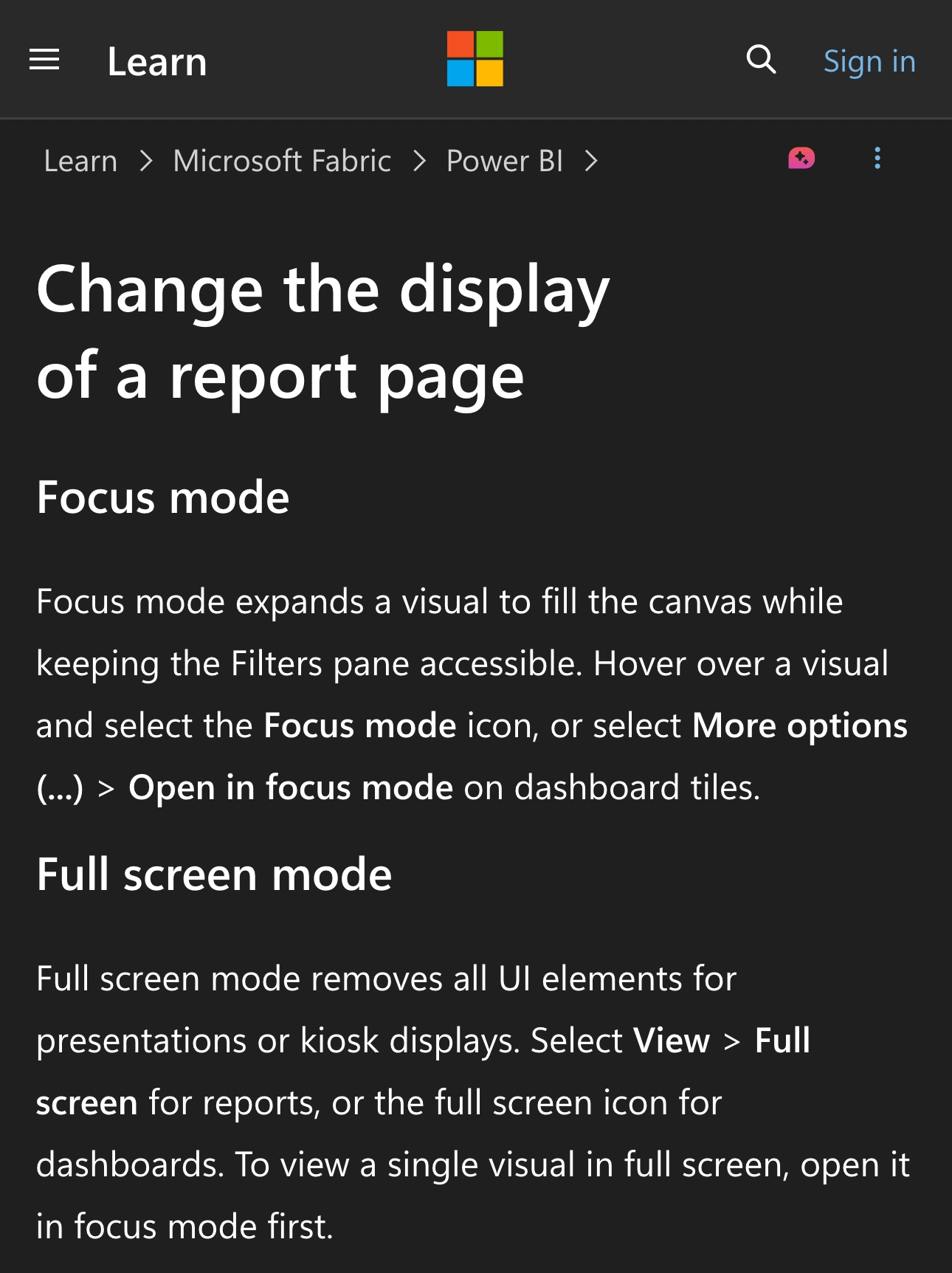
Microsoft Learn, captured October 26, 2026 at 3× resolution. The branded header and mode descriptions are unaltered excerpts; intervening content is omitted.
Match the mode to the audience’s question
Enlarging a chart is useful when the audience needs to inspect it. Removing navigation is useful when the surrounding interface competes with the explanation. Neither choice decides whether the chart’s contents should be shown.
| What you need to explain | Start with | Rehearse |
|---|---|---|
| How several charts relate | Normal report view | Selections that change other visuals |
| One detailed visual | Focus mode | Filters and the return to the report |
| A clean presentation surface | Full screen | The controls shown when the pointer moves |
| One visual with minimal interface | Focus mode, then Full screen | Both exit steps and the final sharing source |
Suppose your meeting concerns a regional trend. Showing the whole report establishes context; opening the relevant chart in Focus mode makes the comparison easier to follow. Before the call, decide which filter values you will demonstrate and where you will return afterward.
Avoid reducing browser zoom until everything fits but the labels become unreadable. The display guide also offers Fit to page, Fit to width, and Actual size. Test the result in the receiver’s meeting window. A view that requires frequent scrolling may need a simpler presentation route.
Rehearse the filter state, not just the layout
Focus mode keeps the report interactive. Microsoft documents that filter changes for report visuals can persist automatically; Reset to default discards them. Dashboard-tile changes behave differently. Check the specific report you will present instead of assuming it returns to a neutral state when you leave the enlarged visual.
Start a rehearsal from the same state you intend to use live. Apply the planned selection, return to the report, and confirm that the rest of the page tells the story you expect. A previous exploratory filter can make a demonstration confusing even when no private data is involved.
If filter controls themselves should be hidden from report readers, that is a report-authoring decision. Microsoft’s Filters pane documentation describes hiding the pane for Reading mode and hiding or locking individual filter cards. Locking a card leaves it visible while preventing edits; hiding it changes its visibility.
Be careful with instructions for the View > Filters editing toggle: Microsoft describes that toggle as Power BI Desktop behavior without an equivalent in the service’s Editing mode. Do not search your Mac browser for a Windows-only editing control.
Check what appears when someone explores the report
Reading view does not mean a static picture. Microsoft’s report interaction guide, updated August 31, 2026, describes tooltips, related-visual filtering, data-table views, and exports, with availability depending on permissions and administrative settings.
Those features make a report useful, but they also make the presentation route matter. Hover over the points you intend to discuss. Review the actual tooltip content. Test the selection that changes another chart. If you plan to show underlying values, inspect that table before opening it on the call.
For example, an aggregate chart may be suitable for the group while a tooltip names an individual customer. Prepare appropriate demonstration data or a report view designed for that audience. Hiding the browser’s navigation does not change the information returned by the report.
If you export data and open it in Excel during the meeting, inspect that spreadsheet separately. The Excel presentation guide covers preparing the workbook and any file you later send.
Check the Mac browser and the shared source
Microsoft’s supported browsers guide includes current Mac browsers and warns that fonts and layout can differ across platforms. Rehearse on the Mac and browser you will actually use; do not rely only on a colleague’s Windows screenshot.
For one report, share the prepared tab when your meeting supports it, or its browser window. Check what happens when you enter and leave Full screen. Confirm the audience still receives the intended content rather than a stale frame or a different browser surface. Keep unrelated tabs and private account pages outside your planned route.
ScreenK9 helps when you move between the browser report and other approved work apps. Choose Show only selected, configure the required apps, inspect ScreenK9 — Audience View, and share that named window. See the multi-app workflow for the setup.
Chrome Companion classifies Chrome windows by profile; it does not filter individual tabs, report pages, or data fields. Prepare all content that can appear inside an approved window. The Chrome profile guide explains that boundary. Other ordinary application rules are app-wide.
ScreenK9 does not change Power BI permissions, recognize confidential values, or automatically redact tooltips. A manual mask stays fixed, and directly sharing the physical display bypasses its filtered window. Before going live, test the report state, each interactive reveal, both mode exits, and every app transition from a receiver’s view.