
Start with a workbook that can survive a wrong click
The most dependable presentation is one where an accidental selection does not reveal confidential material. Create a separate workbook for the meeting and include only the information the audience is meant to see. Use fictional customer names and sample amounts for a product demonstration.
For a report, copy only approved results into the presentation copy and inspect them there. If you need to explain formulas, build an example with safe inputs instead of opening the operational workbook. Keep the original closed during the call when possible.
This is a suggested preparation workflow, not an automatic sanitisation method. A copied sheet can bring along content you did not intend to present. Review the resulting workbook’s visible sheets, chart labels, comments, links, and title. Give it a neutral filename that also looks acceptable in a window picker.
For a static explanation, an inspected image or PDF of the approved report may be enough. If you choose that route, open the finished export and review every page before sharing it. A print area tells you what you intend to export; the actual output tells you what you produced.
Hide columns to simplify the view
When the underlying data is already appropriate for the audience, hiding columns can make a live explanation easier to follow. Select the column header, open its context menu with a secondary click or Control-click, and choose Hide. Repeat for any other columns you do not need to discuss.
Microsoft’s Hide or show rows or columns guide describes the operation and the double-line indicator left between neighbouring columns. The same guide explains how to unhide them. That reversibility is why hiding is a display choice, not removal of the data.
Avoid relying on a long set of keyboard shortcuts immediately before the meeting. The context menu makes the selected range easier to check, and you can complete the operation before the audience connects. Review your finished view at the zoom level you will actually use.
If someone asks to see more detail during the call, do not reflexively unhide every column. Stop the share, check the requested material, and resume with the approved view. The pause is much easier to handle than discovering afterward that the hidden column contained live customer information.
Inspect the formula bar and editing state
A worksheet can show a harmless-looking result while the selected cell’s formula reveals something else. Microsoft’s Excel for Mac formula guide distinguishes formulas in the formula bar from results in cells, and documents the Formulas → Show Formulas toggle.
Click the cells you intend to discuss and inspect the bar above the grid. Check for source filenames, worksheet names, text embedded in formulas, and values that do not belong in the presentation. Leave Show Formulas off when the audience needs results only.
If the bar is unnecessary, use the View tab’s Show → Formula Bar option to hide it. Microsoft also documents the formula-bar preference in its Mac display options. Hiding the bar is still a layout choice: editing a cell or changing the view can create a different visible state.
Do not use white text, a narrow column, or decorative shapes as a substitute for a prepared example. Your rehearsal should include selection and editing, not just the initial worksheet. If those actions are unsafe, simplify the demonstration or rebuild it with fictional values.
Keep screen sharing separate from file sharing
When you share a workbook window in a meeting, participants receive the captured picture. When you send the workbook, they receive a file that needs its own review. A column hidden during the presentation is not a reason to send the original spreadsheet afterward.
Microsoft explains that worksheet protection is not a security feature. Its purpose includes preventing changes to locked cells. It should not be described as a way to make confidential contents safe for distribution.
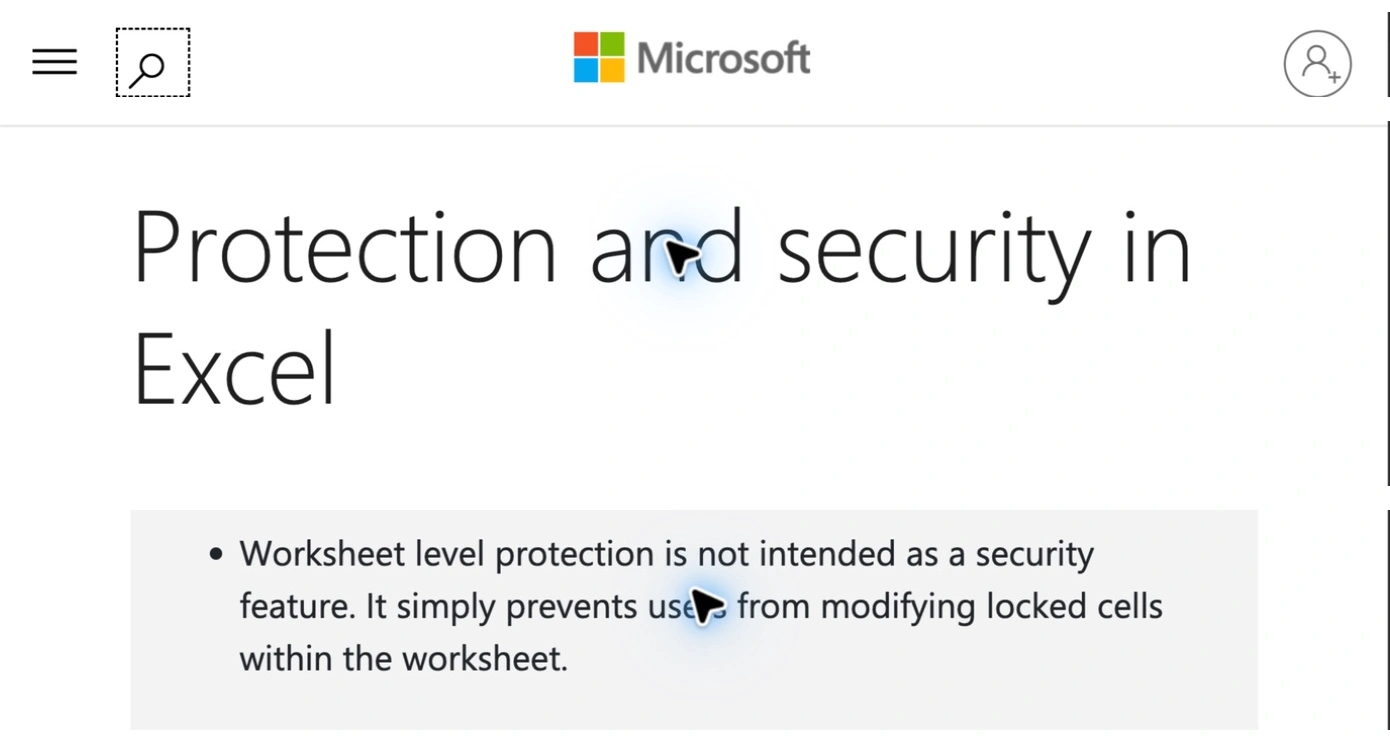
Microsoft Support, captured September 28, 2026. Cropped excerpts preserve the Microsoft identity, article title, and worksheet-protection warning; intervening content is omitted.
If attendees need a takeaway, review that deliverable separately. ScreenK9 controls an audience picture; it does not remove data from an Excel file, manage workbook permissions, or change what is included in an attachment.
Choose the source for the actual presentation
| What you need to show | Starting point |
|---|---|
| One prepared workbook | Share that specific window in the meeting app |
| A static approved report | Share an inspected export in its viewer |
| Excel plus a browser and another work app | Rehearse a filtered Audience View workflow |
| One private workbook beside one public workbook | Use a native window share; an app-wide allow rule is insufficient |
For meeting-specific picker guidance, see the Teams sharing guide. Confirm which workbook the recipient sees before explaining the first cell. Similar filenames and multiple open windows are an easy source of mistakes.
Use ScreenK9 for the transition between work apps
ScreenK9 is useful when you move from the prepared spreadsheet to a browser dashboard or another approved application. Configure the apps and source display, inspect ScreenK9 — Audience View, and share that named window. The multi-app workflow explains the setup.
Ordinary application rules are app-wide. Approving Excel does not independently exclude another Excel workbook, so close private Excel windows before using this workflow. Keep personal applications outside the allowed set. For Chrome, use Companion’s Work and Personal classification and rehearse the intended browser context.
A manual redaction region can cover a known stationary area in the audience output. It does not attach to a cell, follow a column while you scroll, or recognise private numbers. Recheck after resizing or moving anything; use prepared data when the demonstration requires frequent navigation.
ScreenK9 has no OCR or automatic secret detection, does not edit Excel, and does not intercept meeting traffic. Sharing the physical display directly bypasses its filtered window. The current Mac download and requirements are on the download page.
Rehearse with a harmless marker
Create a disposable example containing the text “private rehearsal value” in a place you intend to keep out of view. Watch the recipient picture while selecting cells, scrolling horizontally, opening the next sheet, and switching to the next application.
Check the return journey too. A presentation may look correct until you leave a browser and bring Excel back with a different workbook in front. Stop the share before opening file pickers or investigating an unexpected result. Resume only after you have checked the revised view.
Pass the rehearsal when every planned transition shows approved information and the marker never appears. If your setup only works while the cursor stays still, reduce the demonstration to a prepared window or static report.
Sources checked
- Microsoft: Hide or show rows or columns
- Microsoft: Show and print formulas in Excel for Mac
- Microsoft: Protection and security in Excel
Documentation and ScreenK9’s capture rules were checked September 28, 2026. These are preparation instructions; no live Excel meeting experiment is claimed.