
Use the Mac shortcut for Presentation Mode
Open the dashboard, worksheet, or story you intend to explain before starting screen sharing. Choose Window > Presentation Mode, or use the Presentation Mode button on the toolbar. In Tableau Desktop for Mac, Option+Return switches the mode on and off.
That shortcut comes from Tableau’s current Keyboard Shortcuts reference, checked October 26, 2026. The same table lists F7 and Ctrl+H in its Windows column. If an older tutorial tells you to press F7, first check which operating system it describes.
Tableau’s workspace guide explains what Presentation Mode changes: it hides authoring surfaces such as shelves, the toolbar, and the Data pane so the view takes priority. This helps viewers follow the analysis without watching the editing workspace.
It does not decide which data is suitable for the meeting. Prepare that independently. An attractive dashboard can still contain an internal project name in its title, a real customer in a tooltip, or an unexpected result after a filter change.
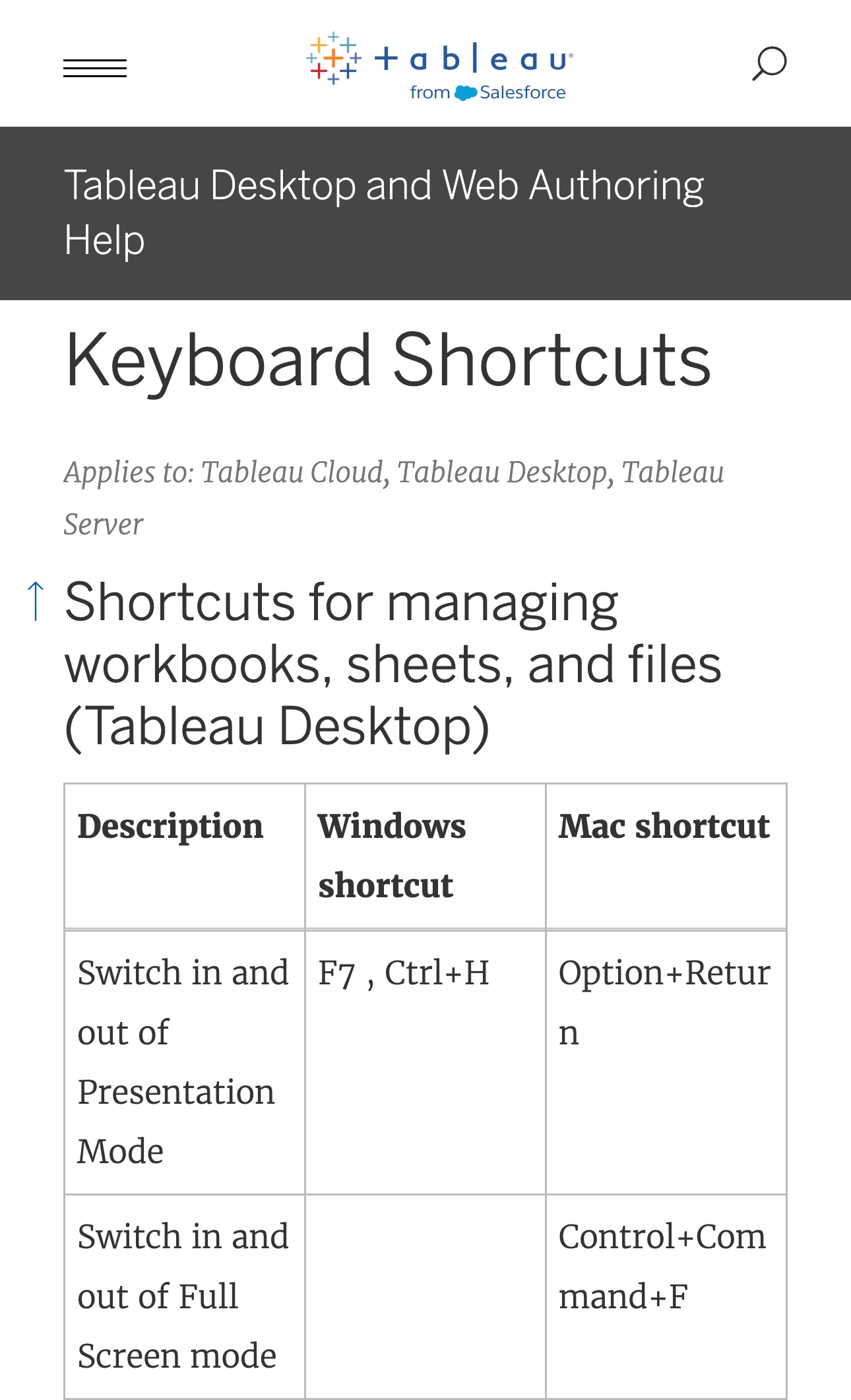
Tableau documentation, captured October 26, 2026 at 3× resolution. The branded header, title, table heading, and two relevant rows are unaltered excerpts; intervening content is omitted.
Keep Presentation Mode and Full Screen separate
The two controls solve different display problems. Presentation Mode simplifies the Tableau workspace; Full Screen changes how the window uses the display. On Mac, Tableau documents Control+Command+F for switching Full Screen.
| Your goal | Native starting point | Check before sharing |
|---|---|---|
| Remove editing clutter | Presentation Mode | Remaining filters, legends, and sheet navigation |
| Use the whole display locally | Full Screen | The meeting still captures the intended source |
| Make a wide view readable | Fit settings or a simpler layout | Labels and any new scrolling |
| Show only one prepared analysis | Share its Tableau window | Navigation and dialogs opened inside it |
Do not make Full Screen your first response to small labels. Enlarging the available area may help, but fitting an oversized dashboard into it can still leave dense text. Tableau’s Fit control offers options such as Fit Width and Entire View. Choose the one that keeps the important evidence readable, then test it at the size your audience will receive.
For example, a dashboard that looks clear on a large external monitor may become difficult to read inside a meeting window. Simplify the route to one chart at a time when the point depends on small labels. Show the context first, then move to the detail deliberately.
Review tabs, thumbnails, and the next sheet
Presentation Mode is still a way to navigate a workbook. Do not assume that entering it creates a locked slide containing only the current dashboard.
The official Tableau Reader presentation guide lists controls for showing a filmstrip, showing sheet tabs, moving to the previous or next sheet, entering Full Screen, and leaving Presentation Mode. Reader is a separate application, so use that guide for its controls rather than assuming every Desktop screenshot matches it.
Before the call, inspect the names and thumbnails of the sheets your planned navigation can reveal. A sheet title may disclose private context even if you never open its chart. Walk through the beginning, the last step, and the action you will use to return to the starting view.
If you author the workbook, Tableau’s sheet management guide describes Hide Sheet and Hide All Sheets for sheets used in dashboards or stories. On Mac, Control-click the appropriate tab to access these commands. Sheets that are not used in a dashboard or story stay visible while editing.
Use those controls to organize a prepared workbook. If a reviewer asks to inspect an unplanned sheet, stop sharing before opening it and decide whether its contents are appropriate.
Treat the workbook you send as a separate deliverable
A screen share and a workbook download expose different things. The call shows the pixels your capture source sends. A workbook can give the recipient additional navigation and editing possibilities.
Tableau’s publishing documentation explicitly warns that hiding sheets is not a security measure: people with Download Workbook/Save a Copy capability, and some editing permissions, can access hidden sheets. Do not use a hidden tab as the reason to distribute a workbook containing private data.
If you plan to send something afterward, prepare the intended artifact separately. Review its content and the recipient’s access before sharing it. A demonstration workbook with suitable sample data often gives you a simpler presentation and a clearer follow-up than an active working file.
This distinction also matters when a dashboard explanation starts from a database result or spreadsheet. The DBeaver column guide covers preparing visible query fields, while the Excel sharing guide separates workbook display choices from the file you hand over.
Use Audience View for a route across approved apps
If the whole explanation stays in one Tableau window, native window sharing is the simplest starting point. Verify it from another participant’s device, including the moment you leave Presentation Mode.
ScreenK9 is useful when your explanation repeatedly moves between Tableau, a prepared spreadsheet, and another work application. Choose Show only selected, approve the applications needed for that route, and rehearse the transitions in ScreenK9 — Audience View. Share that named window in the meeting. The multi-app sharing guide explains this setup.
Ordinary application rules are app-wide. Approving Tableau can include its other windows; ScreenK9 does not select one workbook, inspect a dashboard’s data, or automatically hide sensitive labels. Manual hidden regions stay fixed and cannot follow a tooltip or moving sheet tab. Sharing the physical display directly bypasses Audience View.
Finish with a short receiver-side rehearsal: enter the intended mode, open each planned filter, move to the next view, switch to the other approved app, and return. Confirm the audience can read the important labels and never sees a private workbook or unprepared transition. Keep the sharing source and the demonstration route you tested.