
Choose the smallest useful native source
Begin with the page or app you need to demonstrate. Enlarge its text, prepare a suitable example account and close irrelevant content. Select a tab for a website or a window for a desktop app. Leave room to show the menu, panel or result your explanation will need.
Restream's current host workflow creates a scene around the selected share. Preview the composition before it becomes part of a live broadcast. A source can be correctly selected while its content is still too small for viewers or surrounded by distracting layout elements.
| What you are presenting | Native starting point | Check before broadcast |
|---|---|---|
| One website | Browser tab | Page state and readable text |
| One desktop app | App window | Menus and presentation mode |
| Several prepared sources | Up to three host screen shares | Source count and transitions |
| A static slide deck | Studio Presentations | Imported slides and order |
Use the built-in choices first. An additional audience-window workflow is useful when the demonstration needs a changing group of approved apps and you want unrelated applications excluded from that visual feed.
Check the current source limits and audio controls
The September 2026 screen-sharing guide allows hosts three screen shares and guests one. It documents audio sharing for tabs, windows and the entire screen on both Mac and Windows, using the relevant option in the source picker. Verify the option available in your supported browser and test the resulting sound.
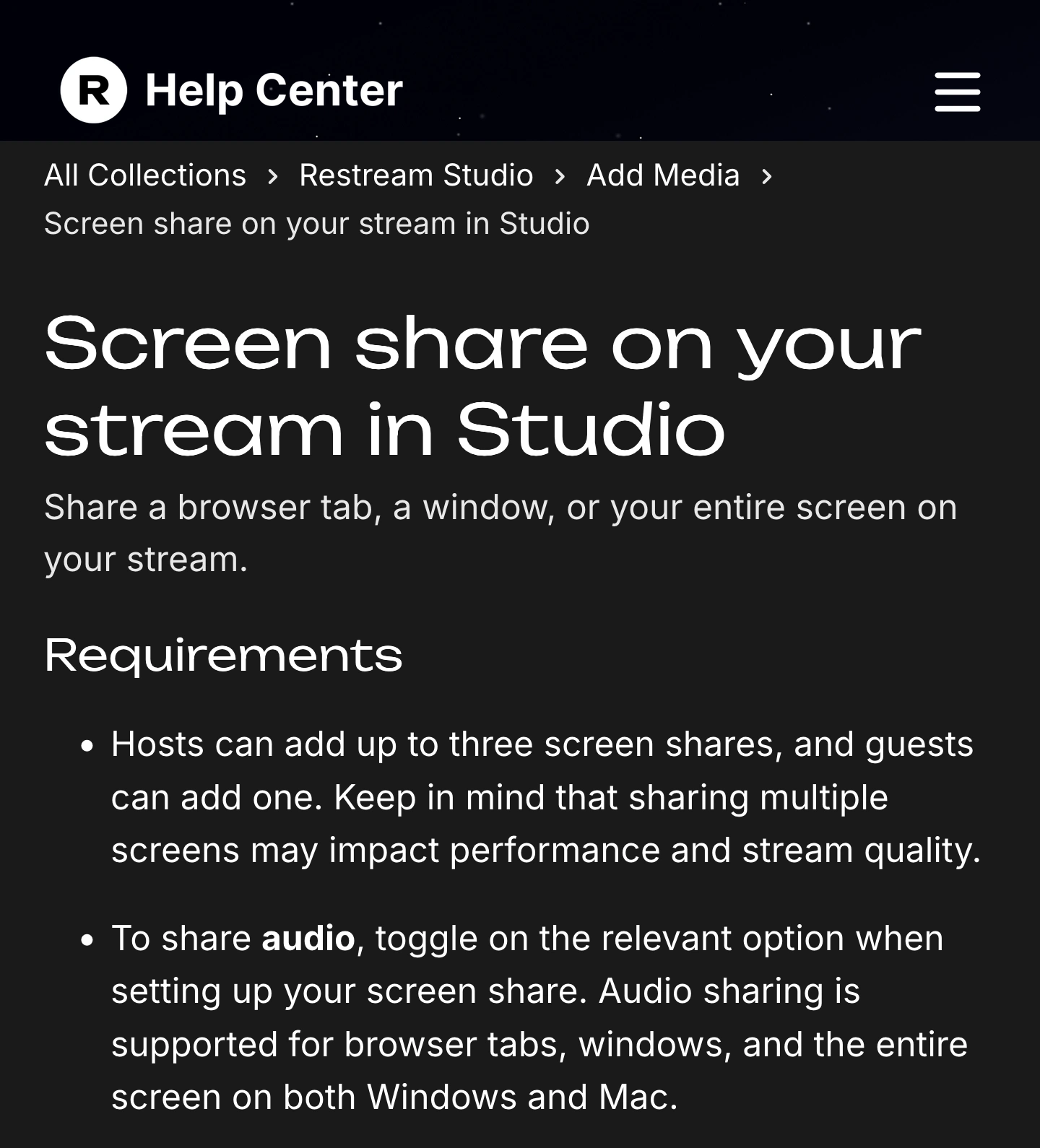
Restream Help Center, captured November 20, 2026. Original branding, title and requirements excerpts are joined; intervening content is omitted. The native 3× capture is preserved with the research.
Do not transfer an audio rule from another streaming platform without checking Restream's current instructions. A successful picture also does not establish that your audience hears the intended playback. Include narration and a short media sample in the rehearsal, and listen from the audience side.
If a presentation or game window is absent from the picker, Restream recommends windowed or full-window mode instead of full-screen mode. Resolve source visibility before broadcast. Changing to an entire-display share solely to get past a missing-window problem can expose content you had deliberately kept outside the demonstration.
Use the 2026 improvements where they help
Restream's February changelog dates the three-screen update to February 3, 2026. Advice based on its previous one-screen behavior can therefore lead you to add unnecessary software or redesign a demonstration that the native sources already handle.
The February 5 update also lets supported Chromium browsers scroll and zoom shared tabs from Studio after the relevant browser permission. That feature applies to tabs, not shared windows. Choose a tab when those controls are useful to your presentation; do not expect them to operate a desktop-window source.
Three sources create more to supervise. Rehearse a deliberate sequence: show the first source, change to the comparison, and remove what is finished. Restream warns that additional shares increase computer load and recommends stopping unused shares. A tidy scene list is useful operationally, but the source state deserves its own check.
Hiding a source is different from removing it
Restream distinguishes removing a screen from a scene while keeping it available in the background from removing the source completely. For the latter, use Sources → … → Remove source. Check which action you used before opening private preparation in a previously shared window.
Build the handoff into the running order. For example, finish the demo, switch to the camera scene, remove the completed source, and then continue working in that app. During rehearsal, verify the audience composition after each transition. This is especially useful when a guest is waiting to present next.
The guest controls guide gives guests a Share Screen control below the preview. The host can then show the guest's selected source. Agree on a cue before the host brings it into the program, and have the guest prepare the source before choosing it.
A guest's preparation and the host's composition are separate checks. Ask the guest to confirm the document is ready; then verify that the intended source appears at a useful size. Do not rely on a participant's camera preview as evidence that their screen is ready.
For static slides, consider Presentations
Restream's built-in Presentations workflow accepts uploaded files or Google Drive imports through Add Scene → Media → Presentations. It recommends PDF and lists several other document formats. Embedded animation and video are not supported in this static-slide route.
For a straightforward deck, that can avoid capturing your desktop at all. Review the imported pages in order and check that diagrams, fonts and labels remain readable. If the lesson depends on animations or a live app, rehearse the relevant screen source instead.
Add ScreenK9 for a changing group of apps
Restream already handles several native sources. ScreenK9 is relevant when you prefer to prepare one filtered visual feed across approved Mac applications. Create an Allow only profile, start ScreenK9 — Audience View, and inspect the result. In Restream, choose that window as the screen source. The multi-app sharing guide covers the setup and capture boundary.
ScreenK9 does not control Restream's scenes, intercept the broadcast or protect a physical-display share selected directly. Its filtering affects the separate audience window you explicitly share. Keep the host's Studio controls outside that selected output and rehearse the actual app transitions.
Ordinary app rules include all ordinary windows of an approved app. They do not selectively filter one private window of that same application. Chrome Work and Personal classification is separate; test the Chrome profile rules before depending on them. Redaction regions are manually configured, without automatic secret detection.
ScreenK9 does not provide audio capture or routing. Verify Restream's microphone and media-audio settings separately. If macOS denies capture, use the screen-recording permission walkthrough for the actual capturing browser or app, then return to your source rehearsal.
Before going live, check the full sequence from an audience view: opening scene, readable source, comparison or guest handoff, sound, and source removal. Repeat the affected part whenever you change a source or audio route. That rehearsal should finish before the broadcast starts.
Sources checked
- Restream: Screen sharing in Studio
- Restream: February 2026 changelog
- Restream: Guest controls
- Restream: Presentations in Studio
Documentation and ScreenK9 implementation checked November 20, 2026.