
Choose a mode for the way you will present
Open the PDF you intend to discuss before starting screen sharing. For a document review with frequent pauses, try View > Read Mode. For a page-by-page presentation, try View > Full Screen Mode.
Adobe’s viewing preferences guide, updated February 26, 2026 and checked today, distinguishes the two. Read Mode removes toolbars and task panes while retaining floating navigation and zoom controls. Full Screen hides the menu bar, toolbars, task panes, and window controls.
Choose the mode that makes the actual material legible. A clean interface is useful, but an entire dense page squeezed into a small meeting tile can still be unreadable. Start with the page or section that establishes context, then show the detail at a size the audience can follow.
| Your immediate goal | Native starting point | Check before sharing |
|---|---|---|
| Read with less interface clutter | Read Mode | Floating controls and page zoom |
| Present one page at a time | Full Screen Mode | Navigation, links, and exit behavior |
| Keep a private PDF out of view | Close it or choose one prepared window | The meeting’s captured source |
| Move repeatedly between apps | Prepared apps and a verified sharing route | Each transition in the received picture |
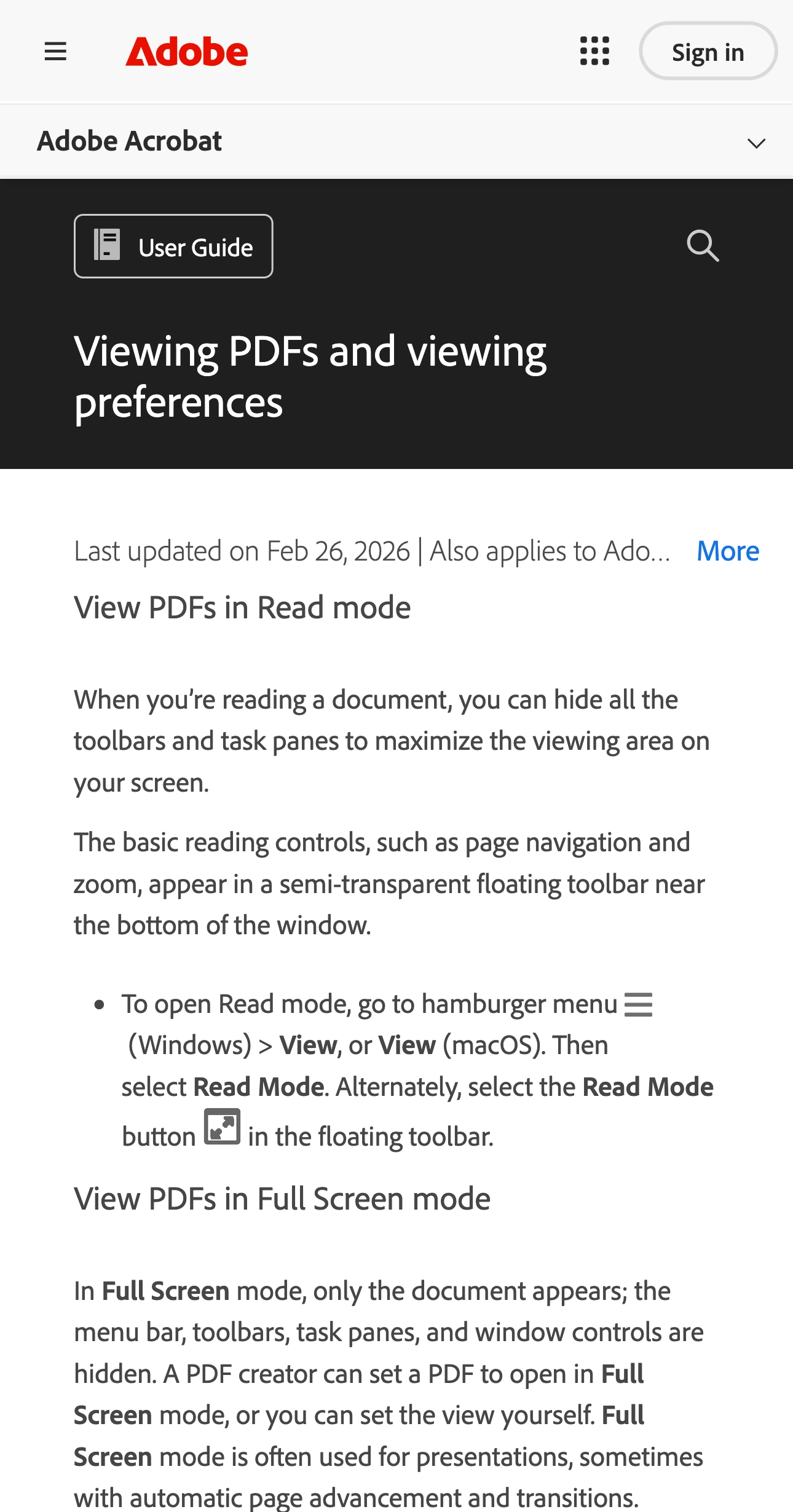
Adobe Help Center, captured October 27, 2026 at 3× resolution. The branded header, title, date, and relevant mode descriptions are unaltered excerpts; intervening content is omitted.
Keep Acrobat’s document mode separate from Mac Full Screen
The Mac’s green window button is another control. Apple’s full-screen app guide describes making an application occupy the display. That window arrangement does not, by itself, choose what your meeting captures.
When your goal is Acrobat’s document presentation mode, use Acrobat’s View menu. When your goal is more space for the app locally, consider the Mac window control. After either change, verify that your meeting still shows the source you intended.
This distinction matters on a laptop with several full-screen apps. A local swipe or window switch can feel like moving to a private workspace, but privacy depends on the selected capture source. The Mac Spaces sharing guide explains why the desktop arrangement needs its own check.
You do not have to use Full Screen just because you are presenting. A normal-sized Acrobat window in Read Mode may be easier to manage when the conversation alternates between a PDF and another document.
Prepare navigation and the exit before attendees arrive
In Full Screen, try moving forward and backward with the arrow keys. Adobe also documents a Show Navigation Bar preference and an Escape Key Exits option. If you intend to use Esc to leave the mode, verify that option and rehearse the exit.
Use harmless sample content for the rehearsal. Start at the planned opening page, advance to the next section, return to an earlier page, and stop sharing. Confirm what appears after you leave the presentation view.
The pointer remains active in Acrobat Full Screen, and Adobe notes that links and notes can still be opened. Review the interactions your demonstration will actually use. A linked page or an annotation deserves the same content check as the main document.
For example, a report may contain a public chart with a small internal comment beside it. Removing the app’s editing panels does not review that comment for you. Decide whether it belongs in the audience copy before the call.
Avoid changing display preferences while already sharing an unfamiliar document. Prepare the mode and zoom first, then select the meeting source. If something looks wrong during the call, stop the share before investigating.
Review the PDF separately from its presentation
Read Mode and Full Screen change the viewing experience. They are not document sanitization tools.
If the PDF contains material the audience must not receive, prepare an approved copy before presenting or sending it. For permanent removal, use the Mac PDF redaction guide and check the saved result. A rectangle drawn over text or a closed side panel is not a substitute for that review.
For a routine handout, inspect the actual file you will attach. Check the page count, opening page, names in visible content, and any annotations or attachments relevant to the recipient. A meeting may have shown only three pages while the file contains a much longer working draft.
Keep the approved copy in a clearly named location. Close unrelated Acrobat documents before the meeting, and avoid choosing the next file from a crowded recent-items view while sharing. A prepared file path reduces the need for an on-camera search.
Start with window sharing, then add app filtering when needed
If the explanation stays in one PDF, native sharing of its prepared window is the simplest starting point. Check the preview, then verify the received picture from another device or with a colleague. Include page navigation and the moment you leave the viewing mode.
ScreenK9 helps when the discussion repeatedly moves between Acrobat and other approved work apps. You might show a PDF brief, demonstrate an application, and return to a prepared result while unrelated apps remain open locally.
Choose Show only selected in ScreenK9, approve the applications needed for that route, and inspect ScreenK9 — Audience View. Share that named window in the meeting. The multi-app sharing guide describes the workflow.
Ordinary rules are app-wide: approving Acrobat can include its other windows. ScreenK9 does not select one PDF, classify its pages, or detect private text. Close unrelated Acrobat documents and keep the approved app arrangement suitable for the audience. If you need a private Acrobat window beside the presented one, native sharing of the single intended window is the clearer choice.
Manual hidden regions stay fixed; they do not track a comment or field as the page scrolls. ScreenK9 has no OCR or automatic secret detection, and sharing the physical display directly bypasses Audience View.
Finish with a receiver-side rehearsal of the complete route. Read a small label, advance a page, test the intended interaction, switch to the approved app, return, and end sharing. Use the exact mode, files, and capture source that passed that check.