
Skip optional slides before the meeting
Open your deck and identify the material you want to leave out of this version of the talk. Right-click the relevant thumbnail in the left-hand filmstrip and choose Skip Slide. You can select several slides before applying the command. To restore a slide, use the same skip control again.
Google’s slide organization guide, checked October 27, 2026, explicitly says that skipping does not delete the slide. It also warns that people you share the presentation with can still see skipped slides.
That makes skipping useful for an optional case study, an advanced explanation, or a section you cannot fit into a short meeting. A slide containing information the audience must never receive needs a different preparation step: remove it from the audience copy.
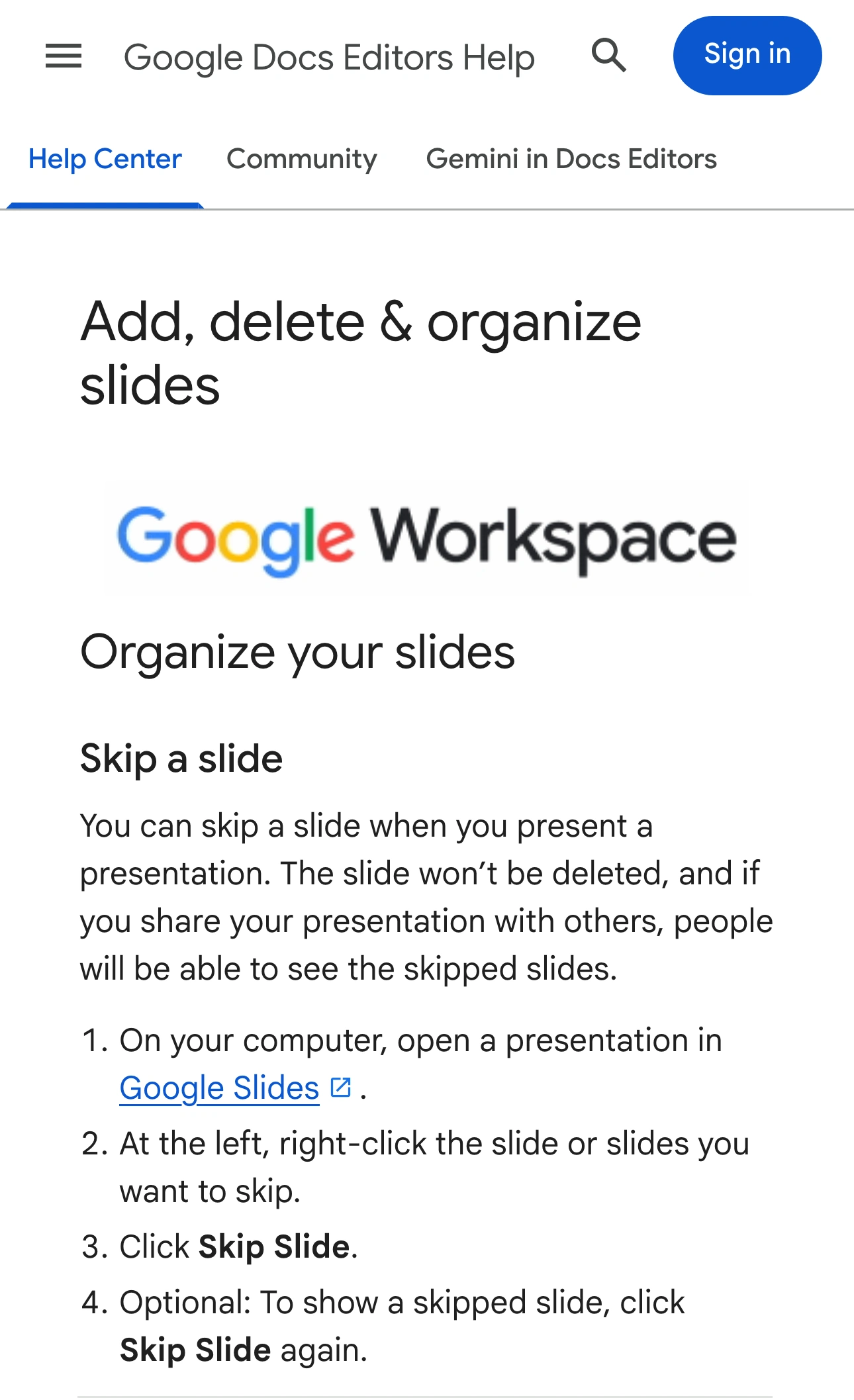
Google Docs Editors Help, captured October 27, 2026 at 3× resolution. The branded header, article title, and Skip a slide section are unaltered excerpts; intervening content is omitted.
Give the audience copy a distinctive name and open it before joining the call. Two similar decks in neighboring browser tabs are easy to confuse under time pressure. Keep the internal original closed during the presentation if you do not need it.
Start from the intended slide and rehearse the route
Select your opening slide, then click Slideshow. Google’s presentation guide says playback starts from the current slide. Use the arrow keys to move through the show, and press Esc to leave full-screen presentation.
Do one rehearsal from the actual opening point. Check the transition before and after each optional section, then continue to the ending. Your narrative may need a new transition when an explanatory slide is omitted, even when the software behaves exactly as expected.
The official video above uses an older interface. Google renamed Present to Slideshow in 2021. Follow the current button name on your screen rather than hunting for an old label.
For a customer demonstration, decide in advance what happens after the last slide. Will you stop sharing, return to a prepared summary, or move into a live application? Rehearse that action too. The end of a polished slideshow is often the point where a presenter returns to an unprepared workspace.
Separate the slideshow, the screen share, and the file
There are three different outputs to review. A successful playback test answers only the first question.
| Output | Your preparation task | What to inspect |
|---|---|---|
| Slideshow | Skip optional sections | Opening slide and planned navigation |
| Meeting picture | Select the intended tab or window | What appears when you enter and leave playback |
| Shared file or export | Prepare an audience copy | Every page and any material the recipient can open |
Consider a training deck with a public introduction, an optional technical appendix, and internal customer examples. The appendix may be harmless but unnecessary. The customer examples require content review. Treating both as “skipped” does not make them equivalent.
If you plan to send the deck afterward, review that deliverable separately. For a PDF, open the saved file and inspect all its pages before attaching it. Do not infer the attachment’s contents from what you happened to show during the call.
Use a short written checklist when someone else will distribute the handout: exact file name, intended audience, and the version you reviewed. This is more reliable than a vague instruction to send “the presentation.”
Choose the smallest useful meeting source
If the talk stays in Slides, start with your meeting tool’s native sharing of the slideshow tab or window. Inspect its preview and confirm the received picture on another device or with a colleague.
Test the particular source you will use. Switching a browser tab, leaving full screen, or opening presentation controls can change what appears inside a captured surface. Stop sharing before an unplanned search through the editor.
Presenter notes are a separate concern. Google’s presentation guide describes Presenter view and Speaker notes; the speaker-notes sharing guide helps you choose the audience surface. Do not assume that a browser window containing your notes becomes private because another window contains the slideshow.
For tab-based sharing, the guide to sharing without other tabs explains the source choice. A prepared tab is usually enough for a straightforward deck. Adding more capture machinery does not improve that simple job.
Use Audience View for repeated transitions into other apps
ScreenK9 becomes useful when the presentation repeatedly moves from Slides into approved work applications. For example, you might explain a workflow, demonstrate it in a desktop app, then return to the next slide while unrelated apps remain open locally.
Prepare a work Chrome profile for the presentation and configure the Chrome Companion classification. Keep its tabs and windows suitable for the audience. ScreenK9 filters Chrome at the profile/window boundary; it does not decide which slide, tab, or field is private within an approved window. The Chrome profile guide covers that distinction.
In ScreenK9, choose Show only selected, approve the other applications needed for the demonstration, and inspect ScreenK9 — Audience View. Share that named window in the meeting. Follow the multi-app sharing guide for the complete setup.
Ordinary application rules apply to the whole app, so close unrelated windows in approved applications. ScreenK9 does not change the deck, remove skipped slides, or alter file permissions. It has no OCR or automatic secret detection. Manual regions stay fixed and cannot follow changing slide content. Sharing the physical display directly bypasses Audience View.
Before the call, run the route once from the receiving side: opening slide, omitted section, approved app transition, return to Slides, and end of sharing. Keep the same sources and prepared files for the live presentation. Stop sharing before restoring internal material or improvising a search through your working deck.