
Prepare a separate presentation copy in Preview
Start with the document, before starting a screen share. Keep the original in its private location and give the duplicate an unambiguous name such as demo-approved.pdf. Avoid putting a customer name or account number in that filename: it may appear in the window title or the meeting’s sharing picker.
- Open the duplicate in Preview.
- Show the Markup toolbar and choose Redaction Selection.
- Select the text that should be removed. Review every intended location.
- Save and close the document, then reopen that same copy.
- Inspect the pages and test whether the removed text can still be selected, copied, or found.
Apple’s Preview markup guide distinguishes redaction from ordinary annotations. It says redactions become permanent after closing the document. It also identifies a specific limit: linked table-of-contents entries are not removed with the redacted text. Review those entries separately.
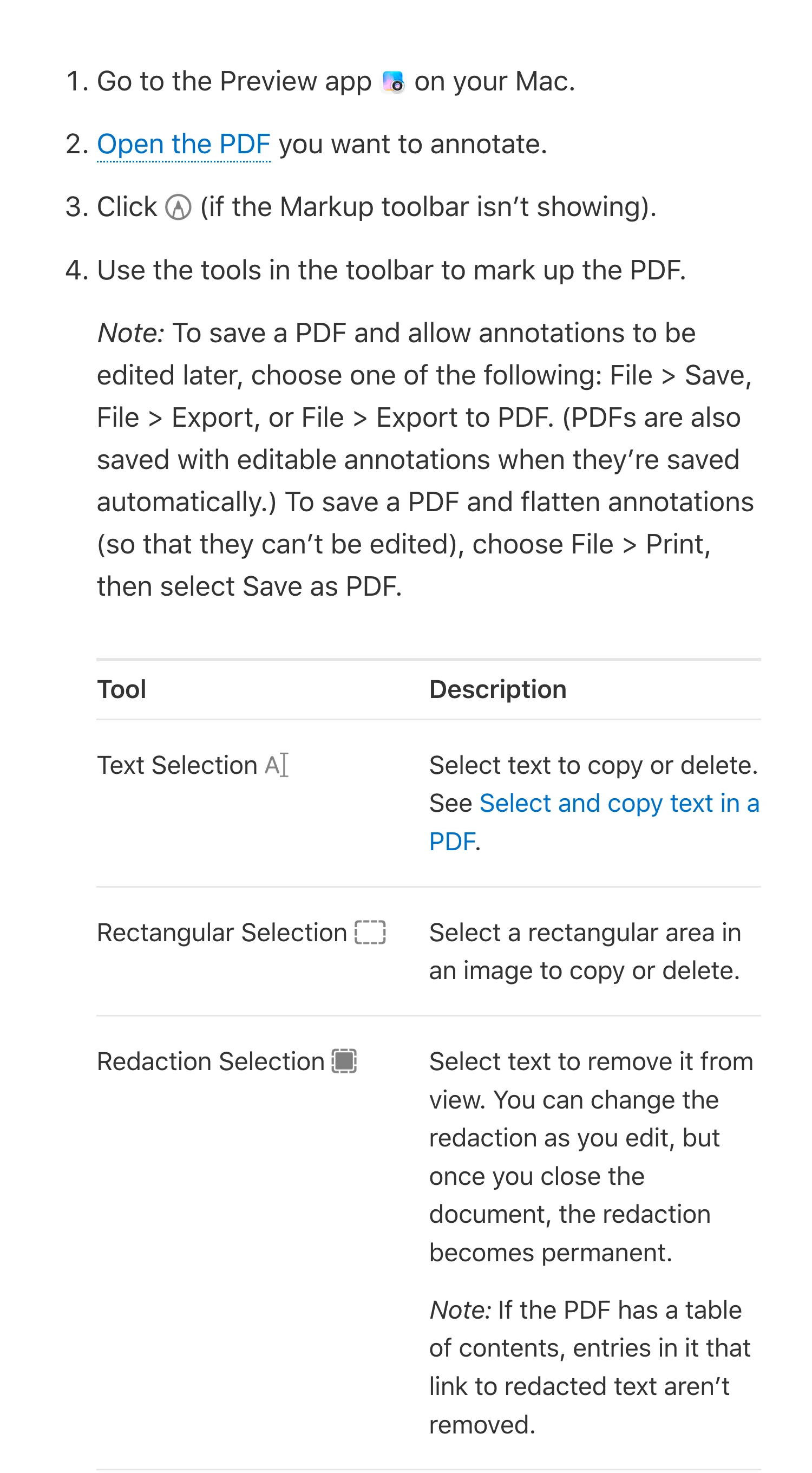
Apple’s Preview User Guide, captured October 8, 2026. The original Preview icon and the redaction caveat are preserved. The screenshot distinguishes editable annotations from the dedicated redaction tool.
Decide whether you are showing pixels or sending a file
These are separate decisions. A meeting participant sees a captured picture; someone receiving the PDF can inspect the document itself. Preparation must match both destinations if you plan to present the document and attach it afterward.
| Control | Appropriate purpose | What still needs checking |
|---|---|---|
| Preview redaction on a duplicate | Remove selected text from the presentation file | Other occurrences, contents entries, and hidden information |
| A drawn black shape | Add a visible annotation | The underlying document may still contain the information |
| A ScreenK9 manual mask | Cover a fixed area in Audience View | The original PDF stays unchanged; movement can uncover content |
For example, suppose a price comparison contains an internal discount beside the approved public price. Preparing a redacted copy gives you one file to review and present. Covering that number only in the video feed may suit a stationary walkthrough, but it gives you no prepared attachment to send when someone asks for the PDF.
Write down which file will be distributed before the call. If there is no approved copy, offer to send it after review instead of dragging the original into the meeting chat.
Check more than the black rectangles
A useful review starts with a list of what must stay private: names, email addresses, reference numbers, repeated headers, signatures, and document titles. Work through the entire copy against that list. A repeated value may occur on several pages or in a summary that looks different from the original entry.
After reopening the copy, search for the known values and inspect the surrounding passages. Try selecting across a redacted line and copying into a blank local document. Use fictional sample data when rehearsing the procedure itself. These are practical checks for missed content, not proof that every hidden object has been removed.
If the file contains scans, attachments, layers, or material you cannot confidently inspect, do not assume a text-selection workflow has handled them. Use a tool with the required document-processing capabilities and verify its output before distribution.
Adobe documents a separate PDF sanitization workflow for hidden information, including metadata, comments, and layers. That distinction matters: removing visible text and cleaning a document’s hidden contents are different jobs. For a file with sensitive hidden material, complete that review as well as the visible-page review.
The same distinction applies to other document formats. If the PDF comes from an unfinished Word review, prepare the source using the tracked changes guide before making the version intended for other people. Do not treat a quiet-looking page as evidence that its review history has disappeared.
Share the prepared PDF through the narrowest useful source
For a single-document explanation, open only the approved copy and select its window in your meeting app’s native sharing picker. Google’s Meet presentation guide documents the choice between a tab, a window, and a screen.
Close other PDF windows before selecting the source. Check the filename and first visible page in the picker, then inspect the participant picture. If the presentation starts on page three, make that part of the rehearsal; opening the correct file on the wrong page can still reveal something unintended.
Plan how to answer an unexpected question. Keep approved supporting pages ready. Stop sharing before searching private folders or opening an unreviewed attachment. Restart with the reviewed content only after checking the new view.
When the walkthrough also needs other applications
Some presentations alternate between a PDF, slides, and a browser. ScreenK9 can provide one filtered macOS window for that sequence while unrelated applications remain open locally.
Select the source display and use Show only selected for the applications needed in the walkthrough. Leave private applications, such as Mail or a password manager, outside that set. Inspect ScreenK9 — Audience View, then share that named window in the meeting. A direct share of the physical display bypasses this workflow.
Application rules cover ordinary applications as a whole. Allowing Preview does not create a rule that distinguishes your approved PDF from another private Preview window. Close the other documents or prepare a different workflow before presenting. The benefit here is keeping unrelated apps out while moving through the approved sequence.
A manual region can cover a fixed area in the audience feed when editing the source is inappropriate. It does not modify the PDF, follow a sentence through scrolling, or automatically detect private information. Moving the document, zooming, changing pages, or resizing a sidebar requires another check. The fixed-area masking guide explains that separate workflow.
Make the final check match the actual handoff
Keep the presentation copy and the original clearly separated. Before the call, reopen the reviewed copy, check its contents entries, and walk through every page transition from a participant view. Before sending a file, inspect the exact attachment again.
If a last-minute change introduces new material, pause and review the changed copy. Do not let a successful screen-share rehearsal stand in for checking the file that leaves your Mac.
Sources checked
Documentation and ScreenK9’s implementation were checked on October 8, 2026.