
Prepare both pages before choosing a sharing source
Chrome Split View places two webpages inside one browser window. Start by deciding whether both belong in the presentation. A reference page containing internal notes is not suitable merely because the customer-facing page has focus.
Open the two approved pages, check the account and content on each, and arrange the pair before the audience can see it. Right-click the inactive tab and choose New split view with current tab. Google’s current Split View guide documents this built-in control.
Next, use the meeting app’s window-sharing choice and select that prepared Chrome window. Inspect the participant picture to confirm that both intended panes appear. Do not infer the result solely from what your own browser displays.
| What the audience needs | Starting choice | Check before continuing |
|---|---|---|
| Both approved webpages together | The prepared Chrome window | Both panes, the toolbar, and any side panel |
| One webpage only | Separate the pair, then share that tab | The selected tab contains no private page content |
| Browser plus slides or another app | A filtered ScreenK9 Audience View | Every allowed application and browser context |
This decision should come before arranging the divider or selecting a more attractive layout. Two pages that look useful side by side can still belong to different audiences.
Split View is a layout feature, not a private notes area
Google announced native Split View in its February 2026 Chrome update. It supports viewing two tabs together without continually switching between them. That is useful for comparing drafts or explaining a dashboard alongside public documentation.
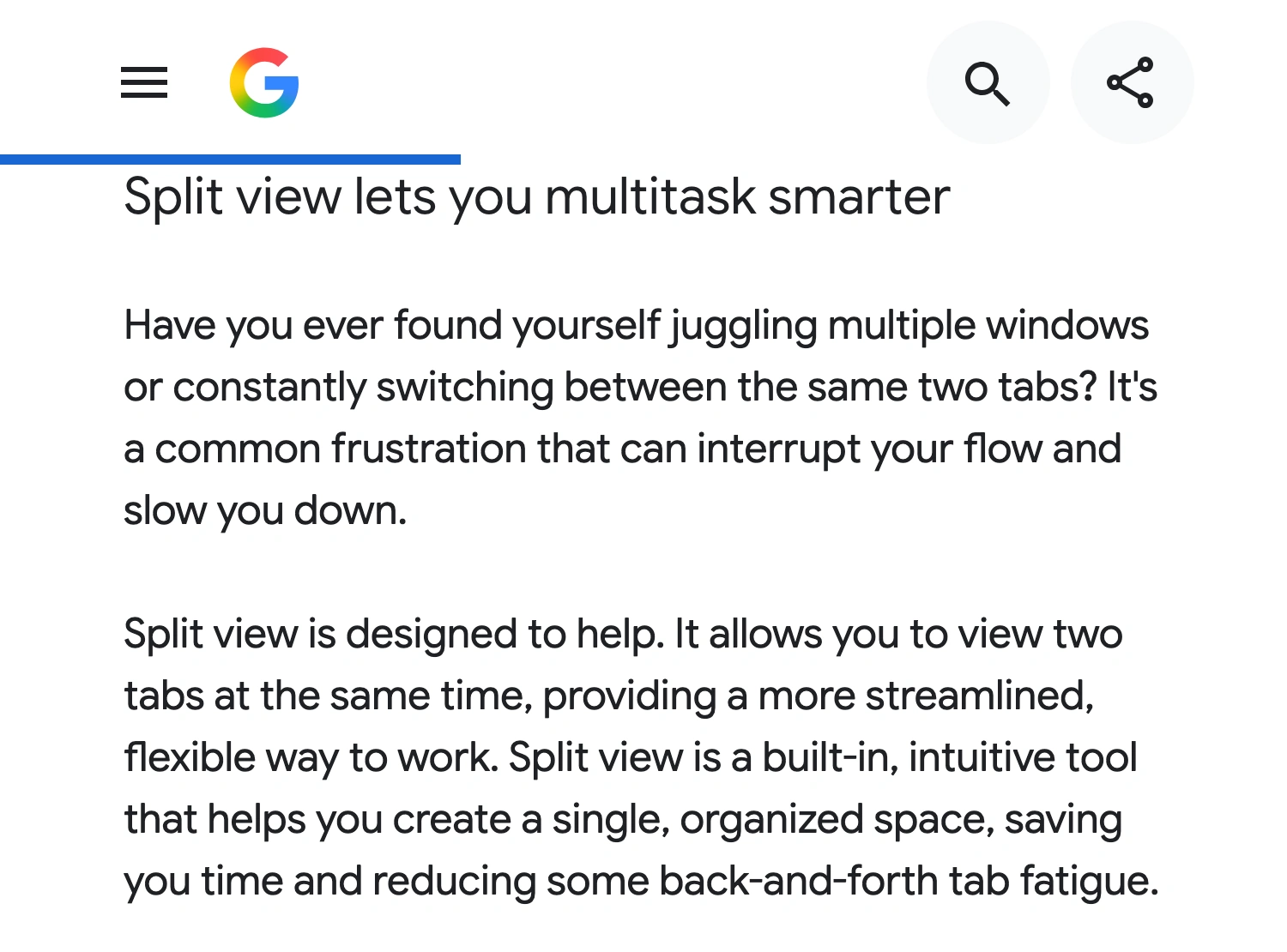
Google’s official Chrome announcement, captured October 8, 2026. This source describes the layout feature; it does not promise privacy for either half of a shared window.
The active view has a stronger border, and toolbar actions apply to it. The inactive view stays on screen and can be scrolled without becoming active. Chrome also keeps general side panels such as History or Bookmarks open when you switch views. These behaviors are described in Google’s Split View guide.
For a presentation, treat everything visible inside the selected window as audience content. A dimmer border is a focus indicator, not an instruction to the recorder to omit that pane. Do not keep meeting notes, customer records, or a private inbox beside the page you intend to show.
Separate the pair when only one page belongs on camera
Use the Split View control beside the address bar and choose Separate split view. The two views return to ordinary tabs. Then select the approved tab through the meeting app’s native tab-sharing workflow.
If your meeting app offers window sharing but no tab source, move the approved tab into its own window first. Google’s tab-management documentation describes dragging a tab out to create a separate window. Prepare that window’s other visible surfaces before selecting it.
Google Meet explicitly distinguishes tab, window, and screen presentation. Choose the source that matches the prepared material. A request to show two webpages together is different from a request to show one tab’s content; verify the actual meeting output after making the choice.
If the pair changes during a live call, stop sharing before rearranging private material. Separating tabs while already presenting is a transition with its own exposure risk. The single-tab privacy guide covers the simpler one-page workflow in more detail.
Rehearse navigation in both panes
Use a short sequence based on the real demonstration: scroll the first page, follow its planned link, activate the second page, and open its next section. Watch the participant picture after each step. Use approved sample records rather than live customer information for this rehearsal.
Review any account menu, search box, or recently opened item list that the sequence requires. A page can start with harmless content and reveal private information only after a click. Preparing the initial split does not prepare every destination either pane can reach.
Keep the meeting interface outside the browser window you are presenting. If the audience picture repeats into itself, stop and correct the selected source using the Google Meet mirror guide.
Also check readability. Two full desktop pages squeezed into a participant’s small meeting tile may be difficult to follow. Enlarge the relevant content, shorten the comparison, or show one page at a time. Check again after adjusting the divider because a narrower page can reveal a different responsive layout or menu.
Use ScreenK9 when the demonstration spans applications
A longer Mac walkthrough may need the prepared Chrome pair, a PDF, and slides while private apps remain open. ScreenK9 creates a separate filtered audience window for that sequence.
Choose the source display, select Show only selected, and include the applications needed for the walkthrough. Leave unrelated private applications outside the set. Inspect ScreenK9 — Audience View and share that named window through the meeting app. Sharing the physical display directly does not use this filtering path.
For Chrome, use the Companion setup to classify the presentation context and inspect the resulting audience view. The Chrome profile privacy workflow explains that setup and its limits.
Classification works at the browser-window context. It is not a rule that keeps the left half of Split View while deleting the right half. Prepare both panes as approved content before allowing the window. ScreenK9 does not read either page, perform OCR, or automatically identify a private tab by its contents.
The same scope limit applies to ordinary applications: selecting an app is not permission to assume that only one of its windows can appear. Keep the approved sequence small enough to inspect. If a private pane enters an allowed browser window, return to the native separation step rather than relying on focus or a border color.
Keep a single-page fallback ready
Before the real meeting, check the exact window title, both visible pages, side panels, planned links, and participant view. Keep one prepared standalone tab available if the split becomes difficult to read or an unexpected page appears.
Stop sharing before investigating a surprise. Resume only after checking the new source. A useful two-page comparison is one in which both pages were deliberately chosen for the audience.
Sources checked
- Google Chrome: use Split View
- Google: Chrome productivity announcement
- Google Chrome: manage tabs
- Google Meet: present during a meeting
Documentation and ScreenK9’s implementation were checked on October 8, 2026.