
The quickest fix: choose the work, not the meeting
An infinite mirror appears when a shared image includes a preview of that same image. A smaller copy contains another copy, so the screen seems to repeat into the distance. Changing the capture source breaks that loop.
- Stop the current presentation in Meet.
- Open the document, slides, or website you want to show separately from the meeting.
- Choose Present now, then A tab or A window.
- Select the work source, check its preview, and share it.
Google explicitly recommends a separate window or specific tab to prevent mirroring in its presenting instructions. The official 2026 video above shows the source choices. You do not need a privacy app to solve an ordinary one-tab mirror.
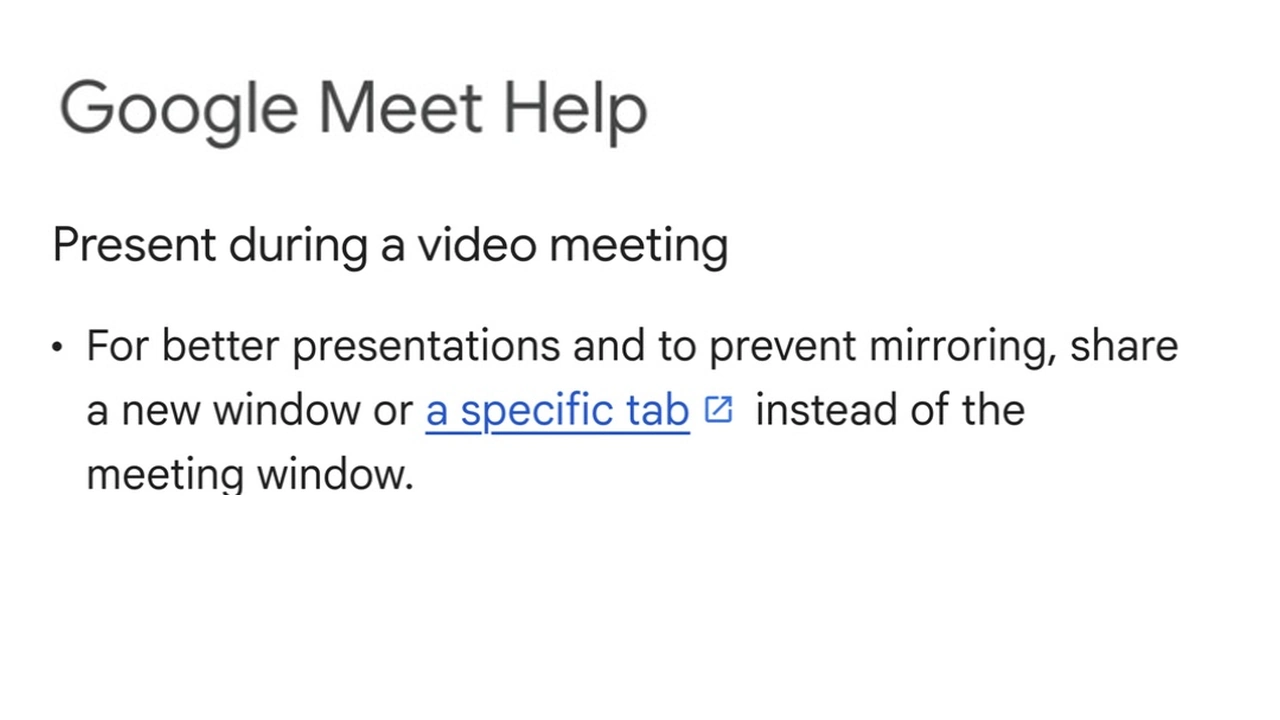
Google Meet Help, captured September 15, 2026. The source header, article title, and mirroring advice are shown as cropped screenshot excerpts. Intervening content is omitted; the evidence was not edited generatively.
Find which surface is feeding the loop
Think of the shared source as a camera pointed at a surface. If that surface contains a monitor showing the camera's own picture, the picture repeats. The fix is to remove that monitor from the camera's view.
Check the source named in your active sharing session. “A window” can still be the wrong choice if you selected the browser window containing the Meet tab. “A tab” can also be wrong if you picked the meeting itself.
| What you selected | What to change |
|---|---|
| The Meet tab | Present a separate work tab |
| A browser window showing the call | Select a dedicated work window |
| A whole display containing the preview | Move the preview outside that display, or narrow the share |
| A preview of your own shared output | Present the original work instead |
For example, keep the meeting in one browser window and a public document in another. Select the document's tab explicitly. Opening the meeting again in that same shared tab would put the loop back into the capture path.
If your real task is moving between browser tabs without exposing unrelated ones, follow the single-tab sharing guide. That is a source-selection question, separate from troubleshooting recursive previews.
A mirrored camera is a different problem
A horizontally flipped self-view looks like a bathroom mirror: left and right are reversed. An infinite screen-share mirror contains progressively smaller copies of a page or window. Identify which one you see before changing anything.
For the repeating-window problem, flipping an image cannot remove the underlying loop. Camera controls address a different input. Likewise, turning off your webcam does not remove a meeting preview that remains inside the selected screen source.
Ask a participant what is visible, or check using a second device with its microphone and speaker muted to avoid audio feedback. Your local layout alone does not establish what another client displays. Use a harmless test document during this check.
Check pop-out presentation windows too
Google announced movable shared-content windows in February 2026, with a March 30 update about the rollout resuming. Shared content can appear in a separate window, which is useful for arranging a meeting workspace.
That adds another place to inspect when diagnosing recursion. Our practical inference: any window displaying a live preview of your own share can reintroduce the loop if you include it in the captured source. Moving the preview into a new window does not, by itself, exclude it from a whole-display share.
On two displays, put the meeting and its presentation preview on the display you are not sharing. On one display, a dedicated tab or application window is usually simpler. After moving or popping out content, recheck the selected source and audience result.
When the demo genuinely needs several apps
A tab share solves the mirror neatly, but a demonstration may also need a spreadsheet and a design app. First consider whether you can present those sequentially. Changing sources at a planned transition may be enough.
When continuous movement between approved work apps is necessary on Mac, ScreenK9 can create one filtered window named ScreenK9 — Audience View. Google Meet can share that window through its normal window picker. See the Google Meet multi-window guide for the broader workflow.
The important setup detail for this article is where the meeting lives. Keep the meeting and its previews in a browser application excluded from ScreenK9's app allowlist. Put the actual demonstration in the approved work apps. If using Work Chrome classification, make sure your work profile contains only what you intend to present.
ScreenK9 excludes its own windows from its capture, but it does not automatically identify Google Meet inside an approved browser profile. A meeting tab inside approved Work Chrome can still appear in Audience View and recreate the loop. A second window of an approved ordinary browser is not a separate privacy boundary either: ordinary app filtering applies to the whole application.
Rehearse this arrangement with harmless content:
- Create the filtered audience view with only the demo applications approved.
- Open the meeting in the excluded browser application.
- Check that the meeting and every preview are absent from Audience View.
- In Meet, share ScreenK9 — Audience View as a window.
- Switch among the work apps and verify the result from a second device.
If you cannot keep the meeting outside the approved sources, use a direct tab or window share. The Chrome profile guide explains the supported Work/Personal classification; it does not make every tab in a Work profile safe automatically.
ScreenK9 is not an automatic secret detector. It has no OCR-based discovery and cannot select an individual ordinary-app window for approval. Manual redaction regions stay fixed where you place them. Its filtering protects the separate Audience View, not a physical screen you share directly. Audio remains a separate meeting-app setting.
A blank or missing window needs a different check
A black frame or a source absent from the picker is not an infinite mirror. Google's screen-sharing troubleshooting guide recommends keeping the intended window open and not minimized, and checking browser and system permissions when sharing fails.
On Mac, the relevant capture access is under System Settings → Privacy & Security → Screen & System Audio Recording. Apple's guide explains how to review access for each app. Granting capture permission does not decide which content is appropriate to share; choose that source deliberately afterward.
The final check is simple: the shared image contains the work and no copy of its own preview. Recheck after opening a pop-out, changing displays, or selecting a new source.
Sources checked
Checked September 15, 2026: Google Meet's presenting and troubleshooting guides, the 2026 Workspace pop-out announcement and rollout update, Apple's capture-permission guide, and Google Help's March 18, 2026 video. ScreenK9 claims were checked against PRODUCT.md and the current capture, application-rule, Chrome-bridge, and redaction implementation.