
Clear the window before the audience joins
For a short command-line demonstration, prepare one Terminal window and share that window through your meeting app. That is usually simpler than sharing an entire display and trying to keep every other application tidy.
Finish any setup work while sharing is off. Wait for commands that are still producing output to finish, or stop them deliberately if appropriate. Clearing a window does not stop a running process from printing another line.
- Select the Terminal window you intend to present.
- Make sure the command line is empty and you have the expected prompt.
- Press Command-K. Apple calls this Clear to start.
- Scroll upward to check that previous output is no longer available in that window.
- Inspect the prompt, window title, and tab labels before starting the share.
Apple’s Terminal keyboard shortcuts distinguish clearing to the start from clearing only to the previous mark. Use the documented action for your Terminal version; custom key mappings or a different terminal emulator can change the shortcut.
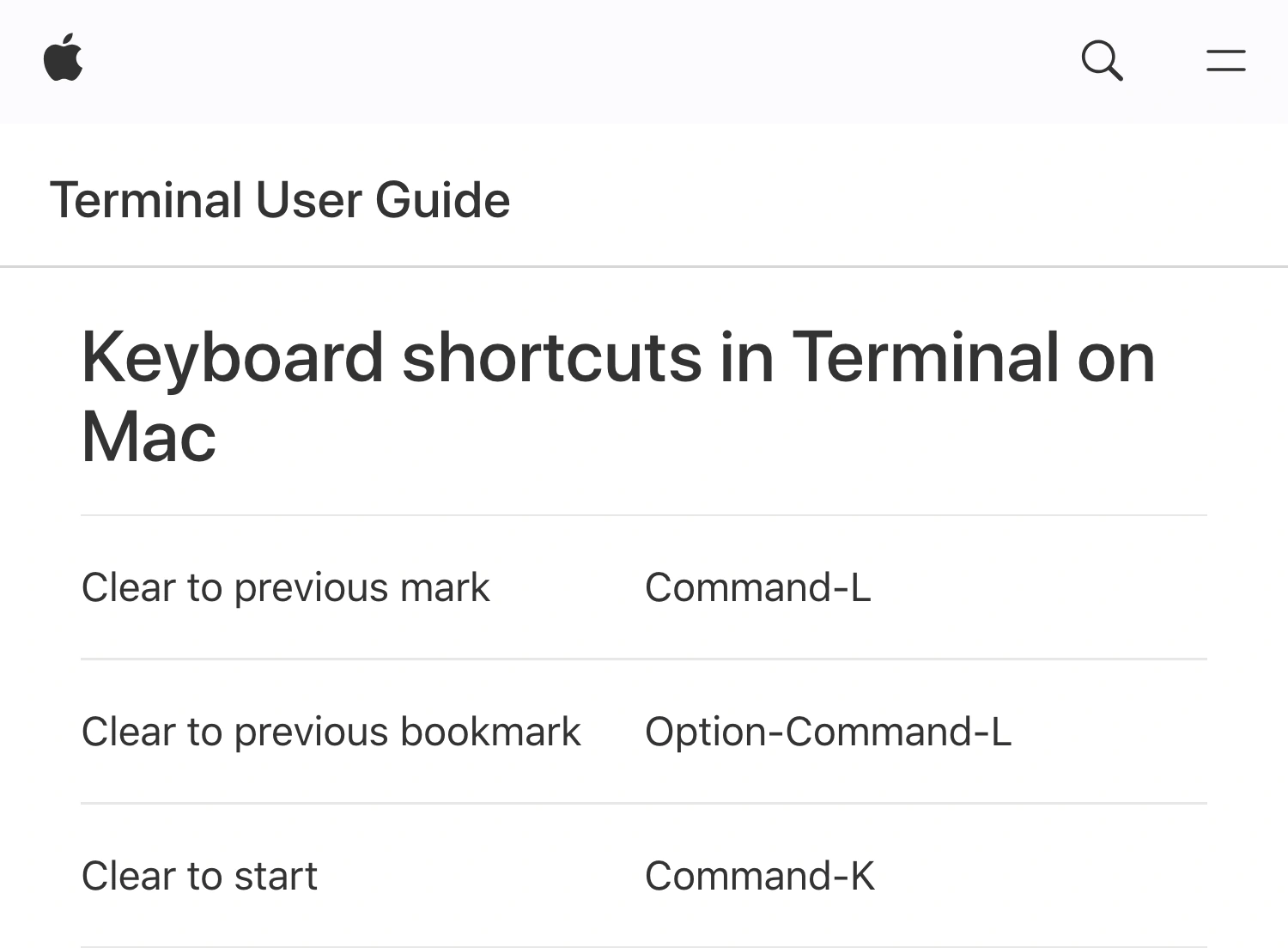
Apple Terminal User Guide, captured September 23, 2026. Cropped source header and shortcut-table excerpt retain the documented action and shortcut.
If you are recording the demonstration instead of presenting live, the single-window recording guide explains how to keep the capture limited to the prepared window. A clean start is still necessary because window capture includes the text inside that window.
Separate the screen, scrollback, and command history
These are three different places where old information can appear. A blank-looking Terminal is only one part of the check.
| What you are checking | How it can appear again |
|---|---|
| Current output | A running command prints more text |
| Scrollback above the view | You scroll upward during the demonstration |
| Shell command history | You press Up Arrow or search earlier commands |
| Prompt and window title | A username, host, or folder remains visible |
Control-L is commonly bound to the shell’s screen-redraw action. The zsh line-editor documentation describes its default bindings and history navigation. Do not treat a redraw as the same operation as Terminal’s own clearing command.
The clear command also deserves a precise explanation. Its behavior depends on the terminal description and implementation. The upstream ncurses manual describes clearing scrollback when the terminal supports the relevant capability. Claims that clear always preserves scrollback, or always removes it on every setup, are too broad. For this presentation task, use Terminal’s documented shortcut and verify the result by scrolling.
None of those visual cleanup actions is a promise to erase saved command history, exported logs, or files created by earlier commands. This guide is about preparing what viewers can see, not deleting records from the computer.
Rehearse without searching personal command history
The shell can recall previous commands after the visible output is cleared. That makes Up Arrow convenient in everyday work and potentially awkward during a live walkthrough. A recalled command might contain a private server name, a customer folder, or an argument you did not intend to display.
Prepare the exact demonstration commands in a small script or note containing only sample data. Review that material before the call. During the demo, enter those known commands instead of searching your everyday history for something similar.
A new Terminal window gives you another working session, but it should not be treated as proof of an empty personal history. Your shell configuration determines how history is loaded and shared. Likewise, changing a Terminal color profile is a visual choice, not a separate user account or an isolated history store.
You do not need to delete all your history to explain a command. Use a prepared demonstration environment when the session requires history navigation, tab completion, or commands that list files. A throwaway sample folder is useful only if the commands actually stay within it and the surrounding prompt is suitable for the audience.
Check the next command’s output, not just the opening frame
A clean opening frame can become revealing as soon as the first command runs. Rehearse the complete sequence once with the same sample files, account, and working directory you will use live.
Look especially at commands that list directories, display configuration, print environment variables, or connect to remote systems. Error messages can disclose paths and hostnames even when a successful run looks harmless. Avoid substituting a real production account for a sample account at the last minute.
Increase Terminal’s font size until the output is readable in the recipient’s view. Then repeat the scroll check: changing font size changes how much output fits in the window. Long lines may wrap differently in the recording than on your desktop.
This preparation applies to Terminal.app. If the command line is inside an editor, use that editor’s controls and capture boundary. The VS Code presentation guide covers editor panels, demo profiles, and the integrated terminal; Command-K is not a universal shortcut across those applications.
Keep unrelated apps out of a multi-app walkthrough
ScreenK9 is useful when the demonstration moves between a prepared Terminal, an editor, and a browser while you want one consistent audience window. It creates a separate filtered macOS window from the selected display.
Choose an allow-only profile containing the work apps needed for the demonstration. If Terminal is not part of the walkthrough, leave it out. Start the audience view, inspect it, and select ScreenK9 — Audience View in the meeting app’s window picker. Sharing the physical display directly bypasses that filtered view.
For ordinary applications, selection applies to the application, not an individually approved window. If you allow Terminal, do not assume another Terminal window is private. Close or prepare unrelated Terminal windows before the call. The multi-app sharing workflow explains that boundary in more detail.
ScreenK9 does not read terminal output to discover secrets. Its manual redaction regions cover fixed areas you configure; they do not follow text as it scrolls, wraps, or moves. A region that covers a prompt in one layout is not a reliable substitute for preparing the commands and their output.
Run a final audience-view check
Before starting, confirm that old scrollback is gone, the visible prompt is appropriate, and every command in the demonstration uses approved sample data. Test the failure path as well as the successful output.
Then inspect the meeting preview or a second participant’s view. Run the first harmless command, scroll once, switch to the next work app if needed, and return. Only begin the real walkthrough when that entire sequence shows the material you intended to present.