
Use the built-in collapse controls first
Open the notebook you intend to present and choose View > Collapse All Code. For a smaller selection, select the relevant cells and use Collapse Selected Code. The current JupyterLab command reference lists these separately from commands that collapse outputs.
You can also use the collapser on the left of an individual cell. Jupyter’s notebook guide, checked October 22, 2026, documents both the View menu and the left-hand control. It embeds the official demonstration above next to those instructions.
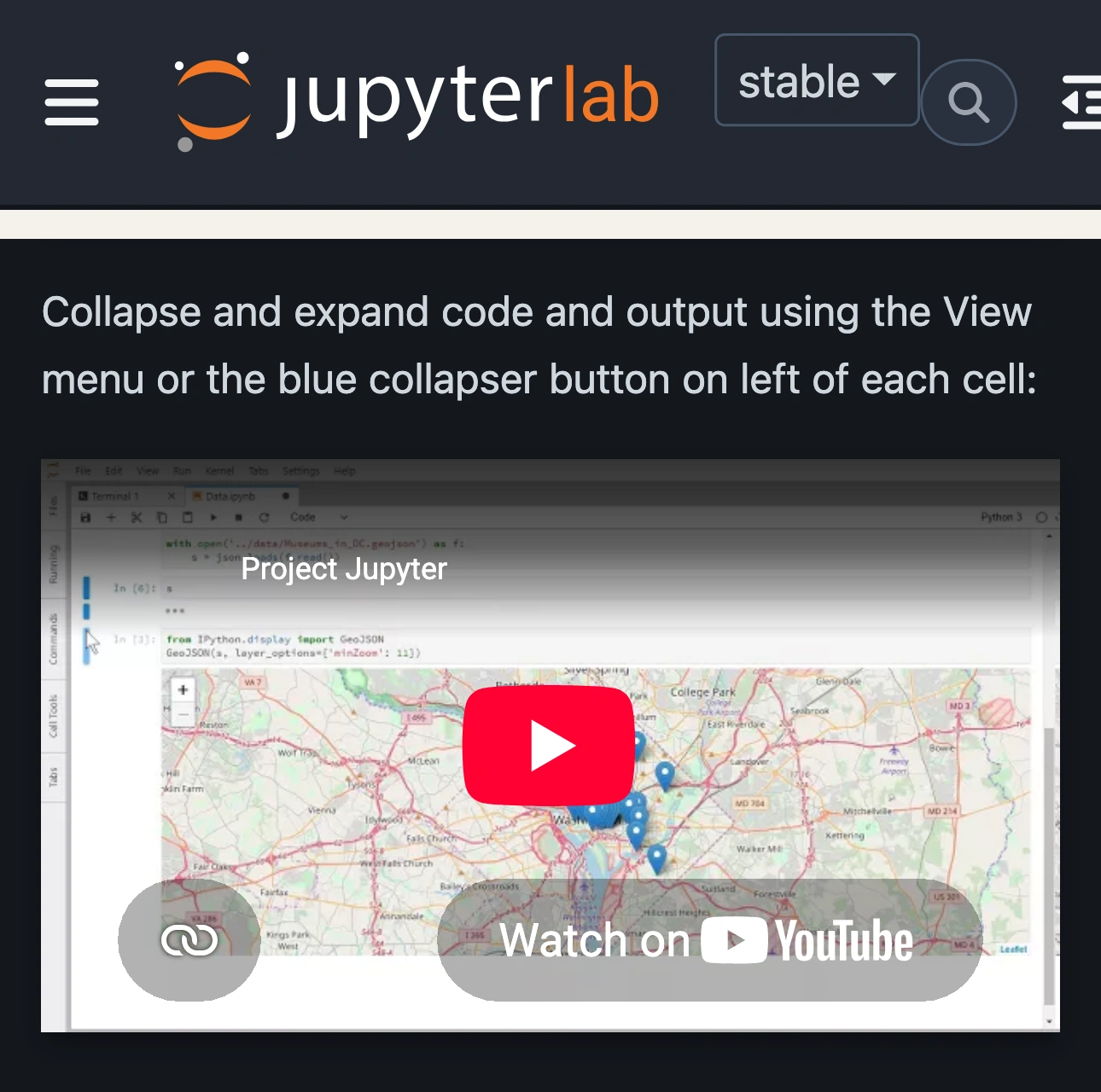
Project Jupyter, captured October 22, 2026 at 3× resolution. The branded header and collapse-control section are unaltered excerpts; intervening sections are omitted.
Confirm that you hid the input you intended to hide. A chart remaining on screen is useful when you want to explain a result, but a visible output can also contain names, paths, raw rows, or an error message. Review it as content in its own right.
You do not need a code-hiding extension for this basic live presentation workflow. Instructions for classic Notebook extensions, Jupyter Book, or an exported slideshow address different environments. Begin with the controls in the JupyterLab version you actually have open.
Decide whether you are sharing a view or delivering a file
There are two separate questions: what appears during the call, and what the recipient receives afterward. A notebook that looks tidy in your browser is still a notebook containing working material.
| Goal | Starting point | Remaining review |
|---|---|---|
| Explain a chart live | Collapse its code input | Chart labels, tooltips, and other visible outputs |
| Walk through selected code | Collapse unrelated inputs | Any cells you expand or run |
| Send a static report | Prepare a reviewed export | Exported content and attachments |
| Give someone an editable notebook | Prepare an approved notebook copy | Source, outputs, and metadata |
The notebook format documentation describes cells with source, metadata, and, for code cells, outputs. A visibility control changes the working view; it is not a promise that the underlying source has been removed.
If attendees only need a report, review an export made for that purpose. The official nbconvert removal guide describes export-specific ways to remove cells or inputs. Follow the configuration for your chosen exporter instead of assuming that collapsed cells will disappear from every output format.
Open the exported result separately. Search for representative information you meant to omit, inspect the visible report, and confirm you are sending the reviewed artifact. Keep the original notebook out of that delivery folder when it is not part of the intended handoff.
Prepare outputs before the audience arrives
Use a demonstration copy with approved sample data. Run the planned sequence before the meeting so the chart you intend to discuss already has a known result. Check table rows, axis labels, hover details, printed values, and any text above or below the main visualization.
Do not treat collapsed output as removed output either. If an old result should not appear in the demonstration, prepare the copy so that result is not part of the route. Then reopen the copy and rehearse the exact steps you will take.
Consider a notebook that queries a customer table and plots a monthly total. Hiding the query makes the explanation shorter, but displaying the full intermediate table still exposes its contents. A demo dataset and an aggregate result solve different parts of that problem; the collapse control only organizes the view.
Live execution adds another transition. A cell can produce a different result, a long traceback, or more output than you expected. Use predictable examples and stop sharing before investigating a failure that requires private data or credentials. Resume only after preparing a result suitable for the audience.
Share the smallest source that covers the explanation
If the meeting stays in one notebook, choose the prepared browser tab where your meeting supports tab sharing. Otherwise use a clean notebook window and verify the meeting preview. Avoid selecting the whole physical display simply because it is the most prominent option in the picker.
Check the surrounding workspace too. A JupyterLab file browser, other document tabs, a terminal panel, or a second notebook may be visible in the same browser tab. Sharing one browser tab does not automatically isolate one JupyterLab document inside it.
Rehearse the opening view, a scroll to the next result, a deliberate expansion of an approved cell, and the end of the walkthrough. Confirm the received picture on a second device or with a colleague. If the audience should never see the source, choose a prepared report instead of a live editable workspace.
The browser-tab sharing guide covers source selection. If the demo moves into an editor, prepare that surface too; the VS Code presentation guide addresses its layout and visible working material.
Keep unrelated apps and Chrome contexts out of a mixed demo
ScreenK9 is useful when your explanation moves repeatedly between a notebook and other approved work apps. Set Show only selected, configure the work apps and Chrome Companion context you need, then inspect ScreenK9 — Audience View throughout the route. Share that named window in the meeting.
The Chrome profile guide explains context classification. This is not per-tab or per-cell filtering: a private notebook opened inside an approved browser window still needs your attention. Close unrelated JupyterLab documents and use a prepared work context before presenting.
Ordinary app rules are app-wide, so allowing an editor can include its other windows. ScreenK9 does not understand notebook source, detect secrets, sanitize outputs, or change notebook permissions. Fixed manual regions do not track a cell as you scroll. Sharing the physical display directly bypasses the filtered Audience View.
End with a simple check: the visible outputs are approved, every planned expansion is intentional, the received source is correct, and any file sent afterward has its own review. Collapse controls help people follow the explanation; preparation determines which information belongs in it.