
Start with Postman’s current Secure control
For a live walkthrough, use sample credentials and a demonstration environment wherever possible. When a request needs a real credential, configure its native protection before starting the call.
The current Define variables guide, checked October 23, 2026, describes this v12 workflow:
- Open the global, environment, or collection variable you need.
- Set up your Local Vault with its vault key first if it is not already configured.
- Click Secure next to the variable’s name.
- Return to the request and confirm that the value is masked.
This requires the appropriate Editor access. Follow the documentation version matching your installed Postman version: older screenshots may show a Secret type or a sensitive-value marker instead.
Postman’s variables-pane documentation confirms that secure variables are encrypted and masked by default. Open Variables in the upper-right of the workbench to inspect the variables used by the current request. Check that you are using the intended scope and environment before presenting.
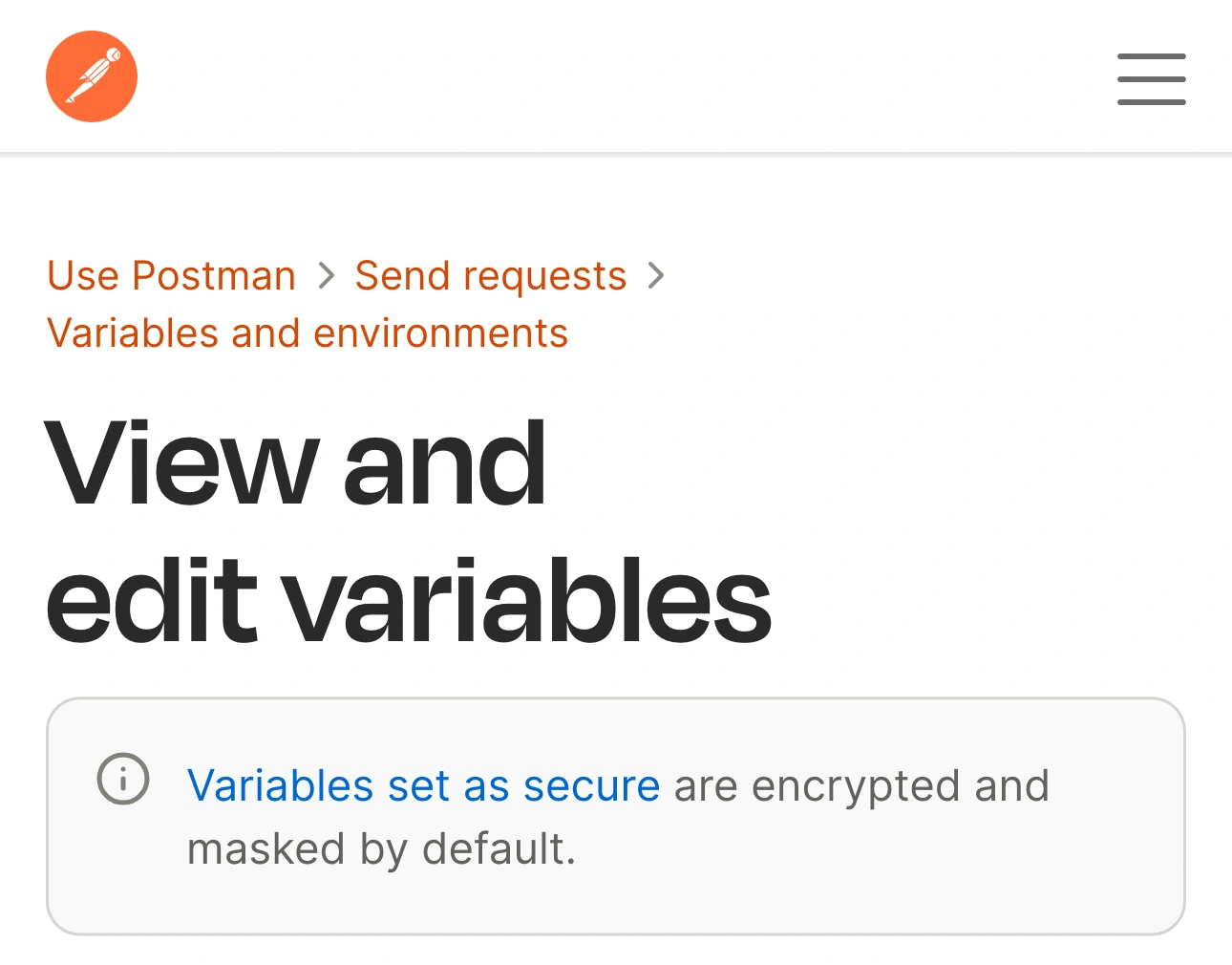
Postman documentation, captured October 23, 2026 at 3× resolution. The branded heading and relevant note are unaltered excerpts; intervening content is omitted.
Do the setup while sharing is off. A settings walkthrough that reveals the credential while you are trying to hide it defeats the purpose. Once the example is prepared, show the variable reference and explain its role without opening the underlying value.
Keep masking, storage, and sharing separate
These controls answer different questions. A value can be local to your Postman instance yet still appear on your screen. A masked field can be suitable for a demonstration while the request still uses the credential to contact an API.
| Question | Control to review | What still needs attention |
|---|---|---|
| Can viewers read this variable field? | Secure variable and visible mask | Reveal actions and other displayed content |
| Where does the secret live? | Local Vault or the configured shared vault | Access and the intended workflow |
| Can teammates use the value? | Variable sharing settings | The separate shared value and permissions |
| What will the call show? | Prepared request, response, and capture source | Every panel opened during the demo |
Postman’s sharing guide describes local values and separate shared values. Making a value available to collaborators is an explicit sharing operation; it is not the same action as hiding its display. Shared values can also be used by cloud-run features and published documentation, so review that configuration independently.
Avoid copying an old tutorial’s initial/current-value instructions into the current desktop workflow. Postman’s documentation explains that those independent values were replaced by a local value with deliberate sharing; the VS Code extension has its own behavior. Use the current labels you actually see.
Review the console and response as separate surfaces
Postman’s vault-secrets guide says Local Vault secrets are masked in the Postman Console by default, controlled by Mask vault secrets in settings. Keep that protection enabled. Do not turn it off just to make a presentation easier to follow.
That documented protection does not mean every piece of response content is appropriate for an audience. An API can return customer details, internal identifiers, account information, or an error containing context you did not intend to demonstrate. Review the actual response you plan to show.
For example, a masked authorization variable may be working correctly while a successful response displays a real customer’s email address. Replacing the demonstration dataset solves that problem more directly than adjusting the credential field. Use a test account and a predictable request whose output you have already inspected.
Decide whether the audience needs the Console at all. If your explanation concerns response status and a small JSON result, keep the route focused on those elements. If troubleshooting is part of the demonstration, rehearse the expected failure and inspect its output in advance.
Rehearse the request instead of improvising navigation
Create a short route through the prepared material: select the environment, open the request, explain its parameters, send it, and inspect the approved result. Close unrelated request tabs and choose names that make sense to an external audience.
Check URLs, collection names, environment names, request examples, scripts, and response tabs. A variable name can itself disclose an internal project or customer even when its value is hidden. Use a demonstration copy whose surrounding context is suitable for the meeting.
Keep an approved response ready in case the endpoint is unavailable. If a live request fails unexpectedly, stop sharing before opening private logs or switching to a production account. A short pause is easier to recover from than an unplanned tour through an active workspace.
If the explanation stays entirely in Postman, select its prepared window in the meeting’s sharing picker and check the received picture on another device. Opening another panel inside that window changes what viewers see; window sharing does not isolate a single request.
Use ScreenK9 when the demo spans work apps
An API explanation often moves from Postman to source code and then to documentation. Prepare the editor using the VS Code presentation guide. If you will show command-line requests, the Terminal preparation guide covers visible scrollback and working context.
For that mixed-app route, ScreenK9 can keep unrelated applications out of the audience capture. Choose Show only selected, approve the work apps you need, and inspect ScreenK9 — Audience View while rehearsing each switch. Share that named window in your meeting. The multi-app sharing guide explains the setup.
Postman rules are app-wide: approving Postman can include its other windows. ScreenK9 does not inspect API requests, recognize credentials, or automatically hide secrets. It does not change Postman’s cloud sharing or API permissions. A manual hidden region stays fixed and will not follow a value when panels move.
Before going live, confirm three things: the native variable mask is active, the planned response and surrounding workspace are suitable for the audience, and the meeting receives Audience View if you use ScreenK9. Sharing the physical display directly bypasses that filtered view.