
Open the two views before you share
Open the finished deck and select its starting slide. Click Present in the right sidebar, then choose Present + Notes. Figma’s presenter-notes guide documents two outputs: a new tab containing your notes and a separate window showing the presentation for the audience.
Choose that audience window in the meeting tool’s share picker. Read the preview before confirming: it should contain the slide, with no notes field or editor sidebar. Arrange your notes so you can read them comfortably without moving the shared window during the talk.
If you do not need notes, the ordinary Present option opens the deck without them. You can use that simpler view for a short walkthrough. Neither choice requires an additional notes plug-in.
This guide concerns Figma Slides decks. The controls for playing a Figma Design prototype are different; use the Figma prototype presentation guide when your file is a prototype rather than a slide deck.
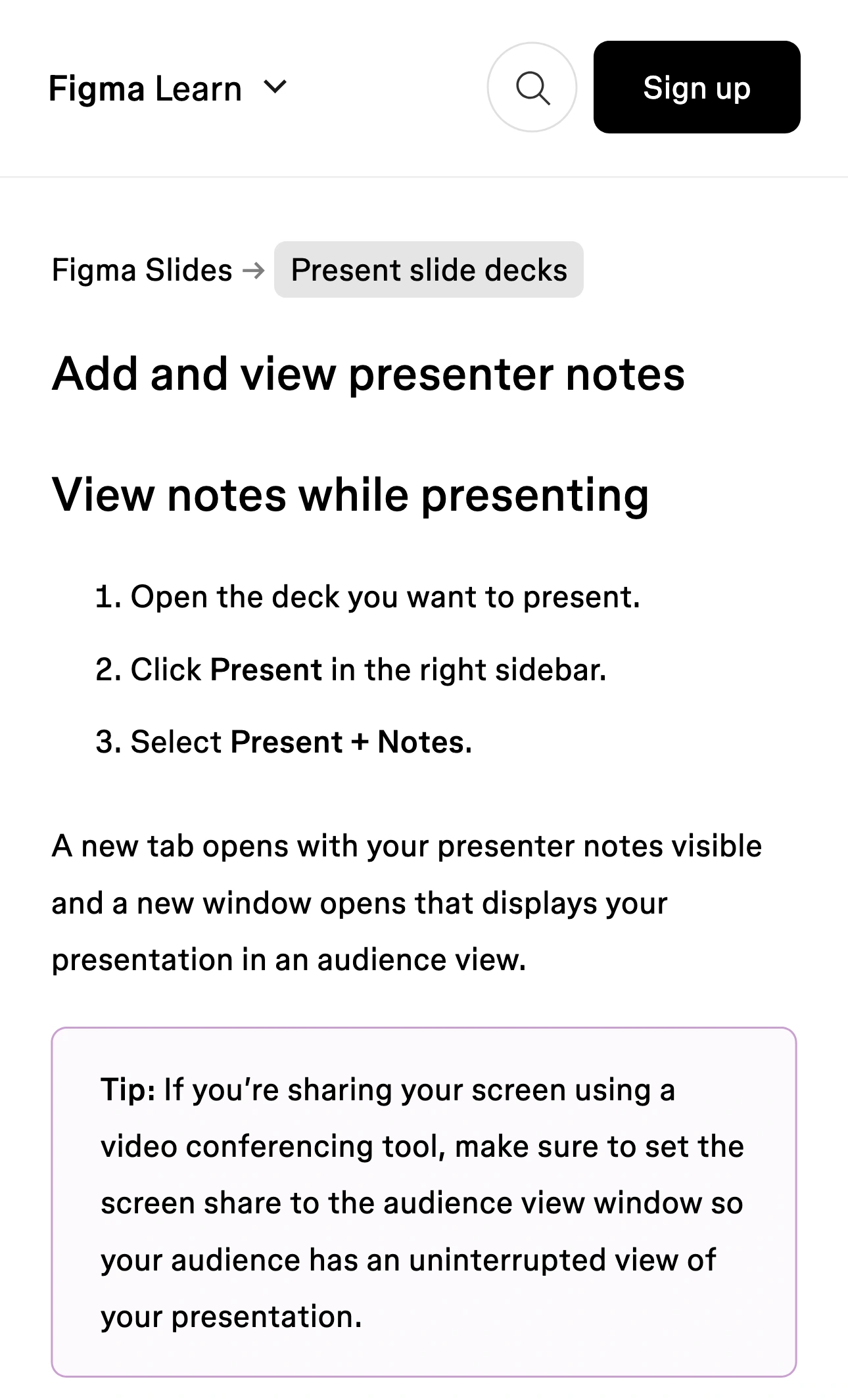
Figma Learn, captured October 16, 2026 at 3× resolution. The site heading and relevant instructions are separate unaltered excerpts; intervening sections are omitted.
Verify the moving presentation, not only the first slide
A correct opening preview is useful, but your actual presentation includes navigation, focus changes, and an ending. Run a short rehearsal with harmless notes such as “pause here” so a mistaken source is obvious without exposing private material.
Start the share, advance one slide using the notes view, and watch the received picture on another device or with a colleague. It should advance with you while keeping the cue text out. Then return to the previous slide and repeat a transition containing an embedded prototype or other media you intend to use.
If the audience sees the notes or the slide stops updating, stop sharing before investigating. Recheck which window the meeting selected. Reopen the presentation views if needed and repeat the small rehearsal. Do not solve an unfamiliar capture problem by switching to the entire display in front of the audience.
Use the same meeting application, Figma environment, and display arrangement that you will use for the call. A browser tab, a desktop-app window, and a physical screen are different capture choices. A successful test of one does not establish the behavior of the others.
Decide whether viewers need a video picture or deck access
Screen sharing and sending a presentation link do different jobs. Figma’s presentation guide says a screen-shared deck without live interactions does not require giving the audience access to the deck. Viewers can simply watch the meeting picture.
For polls, alignment scales, or other live interactions, participants need at least can view access. Clickable embedded prototypes also require appropriate access to the prototype file. A video stream alone cannot give someone a working poll button on their own device.
| What attendees need | Starting choice | Check separately |
|---|---|---|
| Watch your explanation | Share the audience window | Notes stay out during navigation |
| Participate in live interactions | Review access and send the presentation link | Deck and prototype permissions |
| Follow a live app demonstration | Plan the transition out of Slides | Which source the meeting receives |
| Keep a copy after the call | Prepare a reviewed deliverable | Everything included in that copy |
Do not treat the words “audience view” as a confidentiality setting for the underlying file. Figma’s Slides overview explains that people with view access can also present a deck. If a file contains confidential cues, prepare an appropriate audience copy before granting access. Test the intended recipient’s access rather than judging it from your own editor account.
For a meeting that only needs a presentation picture, avoid adding file sharing as an unnecessary second step. For a collaborative session, make that access decision deliberately before people join.
Plan the handoff from slides to a live demo
Suppose your agenda has three slides, a browser walkthrough, and a demonstration in a native Mac app. Native sharing can cover this: stop the slide share, choose the next prepared window, then continue. A brief announced transition is often sufficient.
ScreenK9 is useful when you want one continuous audience window for approved work apps while unrelated applications remain open locally. Configure Show only selected, allow the required apps, and inspect ScreenK9 — Audience View through the full route. Share that named window in the meeting. The multi-app sharing guide explains the setup.
Keep private cue text in an excluded app if you use this route. For example, a prepared slide view without notes can be part of the allowed presentation while a separate, excluded notes app remains local. Verify that arrangement in Audience View before using it.
There is a specific trap here: ordinary ScreenK9 rules apply to the whole app. Approving the Figma desktop app does not separately exclude its notes window. Similarly, do not assume two Figma tabs in the same approved Chrome context receive different treatment. Chrome Companion classifies Chrome contexts; it does not identify which tab contains private speaker notes.
If you need Figma’s built-in notes beside its audience window, native sharing of the audience window is the clearer starting point. Use ScreenK9 only with a deliberately prepared arrangement that respects its capture boundaries. The general speaker-notes guide covers the same source-choice principle across other presentation apps.
ScreenK9 does not perform OCR, discover confidential text, or change Figma file permissions. A manual region stays fixed and does not follow a moving notes panel. Sharing the physical display directly bypasses the filtered Audience View.
End the share before returning to preparation
Rehearse the final slide as carefully as the first. Stop the meeting share before returning to the editor, opening another deck, or showing the file browser. If questions require an unprepared file, take a moment to review it before selecting a new source.
Keep a three-step check beside the presentation: correct audience window, advancing slides, clean ending. Add a fourth check only when needed: the transition into the live app. That is a practical test you can repeat without assuming that a clean-looking local screen proves what everyone else receives.
Sources checked
Documentation and ScreenK9’s current capture implementation were checked October 19, 2026. The receiver-side steps are a rehearsal procedure, not a claim that every Figma and meeting-app combination was tested in a live call.