
Build the route with Freeform’s native scenes
Open the board and frame the first area you want to discuss by zooming and scrolling. Open Scene Navigator in the lower-left corner, choose Show Scenes, then Add Scene. Repeat for each part of your explanation.
In the scene list, give each view a useful name and drag scenes into presentation order. Use the back and forward arrows to move through them. If a view needs a different framing, adjust it and use Replace Scene from its options. Apple documents these controls in its scene navigation guide.
Choose the prepared Freeform window in your meeting’s share picker. For an explanation that stays on this board, a single-window share is the simplest starting point. You can keep other apps outside that selected window without introducing another presentation tool.
Think of the scene list as an outline for your talk. “Problem,” “Options,” and “Decision” are easier to navigate during questions than a series of unnamed views. The names should describe the audience’s next question, not every object on the canvas.
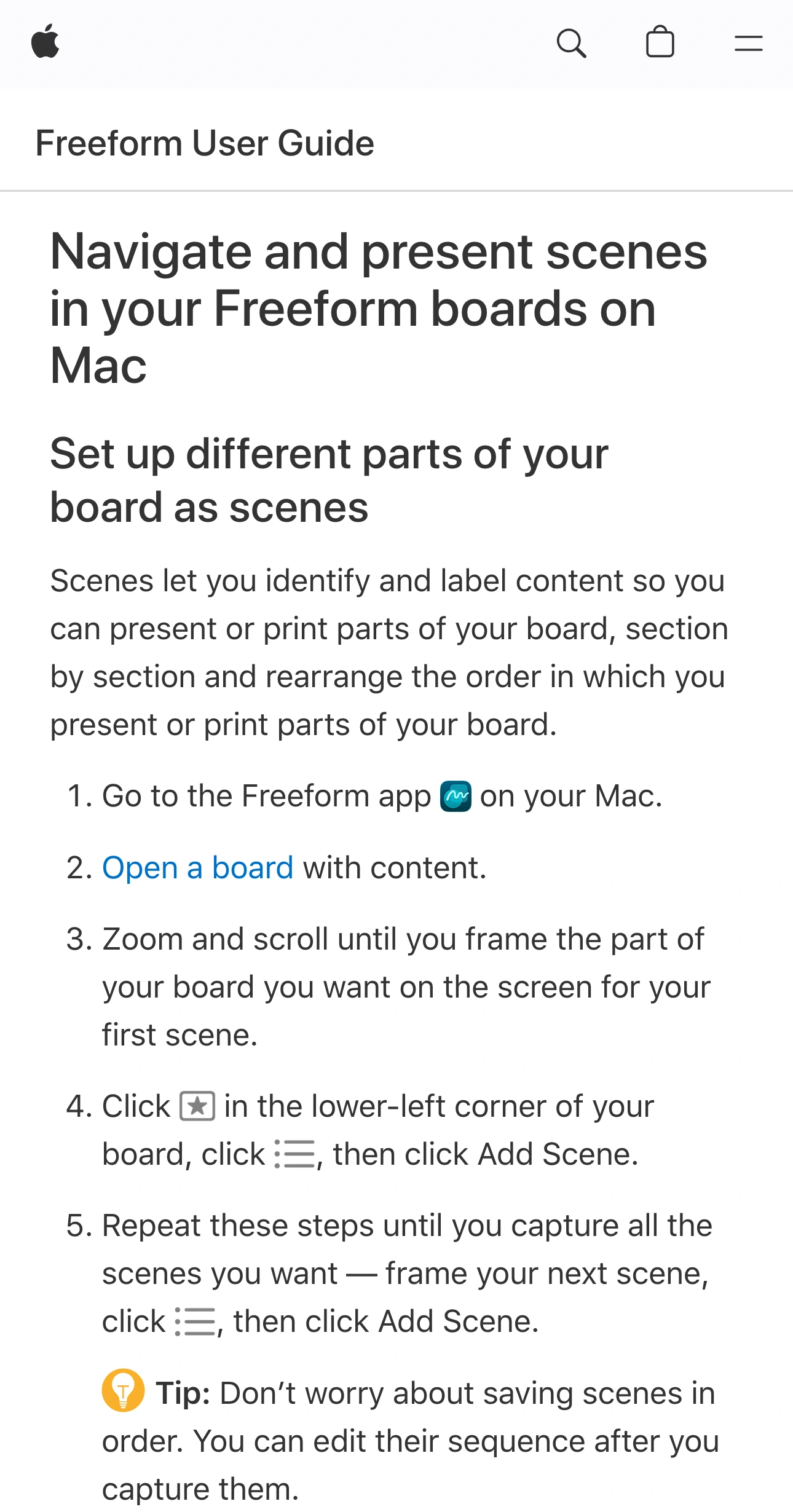
Apple Support, captured October 16, 2026 at 3× resolution. The Apple header, page title, and setup instructions are separate unaltered excerpts; intervening content is omitted.
Prepare a board that is safe to navigate
A saved scene is a view into a larger canvas. Our practical recommendation is to use a presentation board containing only material you are comfortable showing, even if your planned route visits just three areas. That makes an accidental pan or an unscripted question less disruptive.
For example, a product-planning board might contain the public roadmap in the center and private customer feedback farther to the side. Framing the roadmap does not remove the feedback. Make a separate presentation copy with appropriate content rather than relying on distance across the canvas.
Use harmless sample names and values where the underlying information is not needed for the explanation. Check small labels, attached images, and link previews as well as the large headings. A photograph or screenshot can carry details that are easy to miss when the board is zoomed out.
This preparation also improves the talk. Give each scene one main point and enough empty space around it to survive a different window size. A crowded board can be an excellent private workspace and still be a poor presentation surface.
Check framing at the size attendees will receive
Apple notes that a scene can be framed differently on another device or in a different view. A scene prepared on a portrait iPad therefore needs a fresh look on the Mac used for the meeting. Do not assume the saved view will look identical everywhere.
Set the Freeform window to its intended presentation size before the rehearsal. Step through the full sequence while watching the received meeting picture. Check the smallest text, the widest diagram, and anything near an edge. If a label is unreadable, simplify the scene or enlarge the relevant content.
Freeform’s appearance controls include View → Hide Sidebar, full screen, and zoom commands. Hiding the sidebar gives the board more room. Zoom to Selection focuses on chosen objects; Zoom to Fit Content shows the board’s contents together. Use those controls during preparation with a clear idea of what they will reveal.
Avoid changing the window shape halfway through the live explanation. If the call requires a different layout, stop sharing, adjust it, and recheck the first scene. The goal is predictable framing, not simply the largest possible local window.
Choose between a window, a PDF, and collaboration
| Audience task | Native starting point | What to review |
|---|---|---|
| Watch you navigate a prepared board | Share the Freeform window | Every scene and the space between views |
| Read fixed pages after the meeting | Export the selected scene or scenes as PDF | Exported pages, order, and readable text |
| Explore or edit the board themselves | Review board-sharing permissions | The contents of the shared board |
| Follow a board-to-app demonstration | Plan a source change or Audience View | The transition and return |
For a static handout, File → Export Scenes as PDF exports the scenes. A scene’s own options also provide an individual export route. Review the resulting file before sending it, rather than assuming an attractive first page proves the rest are ready.
If a PDF contains material that needs permanent removal, use an appropriate file-editing workflow. The Mac PDF redaction guide explains why a screen-only cover is different from changing the document itself.
Collaboration is a separate decision. Apple’s board-sharing guide describes who can view or change a board. The scenes guide states that collaborators can access all scenes saved in the board. Choosing a scene during a meeting is therefore not a way to give someone access to only that scene.
If participants only need to watch, a meeting window share is enough. If they need to explore, prepare a board whose contents match that access before sending an invitation.
When the explanation leaves Freeform
A design review may move from a Freeform diagram to a browser prototype and then to the real Mac app. You can stop one native window share and start the next. Plan that pause so you do not need to search for a private window while participants watch.
ScreenK9 offers another route: a separate filtered audience window containing approved apps. Select the source display, use Show only selected, approve the presentation apps, and inspect ScreenK9 — Audience View through the board → browser → app sequence. Share that named window in the meeting. See the multi-app sharing guide for the general setup.
That can keep an unrelated notes or messaging app out of the audience feed while it remains available locally. It does not make the Freeform board’s contents private. Ordinary app rules are app-wide: allowing Freeform does not distinguish your presentation board window from another Freeform window. Close unrelated windows from the allowed app or keep the native single-window share.
ScreenK9 has no OCR or automatic secret detection. Manual regions cover fixed areas of Audience View; they do not track a board object as you pan or zoom. Sharing the physical display instead of Audience View bypasses the filtered output. For a demonstration that remains entirely in one prepared board, the native route is usually sufficient.
Rehearse the question you did not plan for
After checking the normal sequence, return to an earlier scene as if someone asked a question. Check the transition, then practice opening any approved linked resource and coming back. End the share before browsing other boards or rearranging private material.
For a recorded explanation, the single-window recording guide covers a similarly narrow source choice. Review the recording itself before distributing it.
Use one final rule: scenes define the route through your explanation, while the selected sharing source defines the audience picture. Prepare and verify both.
Sources checked
- Apple: Navigate and present scenes in Freeform
- Apple: Change a Freeform board’s appearance
- Apple: Share a Freeform board or folder
- MacMost: Using Freeform as a presentation tool
Documentation and ScreenK9’s current implementation were checked October 19, 2026. The checklist is a proposed presentation rehearsal, not a claim of a live Freeform meeting integration test.