
Open the built-in Reader View
Start on the article you intend to discuss. When Firefox offers Reader View, its icon appears in the address bar. Click it, use Command–Option–R, or choose View → Enter Reader View from the Mac menu bar. Mozilla’s Reader View guide documents these routes.
Use the built-in feature first. You do not need an extension merely to open an eligible article in Reader View. The browser simplifies the page, removing some surrounding controls and distractions; inspect the result before assuming that every item you plan to discuss remains visible.
For a meeting about one prepared article, share the specific Firefox window where your meeting tool supports window sharing. Opening Reader View changes the page presentation, while the meeting’s source selector determines which window viewers receive.
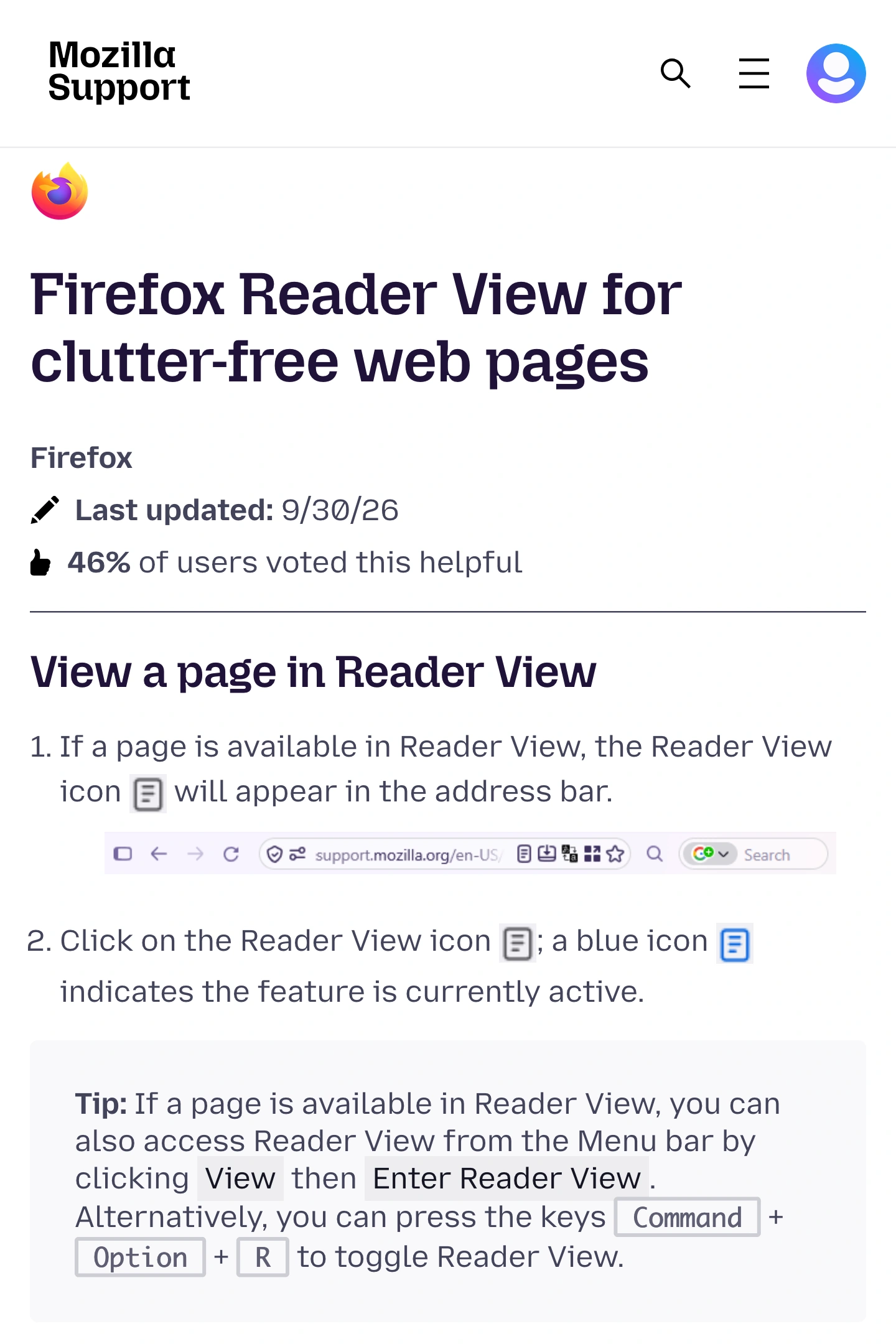
Mozilla Support, captured November 10, 2026. The source header, article identification, and opening instructions are preserved in source order; the question form, introduction, and table of contents are omitted.
If the Reader View icon is missing
Check an ordinary text article before diagnosing a browser problem. Mozilla describes the icon as appearing when the page is available in Reader View. A missing icon on a particular page does not, by itself, establish that Firefox is broken.
| What you see | Practical next step |
|---|---|
| Reader icon appears | Open it and inspect the extracted article |
| Icon appears on another article only | Use the original layout for the unsupported page |
| Shortcut behaves unexpectedly | Use the visible icon or Mac View menu and check the documented shortcut |
| The explanation depends on an interactive element | Keep a prepared original-page view available |
Do not spend the beginning of a meeting trying unfamiliar settings or installing an add-on. If the built-in view is unavailable, Firefox’s page zoom controls offer a simpler readability adjustment. On Mac, Command–Plus enlarges a page, Command–Minus reduces it, and Command–0 resets zoom.
Firefox also supports text-only zoom, described in that same guide. Try it on the actual page before the call: enlarging text can change wrapping and move a diagram farther down. A readable paragraph is more useful than a perfectly remembered shortcut.
Make the reading layout fit the audience
Reader View offers typography and layout controls beside the article. Adjust text size, width, spacing, and theme until the passage is comfortable to follow. Mozilla’s current guide describes these options; the older introductory video above should not be treated as an exact map of every present-day control.
A useful starting test is a single paragraph plus the image or quotation you plan to discuss. Place them together at a size your test viewer can read. If the image becomes tiny while the text looks good, consider presenting that image separately in its original context.
Avoid changing several layout controls during the explanation. Each change can move the audience away from the sentence you were discussing. Set the opening appearance in advance, then use deliberate scrolling with a spoken cue such as the next section heading.
Read-aloud is a separate option and depends on available language support. It does not automatically route narration into a meeting. If your session requires audio, verify your meeting app’s audio-sharing setup separately before relying on it.
Compare the prepared view with the original page
Reader View is useful when the article’s prose is the subject. It is less suitable when the lesson is about the website’s navigation, an interactive chart, a form, or a video player.
Before sharing, make a short checklist of the material you actually need: opening claim, named source, relevant paragraph, illustration, and concluding qualification. Compare each item with the original page. If something needed for your explanation is absent from Reader View, keep the original presentation for that portion.
This comparison is a rehearsal procedure, not a claim about a particular publisher’s extraction behavior. It also prevents an avoidable problem: referring to a button or illustration your audience cannot see in the simplified view.
If you normally use Safari, follow the separate Safari Reader guide. Browser shortcuts and menus differ; do not carry a remembered Safari command into Firefox and assume it performs the same action.
Rehearse the exit and the next link
The calm reading layout is only one moment in a presentation. The risky transition is often leaving it to search for another page.
Use this rehearsal before your real meeting:
- Open the prepared article and enter Reader View.
- Scroll to every section you plan to discuss and check the images.
- Exit using the Reader icon or its exit control, then inspect the original page.
- Follow one planned link and review the destination before sharing it.
- Return to the opening article and restore the intended reading position.
Review the whole shared window, including tab titles and visible browser controls. Reader View does not decide whether a personal tab or a newly opened destination is appropriate for the audience. Close unrelated material and stop sharing before an unprepared search.
For a recorded explanation, check a short playback instead of judging only your own large monitor. The single-window recording guide describes the narrower capture approach. Also prepare Mac notification settings for the session; a clean article is only one part of the visible workspace.
Use ScreenK9 for a prepared multi-app explanation
Native sharing of one Firefox window is the simple choice for one article. ScreenK9 is useful when the explanation also requires a prepared document or other application while a private reference app should remain outside the audience feed.
Allow the required apps, exclude the private reference app, inspect the result, and select ScreenK9 — Audience View in the meeting or recorder. Follow the multi-app sharing walkthrough. Directly sharing the physical display bypasses ScreenK9’s filtered output.
Firefox is an ordinary application in ScreenK9’s app rules. ScreenK9 cannot allow one Firefox window and exclude another, and its Chrome profile companion does not provide Firefox profile or tab filtering. If you need to share just one Firefox window, use the meeting’s native window selector.
Manual redaction regions cover chosen areas; they do not follow paragraphs as you scroll or identify private text automatically. ScreenK9 has no OCR or automatic secret detection. Keep the prepared content suitable for the audience, and check one transition to the second app and back before starting the real session.
Sources checked
Instructions and product boundaries reviewed November 10, 2026.