
Open the article in Reader first
Reader is a useful starting point when a meeting needs the text of an article rather than the surrounding website. Open the exact article you plan to discuss, then choose Page menu → Show Reader. Apple's current Reader guide describes a simplified article layout and its appearance controls.
Make this change before screen sharing starts. Check the opening paragraph, scroll to the passage you need, and make the text comfortable to read. A clean layout saves the audience from following navigation menus while you explain one idea.
Apple lists Shift–Command–R for opening Reader and Esc for closing it in its Safari keyboard shortcuts. Keep the exit command in mind: pressing Esc during the presentation can return the ordinary webpage, including the surrounding material you removed from the reading view.
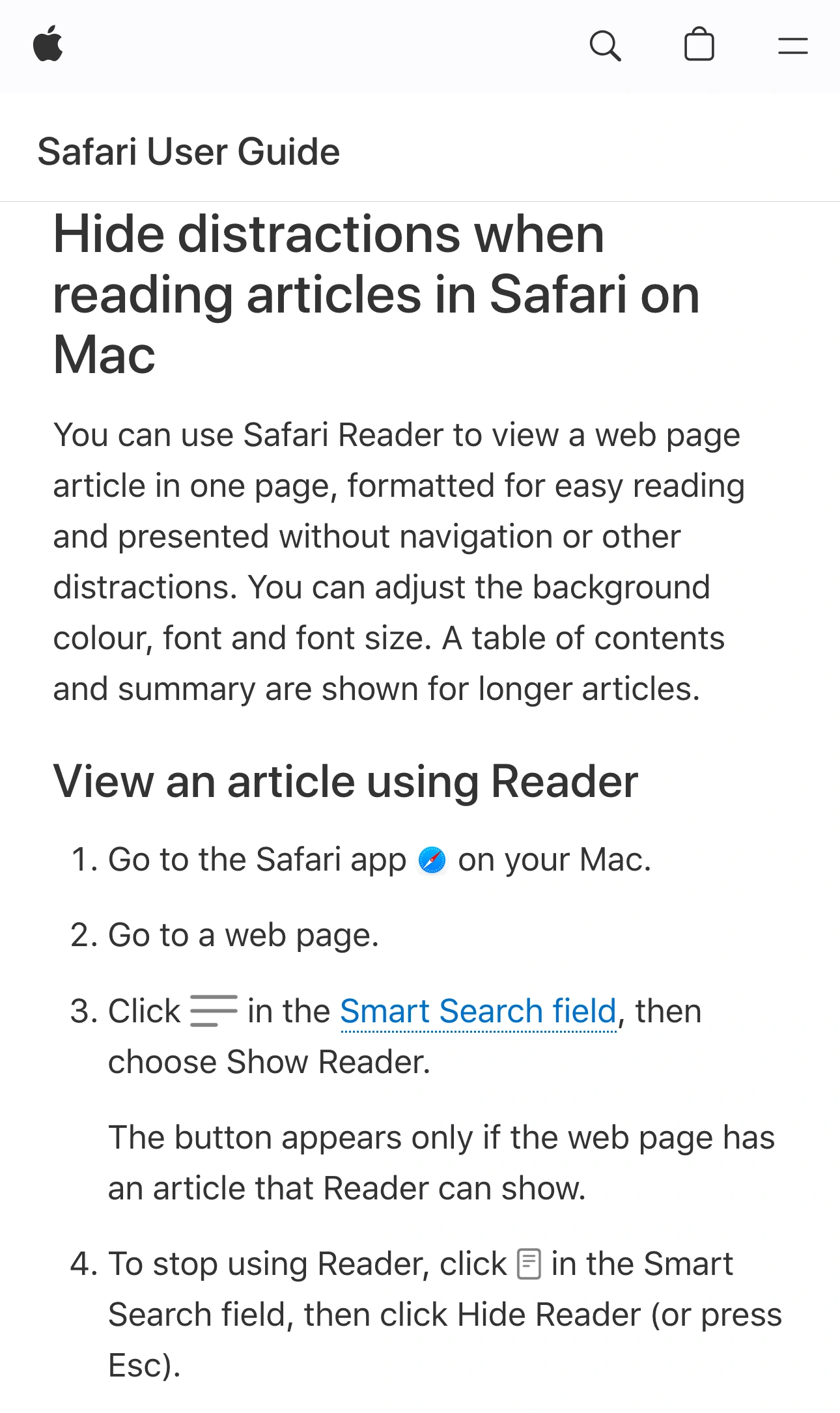
Source: Apple Safari User Guide, captured November 5, 2026. Three unaltered excerpts retain the branding, explanation, and controls in source order; intervening content is omitted.
If Show Reader is unavailable
The control appears when Safari identifies an article it can present. Its absence is not evidence that a screen-sharing permission is missing. First check whether you opened an individual article rather than a search page, homepage, or interactive application.
Wait for the intended page to finish loading and look at the Page menu again. If Reader remains unavailable, use the ordinary page and adjust its text size, or choose a different presentation format. Do not spend the opening minutes of a call trying to turn every website into a reading layout.
Check the content that the discussion actually requires. If a chart, illustration, embedded demonstration, or relevant passage is absent from the simplified view, return to the original page before the call and choose a source that includes it. The video above demonstrates why checking the extracted article matters; Reader's output can vary by page.
For a task that needs the website's controls with selected distractions removed, use the separate Safari Distraction Control guide. That workflow changes selected page elements. This guide concerns the article-reading layout.
Set readable text and deliberate site defaults
With Reader open, use its button in the address field to adjust the background, font, and zoom. Choose a combination that remains legible in the meeting's received picture, not only on your own Retina display. A comfortable local font can become small when participants fit your shared window beside the meeting chat.
Set the text size before choosing the passage to present. Increasing it changes where paragraphs fall, so check your starting position again afterward. If the audience needs a figure and its explanation together, rehearse that view at the sharing window's actual size.
For a website you read regularly, Apple's Websites settings documentation describes Safari → Settings → Websites → Reader. Set a site's Reader option to On to use it automatically for supported articles, or Off to choose it manually. This is a site preference, not a setting that makes every page compatible.
Automatic Reader can be convenient during personal reading. For a live demonstration, inspect the specific destination anyway: a link may lead to a different site or a page that needs its original layout. Prepare that transition rather than assuming the next click will preserve the same view.
Separate the reading layout from the shared source
| Your task | Start with | Check before sharing |
|---|---|---|
| Discuss an article's text | Reader | Required passages and images remain |
| Demonstrate website controls | Ordinary page | Navigation and account details are suitable |
| Present one prepared Safari window | Native window sharing | Visible tabs and browser controls |
| Move between approved Mac apps | A tested Audience View | Every app switch and return to Safari |
Reader changes the webpage presentation. It does not select the window that your meeting transmits or remove unrelated Safari windows from a desktop share. Inspect the browser's surrounding controls, including visible tab titles, before deciding that the picture is ready.
For a single-article discussion, choose the prepared Safari window in your meeting app's sharing picker. Avoid typing new searches or opening unrelated tabs while it is being shared. The guide to sharing without exposing other tabs explains why the selected source matters separately from the page layout.
If you need a website in a separate app-like window, our Safari web app guide covers that different setup. It does not guarantee that the site's content will be suitable for the audience; preparation still comes first.
Add ScreenK9 when the explanation crosses apps
ScreenK9 is useful when the article is one part of a walkthrough that also includes slides, a diagram, or another approved application while private apps remain open. Configure the work apps for one selected display, inspect ScreenK9 — Audience View, and share that named window in the meeting.
The multi-app sharing workflow covers this source choice. Sharing the physical display directly bypasses the filtered audience window, even if Reader is open and ScreenK9 is running.
Safari is treated as an ordinary application. Approving Safari does not allow one Safari window while excluding another, and it does not classify individual Safari profiles. Close unrelated Safari material or stay with native sharing of one window when that narrower boundary is what you need. Chrome Companion's profile classification applies to Chrome, not Safari.
ScreenK9 does not inspect article text, identify confidential passages, or perform OCR. Its role here is choosing which applications contribute to the audience picture. Reader and the prepared article remain your responsibility.
Rehearse the return to the webpage
Use a harmless article for a short receiving-device check or test recording. Show the opening passage, scroll to the next section, and follow the one link the explanation requires. If the session will leave Reader, test Esc as part of that sequence.
Confirm that the return exposes only material intended for the audience. Then rehearse switching to the next work app and back. Stop sharing before opening private references or changing to an unprepared page.
The practical finish is a known starting view and a known exit. Reader helps the audience read; the rehearsal verifies what happens after you stop reading.