
Open the audience presentation before choosing a source
Gamma provides a place for private speaking prompts, but your meeting app decides which picture leaves the Mac. Prepare both views before opening the share picker. Identify the audience presentation by its actual contents, rather than assuming that any window with the deck's name is safe.
Gamma's current presentation guide offers Full screen and In tab presentation modes. The arrow beside Present also leads to Presenter View. Keep that notes view local and select the public presentation in the meeting application's source picker.
For a browser meeting that supports tab sharing, the audience tab is a useful narrow source. If you need a window source, prepare a dedicated browser window and inspect its preview. Our tab versus window sharing guide explains what can remain visible around a page.
Do a short receiver-side check before the talk: the first card should fill the intended audience area, with no notes panel or private browser material. Moving the notes to another display helps you arrange the workspace, but does not replace checking which display, window, or tab is actually being shared.
Add speaking cues and keep their purpose narrow
Gamma's speaker-notes instructions describe opening the notes panel from a card's top-right area and using its bottom arrow to continue to the next card. Presenter View lets you read notes alongside the current card, use a timer, and edit a note before choosing Done.
Write prompts that help you speak: the example to mention, the question to ask, or the transition to the next topic. Avoid turning a presentation file into a storage place for unrelated account credentials or confidential background material.
That distinction matters after the meeting too. Keeping notes out of a live picture does not establish the access rules of every shared deck, export, or collaborator role. If you intend to distribute the file or a link, review that version and its permissions separately.
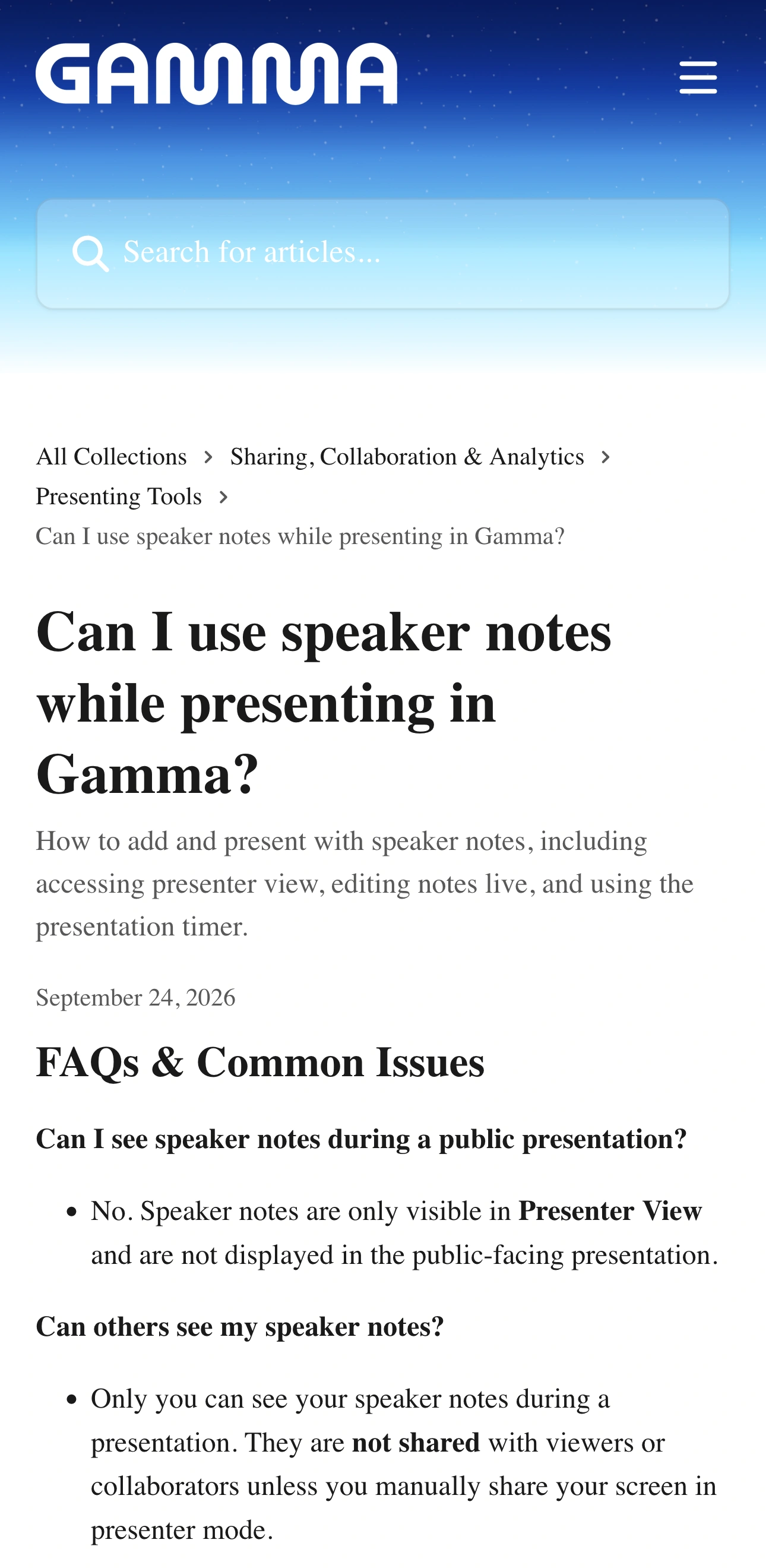
Source: Gamma Help Center, captured November 2, 2026. Two unaltered crops show the page identity and relevant FAQ in source order; intervening content is omitted.
Match the source to what the audience needs
Use this decision table when rehearsing. It describes the intended boundary; verify the result in your own meeting application.
| Audience needs | Prepare and select | Check before speaking |
|---|---|---|
| Only the Gamma presentation | The public presentation tab or window | Notes and editor panels are absent |
| Presentation plus a public website | A prepared source for each segment | Opening the link does not replace the page with private material |
| Several approved applications | A rehearsed ScreenK9 Audience View setup | Every allowed app and browser profile is suitable for the audience |
| A link to follow independently | Gamma's follow-link option and appropriate access | The link is suitable for these recipients |
Gamma also documents Share a follow link from the Present dropdown. This is a separate way for viewers to follow along, not a setting that sanitizes whatever your meeting app is capturing. Decide whether the session needs a screen share, a link, or both before sending anything.
Rehearse the actions that change the picture
Start with a harmless sample note such as “ask about the next milestone.” Check the receiver's output while advancing, returning to an earlier card, and reaching a longer card that needs scrolling. Gamma distinguishes moving between cards from scrolling within a card, so rehearse with the actual deck rather than a single static opening slide.
Next, test an external link using public sample material. Decide in advance whether it should open inside the selected browser window or in a separate prepared source. If the destination is not ready for the audience, stop sharing before opening it.
Finally, rehearse the end. A common exposure point is leaving presentation mode and returning to preparation work while the meeting still captures the same window. Stop the share before opening internal comments, changing account context, or returning to a private working page.
For other presentation tools, the speaker-notes privacy guide covers the same source-selection principle. Gamma's menu names and card behavior remain specific to Gamma.
Treat Spotlight and Quick Edit as presentation controls
Gamma's course shows Spotlight as a way to guide attention through content. Dimming or revealing blocks is a presentation effect. Prepare every block on the card for the audience; do not use visual emphasis to conceal a secret that must never become visible.
Quick Edit can be useful for correcting a typo during a talk. Before using it live, decide whether the audience should see that edit. A polished opening view does not guarantee that every later editor state is suitable to share.
For example, if a slide contains a public project name and an internal planning note elsewhere on the page, remove the private material from the audience version before the meeting. Avoid relying on your ability to keep it just outside the current viewport throughout a discussion.
Use ScreenK9 when the talk becomes a multi-app demo
For a Gamma-only presentation, the native audience tab or window is usually enough. ScreenK9 becomes relevant when you need to move from the deck into several approved applications while keeping a private reference app off the shared output.
Prepare an Allow only profile for one selected display, inspect ScreenK9 — Audience View, and select that window in your meeting app. Keep the private reference in an excluded app. The multi-app sharing workflow explains this setup.
ScreenK9 filters ordinary applications as whole apps. It cannot distinguish the audience window from a notes window belonging to the same ordinary app. Chrome Companion can classify Chrome profiles/windows, but it does not classify individual tabs or recognize speaker notes. Keep the entire allowed Chrome profile audience-ready; a notes tab in that profile is not automatically hidden. See the Chrome profile boundary.
Sharing the physical display directly bypasses ScreenK9. It also does not remove notes from the Gamma document, detect secrets, or route presentation audio. Check video sound separately if your deck includes media.
Finish with a short receiver-side rehearsal
Record a private test or join from a second device. Confirm the opening card, one navigation change, one link, and the end of the presentation. Look for the harmless sample note in the received picture.
If it appears, correct the selected source before replacing the sample with real talking points. Keep a simple operational rule for the live call: stop sharing before moving into material that has not been prepared for the audience.
Sources checked
- Gamma Help: Can I use speaker notes while presenting?
- Gamma Help: What's the best way to present my gamma?
- Gamma 101: Present with Confidence
- Gamma's official video lesson
Documentation and ScreenK9's implementation were reviewed November 2, 2026. The sample-note exercise is a suggested rehearsal, not a claim of a live test across every Gamma account or meeting application.