
Create the view before the call
A filter view is useful when you want to discuss a subset of a shared sheet without changing the view your colleague is using. Prepare it while screen sharing is off, then inspect the result as an audience member would.
Google's current instructions use Data → Create filter view. Apply the sorting or filtering you need, then choose Save View → Save. To reopen a saved view, use Data → Change view. Give it a neutral, recognizable name so you can select it quickly before a meeting.
If you have view-only permission, Google allows a temporary filter view, but it will not be saved. Confirm that it is active when you return to the sheet. These instructions concern Sheets on a computer; do not assume the same controls are available in a mobile app.
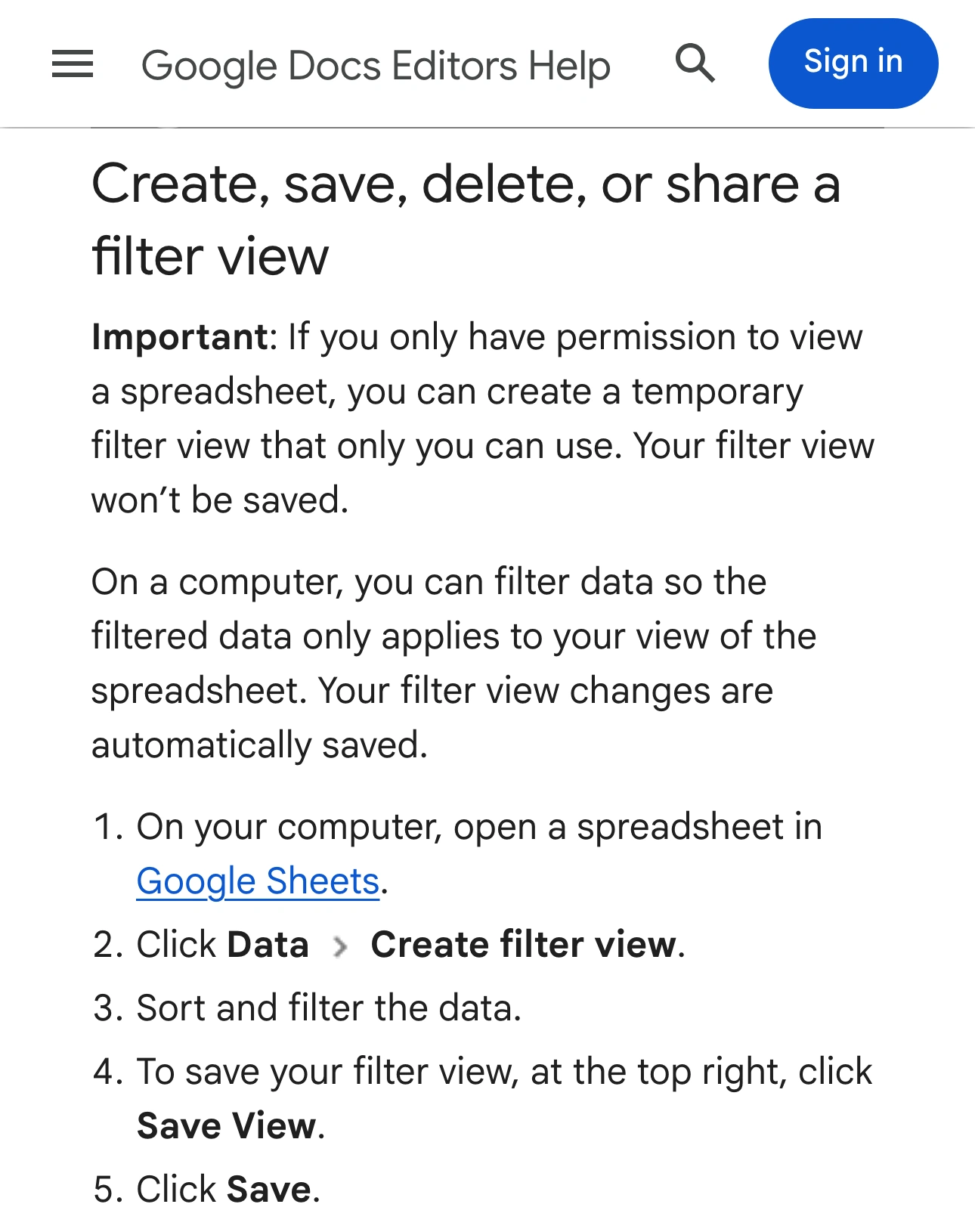
Source: Google Docs Editors Help, captured November 2, 2026 in a private browser window. Two unaltered crops retain the source header and filter-view instructions; intervening material is omitted.
Understand what “only for me” means
The phrase describes whose display changes. Your collaborator can work with a different view while you prepare the rows you want to discuss. It does not make those rows your private copy, or prevent someone with spreadsheet access from inspecting other data.
Google's Sheets API guide explains that filters can hide or sort displayed data without changing the underlying values. It distinguishes a sheet's basic filter from its named filter views; only one filter view is active at a time.
That distinction matters in two different situations. During a meeting, the audience receives the picture selected by your meeting app. When you send a spreadsheet link, the recipient uses the document under its access permissions. A carefully filtered screen share does not prove that sending the same file is appropriate.
Likewise, a filter-view link selects a useful view; it is not a new row-level permission system. Review access separately before distributing it. Google provides instructions for sharing that view link in the same help page, so “only for me” should not be read as “only I can ever open this saved view.”
Prepare a small audience-ready data set
Start with the information the audience needs to make a decision. For example, a project review may need a workstream, a milestone and a status. It may not need personal contact details or internal commercial notes.
The following is a hypothetical preparation exercise, using invented labels rather than real customer data:
| Example row | Include in the discussion? | Preparation decision |
|---|---|---|
| Project Cedar: launch checklist | Yes | Keep the public milestone and status |
| Project Birch: completed handover | No | Filter it out to reduce distraction |
| Project Elm: internal budget note | No | Use an audience copy without that private material |
| Project Pine: next review date | Yes | Confirm the date is approved to discuss |
Filtering is appropriate for removing irrelevant rows from the current discussion. If a value must never be exposed, prepare a separate audience version containing only the approved information. Review that version itself before showing or sending it.
Check the visible columns as well as the matching rows. A relevant project row can still contain an unsuitable column. Do not assume that choosing a project status has also removed every other kind of private information from that row.
Avoid confusing filters, hidden sheets and protection
Google warns that protected ranges and hidden sheets are not a security boundary for confidential data. Protection controls editing; it does not generally prevent copying or exporting. Hidden sheets can also become visible through editing access or copies.
Use those features for their intended workflow purposes. If someone should not receive a value, do not rely on a hidden row, a protected cell or a convenient saved view to enforce that decision.
For a screen share, inspect the whole visible surface. The document title, sheet tabs, comments, selected cell and formula bar may matter even when the rows look tidy. Our Google Sheets formula-bar guide covers that separate surface. Hiding the formula bar alone does not remove values from the file.
Select the narrowest useful meeting source
If the meeting only needs this prepared sheet, share its browser tab when your meeting application supports that option. For a window share, use a dedicated browser window and inspect the preview for other visible tabs or private navigation material.
The tab versus window guide explains why the choice matters. Selecting a tab limits surrounding browser content, but actions inside that tab still affect the audience's picture. Closing the filter view or opening another sheet can change what they see.
Use a simple pause rule during discussion. If someone asks for a different project, stop sharing before changing to an unreviewed view. Prepare the answer, inspect it, and resume. A short pause is easier to manage than trying to undo information that has already appeared in a meeting or recording.
Add ScreenK9 when the presentation spans several apps
ScreenK9 is useful when the sheet is one segment of a larger Mac demonstration: for example, an approved browser profile plus a separate presentation app, with a private reference app kept out of the output.
Prepare an Allow only profile for one selected display and share ScreenK9 — Audience View in the meeting picker. Exclude the private reference application. Follow the multi-app sharing workflow to rehearse the transitions before the audience joins.
ScreenK9 filters ordinary apps as whole applications. Chrome Companion adds Chrome profile/window classification, but does not classify individual tabs or understand spreadsheet cells. An allowed browser profile must therefore contain only material suitable for the session. The Chrome profile guide explains that separation.
ScreenK9 does not automatically detect private rows, correct a filter, or remove confidential values from Sheets. Sharing the physical display directly bypasses its filtered output. Keep the native tab share for a sheet-only discussion if it already meets the need.
Check these five things before inviting the audience
- The intended view is active. Its name and visible rows match the discussion you prepared.
- The entire visible range is suitable. Scroll through it, including the final rows and adjacent columns, while sharing is off.
- The selected source is correct. Check a private recording or receiver device, not only your local editor.
- Transitions have a pause point. Stop before closing the view, changing sheets or opening unreviewed data.
- Any follow-up link has its own review. Decide whether to send the source file or a separate approved version.
Use filter views to make a collaborative sheet easier to present. Decide what the audience may receive before applying the filter, and verify that decision again whenever you change the shared view.
Sources checked
- Google Sheets Help: Sort and filter your data
- Google Developers: Filters in the Sheets API
- Google Sheets Help: Protect, hide and edit sheets
- Google Help: How to sort and filter data in Google Sheets
Documentation and ScreenK9's implementation were reviewed November 2, 2026. The project rows are an original illustrative checklist, not customer data or a claim of testing a live shared spreadsheet.