
Give each device one clear job
Companion mode is useful when meeting-room equipment already supplies the conversation, but your material is on your Mac. It also supports a second screen outside a meeting room. Google’s Companion mode guide describes the native entry point and its audio behavior.
Before joining, decide which device will handle speaking and listening. Label that role in your own preparation notes. The Mac can then handle the presentation and personal meeting controls without becoming a second source of meeting audio in the same room.
If your Mac is your only device for a remote call, join normally with audio and video instead. Companion mode is not a repair for an ordinary microphone problem. A presenter who needs to answer questions must have a working conversation path before starting the demonstration.
| Your setup | Sensible starting point | Check before presenting |
|---|---|---|
| Room hardware handles the call | Companion mode on the Mac | Remote participants can hear the room |
| Another device handles your conversation | Companion mode for the presentation Mac | Only the intended device carries meeting audio |
| Mac is your only call device | Normal Meet connection | Microphone and speaker work |
| You only need faces visible over other apps | Picture-in-picture | You have not changed the shared source accidentally |
The last row is a different workflow. Meet picture-in-picture changes your local meeting view; Companion mode changes how a device joins the meeting.
Join from the invitation or the presentation entry point
Open the invitation on your Mac. Under Other joining options, select Use Companion mode. Google also provides g.co/companion for choosing a meeting or entering its code. Keep the invitation available until you have confirmed the correct meeting, especially when several sessions have similar names.
For a presentation-first connection, Google’s presentation instructions explain that selecting Present on the landing screen before joining connects you in Companion mode. g.co/present is another documented entry point. Choose the material to share only after preparing it.
Do not use a full-display share just because the join flow offers it prominently. For one website, select the intended tab. For one desktop document, select its prepared window. Read the title and preview before confirming, then check the audience picture.
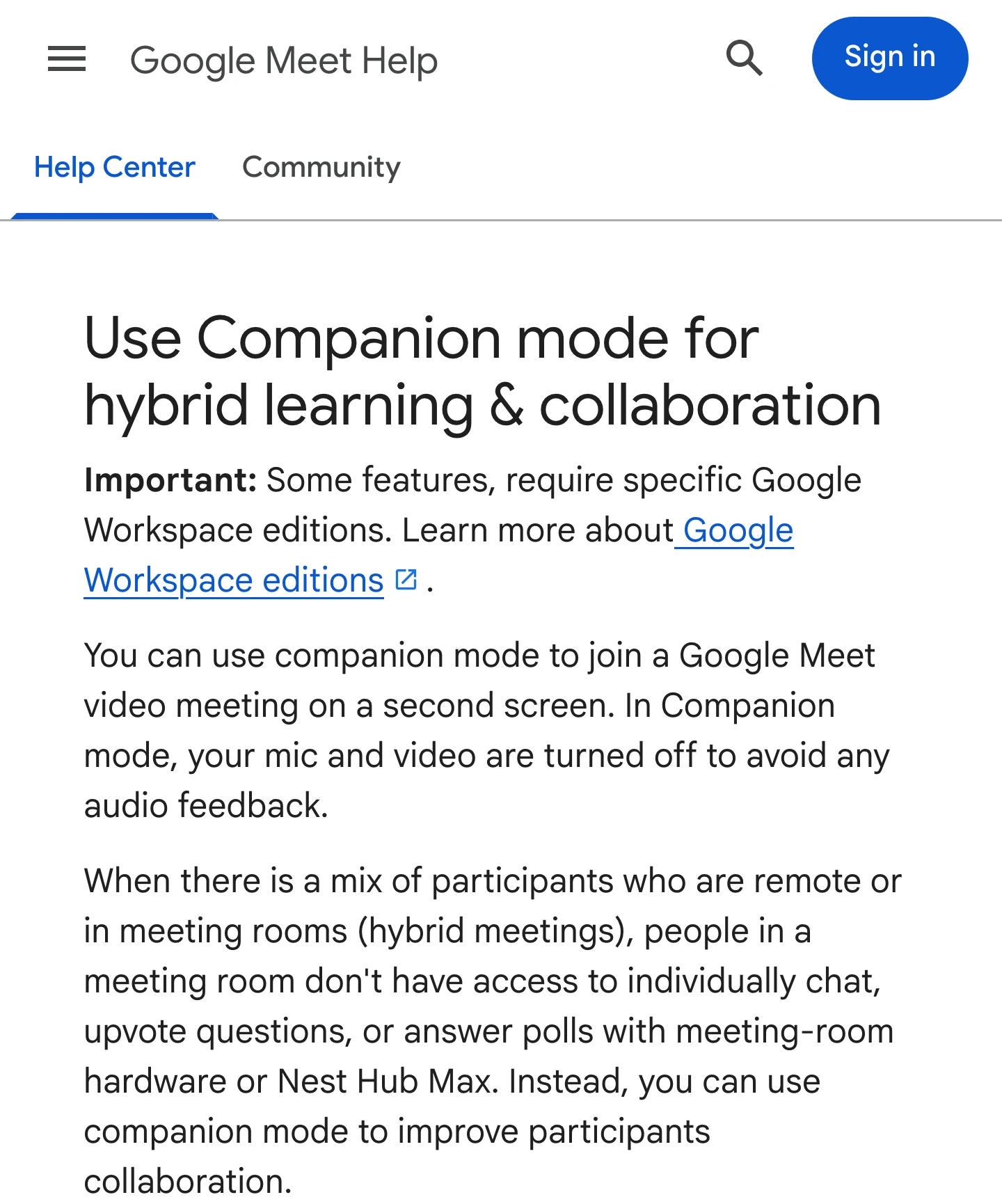
Google Meet Help, captured November 17, 2026 at 1440 pixels wide without enlargement. The page identifies the second-screen purpose and the initial device behavior.
Separate meeting audio from everything else on the Mac
Companion mode turns off the microphone and incoming meeting audio for that connection. It does not silence the entire computer: Google notes that notifications and other applications can still make sounds. Prepare Mac notification settings before the call rather than discovering an interruption during a client demonstration.
Treat a presentation’s audio option as a separate decision. A visual share boundary does not prove that the intended sound is being transmitted, or that unrelated sound is excluded. If the demonstration contains a clip, test the clip from the receiver’s side using the exact sharing option you will use live.
Google’s content-sharing tips distinguish presenting from a meeting room from other sharing situations. For your own rehearsal, use a short sample with an unmistakable sound, ask the listener which device they hear, and stop the sample before opening real material. That makes duplicate or missing audio easier to diagnose.
Companion mode also supports an optional personal camera view. Its initial camera state is not a promise that video can never be transmitted. Check the camera control before joining and after any change during the session.
Understand check-in and leaving the mode
Room check-in associates your companion session with a connected conference room. It is a separate step from joining: the prompt depends on room hardware and availability. Missing room check-in does not automatically mean your Mac cannot use Companion mode.
Google’s Meet hardware quick guide is useful when the room supplies the main call. Ask the organizer which room device is connected before choosing a room from a list. That avoids attaching your presence to the wrong location.
If you need the Mac to become the conversation device, stop your presentation and use Leave and rejoin to use your audio. Confirm that the earlier audio device has been handled appropriately before rejoining normally. Recheck both the microphone and the presentation source; changing the joining mode is not a reason to trust an old source selection.
Keep a moving demonstration inside one tested output
Native tab or window sharing is enough for many Companion sessions. ScreenK9 is useful when your explanation needs several approved Mac apps while unrelated work remains open. It creates a separate filtered window that Meet can share using its normal window picker.
Create an Allow only profile with the required applications, start capture, and inspect ScreenK9 — Audience View. Select that exact window as the presentation source. The multiple-app Meet workflow explains how to rehearse transitions before the meeting.
ScreenK9 does not change Companion mode, suppress meeting audio, or intercept Meet traffic. Ordinary applications are filtered as applications, not as independently selectable document windows. Prepare sensitive content inside an approved app before capture. If Chrome is included, classify the intended profiles and inspect the resulting output rather than assuming every browser window is safe.
Manual redaction regions remain fixed to the layout you configured. They do not identify secrets or follow moving text. Sharing the physical display directly bypasses ScreenK9’s filtered output.
Before admitting the audience to the demonstration, confirm four things: the correct device handles the conversation, the Mac has joined the intended meeting, the receiver sees only the prepared source, and you can stop sharing before changing tasks. Repeat the receiver check after switching apps or rejoining.
Sources checked
- Google Meet Help: Companion mode on a computer
- Google Meet Help: presenting and the landing-screen entry point
- Google Workspace Learning Center: sharing content
- Google Meet hardware Help: Companion mode
Documentation and ScreenK9’s implementation were checked November 17, 2026.