
Open the small meeting view after starting your share
Prepare the document or application you intend to show. Start your presentation from the main Meet tab, then open More options → Open picture-in-picture. Google’s current picture-in-picture instructions specify Chrome on a computer. A browser’s generic video pop-out command is not the same set of meeting controls.
The small meeting window can be moved by its top edge and resized from an edge. Position it where you can notice reactions without covering the text you need to read. Keep the main Meet tab available: Back to tab returns to it, whereas Hang up leaves the call.
Rehearse the order once with harmless content. Begin the share, open the small view, switch to the presentation, and return to the meeting. Knowing that sequence matters more than finding the smallest possible window. You should be able to stop presenting quickly when someone asks you to open material you did not prepare.
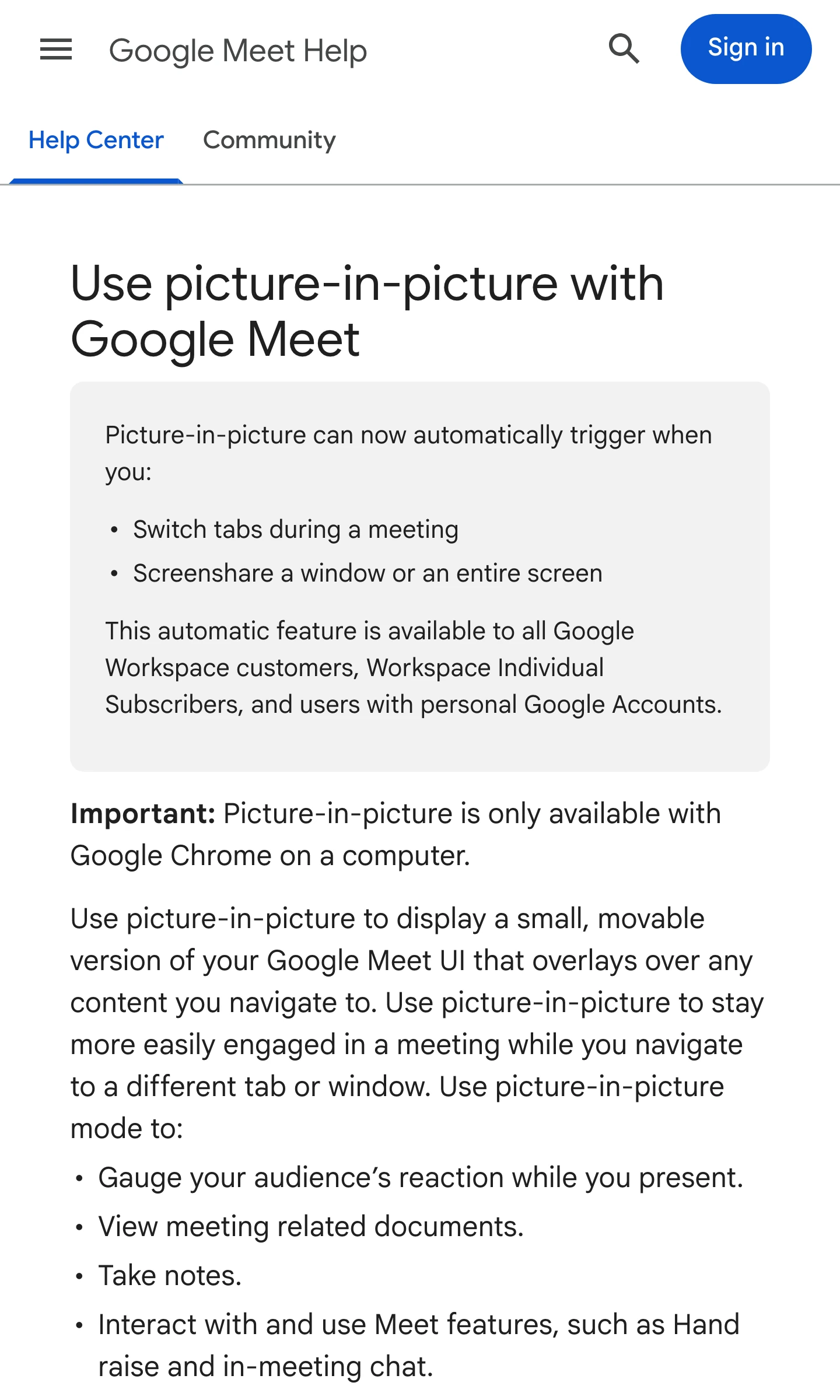
Google Meet Help, captured November 17, 2026 in Firefox at 1440 pixels wide, without enlargement. The source identifies the supported browser and automatic opening behavior.
Decide when it should open automatically
Google added automatic opening for window and screen sharing in its December 2025 update. That is why older tutorials that discuss only changing tabs do not describe every current trigger.
In Meet, open More options → Settings → General → Automatic picture-in-picture. Choose the behavior that matches your session: never open automatically, open when changing tabs, open when sharing a window or screen, or always open automatically. Automatic opening on a tab change also depends on the permission in Chrome’s site-information controls.
For a planned demonstration, choose a predictable trigger before the meeting. A pop-up appearing halfway through a screen selection can make it harder to tell which window you selected. If you prefer to open the small view yourself, use the setting that prevents automatic opening and practice the manual command.
The official video above remains useful for understanding the basic workflow. Its age is disclosed because the automatic-opening choices arrived later. Follow the current documentation for settings labels rather than trying to make today’s menu look exactly like the video.
Keep three different views straight
Picture-in-picture is a local meeting layout. Your presentation source and the receiver’s view are separate decisions. Google’s presentation guide lists a tab, a specific window, and the entire screen as sharing choices.
| What you are looking at | What it helps you check | What it does not establish |
|---|---|---|
| Floating Meet view | Reactions and meeting controls | That your entire desktop is private |
| Selected source preview | Which tab or window you chose | That later content inside it is safe |
| Receiver’s presentation | What reaches the audience now | What an untested next action will reveal |
For a single web document, start with a tab share. For one prepared desktop application, start with its window. If you can finish the explanation inside that source, there is no need to change to a full-display share merely to keep participant faces visible.
Do not assume that a floating window is always excluded from every capture route. Move it, switch applications, and check the received picture in a rehearsal. A clean local arrangement is useful, but the audience feed is the evidence that your chosen setup works.
Recover from a missing or unwanted floating view
If the command is unavailable, first check that you are using the supported desktop Chrome workflow. Safari’s video features and third-party Meet extensions should not be treated as interchangeable instructions for Google’s built-in meeting view.
If the small view disappears during a presentation, return to the main tab and inspect the layout before changing sharing permissions. Google warns that maximizing another window or application can hide the picture-in-picture view. Test the exact way you open the presentation, including any full-screen transition.
If the audience sees a repeated meeting image, address the shared source. Our Google Meet mirror guide explains that separate issue. Making the local meeting smaller does not fix a share that contains the meeting itself.
When the problem is simply the number or arrangement of participant tiles, consult Google’s desktop layout guidance. Change one setting at a time so you can tell whether the problem belongs to the local layout or the transmitted presentation.
Use ScreenK9 when the demonstration moves across apps
For a walkthrough that moves among an editor, terminal, and prepared document, ScreenK9 can create a separate filtered macOS window. Configure an Allow only profile for the applications needed, start capture, inspect ScreenK9 — Audience View, and select that window in Meet. The multi-app Meet guide covers that setup.
Keep the Meet browser outside the approved source set when the demo does not need it. If Chrome is part of the demonstration, review Chrome profile classification and the actual output. ScreenK9 does not offer a special “hide Meet picture-in-picture” guarantee. Meeting content inside a trusted Chrome profile must not be assumed private just because another tab contains the demo.
Ordinary applications are filtered at app level; you cannot independently approve one ordinary-app window and reject its other windows. Manual redaction regions cover fixed areas you choose. They do not detect secrets or follow a moving pop-up. Sharing the physical display directly bypasses Audience View.
Finish the rehearsal with three checks: the audience still sees the intended material when you switch apps, the meeting view remains usable locally, and returning to Meet does not reveal private content. Keep the simplest sharing source that passes all three.
Sources checked
- Google Meet Help: picture-in-picture
- Google Workspace Updates: automatic opening when screen sharing
- Google Meet Help: present during a meeting
- Google Meet Help: desktop layout
Documentation and ScreenK9’s implementation were checked November 17, 2026.