
Hide the bar, then inspect the selected cell
Prepare the sheet you want to demonstrate before starting the meeting. Open View → Show → Formula bar and toggle the checked item off. The horizontal formula field above the grid disappears. Use the same menu item to bring it back after presenting.
Click a cell containing an approved result and confirm that the visible grid shows what you intend to discuss. Do not double-click a formula cell merely to select it: entering edit mode can expose the formula in the grid even when the top bar is hidden. Google’s formula-editing documentation describes editing directly in cells as well as working with the formula bar.
If formulas are appearing throughout the grid instead of calculated results, check the separate formula-display setting. Hiding the bar and showing formulas in cells are different controls. Prepare the result view you want before sharing, then rehearse the clicks you will actually make.
Match the control to the problem
A clean spreadsheet presentation and a restricted spreadsheet file solve different problems. This table keeps the choices separate:
| Your goal | Suitable first step | Limitation |
|---|---|---|
| Remove the formula field above the grid | View → Show → Formula bar | Editing a cell may reveal its formula |
| Reduce menus and toolbar clutter | View → Full screen | This does not sanitize the sheet’s data |
| Show one prepared worksheet in a meeting | Share its browser tab or window | Other content inside that source remains visible |
| Send only approved results afterward | Prepare a separate values-only deliverable | Review that new file before granting access |
| Keep the bar locally while hiding it from viewers | Rehearse a fixed ScreenK9 mask | It does not change spreadsheet permissions |
Google’s view and zoom guide documents View → Full screen for removing menus and the toolbar, with Escape to return. Treat that as a way to reduce clutter. Inspect the resulting page rather than assuming every potentially revealing surface has disappeared.
The file title, worksheet names, comments, selected data, and visible cells deserve their own review. Hiding one horizontal bar does not remove a customer name sitting in column A or a private worksheet name at the bottom.
Do not use sheet protection to hide formulas from recipients
Screen sharing transmits a picture. Giving someone access to a spreadsheet gives them a way to interact with the file under its sharing permissions. Changing the presenter’s layout does not establish what another person can inspect when they open that file themselves.
Google explicitly says that protecting a sheet or range is not a security measure. Its documentation explains that people can copy or export protected spreadsheets. It also distinguishes hiding sheets from protecting them: editors can unhide sheets, and someone who can make a copy can unhide sheets in that copy.
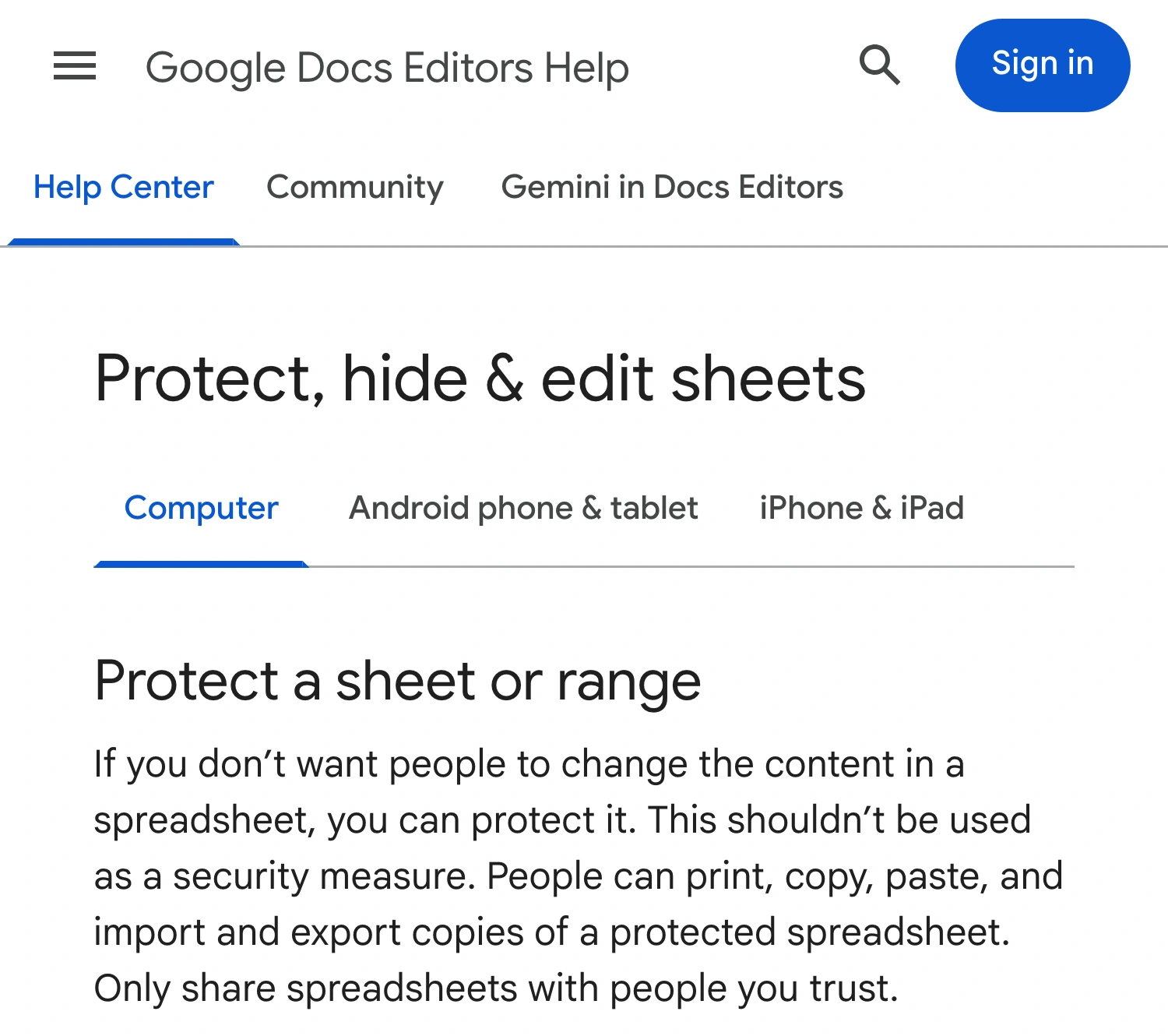
Google’s official protection guidance, captured October 11, 2026. The warning concerns access to spreadsheet contents, not the appearance of your screen share.
If recipients should receive results without the underlying calculation logic, create a separate deliverable containing only the approved values. Review it independently: check its cells, worksheet tabs, notes, and any retained information before sharing it. Do not hand over the original workbook merely because its formula bar looked tidy during the call.
The same distinction matters when presenting Excel files. The Excel presentation privacy guide covers that application’s preparation workflow; its controls should not be assumed to match Google Sheets.
Present the smallest useful browser source
For one prepared sheet, start with the meeting tool’s native tab-sharing option where available. In Google Meet, choose Present now → A tab, select the intended Sheets tab, and inspect the participant picture.
This keeps the presentation focused, but it still shares the visible sheet. It does not cover formulas shown in the grid, a comment you open, or private data you scroll into view. The single-tab sharing guide explains which surrounding browser surfaces belong to the sharing boundary.
Keep granting file access separate from selecting a presentation source. Meet can offer file-sharing actions during a presentation; use them only when attendees are meant to receive access to the document. A request to explain a chart is not automatically a reason to share the underlying workbook.
Before the call, use a small sample sequence: select an approved result, scroll to the next prepared area, and return to the starting cell. If explaining the formula itself is outside the presentation’s scope, stay out of edit mode. Stop the share before investigating an unexpected calculation.
Keep the formula bar locally with a fixed ScreenK9 mask
Sometimes the presenter needs the formula bar for reference while the audience should see only results. On a Mac, ScreenK9 can cover a manually chosen region in its separate audience feed. This is useful for a stable layout whose visible contents you have already reviewed.
Arrange the Sheets browser window in its final position on the selected display. Configure the approved Chrome context through the Companion, add a redaction region over the formula bar, and inspect ScreenK9 — Audience View. Share that named window in the meeting app. The Chrome profile sharing workflow explains the browser-context setup.
The rectangle is fixed to display coordinates. It does not attach to the formula field, follow the selected cell, or detect sensitive expressions. Moving the window, changing browser zoom, expanding the bar, or changing the toolbar layout can break alignment. Stop sharing and verify the region again after those changes.
A formula displayed inside an uncovered cell remains visible. ScreenK9 does not perform OCR or automatically discover secrets, and it does not remove formulas from the spreadsheet or change access permissions. Ordinary app rules apply to whole applications; selective Chrome contexts use the separate Companion workflow.
Sharing the physical display directly bypasses the composed audience view. Confirm the selected source by its name and check what a participant receives. If the demonstration requires frequent layout changes or editing private formulas, prepare an approved sample sheet instead of relying on a narrow fixed mask.
Check the result before the first live click
Confirm that the formula bar has the intended visibility, the grid displays approved results, and the actions you will demonstrate do not reveal formulas elsewhere. Check the audience picture after selecting the share source. When sending a file afterward, review its contents and permissions as a separate step.
Sources checked
- Google: add and edit formulas
- Google: change the document or spreadsheet view
- Google: protect, hide, and edit sheets
- Google: present during a Meet meeting
Documentation and ScreenK9’s implementation were checked October 11, 2026.