
Collapse the sidebar before the meeting
Open the conversation you intend to show, inspect its contents, and close unrelated panels before starting the share. In ChatGPT on the web, use the sidebar toggle at the upper left to collapse the history list. Move the pointer away and confirm that the titles are no longer visible.
For the current ChatGPT desktop app on macOS, OpenAI’s command reference lists Command+B or Command+Shift+S for toggling the sidebar. These are desktop-app commands. Do not assume a browser page, an older app version, or a customized shortcut uses the same keys. Open the app’s keyboard-shortcut settings if the command does something unexpected.
This is usually enough for a short demonstration of one prepared response. You do not need to install a browser extension or delete your conversations just to collapse a navigation panel.
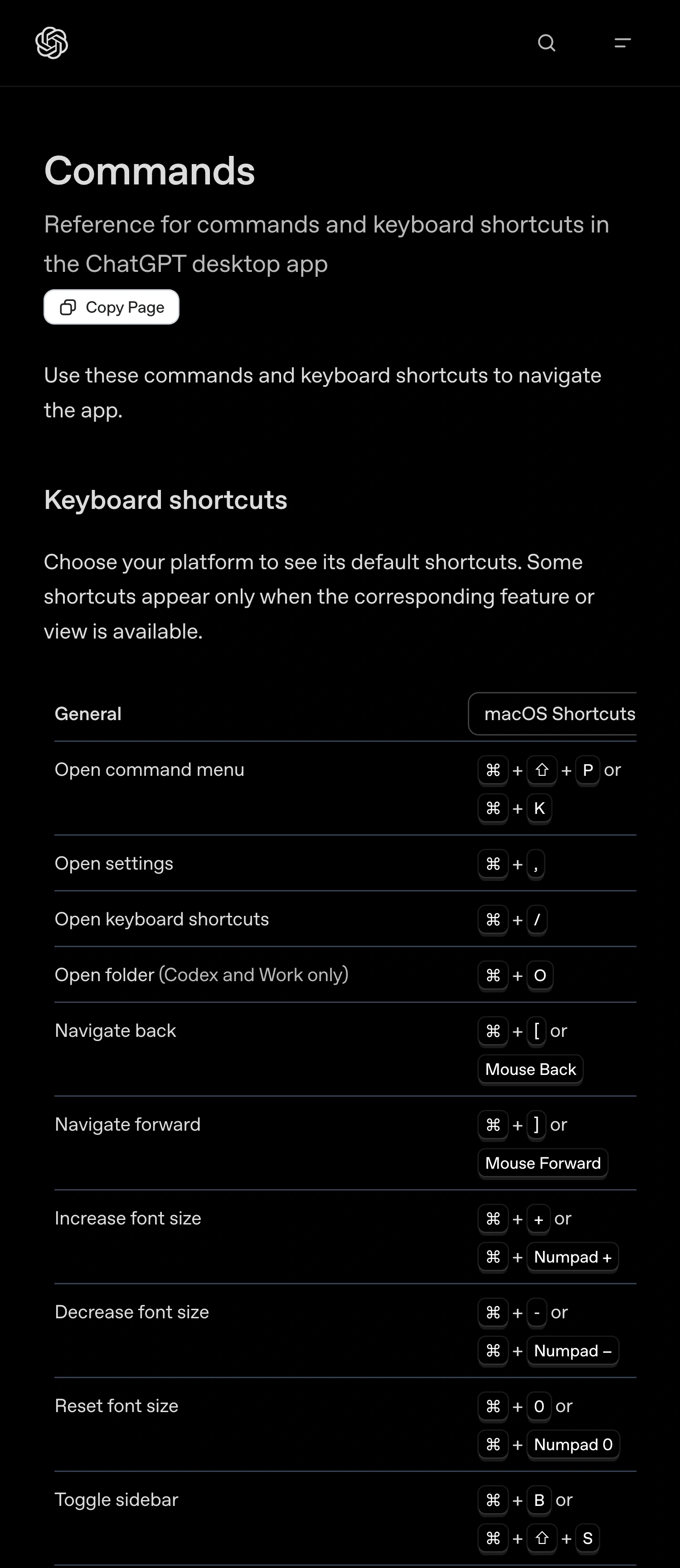
OpenAI’s official ChatGPT Learn command reference, captured October 11, 2026. The macOS table documents the sidebar toggle for the desktop app.
Decide which information must stay off the share
“Hide ChatGPT history” can mean several different things. Identify the visible surface before choosing a control:
| What you want to withhold | First choice | What still needs checking |
|---|---|---|
| Titles in the left history list | Collapse the sidebar | Hover behavior and reopening the panel |
| A few titles in normal history | Archive those chats before presenting | Archived chats remain searchable |
| Earlier messages in the current chat | Use a prepared, suitable conversation | Scrolling can reveal earlier content |
| Other browser tabs or applications | Share one tab or window | Everything inside that selected source |
| A sidebar you need to see locally | Rehearse a fixed audience-feed mask | Search results and content outside its rectangle |
An innocuous-looking answer can still have a sensitive prompt above it, an attachment name beside it, or a revealing conversation title. Scroll through the part you will demonstrate before the call. If the task can be explained with sample data, prepare that example instead of navigating through private material live.
A new chat is useful for an approved demonstration, but starting one is not the same action as hiding the surrounding history. Check the actual layout after opening it.
Archive deliberately; do not confuse it with presentation privacy
If a small number of chat titles should disappear from your regular sidebar, open each chat’s more-options menu and select Archive before the meeting. OpenAI’s archiving instructions distinguish this from deletion: archiving removes a chat from the ordinary sidebar, keeps it in the account, and leaves it searchable.
That makes archiving useful for organization. It does not make searching your account safe to broadcast. Avoid opening search, archived-chat management, or another unprepared conversation while people are watching. Stop sharing first if you need to retrieve something you have not reviewed.
Deleting chats is an unnecessary and irreversible way to prepare a temporary presentation. Use the reversible layout control when the requirement is simply to keep the list out of the picture.
Rehearse the pointer movement, not just the starting frame
A closed panel is one state of the interface. Move the pointer along the left edge, switch focus once, and return to the conversation before the meeting. Check whether navigation expands in the version you are using. If it does, plan your presentation so that you do not reveal the list while reaching for another control.
Then rehearse the exact actions you need: scroll the approved response, open an intended attachment, and return to the starting position. This checks a different risk from unrelated desktop notifications, which deserve their own Mac notification preparation.
Do not claim that a sidebar toggle prevents every possible title from appearing. Search results, account menus, project navigation, and the main conversation can expose information somewhere else on the page. The practical question is whether the complete sequence you intend to show is suitable for that audience.
Share one prepared source when that is enough
Use your meeting platform’s native tab or window option for a single ChatGPT demonstration. For example, Google Meet supports tab, window, and screen sharing. Choose the prepared source and check the participant picture before explaining your result.
The guide to sharing without other browser tabs covers the surrounding browser boundary. Selecting a tab can narrow the presentation to its page, but it does not remove private content inside that page. Selecting a ChatGPT window likewise does not sanitize the conversation.
If an audience member asks to see an unrelated example, pause the share while finding it. A brief pause is easier to manage than relying on a collapsed panel while browsing an entire conversation history.
Keep a fixed sidebar visible locally with ScreenK9
A different workflow arises when you need navigation visible on your own Mac while viewers should see only the prepared central conversation. ScreenK9 can cover a manually selected area in its separate audience feed. Its fixed-area masking workflow is useful when the window layout will remain stable.
Place ChatGPT in its final position on the selected display. Configure the approved application or Chrome context, then create a redaction region covering the sidebar area. Inspect ScreenK9 — Audience View and share that named window in the meeting app.
The mask uses display coordinates. It does not follow the ChatGPT sidebar, understand conversation titles, perform OCR, or automatically discover secrets. Resizing or moving the source window, changing zoom, or opening a panel elsewhere can move information outside the covered region. Stop the share and realign the mask before continuing after a layout change.
Ordinary application rules cover the application as a whole; they do not isolate one chosen ChatGPT window from another. Chrome has a separate Companion-based classification workflow. In either case, inspect the actual composed audience view rather than assuming the rule name proves the result.
Sharing your physical display directly bypasses this audience-window workflow. Also remember that selecting a chat from a hidden sidebar can display its contents in the uncovered central area. A mask over navigation is not permission to open an unreviewed conversation live.
Do one final audience rehearsal
Check three moments from a participant’s view: the opening frame, the most revealing action you intend to perform, and the return to your prepared response. Confirm that titles stay out of view, the central conversation is approved, and the selected share source is correct. Stop sharing before searching for anything outside that rehearsed sequence.
Sources checked
- OpenAI: desktop commands and shortcuts
- OpenAI: deleting and archiving chats
- Google: present during a Meet meeting
Documentation and ScreenK9’s implementation were checked October 11, 2026.