
Hide the tabs you do not need for the conversation
Start with the spreadsheet you intend to present. Move the pointer over the right side of an unwanted sheet tab, open its arrow menu, and select Hide Sheet. Repeat for other tabs that would distract from the explanation, then select the sheet your audience should see first.
To bring a sheet back, open a tab’s arrow menu and choose Unhide, then select the specific sheet or Unhide All Sheets. These are the current controls in Apple’s Numbers sheet guide, checked on October 20, 2026.
If your installation does not show that command, compare its version with the current guide before following an older forum answer. For today’s meeting, a separate presentation copy containing only approved material is a practical fallback. Do not experiment with deleting sheets from the working original while attendees are watching.
Choose the prepared window in your meeting’s share picker. Inspect its preview before starting. A whole-display share brings other visible desktop content into the presentation, even though the sheet tabs inside Numbers look tidy.
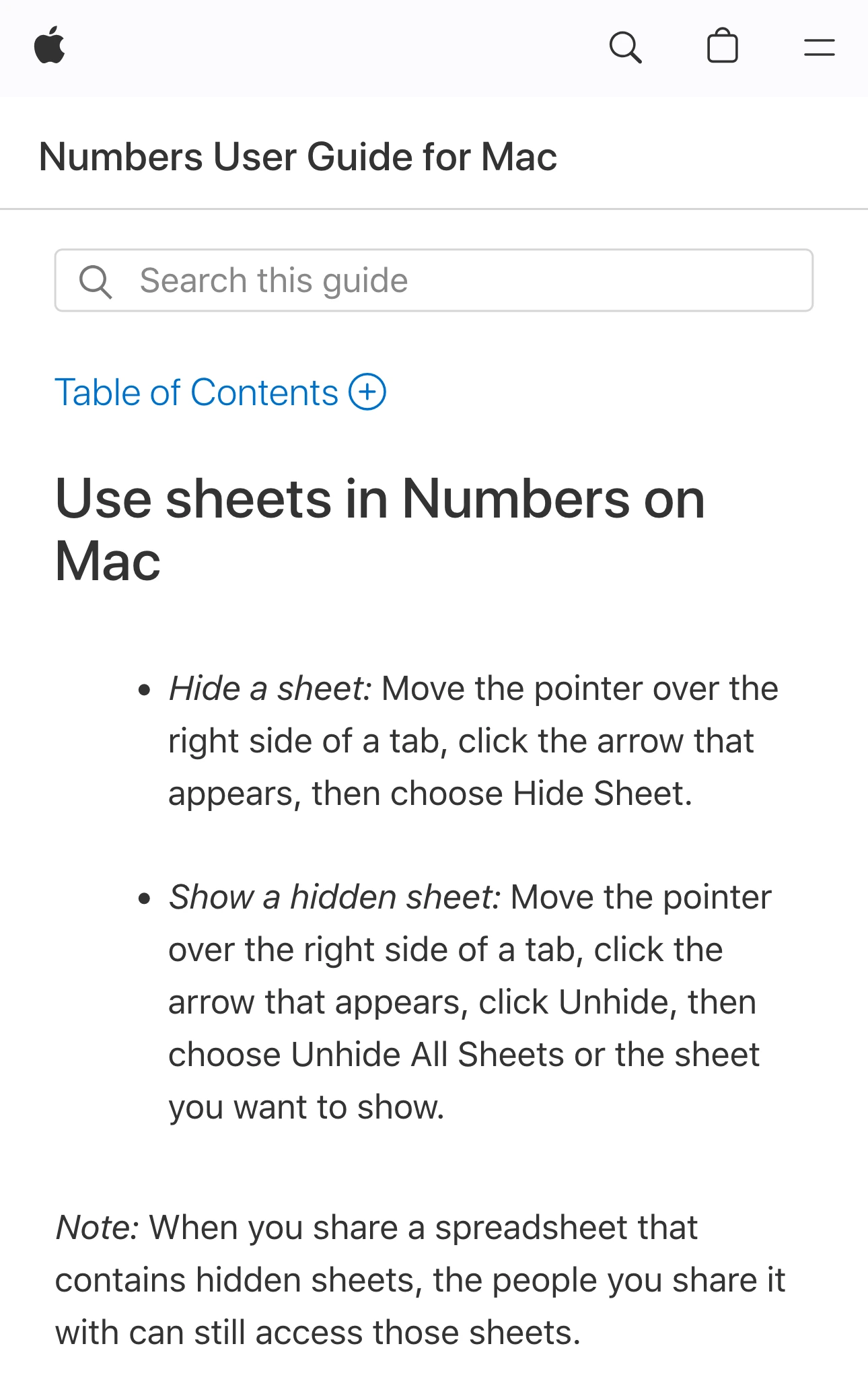
Apple Support, captured October 20, 2026 at 3× resolution. The branded heading, sheet commands, and recipient-access warning are unaltered excerpts; intervening sections are omitted.
Decide what the audience actually needs
There are three different deliverables you might call “sharing the spreadsheet.” Choose one before adjusting the tab bar.
| Audience needs | Useful starting point | Review before sharing |
|---|---|---|
| Watch a live explanation | Prepared Numbers window | Visible sheets, cells, menus, and navigation |
| Keep a static handout | Reviewed PDF export | Every page in the exported file |
| Explore or edit the data | Separate approved spreadsheet | Included data and recipient permissions |
| Follow Numbers into another app | Planned window transitions | Every app or window in the route |
A hidden tab is useful for reducing accidental navigation during your talk. It does not remove its contents from the spreadsheet. Apple explicitly warns that recipients can still access hidden sheets.
For example, imagine a workbook containing a public sales summary and an internal pricing model. Hiding the pricing tab can simplify a live walkthrough, but sending that workbook still sends a file containing the model. Prepare a separate audience deliverable when those recipients should not receive the underlying information.
Numbers also distinguishes who may access a collaborative spreadsheet from whether they may edit it. Apple’s collaboration guide describes those permissions. Review them for the intended recipients; a clean presentation view does not set them for you.
Inspect the visible sheet as carefully as the hidden ones
Begin the rehearsal with harmless sample values. Look beyond the main chart: table titles, labels, comments you open, and a formula you select can all become part of your explanation. Decide which interactions are necessary and leave exploratory analysis for after the share ends.
Walk through the actual route: select a chart, scroll to the supporting table, switch to the second approved sheet, then return to the opening view. Watch a received meeting picture on another device or ask a colleague to confirm what appears. Your local editor alone cannot show whether you chose the right meeting source.
Use a short, concrete script: “Open summary; compare two quarters; show the approved forecast.” If answering a question would require opening private material, stop sharing before looking for it. Resume with a reviewed result instead of searching through the workbook live.
A presentation copy also needs a functional check. After removing unnecessary material, verify that the displayed totals and charts still make sense. A simplified copy that shows broken references or stale values is not ready to present.
For an Excel workbook, use the separate Excel sharing guide; its controls and file behavior should not be inferred from Numbers.
Prepare a handout separately from the live view
If attendees only need a chart or a report, a static export can be easier to review than an editable workbook. Apple documents PDF and other formats in its Numbers export guide.
Open the resulting file before sending it. Review every page at a readable size, including the final page, labels outside the main table, and anything that appears after a page break. Do not assume that an export contains exactly what was visible in your meeting window.
Keep the reviewed file in a clearly named location so the meeting follow-up does not accidentally attach the original workbook. If information needs permanent removal from a PDF, use the PDF redaction workflow and verify the saved result.
Keep unrelated apps out of a multi-app demonstration
Native window sharing is the simplest choice when the whole conversation stays in Numbers. If the next step is a browser walkthrough, you can stop sharing, select that prepared window, and continue. Rehearse the change once so it is predictable.
ScreenK9 becomes useful when the presentation moves repeatedly between approved apps while unrelated apps remain open locally. Set Show only selected, allow the work apps you need, and inspect ScreenK9 — Audience View through the complete route. Share that named window in the meeting. The multi-app sharing guide covers the setup.
Ordinary app rules apply to the whole app. Allowing Numbers does not distinguish one Numbers document window from another, and it does not hide a worksheet inside a document. Close unrelated Numbers documents and prepare the visible spreadsheet before allowing the app.
ScreenK9 does not read cell text, detect confidential values, or change document permissions. Manual regions stay fixed; they do not follow a table as you scroll. Sharing the physical display directly bypasses the filtered Audience View.
Before the call, verify four things: the opening sheet is approved, the full navigation route stays appropriate, the meeting receives the intended source, and any follow-up file has been reviewed independently. End the share before restoring hidden working sheets.