
Choose the shared content first
Open a harmless presentation window and begin a test call in your meeting app. Select that window as the shared source. If the session needs only a slide deck, keep the share focused on the audience presentation window.
Apple’s Mac video-conferencing guide distinguishes a single window, all windows of an app, and the entire screen. Those choices determine which work content you expose. Presenter Overlay is a separate appearance choice.
In the supported macOS controls, open the Video status menu, then Screen Share, and choose an option under Presenter Overlay. Start with None if you do not need the effect. This keeps your video separate from the shared screen.
For a FaceTime session, the single-window sharing walkthrough explains the source selection in more detail. Other meeting applications may present their own picker before or alongside macOS controls.
Pick a layout for the explanation you are giving
Small puts your camera in a movable bubble within the shared picture. Large makes you more prominent, with shared content framed beside you. Choose the arrangement that leaves the important chart, text, or demonstration readable.
| Choice | Presentation benefit | Check in the received view |
|---|---|---|
| None | Separate camera and shared content | The correct window is still shared |
| Small | A compact camera bubble | The bubble does not cover important details |
| Large | A more prominent presenter | Room background and content remain appropriate |
| Camera off | No camera picture needed | Screen source still matches your plan |
An overlay covering a corner of the screen is not a reliable way to conceal sensitive content. It can move or change size as you adjust the presentation. Remove private material from the shared source before using the effect.
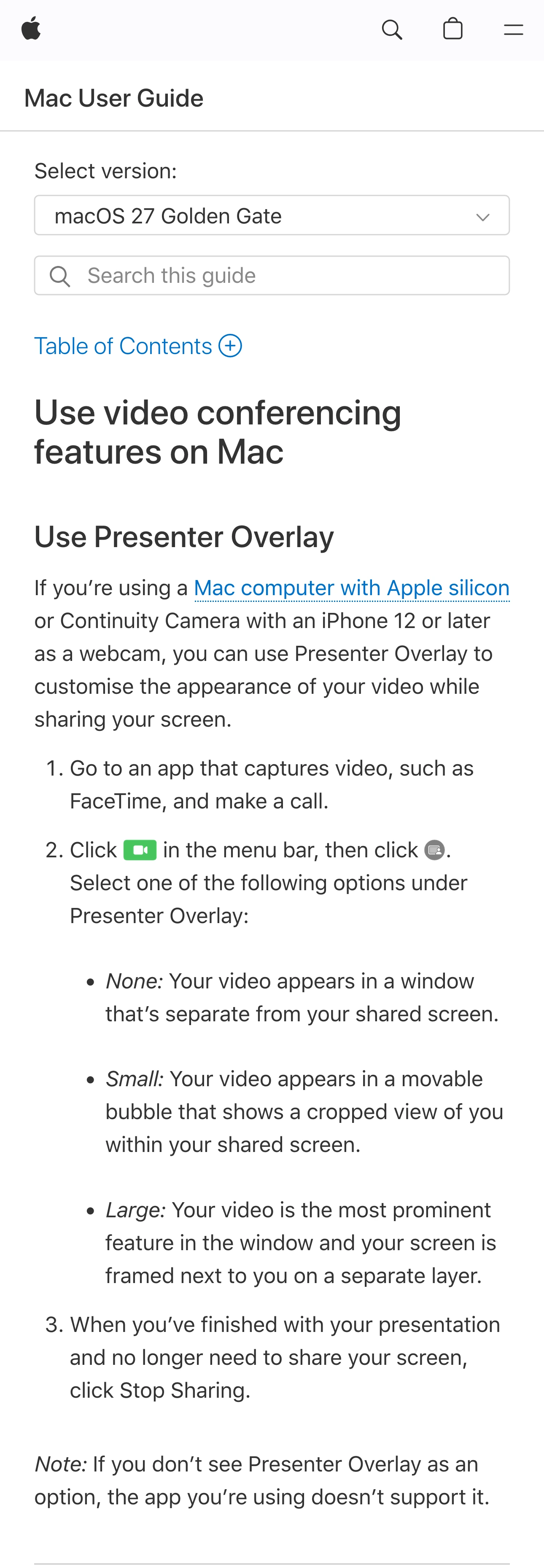
Apple Support, captured October 20, 2026 at 3× resolution. The branded heading and Presenter Overlay section are unaltered excerpts; intervening sections are omitted.
Check the real room behind you
Apple’s video-effects article says the Large layout puts your screen beside you while your background remains behind you. It also notes that virtual backgrounds are disabled when using Large Presenter Overlay.
That makes a layout change worth a fresh camera check. A background you deliberately replaced earlier in the meeting may no longer give you the picture you expect after enabling Large.
Before using it, inspect the camera frame for documents on a wall, names on a board, an open doorway, or another person entering the room. This is a physical-camera check, separate from deciding which Mac window is shared.
If the room is unsuitable, keep the camera off or use a supported arrangement whose received picture you have verified. Do not rely on the familiar appearance of your earlier camera tile after changing effects.
The same principle applies to moving the laptop. A small change in angle can bring a previously unseen part of the room into view. Repeat the check after changing your position or camera.
Confirm that your setup supports the effect
Availability depends on the Mac, camera arrangement, meeting app, and macOS version. Apple’s current Mac User Guide includes Apple silicon and a supported Continuity Camera configuration in its requirements. Follow the guide for your actual setup rather than assuming every Mac has identical controls.
The guide also says an app that does not support Presenter Overlay will not show the option. If you cannot find it during an important call, continue with ordinary window sharing and a separate camera tile. You can investigate compatibility afterward.
Avoid changing several things at once while troubleshooting. Start with a supported meeting application and a simple window. Confirm sharing works, then enable the effect, then introduce the real presentation. This sequence helps identify whether the problem concerns sharing, the camera, or the overlay.
Apple’s embedded video above is a visual introduction to the two layouts. It was published in 2023; the current support pages and the actual controls on your Mac should guide any version-specific differences.
Rehearse the transitions that change the audience picture
A still preview cannot establish how the entire session will look. Join from a second device, or ask a colleague to watch, and run a short test with non-sensitive content.
Start with the opening slide. Switch between the chosen overlay layout and None. Move the Small bubble away from a label if you plan to reposition it. Advance the presentation and demonstrate any application switch you expect to make.
Check both parts of the received picture: the camera view and the shared material. Confirm that the text remains readable and that the intended window continues updating. If you record the meeting, inspect a short test recording as well; the artifact attendees receive matters more than your own local preview.
Keep private cues in a location outside the shared source. The speaker-notes guide covers that arrangement. Presenter Overlay does not create a private notes area inside a shared desktop.
Add ScreenK9 when the demo spans several apps
For one presentation window, native sharing is usually enough. For a longer demonstration across several approved Mac apps, ScreenK9 provides one ScreenK9 — Audience View window while excluded applications remain local.
Configure Show only selected, allow the required work apps, and inspect that audience window through your demo route. Then select it as the meeting’s shared source. The multi-app workflow explains how to prepare the content.
Treat the camera effect as a separate compatibility check. This workflow does not promise that every meeting app can combine Presenter Overlay with an Audience View window. If that combination is unavailable or looks wrong, keep an ordinary camera tile and share Audience View.
ScreenK9 does not filter the physical room in your camera. Its ordinary app rules also apply app-wide, so allowing an app does not separately hide another window belonging to it. It performs no OCR or automatic secret detection. Check approved content before sharing, and remember that sharing the physical display directly bypasses Audience View.
Before starting the real presentation, confirm the source name, camera background, readable layout, and next app transition. When the presentation ends, stop sharing before returning to private preparation.