
Choose whether the audience needs Slack at all
A presentation about a spreadsheet or website usually does not need your messaging app in the picture. Choose the document window or browser tab in your meeting app’s share picker, then check the participant view. If you do not need Slack locally either, closing it removes another source of interruptions.
The harder case is a walkthrough where Slack itself is part of the demonstration. A channel discussion may be approved for the meeting, while the main window also contains private DM names, unrelated channels, and workspace details. Start by making the presentation surface smaller before adding other tools.
| What you need to show | Start here | Check before sharing |
|---|---|---|
| A document, no Slack | Share the document window or tab | The picker selected that source |
| One Slack conversation | Open it in a separate window | Messages, title, and visible controls are appropriate |
| Several apps, with Slack kept private locally | Prepare an audience view that excludes Slack | The meeting shares the filtered window |
Sharing a browser tab can also help when the task is entirely inside a website. Our tab-versus-window sharing guide explains that boundary. A tab share still includes whatever the website displays inside the selected tab.
Open the approved conversation in its own window
Slack’s desktop app supports separate conversation windows. In Home, hold Cmd and click the channel or DM you intend to present. Inspect the new window before selecting it in your meeting app’s window picker.
The official separate-windows guide also documents opening threads and canvases in another window. For a thread, open its three-dot menu and choose Open in new window. This lets you prepare a focused surface rather than navigating the whole workspace while everyone watches.
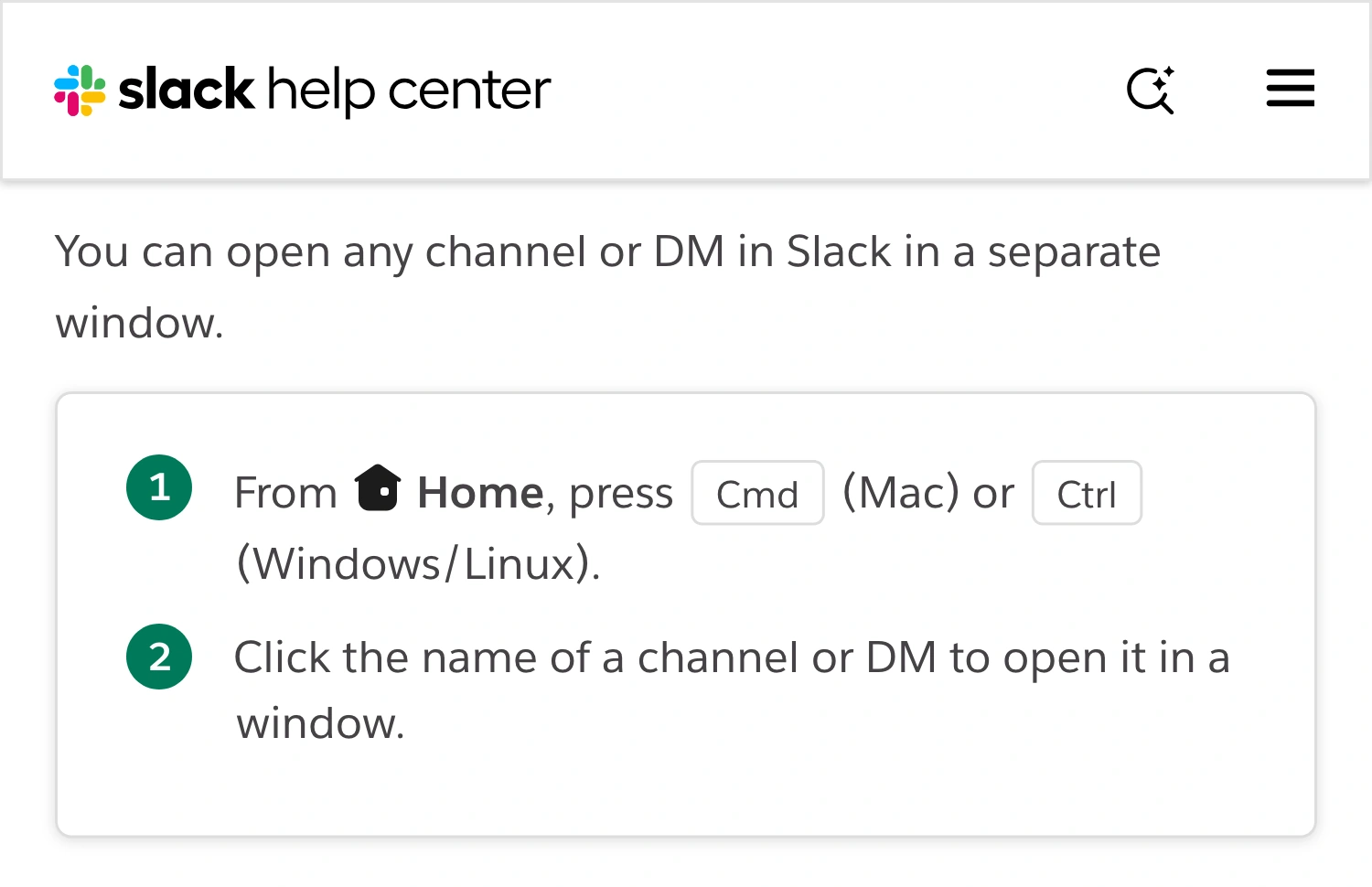
Slack Help Center, captured September 30, 2026. The cropped page preserves Slack’s identity and its conversation-window instructions.
A separate window is a way to narrow the source, not a guarantee that every item inside it is suitable. Read the visible conversation, scroll through the part you plan to discuss, and inspect attachments, thread replies, participant names, and the window title. A new incoming message in the conversation you are presenting may still be relevant to that visible surface.
Choose the exact prepared window where your meeting app offers window sharing. An application-wide source can have different scope. If the picker only offers a broader source, stop and choose another workflow instead of assuming that the new window is the only thing participants will receive.
For a product demo, a sample workspace with fictional conversations is easier to rehearse than a live customer channel. Do not move or delete business records merely to make the presentation look cleaner. Prepare an approved example and leave the original work where it belongs.
Pause notifications, then check the exceptions
Open your Slack profile picture, hover over Notifications, and choose a pause duration. These are the current desktop labels in Slack’s notification guide, checked September 30, 2026. The official video above shows the notification-pause concept; its older menu wording may differ.
Slack documents two reasons to review the result carefully: someone sending an urgent DM can override a pause once per day, and VIP contacts can be allowed through. Do not describe a pause as a promise that no interruption can ever appear. Rehearse with the settings you actually use.
This notification step addresses incoming alerts. It does not erase existing DM text, remove a private channel name from the main window, or hide a search result you open yourself. Review Mac notification preparation if your presentation also involves system-level banners and previews.
Focus mode does not conceal conversations
Slack’s current focus mode documentation describes a grayscale theme, less prominent activity indicators, and paused notifications, with a configurable VIP exception. It is useful for reducing distraction during work.
Those changes do not make the visible conversation private from someone watching your screen. A subtle activity dot is still different from removing a name or message from the captured picture. Use focus mode for attention management; use an appropriate share source for audience visibility.
Apply the same reasoning to a tidier sidebar. Collapsing or filtering a list can make navigation calmer, but it does not review the content you later open. The useful rehearsal is to perform your real next click, not merely admire a clean starting view.
Keep Slack available locally during a multi-app demo
ScreenK9 is useful when you need several approved apps in one continuous presentation while keeping Slack available to yourself. It creates a separate filtered macOS window called ScreenK9 — Audience View. Your original desktop remains available locally.
- Select the display containing the presentation apps in ScreenK9.
- Use Hide selected to exclude Slack, or Show only selected to include the approved apps.
- Start the audience view and inspect it while switching between the planned apps.
- In the meeting app, share ScreenK9 — Audience View as a window.
- Bring Slack forward locally during the rehearsal and confirm that its contents are absent from the participant’s picture.
Ordinary app filtering applies to all windows belonging to that app. ScreenK9 cannot show one Slack channel window while excluding another private Slack window through those app rules. If Slack must be visible, return to the native exact-window workflow or a prepared sample workspace.
ScreenK9 does not intercept a call or protect a physical-display share automatically. The selected meeting source is essential. It also does not detect secrets or understand which messages are approved. If your meeting happens in a Huddle, see the separate Slack Huddle sharing walkthrough for source-selection details.
Rehearse the moment you change context
Join a test call from a second device or ask a trusted colleague to inspect the received share. Show the approved conversation, open the thread you intend to discuss, and switch to the next app. Confirm the audience sees only the planned material at each transition.
Check the point where you finish, too. Stop sharing before returning to the main Slack window or opening a private DM to answer a follow-up. A clean presentation window is most useful when both the entry and exit are deliberate.
Use this final rule: prepare safe content, choose the narrowest useful source, and verify the recipient view after a change. A notification pause helps with interruptions; it is not a substitute for any of those steps.