
Collapse the sidebar before selecting your share source
Open the page you intend to present and close the sidebar with Cmd+backslash. Notion’s sidebar guide also documents the >> and << controls for opening and closing it. If the shortcut is awkward on your keyboard layout, use the visible collapse control.
Do this before the audience receives the picture. Check the page title, breadcrumbs, visible content, and any open panels. Hiding the navigation list does not review the rest of the page for you.
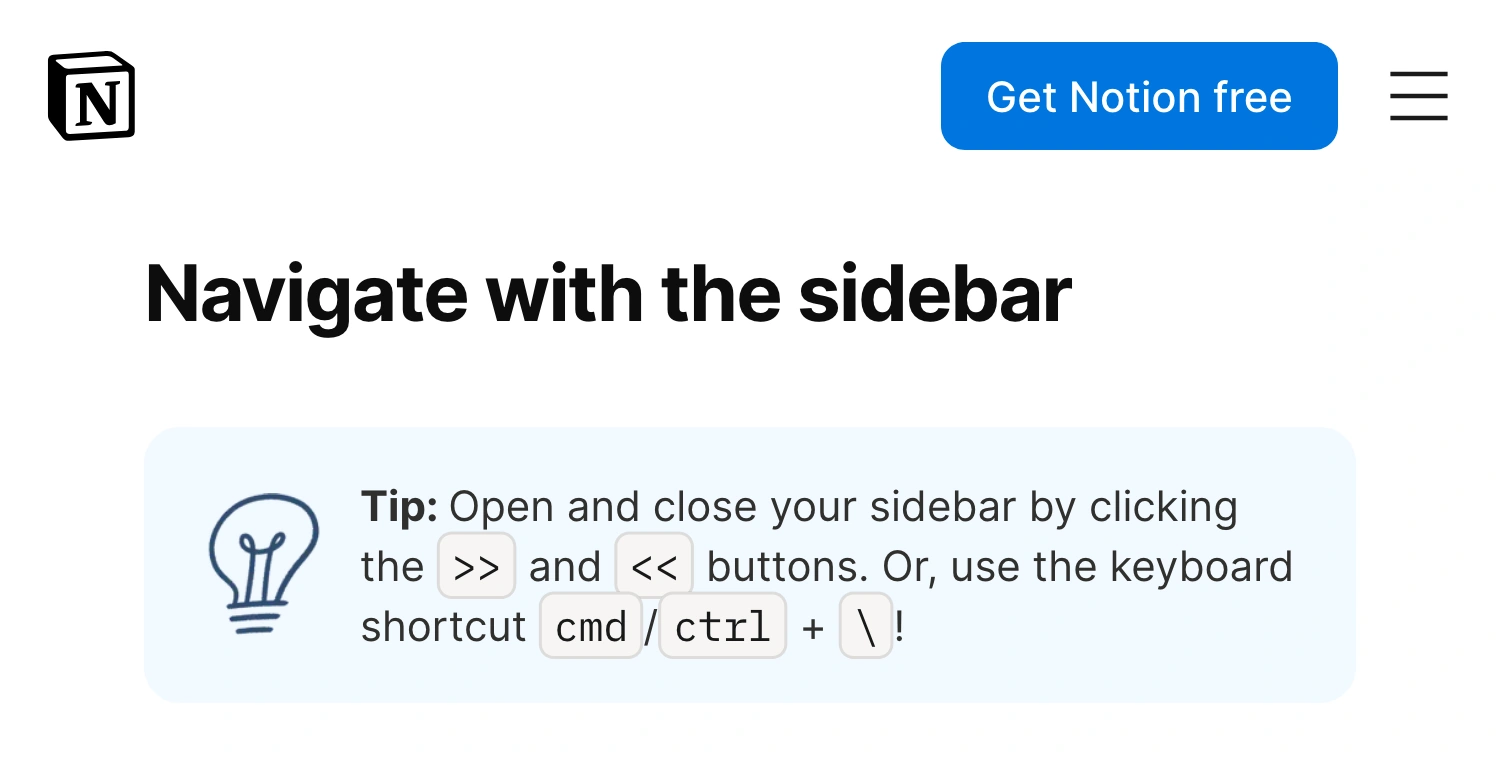
Notion Help Center, captured September 30, 2026. Cropped excerpts preserve the branded header, article title, and shortcut tip; intervening page content is omitted.
If you use Notion in a browser, sharing only that tab can keep unrelated browser chrome outside the selected source. It does not remove Notion’s own navigation from inside the page. The tab-sharing guide explains what that choice can and cannot isolate.
Test whether the sidebar returns on hover
A collapsed sidebar is a layout state. Notion’s team sidebar guide describes revealing it by hovering toward the upper-left area. Sidebar layouts have changed, so rehearse this behavior in the version you will present instead of assuming a hidden panel stays hidden.
Move the pointer toward the navigation area as you would when changing pages. If the pane returns, look at what appears: private page titles, recent work, workspace names, or another section you did not plan to show. Then move away and test your next navigation action.
A common weak rehearsal is to leave the pointer in the middle of the page and confirm that the first frame looks tidy. A more useful test includes the transition to page two and the moment you reach for search. These actions can create a different visible state even when the opening view is clean.
| Presentation task | Native starting point | Rehearsal that matters |
|---|---|---|
| Explain one page | Collapse the sidebar | Hover near navigation and scroll |
| Give a prepared talk | Use Presentation Mode if available | Advance slides and exit the mode |
| Navigate live between pages | Prepare an approved set of pages | Check search, side panels, and page transitions |
Avoid relying on an old CSS snippet or an extension’s screenshot as proof of current behavior. A layout modification can break after an update. The participant’s received view is the practical test of the setup you have today.
Use Notion’s native Presentation Mode for a prepared talk
As checked September 30, 2026, Notion lists Presentation Mode as a beta feature for Plus, Business, and Enterprise, available on desktop and web. If it is available in your workspace, it can turn a prepared page into a fullscreen presentation.
Add divider blocks between the sections you want as slides, then open the page’s ••• menu and choose Present. The page title and icon become the first slide. Notion documents Cmd+Option+P as the Mac shortcut.
Review the presentation before the call. Comments are hidden in this mode, while toggles remain interactive. Current limitations include inactive links and no speaker notes. Those constraints can change whether the mode suits a live walkthrough. If you need private notes, prepare a separate surface and follow the speaker-notes sharing checklist.
The exit deserves its own rehearsal: Escape or X returns to the normal page view. Stop the share first if that view contains material outside the talk. Do not let the audience discover the normal workspace layout at the same time you do.
If your plan does not offer the mode, you can still present an approved page with the sidebar collapsed. For a static discussion, an inspected export may be sufficient. Review the actual output before using it; do not assume that an export automatically removes everything sensitive.
Private page permissions do not hide your screen pixels
Notion’s sharing and permissions guide governs who can access pages through Notion. A meeting screen share sends a picture of the source you selected. These are separate boundaries: a title visible to you can be visible in that picture even if the participant cannot open the underlying page.
The same distinction applies when someone sees a private page name in your sidebar. They do not need document access to read text already present in the video. Collapsing that list changes its visibility; it does not change the page’s access rules.
Do not publish a private page to the web just to obtain a cleaner presentation layout. Prepare a page containing only approved material, or use an appropriate native presentation view. If attendees need access afterward, handle that sharing decision separately from the live call.
Use ScreenK9 when you need a controlled audience picture
ScreenK9 can help with a multi-app walkthrough where you need private working material locally while sharing one continuous audience view. It captures a selected display into a separate window and can filter ordinary apps or cover manually chosen regions.
For a predictable Notion sidebar area, a manual redaction region is an option when you need to navigate locally while keeping that area out of the audience picture:
- Arrange the Notion window in its final position on the selected display.
- Open the sidebar and place a manual region over the full area that must be hidden.
- Check ScreenK9 — Audience View while opening and closing the sidebar.
- Share ScreenK9 — Audience View as the meeting’s window source.
- Verify the participant view while repeating the planned navigation.
The region is fixed in the captured display’s coordinates. It does not follow Notion’s sidebar, identify private pages, or automatically detect secrets. Moving or resizing the window, widening the pane, or opening a search dialog elsewhere requires another check. If important content lands under the mask, stop and adjust the setup before continuing. The manual-region guide covers those tradeoffs.
Ordinary app rules also apply to all windows of that app. You cannot use them to show one Notion window while excluding another Notion window. For a single approved window, native window sharing is often the simpler choice. ScreenK9’s filtered picture only reaches the audience when the meeting shares its audience window, not the physical display.
Check the first click and the final exit
Before the real call, inspect the received share on a second device or with a trusted colleague. Collapse the sidebar, hover near navigation, change pages, open the controls you need, and test the presentation exit if you use that mode.
If a transition reveals an inappropriate title or panel, simplify the route or prepare safer content. Keep the window geometry stable when using a manual region. End the share before returning to private work. The aim is a repeatable presentation path whose changing states you have actually checked.